Apartment admin - Guest access
Apartments section in the app
As Apartment Admins are only present in residential sites, the Guest feature is strictly available with Residential sites.
The Apartments section is accessible only to Apartment Admins. Once a user is assigned to an apartment and given admin privileges, they will be able to see this section upon logging into the app with email and Password option.
Within this section, the user can view a list of all apartments they manage. If they are assigned to only one apartment, the detailed view of that apartment will be displayed immediately.


Create a visitor
Apartment Admins can create visitor access for the apartments they manage. Visitors can enter the building using credentials generated during the creation process, either as a PIN code or a QR code. If QR codes are not generated, it means the site or building is not configured to support them.
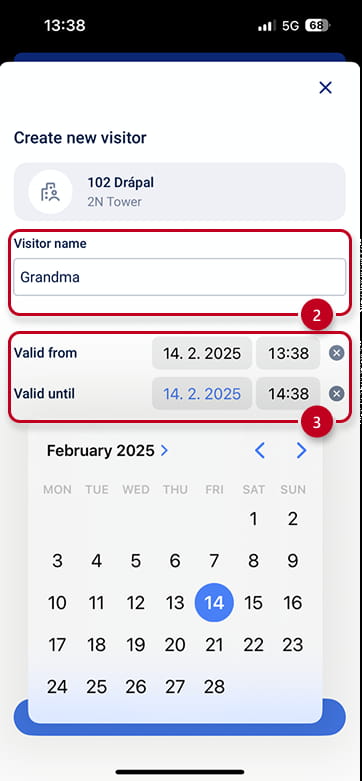
Creating a Visitor – Step by Step
- Click the "Create new visitor" button (1)

- Enter the visitor's name (2)
-
(Optional) Set the Valid From and Valid Until dates to define the access duration (3)
-
Click "save" to finalize the process (4)

Visitor detail screen
The Visitor details page provides an overview of all essential visitor information and useful actions. At a glance, you can see:
- The QR code and PIN used for access (or just the PIN, if QR codes are not enabled). (5)
- The visitor’s name and the building or location associated with the visitor. (6)
- The start and end dates of the visitor’s access validity. (7)

Available Actions
- Edit – Allows you to modify the visitor’s name or adjust the validity period of their credentials. (8)
- Delete – Initiates visitor deletion. After confirming the action, the visitor will be permanently removed. (9)
- Share – Opens the sharing menu, enabling you to share visitor access through any preferred communication channel (e.g., email, messaging apps). (10)
