Capture network traces in Sentrio
The steps in this article require using the web interface of a 2N device. Please follow this manual in case this is your first time using the web interface.
Network trace:
How to capture network traces on 2N Sentrio?
|
Buffer length warning Because the buffer for traces is limited, it is really necessary to start the trace right before you make the test call and then stop it before it reaches the maximum buffer size – 4096kB! |
Please enable the Extended SIP Logging to see the SIP, RTP packets
Please navigate through Calling- General settings - Enable the check box Exctended SIP Logging
Caution: If there is a video stream active during the trace, the files can grow large.
Local Packet Capturing - "Short" trace
The advantage of the local packet capturing is that it is automatically launched upon boot up so it is possible to download the trace, including already ended call, while you have to manually launch the remote packet capturing.
First of all, start the capture by clicking the "Start" button, make a call, and stop the capture by clicking the "Stop" button, then click the "Download" button to download the trace file (hiptrace.pcap) and send it to us.

Remote Packet Capturing - "Long" trace
Similarly, you can use remote packet capturing. This has no limit so it can be used for longer tests. Start the capture by clicking the "Start" button, choosing how long it should be traced for. Once the time limit is reached or stopped manually by the "Stop" button, the trace will be downloaded automatically.

Send us the description of the used LAN topology, NATs, IP addresses, devices you're trying to integrate with, etc. that might help in solving the issue.
Local Syslog
You can either set up a Syslog server or use the local Syslog, which can run up to 7 days (it can be interrupted at will). If the local Syslog is too large, the beginning might be overwritten.
Local Syslog is not suitable for troubleshooting sudden restarts as some of the messages might not be saved before the reboot. We recommend using a Syslog server for situations like these.

The controls are the same as with the network trace.
Syslog server
The 2N Sentrio allows you to send system messages to the Syslog server including relevant information on the device states and processes for recording, analysis, and audit. It is unnecessary to configure this service for common intercom operations.
The advantage of the external Syslog is that it captures logs even around the reboot (good for troubleshooting issues with sudden restarts, etc.).
Set the Server Address In our example, we use 192.168.51.210 - IP Address of a PC where the Syslog server is installed (such as Wireshark or Syslog Watcher)
Using SyslogWatcher - download trial here
Start the server - it will take a few seconds until you see any messages
Export - press this button to export messages to file
Export Settings - Choose the time from/to according to what 2N Tech support demands (1h, 24h)
Custom files (CSV/XML/TXT/JSON/etc) - type of file
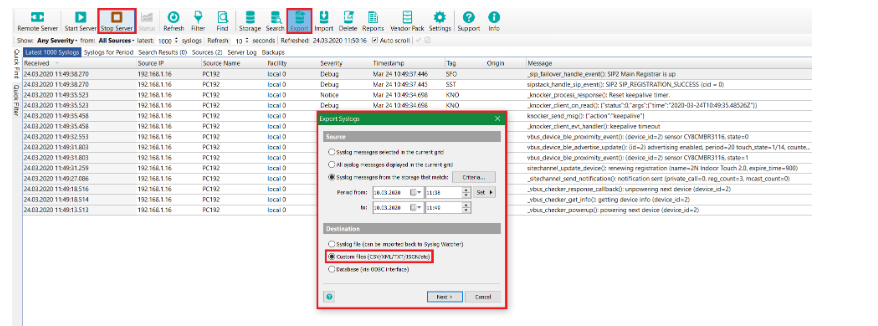
Export folder - choose the path to save the file
Filename - the name of the file (in default it is the date of Syslog capturing) -> export the file with .txt suffix and send it to us
