My2N app access - How to set it up
To be able to use BT in My2n App, you have 2 different ways to pair your mobile with another 2N intercom or another 2N Access Unit. Online Pairing and Offline Pairing.
We do recommend using cloud pairing exclusively as you can then easily manage all credential types for all users in My2N at one place. But you can use Offline pairing, for example, if some users have some old mobiles (Android 8 or 9 , or iOS 15). However, Offline Pairing cannot be done using Access Commander .
For a brand new site in My2N - Start with online pairing first! Once you have your 2N devices in My2N and first cloud access is assigned, you can also create offline paired credentials on the device itself - you must create a separate user in the device directory for that. If you create offline paired credential first, after enabling the cloud access, already created offline credentials will stop working.
For already running My2N site - If your site in My2N already uses offline paired credentials which you have created on the devices by enabling online pairing (enable My2N app access for at least 1 user) all offline paired credentials will be revoked. We recommend switching those offline paired users to online pairing. If not possible, you must create offline paired access for those users again.
| Minimum required iOS / Android version | |||
| Android version | My2n App version | iOS version | My2n App version |
|---|---|---|---|
| 10 and higher* | 3.0.0 and higher | iOS 16 and higher* |
3.0.0 and higher |
* Using Android 8 or 9 , or iOS 15 will partially work, advanced features will not be available.
Functions
Bluetooth is used for exchanging information between two devices for a short distance. This identification is provided by a unique code of the end devices that contains this technolgy, like almost every smartphone these days. There is a communication between the smartphone and 2N® IP Verso intercom (or 2N Access Unit) equipped with a Bluetooth module. This communication is secure and based on public and private keys that are exchanged (we use RSA-1028 asymmetric encryption and AES-128 symmetric encryption).
Requirement
2N IP Verso with firmware version 2.33 or higher
Bluetooth module (order no. 9155046) connected to 2N® IP Verso (or to 2N Access Unit) via internal Verso bus cable.
My2n App app version 3.0.0 for iOS and Android
Bluetooth enabled on the phone
Location enabled on phone (for Android only)
Step by step guide - How to setup Online Pairing between My2n App and 2N IP Intercom
1) On an existing my2n site, create an Access Group:
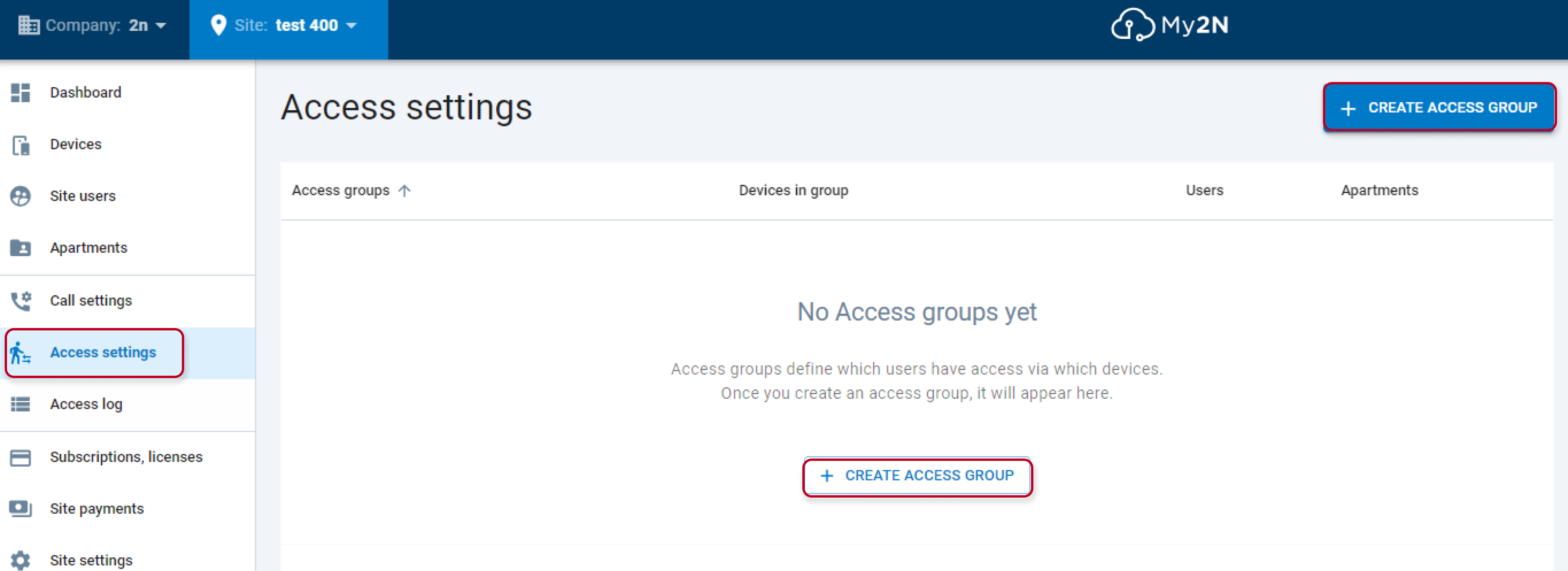
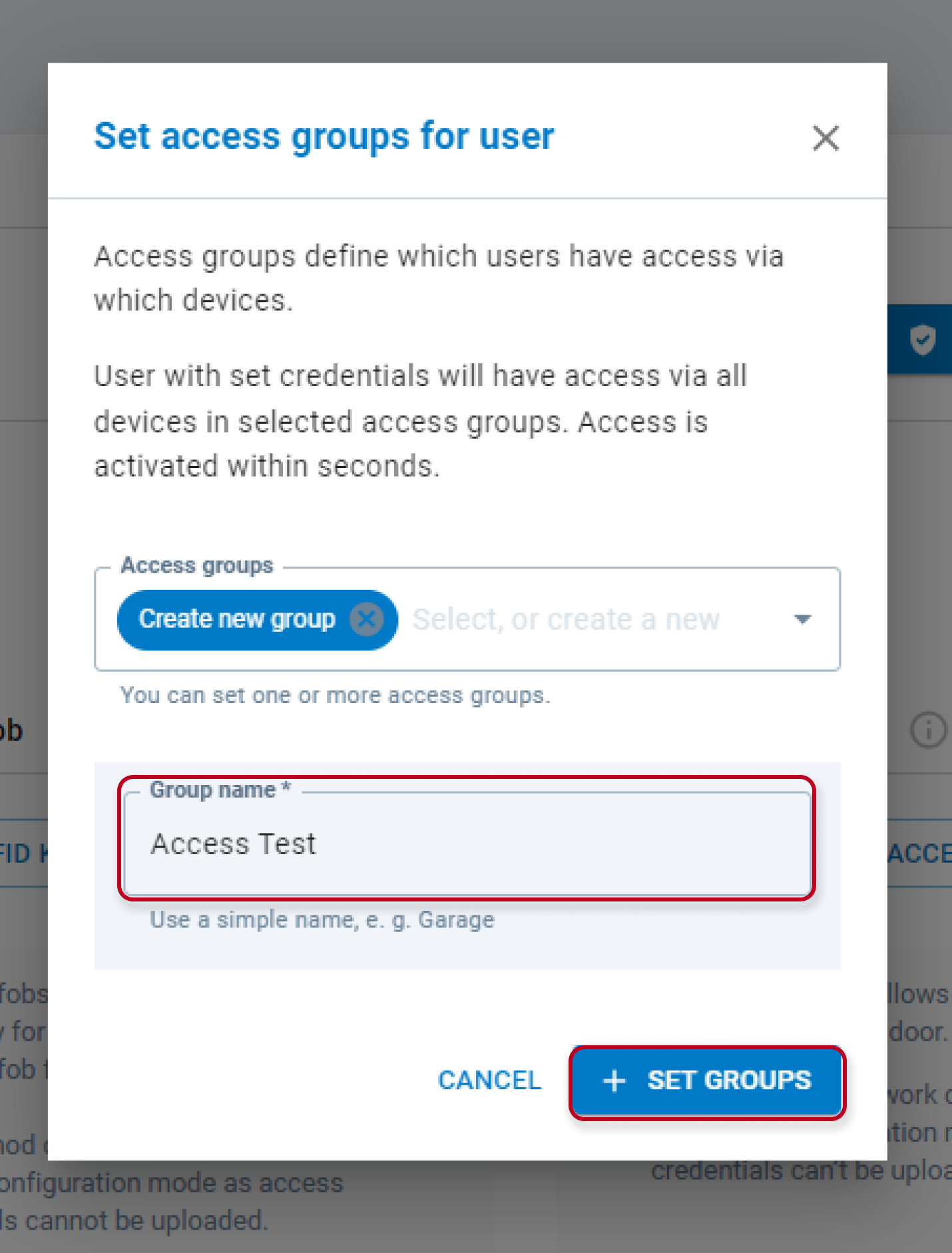
And then edit it with device, user and eventually apartment :
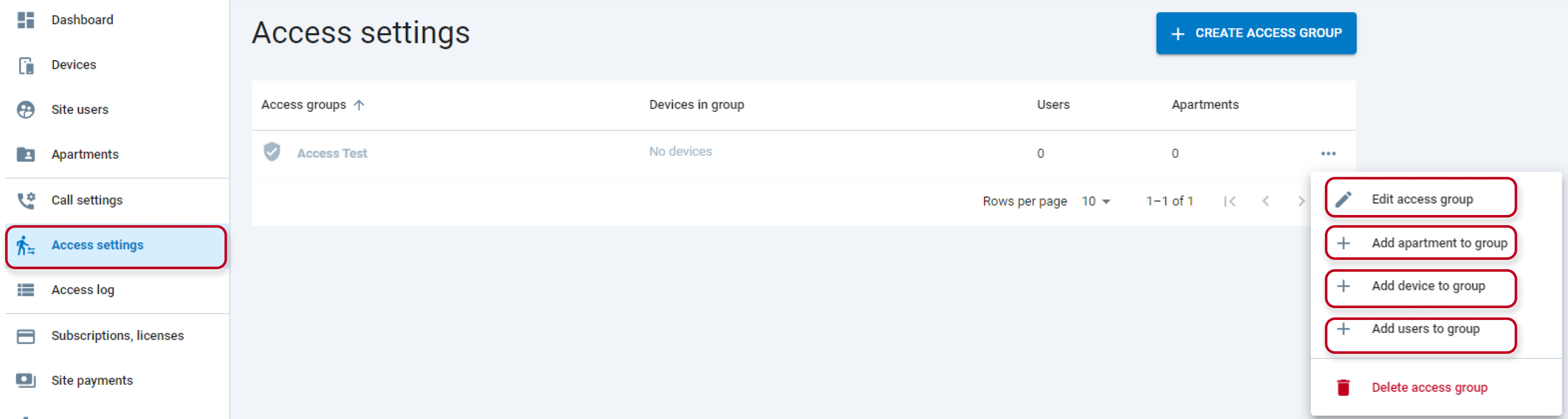
Add all devices, the users will have access to with the Access group:
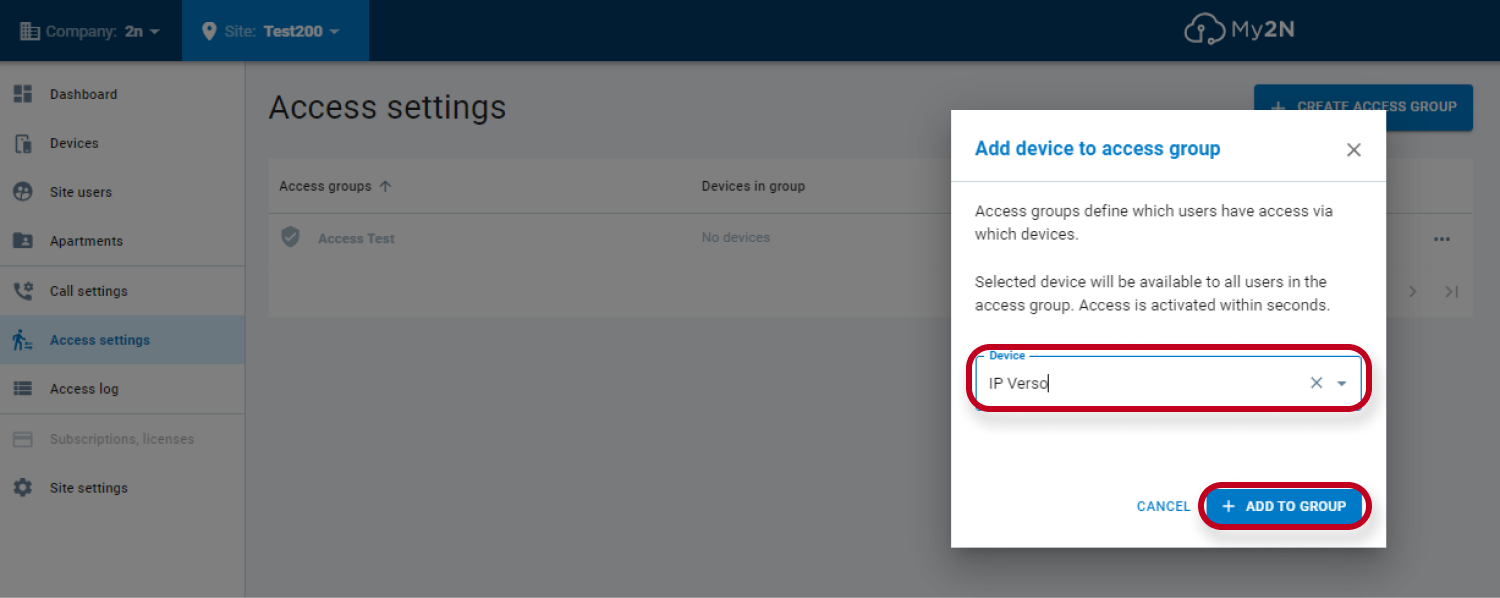
Add all users, the Access group allows using the previously added devices:
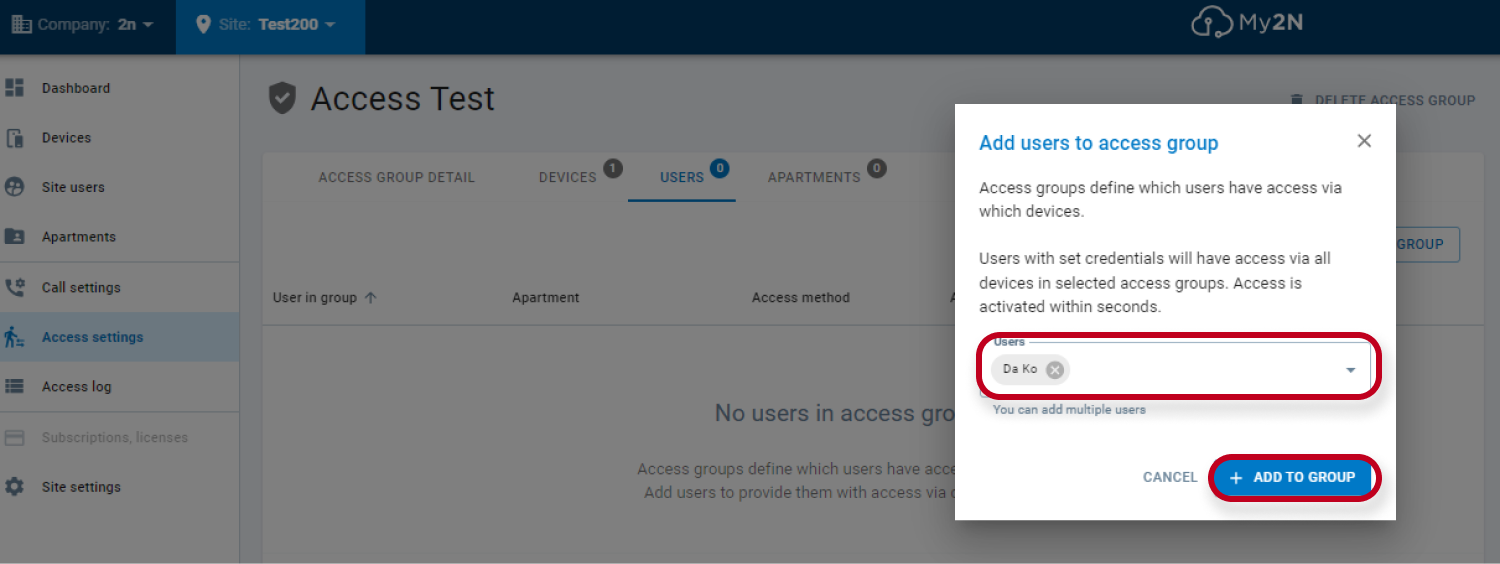
You can, then, add apartment the same way. It will be mandatory in case of residential model site.
2) After, you will need to enable My2n App access for the user:
But then you will see under site users that the option is greyed out and crossed:
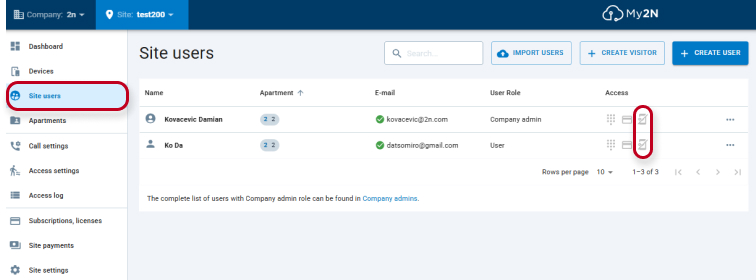
So you will need to first allow it. For that, you can either directly click on the crossed icon, then choose ACCESS section and CHANGE CONFIGURATION:
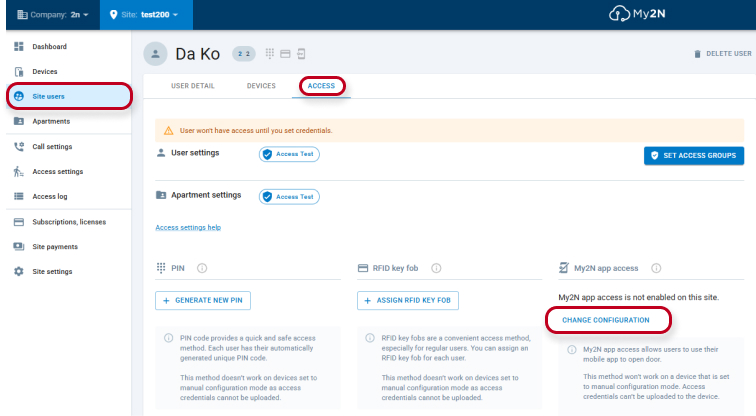
And you will be redirected automatically to the Site settings section. Or you can directly go to the Site settings section and check the Manage My2N app section checkbox:
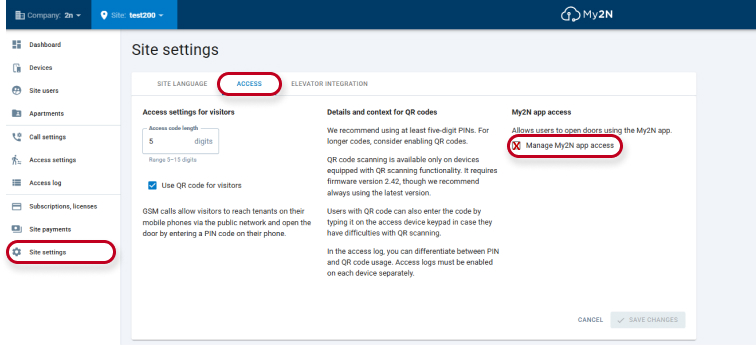
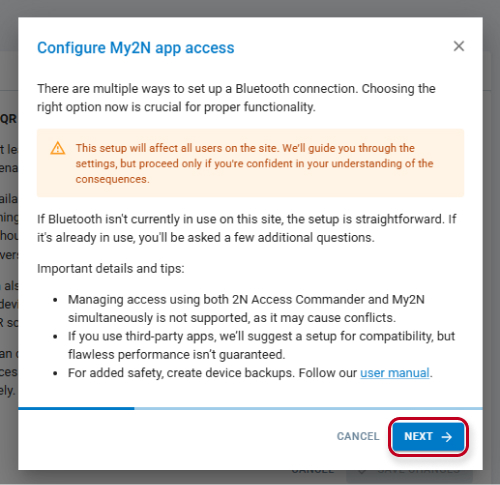
You will see new windows with several warnings, asking you to choose the best option for BT connection, and claiming that managing access using both 2N Access Commander and My2N simulteanously is not a supported scenario.
Therefore, if you think that this is the best option for you, all can decide to continue by hitting NEXT :
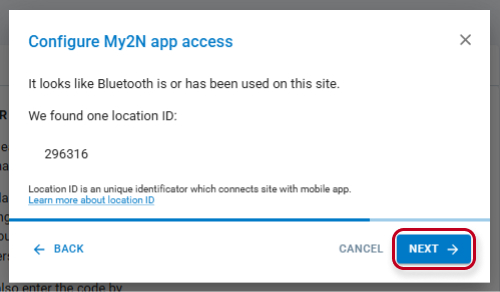
You will see a new window, showing you if one or more location IDs that have already been used in the site, or not. If you do see a location ID with format acxxxxxxx , be aware that you are certainly using Access Commander, at least were using Access Commander in past. Then, you can decide to go forward by hitting NEXT button:
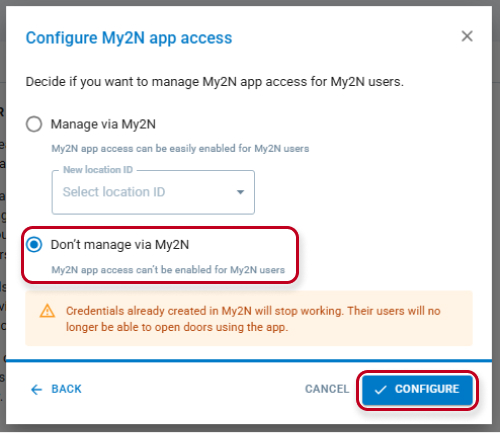
The last chance for you to change your mind and decide to keep working, eventually with Access Commander regarding BT access, is then offered to you by default. In this case just hit CONFIGURE:
If you finaly decide to want to use My2n Online pairing for BT access, choose Manage via My2N:
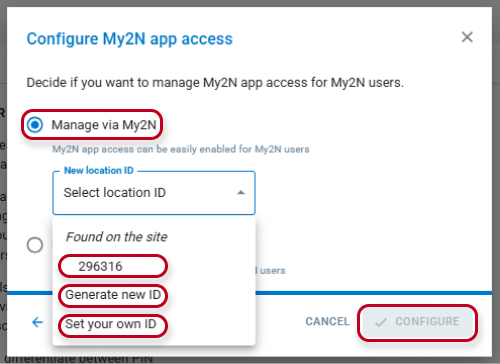
If you finally decide to want to use My2N Online pairing for BT access, choose Manage via My2N.
If you recognize that an already existing location ID is the one created when you offline paired a mobile with a physical device (Not Thru ACOM), you can choose it and the user using offline pairing will be able to have the Offline pairing working.
Or you can choose to generate one randomly or set your own ID.
Or you can generate a new ID for online pairing and afterward offline-pair a mobile directly with the intercom or the Access Unit, and it will work. Then hit on CONFIGURE.
Now, the My2n App Access icon is no longer crossed and you can enable it directly by hitting directly the new icon or by using the "..."
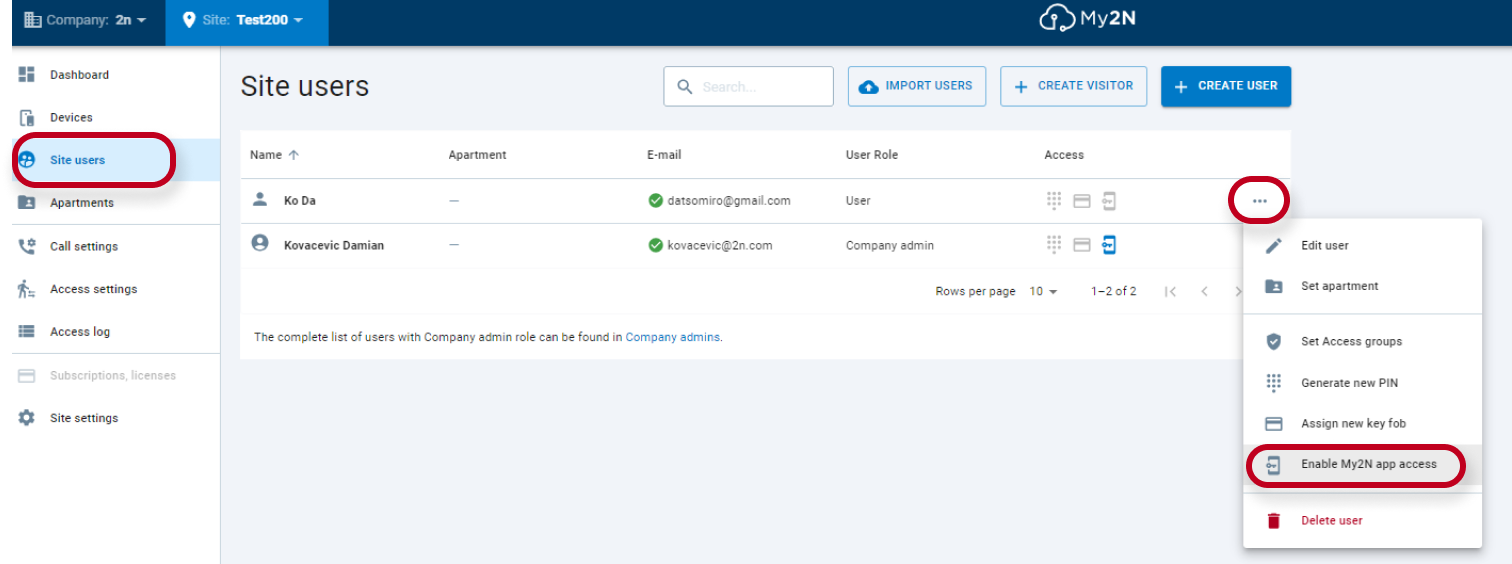
3) Once this done, the user, if he has the My2n App installed on his mobile with the required Android or iOS version, will see appear on his App the below feature that he will have to activate:
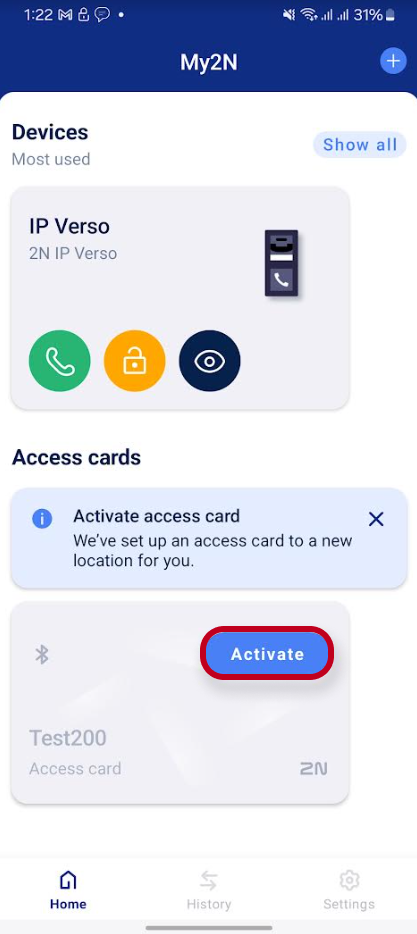
4) The app will start searching for devices in proximity.
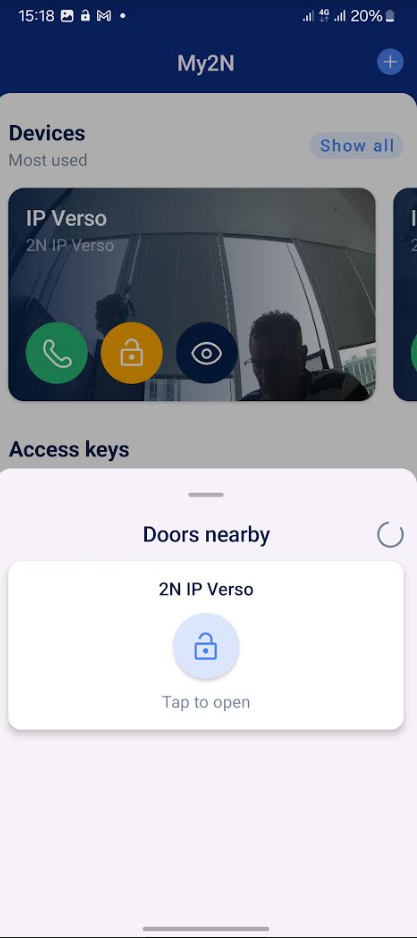
From now, If you are using Online Pairing, you can see all devices in proximity that you are entitled to use.
Here is the link for How to set up Offline Pairing