
-
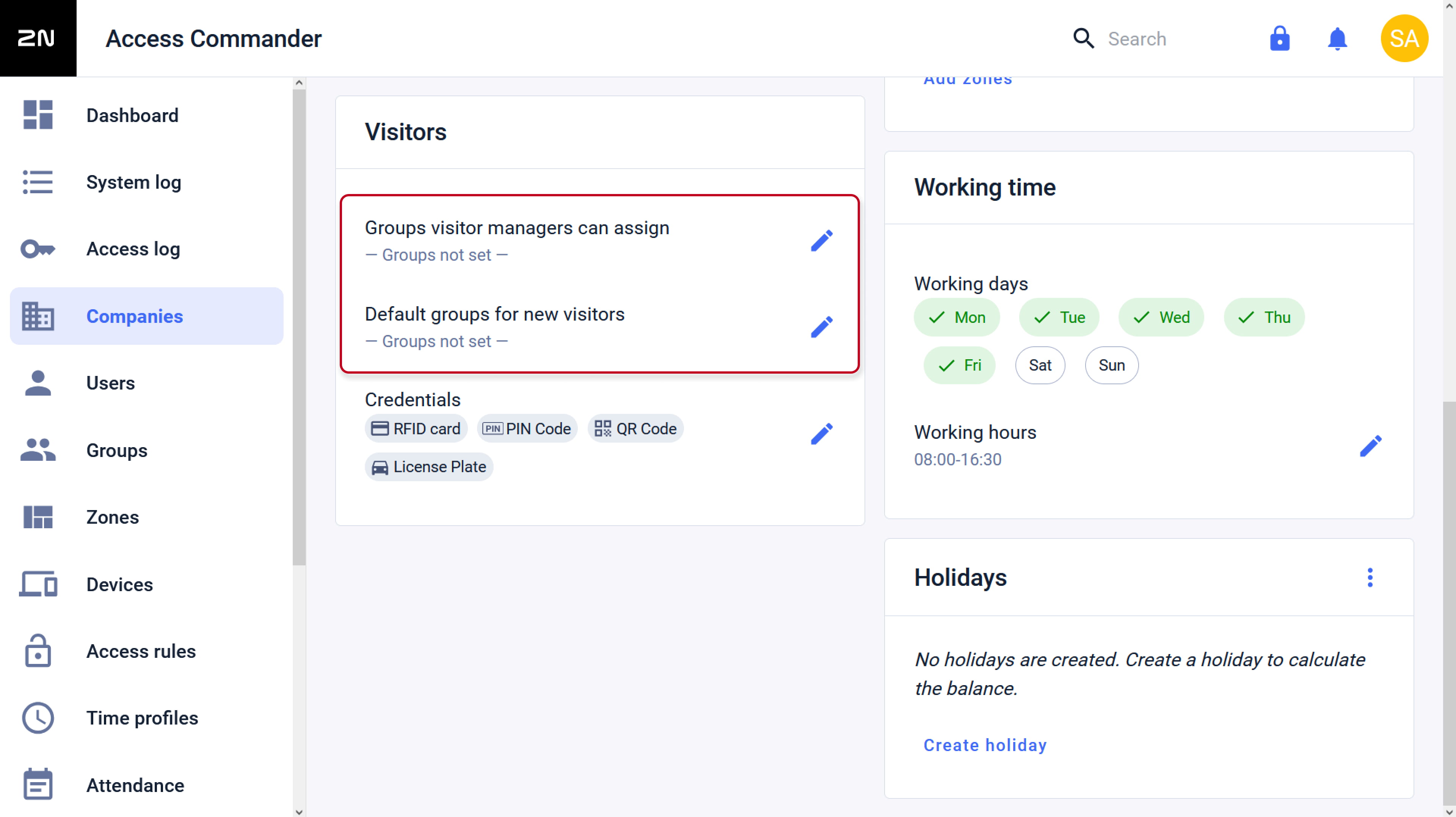
- Select groups assignable to new visitors and the default group which will be pre-defined.
Select only those groups assigned to zones (with right devices for visitors access) using access rules.
- Select groups assignable to new visitors and the default group which will be pre-defined.
-
- Select credentials you would like to create for the new visitors and possibly send by e-mail.
To use simplified user interface, please select only QR Code.
- Select credentials you would like to create for the new visitors and possibly send by e-mail.


-
Template for sending e-mails with accesses to visitors
- To send QR codes by e-mail, please be sure you have configured SMTP server.
More information in this article: How to set SMTP and notifications - In the company details - E-MAILS tab, it is possible to change the colours and text
that will be displayed in the e-mail sent to the visitors.
- To send QR codes by e-mail, please be sure you have configured SMTP server.


-
Granting the right to manage visits
- If multiple visitor managers are in the same company, they can see and influence each other's visitors.
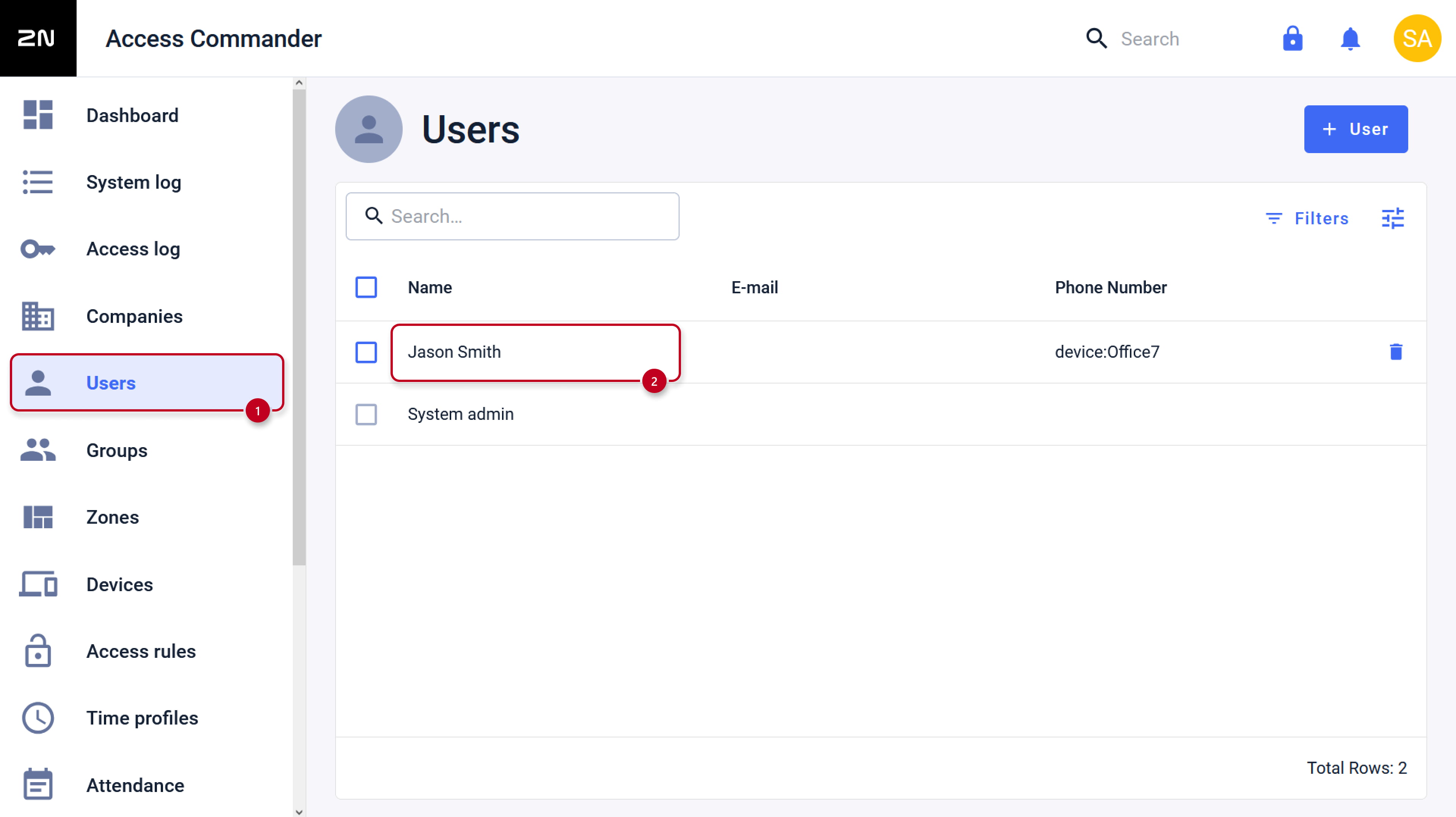
To prevent it, you would need to create different companies for each of the visitor managers. - Go to section Users, open existing user or create a new one in the correct company.
- If multiple visitor managers are in the same company, they can see and influence each other's visitors.
-
- Fill in an e-mail address to inform the user about login and to let him recover the password if needed.
Please be sure you have configured SMTP server.
More information in this article: How to set SMTP and notifications
- Fill in an e-mail address to inform the user about login and to let him recover the password if needed.

-
- Set login name and password to the user.


-
- Add Visitor manager role to the user, choose the company to which the user can assign visits to.


-
- To use simplified user interface, activate it.
It can be used with the Visitor manager role exclusively,
so it is no longer possible to add additional roles to such user.
The simplified user interface is used for easy management of visits, for example from a smartphone,
and is designed only for granting an access to visitors using QR codes.
- To use simplified user interface, activate it.


Visitor manager in action
- Use your mobile device or computer to login as the visitor manager.
During first login, changing password is required.
Simplified user interface has been optimized for Google Chrome browser.
Elsewhere some functions can be unavailable.

- After logging in, there is a list of planned / active / ended visits and you can add a new visitor.
Just fill in the name and validity period of the visit.

- QR code has been automatically generated.
You can send it via e-mail to the visitor (you will be able to fill in the e-mail address) or share via other application.
Please be sure you have configured SMTP server.
More information in this article: How to set SMTP and notifications
If you don´t see the Share button, you are probably not using Google Chrome web browser.

- You can generate a new QR code by going to the three dots menu.

- In case of premature arrival or departure of the visitor,
it is possible to start or end the visit manually before its expiration.
