Settings
Press the |  |

Display
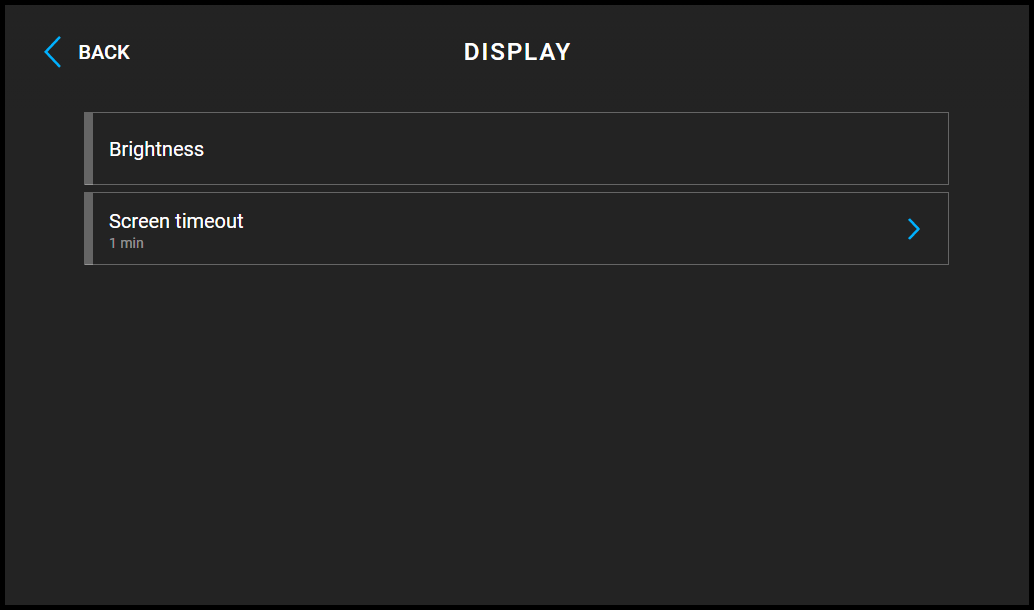 |
Brightness – sets the value of display backlighting.
Screen timeout – timeout after which the device automatically goes into Sleep Mode if there is no activity.
Screen lock – switches the screen lock or also the so-called parental lock on/off.
With the device lock on, enter the PIN code to enable the screen lock. Enter the same PIN code to disable the screen lock.
Sound
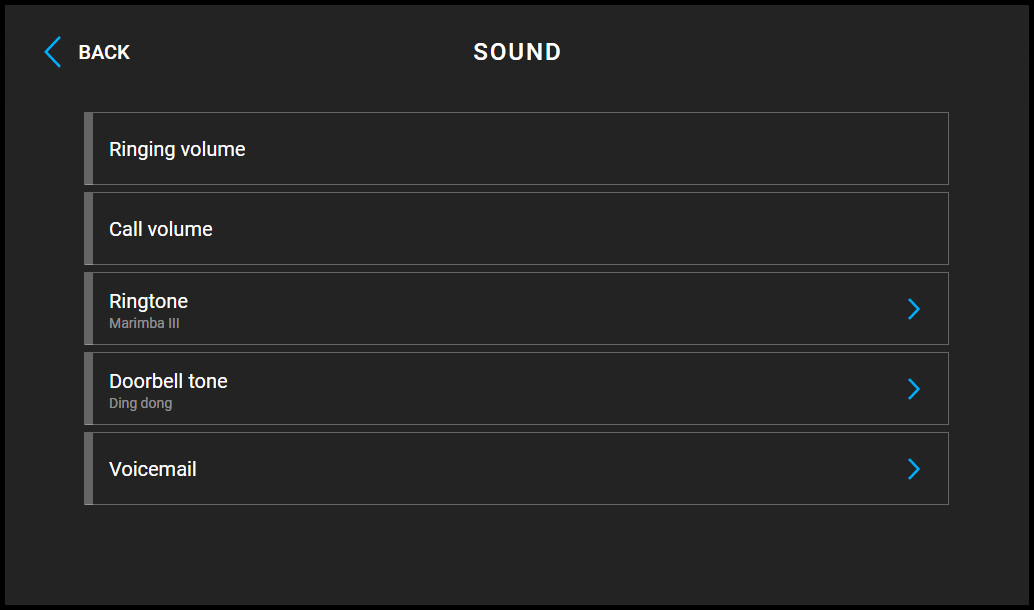
Ringtone Volume – set the incoming call ringtone volume.
Call Volume – set the phone call volume.
Ringtone – sets the ringtone for incoming calls on the device.
Doorbell Tone – set the tone to be played when the doorbell is used.
Voicemail – set the Voicemail modes directly on the device. This function helps leave a message to be played to the caller if the device fails to answer their incoming call. The caller can record a message to be stored in the device Voicemail and played back on the device later. This settings is particularly useful in working or personal environments where it is important to keep communication even if the user is absent.
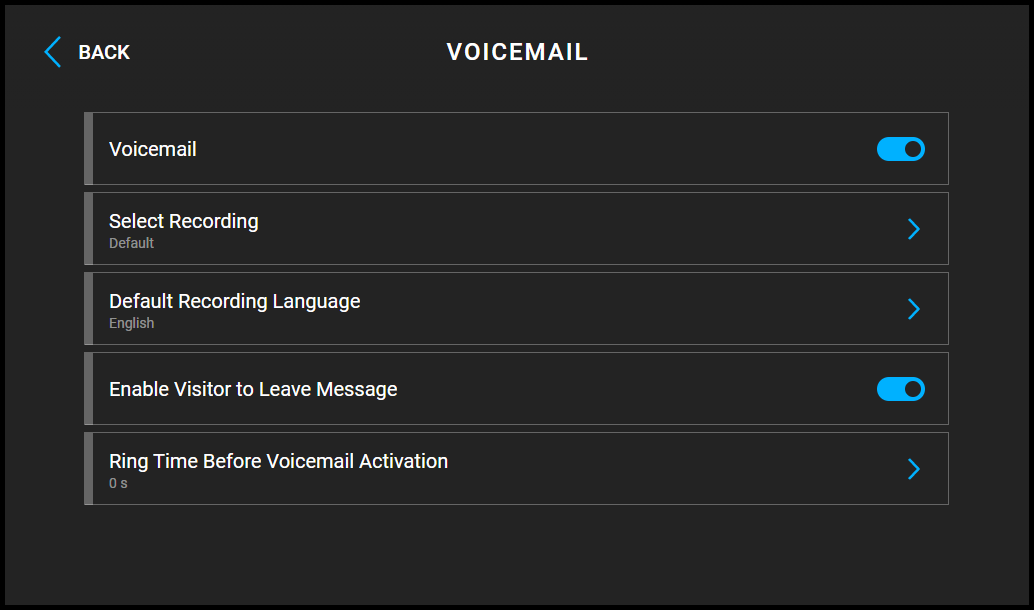 |
Select Recording – set the Away message to be played to the calling user. You can record a new message through a microphone in this setting.
Default Recording Language – set the language for the default recording.
Enable Leaving Message – allow the caller to leave a message to be stored in the device. When the Away message has been played, a tone is generated and recording starts for up to 20 s. The message includes both audio and video depending on the capacities of the calling device. End the call to terminate the recording earlier. If this function is disabled, the out-of-office message is only played and the call is ended afterwards.
Voicemail Activation Timeout – set the incoming call ringing timeout after which the Away message is played.
Date and Time
 |
Automatic date and time – activates a mode in which the date and time will be taken from the network.
Set Time Zone – set the time zone for your installation site to define time shifts and summer/winter time transitions.
Set date – used to set the date manually.
Set time – used to set time manually.
Time Format – set the time format to be displayed.
Date Format – set the date format to be displayed.
Language
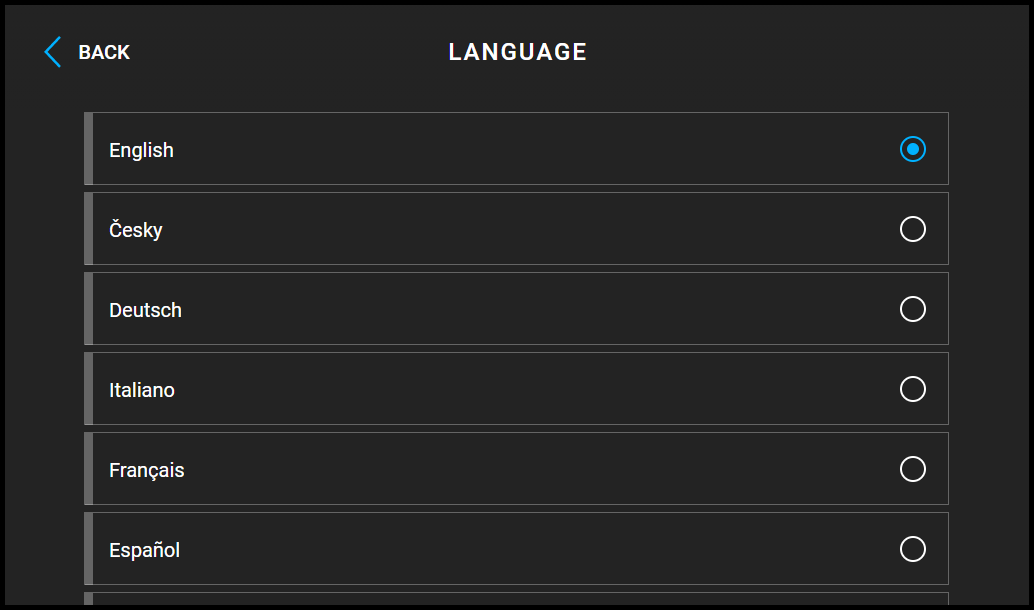 |
Language – set the language for the texts to be displayed. Choose one of the eight pre-defined languages.
Custom Language – set the language for the texts to be displayed from an uploaded language file of the user localization.
Do Not Disturb Mode
Do Not Disturb Mode – switch the Do Not Disturb mode on/off. This allows you to switch off the incoming call ringtone while this mode is active. By default, the DND mode does not apply to doorbell notifications, i.e. the incoming ringtone is off and the doorbell ringtone is on. Change this setting via the device web configuration interface in > DND Mode for Doorbell Button.
Reject Calls in DND Mode – with this function activated, the device rejects calls in the Do Not Disturb mode. The function can be used for immediate call forwarding at absence to a mobile phone call, for example.
Mute Doorbell in DND Mode – with this function activated, the device does not ring when the doorbell button is pressed in the DND mode.
Weather
 |
Display weather – displays or hides information about the current weather on the home screen.
Location – set the device location for weather forecast. Press the Home page weather area shortly to set the location in the Weather / Settings section, which will be displayed automatically. Use the keypad to enter the location name with diacritic marks. Prague is the default location value.
Units – allows you to set display in metric (°C) or imperial (°F) units.
Advanced Settings
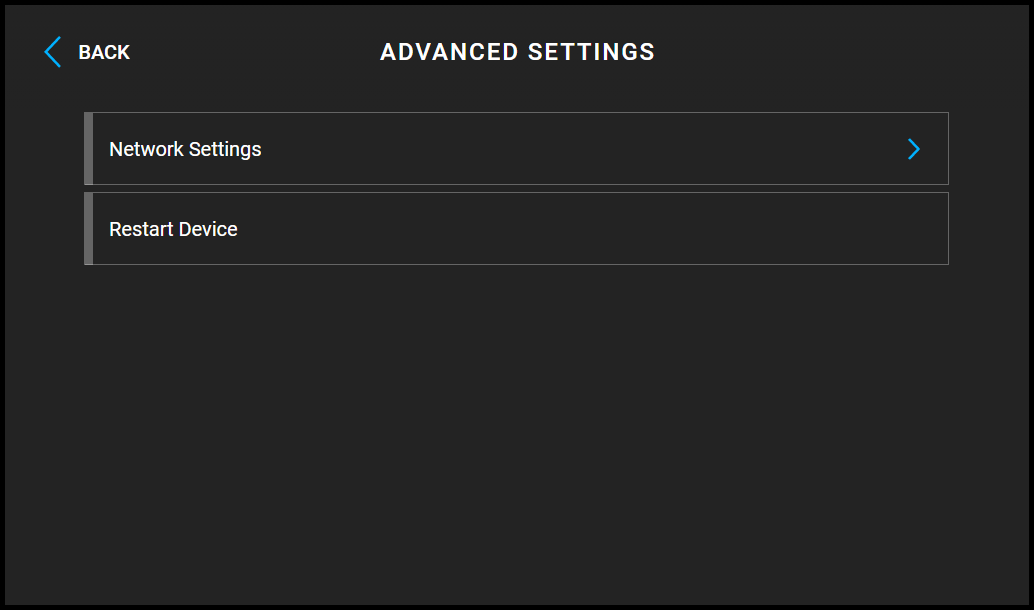
Advanced settings are accessible without a code by default. After changing the default password for the web configuration interface, you have to enter a code for access. Set the code for accessing advanced settings in the web configuration interface ( > Enable Access to Advanced Settings).
Network Settings
Note
You can also make network settings in the web configuration interface in
Use DHCP Server – enable automatic obtaining of the IP address from the LAN DHCP server. If the DHCP server is unavailable or otherwise inaccessible in your LAN, use the manual network settings.
Static IP Address setting – set the static IP address, network mask and default gateway. The parameters are used if the Use DHCP Server parameter is disabled.
Required Port Mode – set the LAN port mode to be preferred (Automatic or Half Duplex – 10 Mbps). The bit rate is reduced to 10 Mbps in case the available LAN cabling is unreliable for a 100 Mbps traffic.
Advertised modes – select the modes to be advertised in auto-negotiation.
Restart Device
The process takes about 30 s. Once restart is completed and the device is assigned its IP address, the login window is displayed automatically.
About
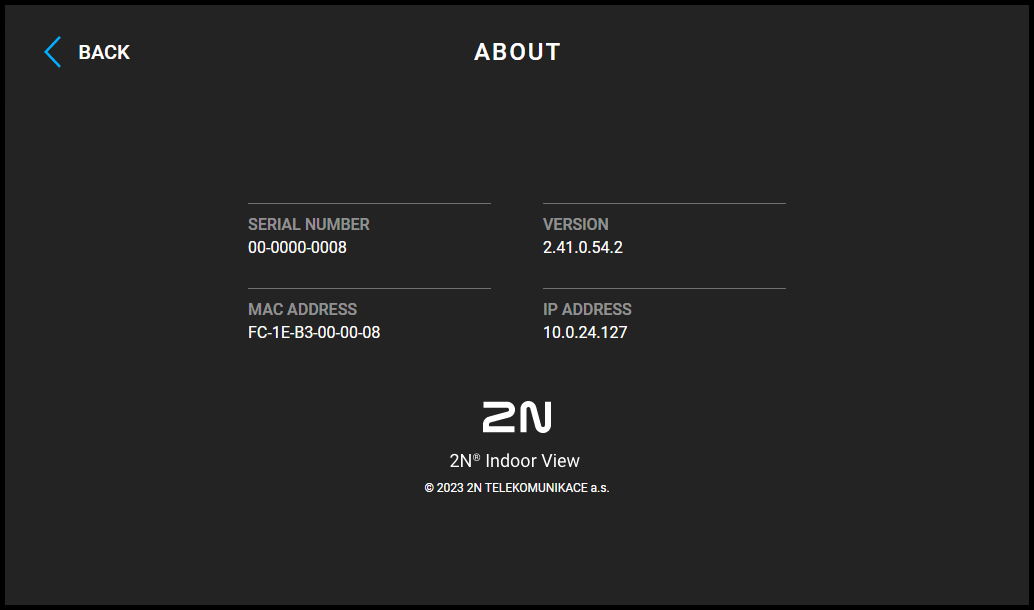
This section provides basic information on the device (serial number, MAC address, FVW version, IP address etc.).