IP Address Retrieval
To retrieve the device IP address, take the following steps:
IP Address Retrieval Using 2N IP Utility
The 2N IP Utility application helps find the 2N device IP address in the LAN. Download 2N IP Utility from the 2N.com website. Make sure that Microsoft .NET Framework 4.7.2 is installed for successful app installation.
Run the 2N IP Utility installer.
The Installation Wizard will help you with the installation.
Having installed 2N IP Utility, start the application using the Microsoft Windows Start menu.
Once started, the application begins to automatically search the LAN for all the 2N and AXIS devices which have been DHCP/statically assigned IP addresses. These devices are then shown in a table.
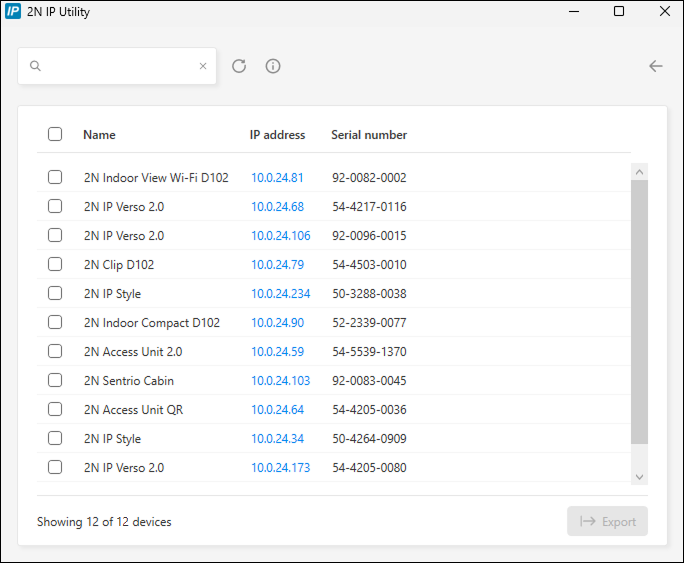
Select the device to be configured and left-click it. This opens the right-hand part of the web configuration interface window.
Tip
Access to the web configuration interface is also possible via the Open in external browser button, which opens the interface in a separate browser window.
Click a device in the list to display detailed information. Click the IP settings button to change the IP address by entering the required static IP address or activating DHCP.
The application also allows you to export selected devices into a CSV file. First select a device by ticking the boxes in the list, then use the Export button that appears at the bottom of the window. The exported file shall include the names, IP addresses and serial numbers of the selected devices.
The default login data are:
Username: Admin
Password: 2n
It is necessary to change the password immediately upon the first login.
Tip
It is recommended that a password is used that is difficult to break. It is not recommended that names, places or things, especially those closely related to the user, are used in the password.
For increased password security, it is recommended that:
the random password generator is used,
the password length is 12 characters at least,
various characters from different character sets are combined (small/capital letters, digits, special characters, etc.).
IP Address Retrieval Using Speed Dial Button
Take the following steps to retrieve the 2N IP Verso 2.0 IP address:
Connect the device to the power supply (if connected, disconnect and reconnect it).
Press the Speed dial button 5 times on the main unit.
The device reads its IP address.
Note
If the address is 0.0.0.0, it means that the device has not obtained the IP address from the DHCP server.
Press the button sequence within 30 seconds after the sound signal for security reasons. Up to 2 s intervals are allowed between the presses.
IP Address Retrieval with CONTROL Button
Connect the device to the power supply (if connected, disconnect and reconnect it).
Wait for the device to start up completely.
Backlight turning on indicates a complete start-up.
Press and hold the CONTROL button.
Gradually wait for the following signals:
one beep

Release the CONTROL button.
The device announces the current IP address via the speaker automatically.
Note
Remember to press the CONTROL button within 30 seconds after the device starts up.
Release the button within 3 seconds after the appropriate tones are heard. If you release the button outside this time interval, the process will be interrupted and have to be repeated from the beginning.