Device Lock
The device is intended for use in emergency situations only. To prevent accidental or unauthorized use, it is recommended that the device is locked. Possible ways to unlock your device:
| Figure 1. Device Unlocking with Code 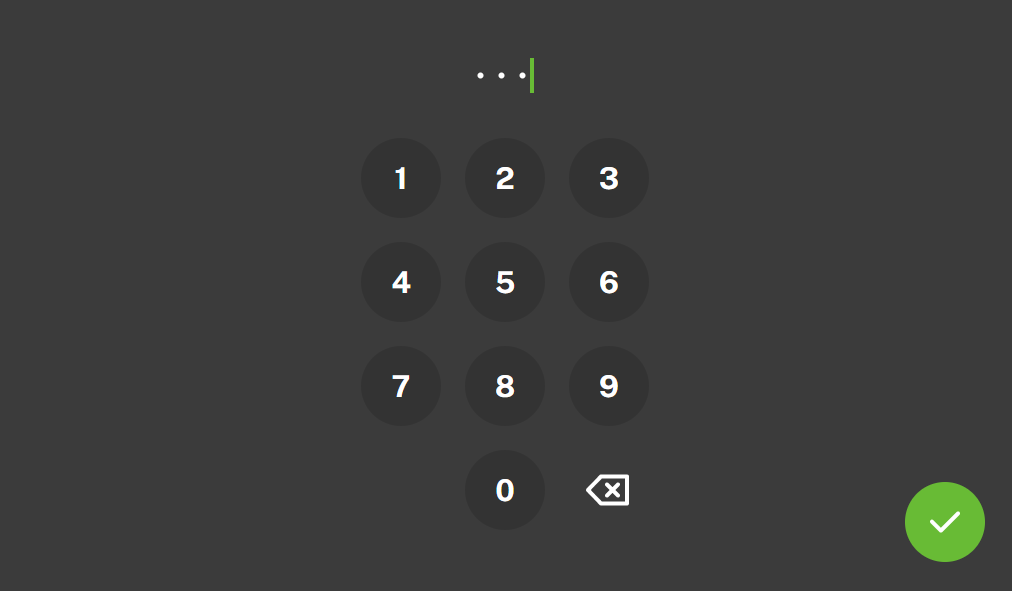 |
Note
If any elevators are in the emergency / rescue mode after unlocking the device, the option to send a technician arrival message (TechnicianArrival) will appear. You need to confirm sending the message. The message is then sent to the devices of all the elevators that are in the emergency / rescue mode.
Possible actions | Performance | Action result |
|---|---|---|
Unlocking device with a code | Wake up the display, enter the code and confirm. | The device is unlocked and you can go to other operational statuses and perform other actions. After three incorrect code entering attempts, you must wait 60 seconds before trying again. |
Device Unlocking with Input | Activate external input | The device is unlocked and you can go to other operational statuses and perform other actions. |
Device unlock settings
Set the device unlocking activation and method in the 2N Sentrio Lobby web configuration interface.
Connect the external input to the connector on the 2N Sentrio Lobby backside, see Component Layout.
Go to .
Enable Unlock device with input.
By default, the device is locked, the device unlocks when the input is switched on. If you want to choose the opposite logic, enable Inverted unlock input in .
Go to .
Enable Unlock device with code.
Set the numeric code in Unlock code to be entered on the 2N Sentrio Lobby display.
Note
If both the unlocking methods are active, you can use any of them to unlock your device.