Attendance Settings
Access Commander helps you monitor user attendance. The user entry/exit times are recorded in the Attendance mode.
FREE
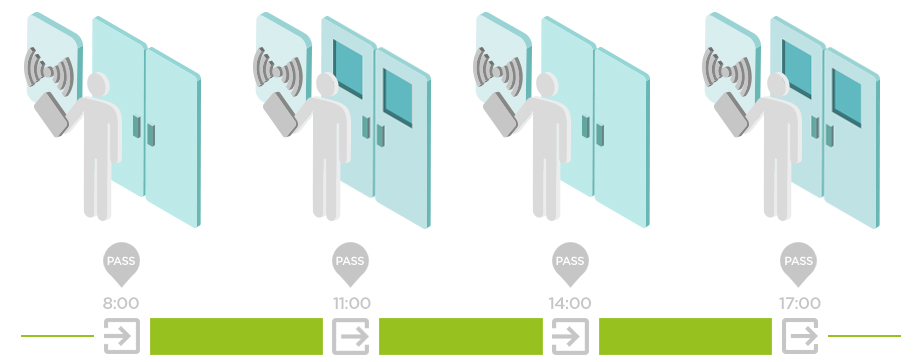
Arrivals/departures are recorded by the first and last authentications of the user on any device in one day The Presence module is disabled in this mode.
IN-OUT
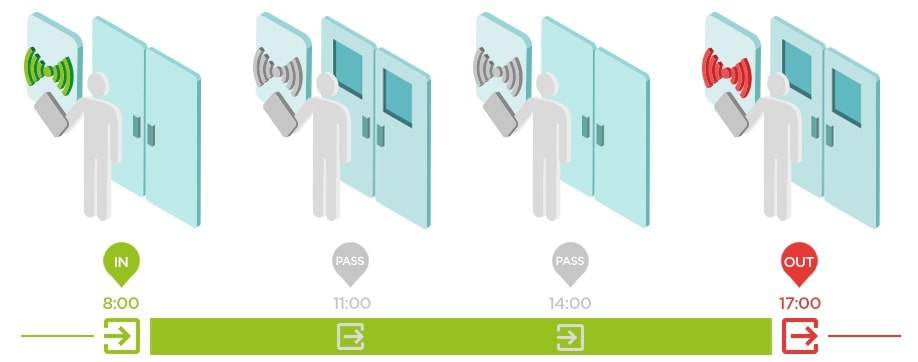
Make sure that the device is set to enter and exit the area for a proper function.
IN-OUT for All Devices
This mode allows Presence to be monitored. Arrivals are recorded on the entry devices, departures are recorded on the exit devices. Movement across zones is not registered as arrival/departure.
IN-OUT for Selected Devices
This mode allows Presence to be monitored. Arrivals and departures are recorded on selected devices that are set as entry or exit. Arrivals and departures are only registered on these selected devices. Thus, arrival/departure recording can only be set for the main entrance of the building, for example.
Setting Device Access Points
You can logically divide each device into two access points - arrival and departure. Each access point represents a passage in one direction and determines whether the device user enters or leaves the zone. One access point can be controlled by one or more device modules. All the assigned modules then manage the passageways in the direction of the specific access point. The access points are used especially where a device is on the boundary of two zones and the direction of movement between them needs to be accurately recorded (for anti-passback, for example).
In addition, access points help monitor the users in the Presence module. Also, access points are used for monitoring entries/exits in Area restrictions.
Note
The access points are referred to as Arrival and Departure in the web configuration interface of each device. Go to to set them up.
Go to Zones in Access Commander.
Press
 in the right-hand upper corner and enable the use of access points.
Enter the web configuration of the selected device.
Tip
Click
in the list on the Devices page to enter the web configuration interface.Go to .
Go to Zones in Access Commander.
A dialog box opens with a list of available access managing modules.
Drag and drop the modules into groups according to the direction they are supposed to provide.
Tip
Click
 to locate a specific module. The module triggers a visual or acoustic signal depending on its capabilities.