Factory reset of the 2N Access Commander Box
2N Access Commander Box is a fully plug and play solution with pre-installed software 2N Access Commander on a mini-pc. You don’t need to arrange separate server host hardware or access to an existing server for installation. Now we will look on how to proceed a factory reset of this product.
Please note, resetting will erase all user data (users, devices, logs, other settings and licences), so it is necessary to backup all user settings before you start.
2N Access Commander - Backup and restore of settings
Prerequisites
- Hardware distribution of 2N Access Commander
- 2N Access Commander Box, order no. 91379030

- or 2N Access Commander Box 2.0, order no. 1120120E / 1120120GB / 1120120US

- 2N Access Commander Box, order no. 91379030
2N Access Commander SW distribution does not support factory reset. You have to do a new clean installation of 2N Access Commander.
2N Access Commander – how to install it to Virtual System
- A display (VGA/HDMI) and a keyboard (USB)
Factory reset procedure
Please click on the part you are interested in and it will be displayed for you.
2N Access Commander Box
- Connect a USB keyboard and VGA or HDMI display to the relevant port on the Box.

- If the device is already running, switch it off by short pressing the blue power button on top.
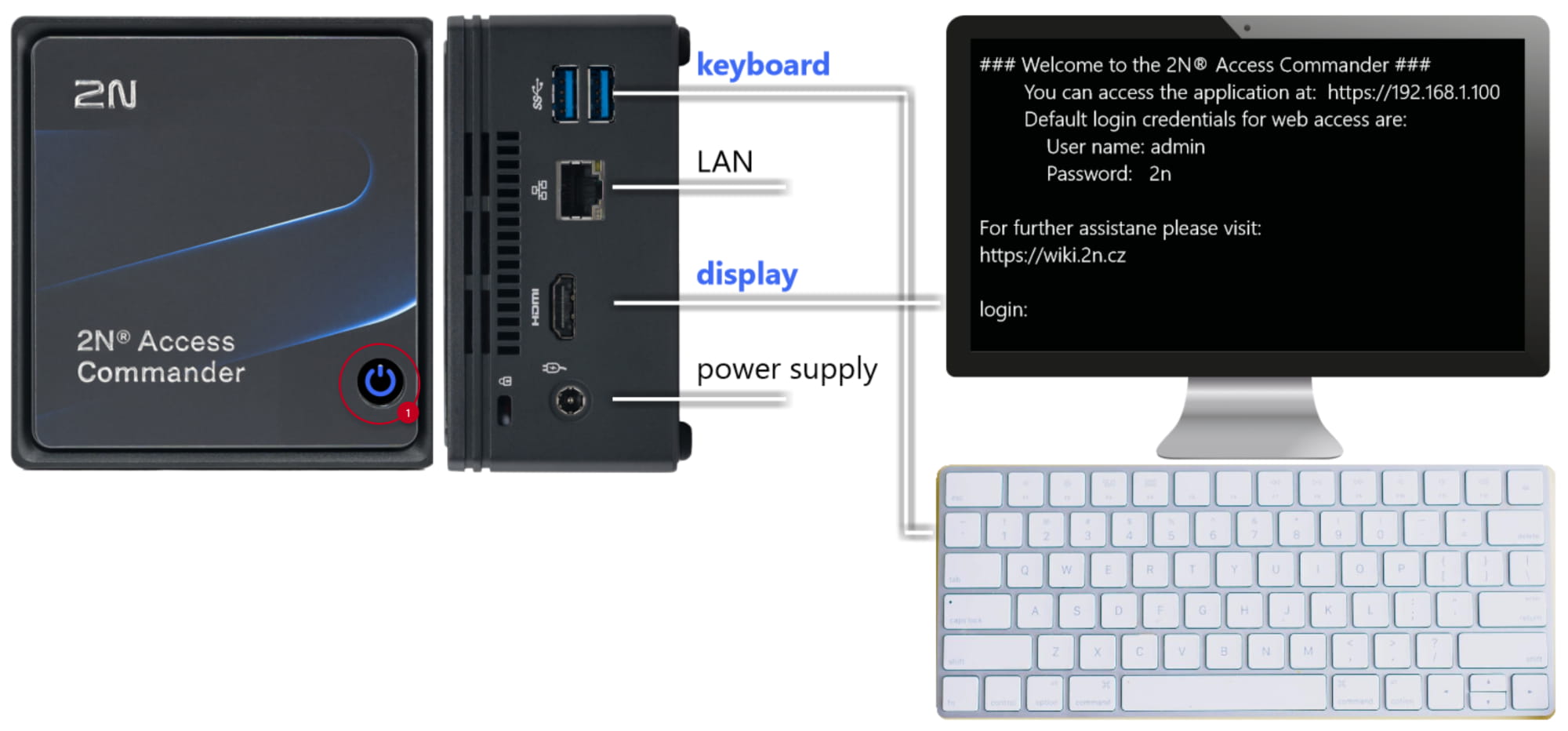
- Wait at least 10 sec after powering off, then start the device by short pressing the power button.
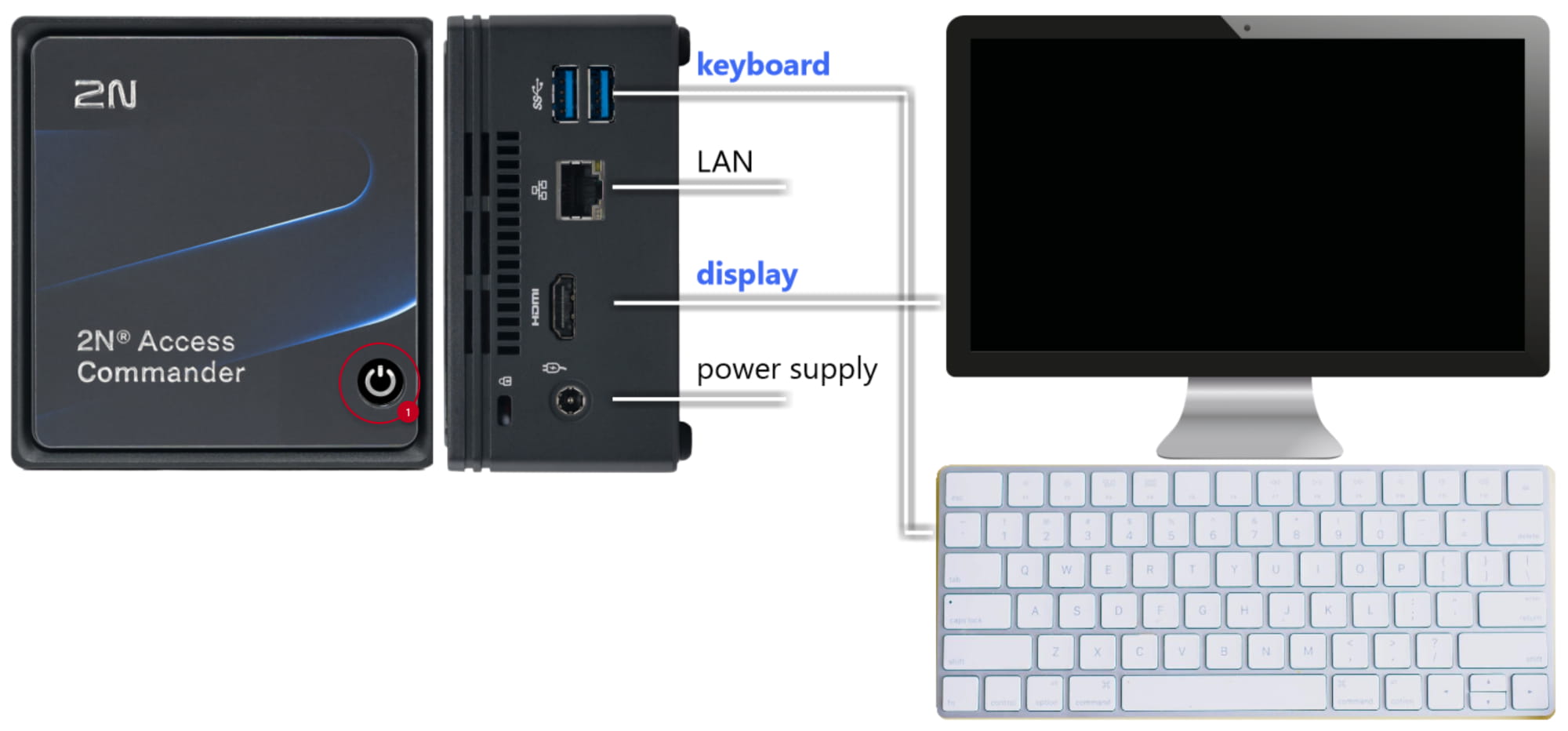
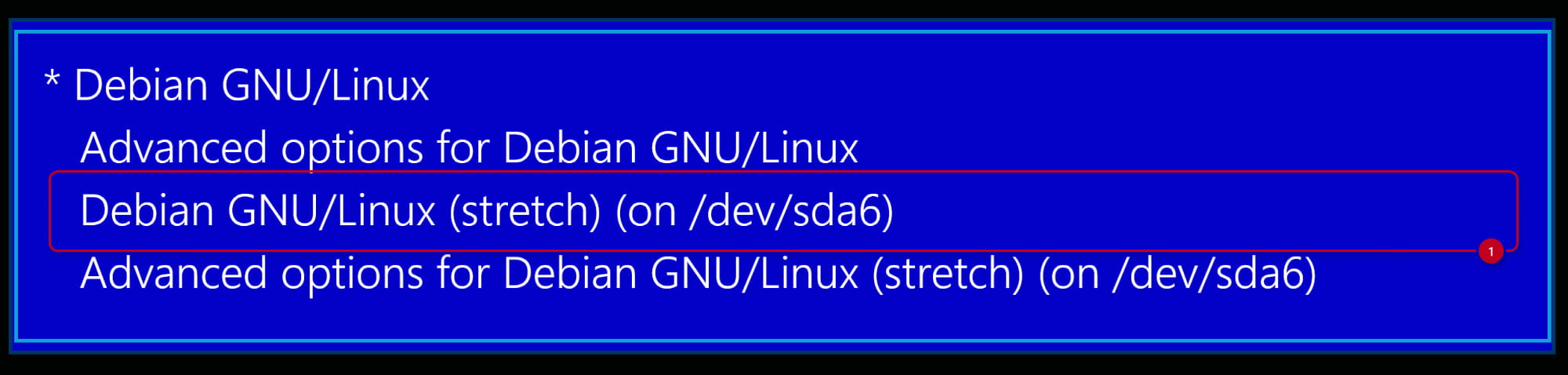
- During the reboot sequence, a blue box will appear on the screen. Unless you break the boot sequence, the machine will start to boot normally after a few seconds. To break the initial boot up sequence, it is necessary to react quickly (by any key) and the blue box will remain on screen.

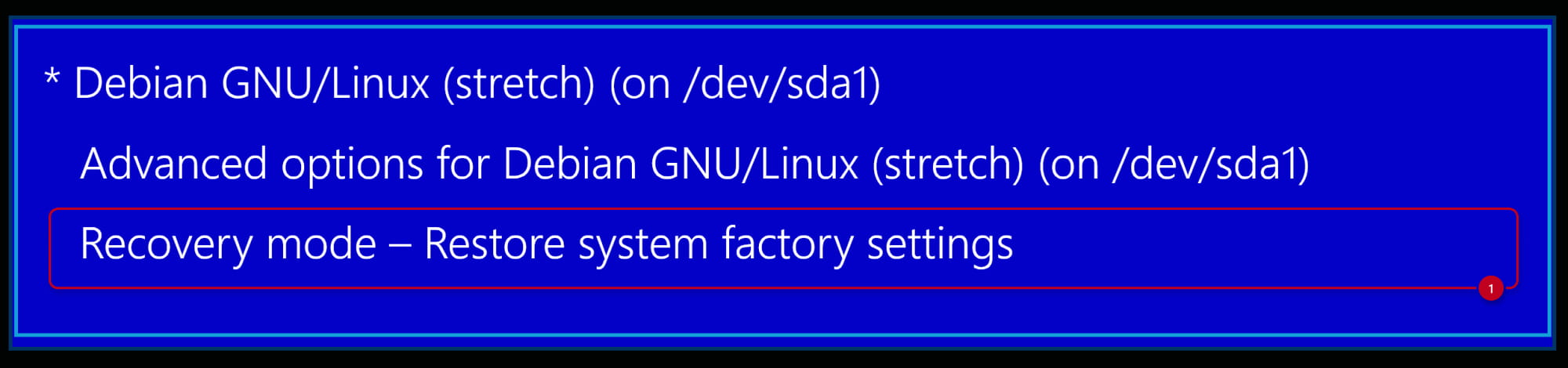
Here you should choose the option “Recovery mode – Restore system factory settings”.
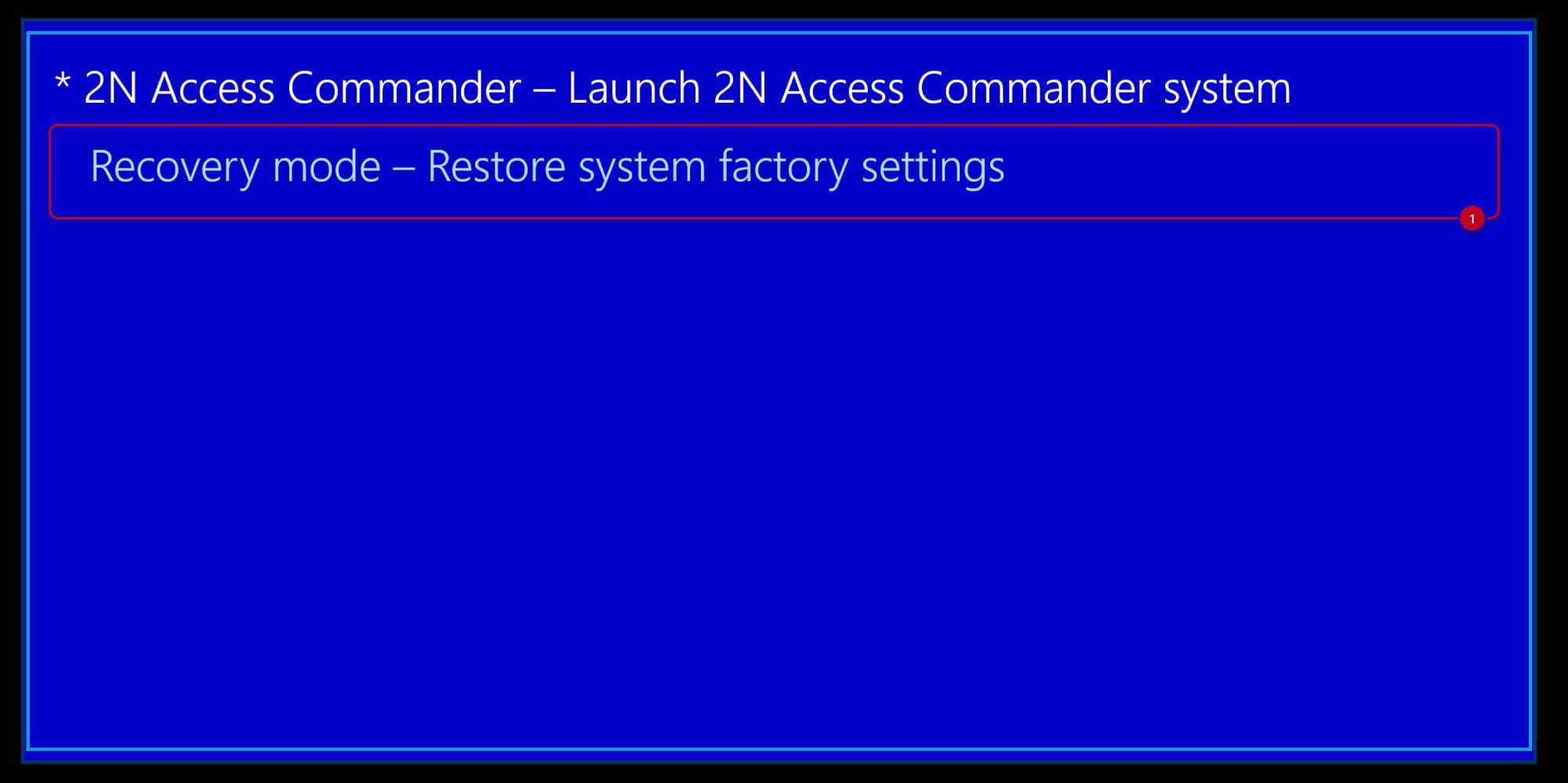
Eventually the screen can look like these pictures, then please select the marked option.
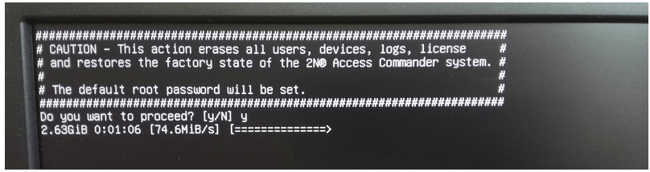
- After the final confirmation, the process of factory reset automatically starts (cca. 10 min. duration)
- The device performs the final reboot and waits for the login credentials (default = root/2n).

- You are forced to change the password and you get this console window thereafter.
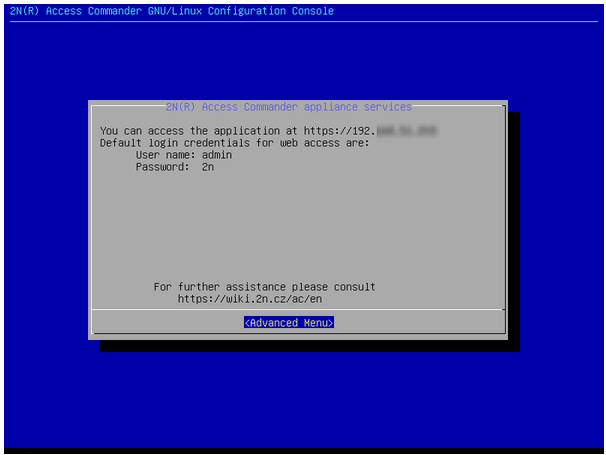
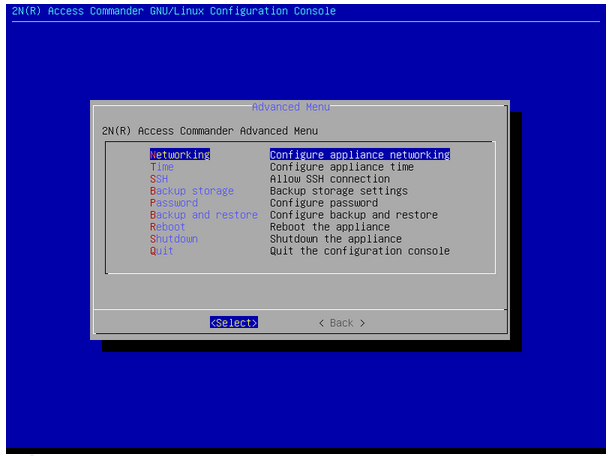
- Check and set the basic settings (such as LAN parameters, time, password) in the Advanced Menu. Most of the parameters you will find also in the web interface of 2N Access Commander.
- The Box is in the factory state now, including the initial (purchased) version of the AC application.
The factory reset is in fact a reinstallation of the AC from a separate factory backup partition.
2N Access Commander - How to make a software upgrade
2N Access Commander Box 2.0
- Connect a VGA or HDMI display to the relevant port on the Box.

- Connect a USB keyboard to one of the relevant ports on the Box.
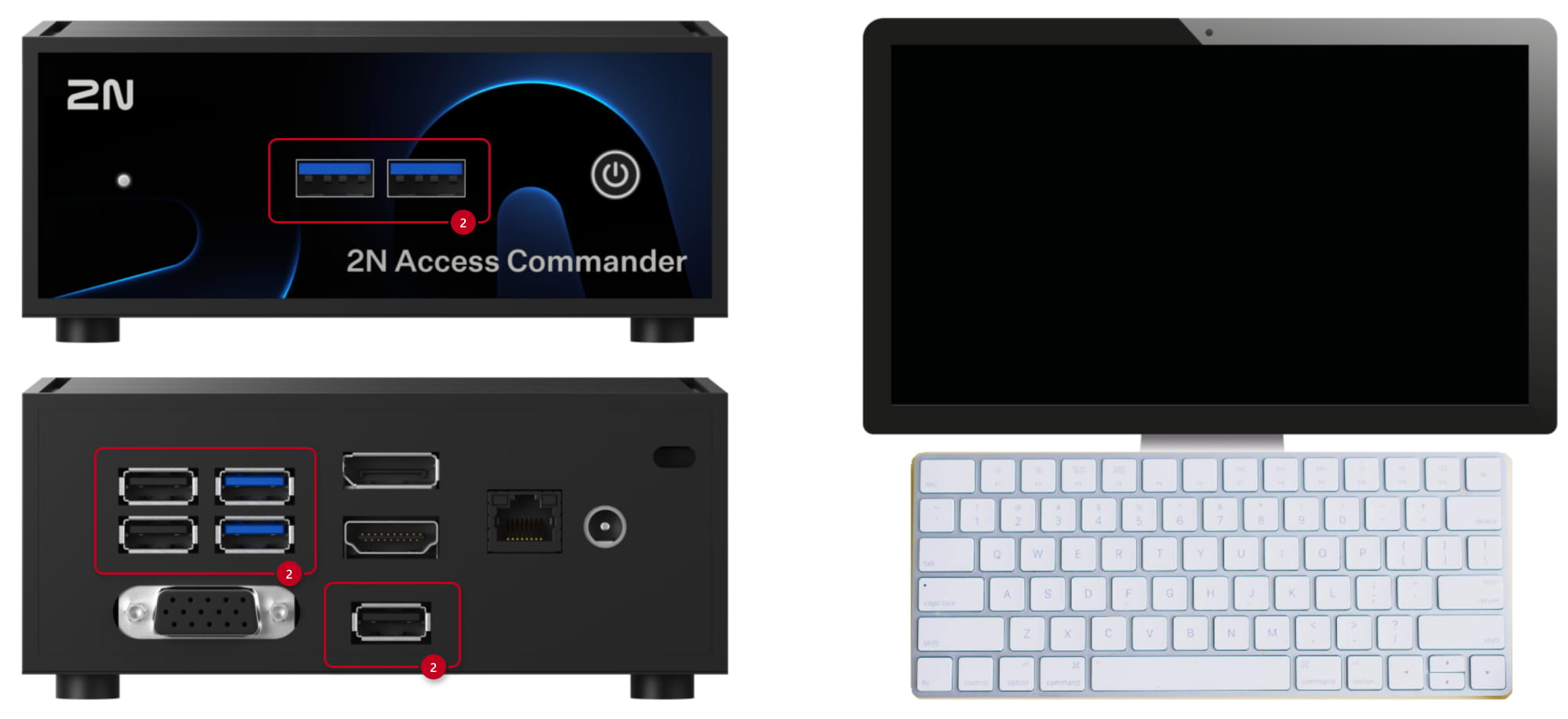
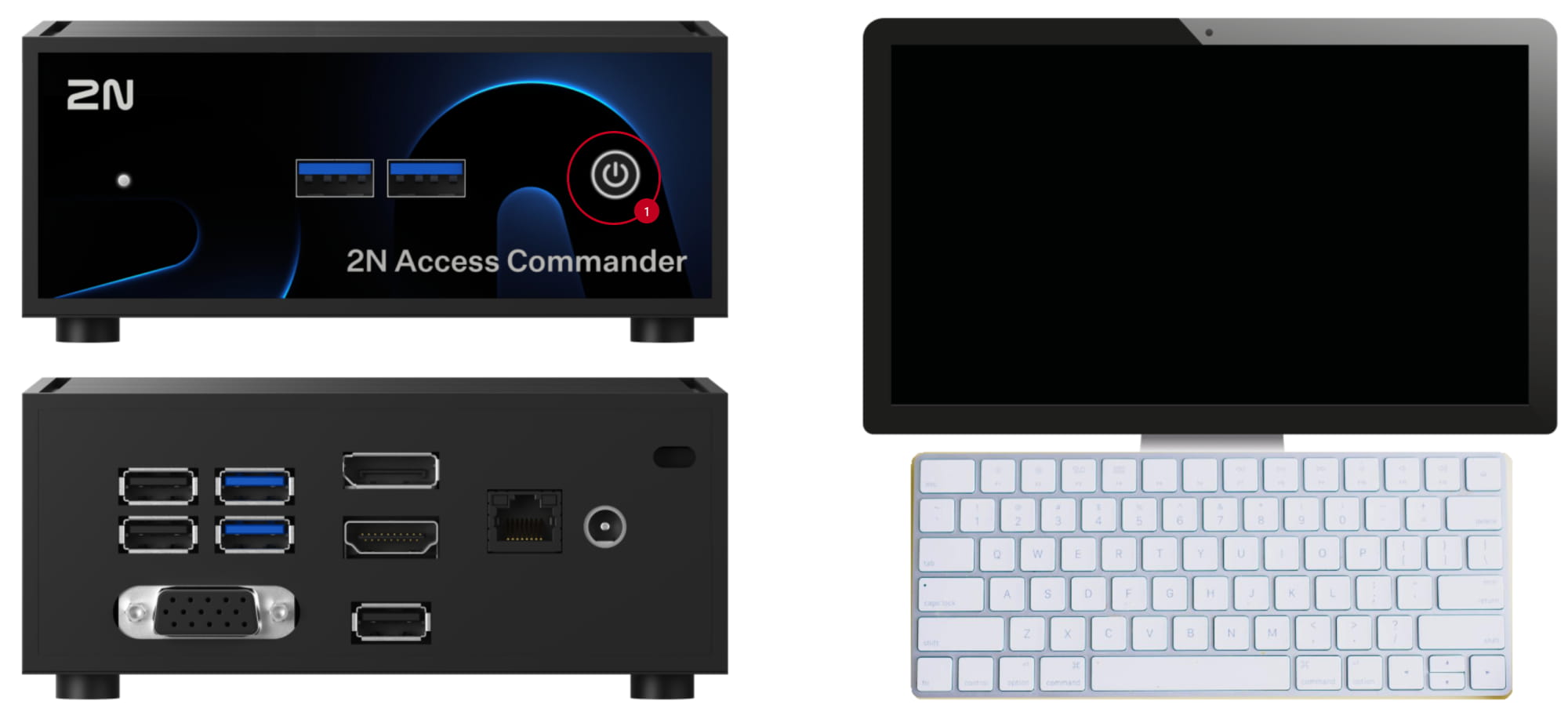
- If the device is already running, switch it off by short pressing the blue power button on top.

- Wait at least 10 sec after powering off, then start the device by short pressing the power button.
- During the reboot sequence, a blue box will appear on the screen. Unless you break the boot sequence, the machine will start to boot normally after a few seconds. To break the initial boot up sequence, it is necessary to react quickly (by any key) and the blue box will remain on screen.
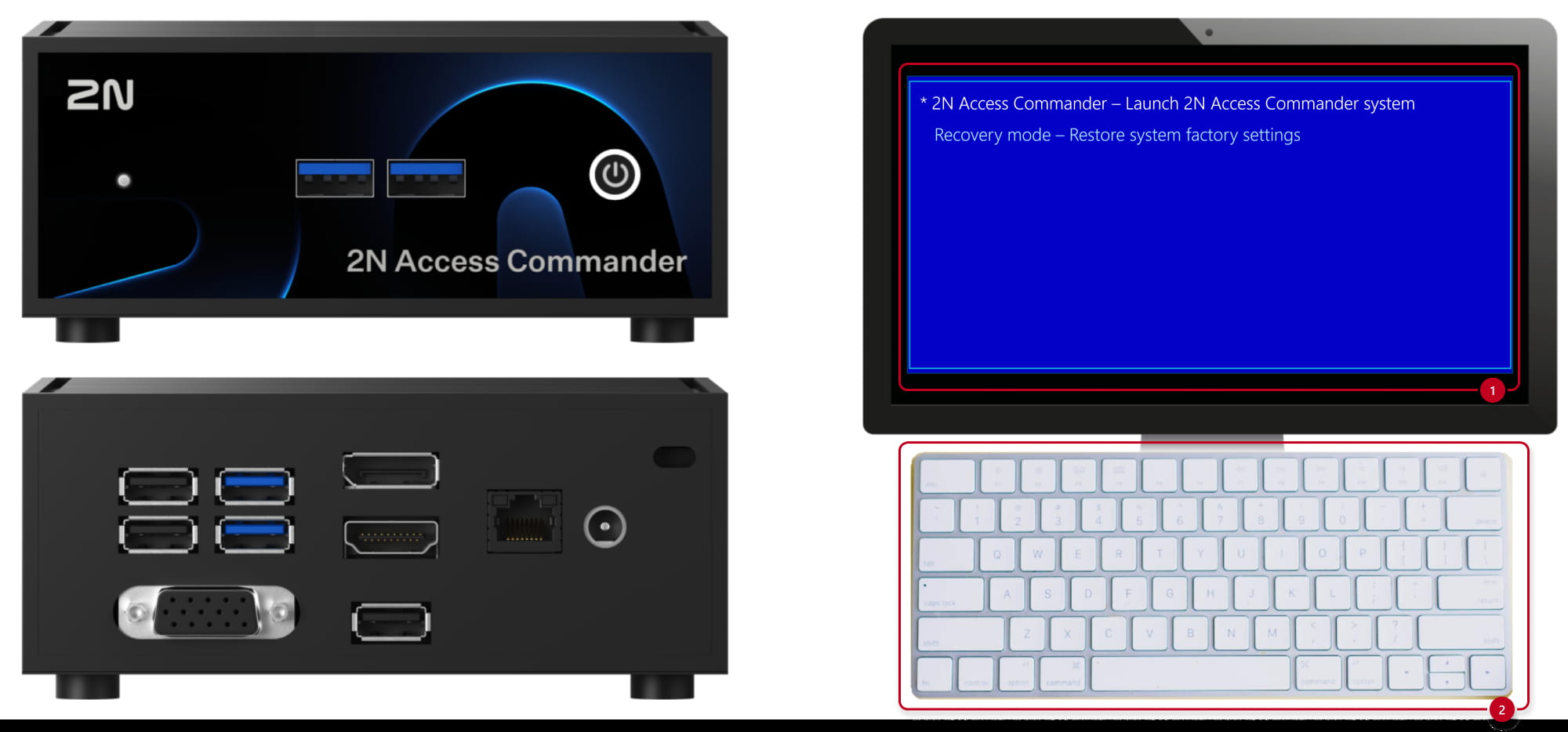
Here you should choose the option “Recovery mode – Restore system factory settings”.
- After the final confirmation, the process of factory reset automatically starts (cca. 10 min. duration)
- The device performs the final reboot and waits for the login credentials (default = root/2n).

- You are forced to change the password and you get this console window thereafter.
- Check and set the basic settings (such as LAN parameters, time, password) in the Advanced Menu. Most of the parameters you will find also in the web interface of 2N Access Commander.
- The Box is in the factory state now, including the initial (purchased) version of the AC application.
The factory reset is in fact a reinstallation of the AC from a separate factory backup partition.
2N Access Commander - How to make a software upgrade