2N Meeting Room app is an application for simple room management. It shows actual and upcoming events and allows you to create new reservation of the meeting room directly from the application. This application makes the reservation process of the meeting room more flexible and more user friendly.
Basic features:
-
Show events for specific meeting room
-
Room reservation
-
You can see details of the event
-
Support Outlook, Exchange , Gmail and Zimbra calendars
-
Widgets ( weather forecast, time, custom logo)
|
Requirements
|
Content
How to activate 2N Meeting Room app
First step is to activate the 2N Meeting Room application by using license. License can be loaded into the device by using web interface of the unit.

Once the license will be enabled on the unit, you can activate the 2N Meeting Room application in the same section on the web interface of the unit.

Warning
Once the 2N Meeting Room app is activated, the unit does not respond to any calls and the 2N Meeting Room app is the only application that will be running on the unit. You can disable the 2N Meeting Room application again. The reason why you can't make the call to the 2N Indoor Touch 2.0 while 2N Meeting Room is active is to avoid unwanted calls and to keep the overview of meeting room events always on the the screen. 2N Meeting Room is running always on the foreground.
Connection to calendars
Once the 2N Meeting Room app is active, you can see the following dashboard on the 2N Indoor Touch 2.0.

The following calendars can be used:
-
Zimbra
-
Outlook
-
System Account - Exchange / IMAP connection
-
Gmail
-
Demo account
Outlook connection
Choose Outlook option and sign in.

Once you are signed in, you can choose specific calendar of the Outlook.

System account (Exchange) connection
Choose System account option and add system account.

Choose Exchange and fill in your account details and follow the instructions.
You may be asked to activate device administration and also PIN code if the company has more restricted security polices.
Gmail connection
Sign in to your Gmail account
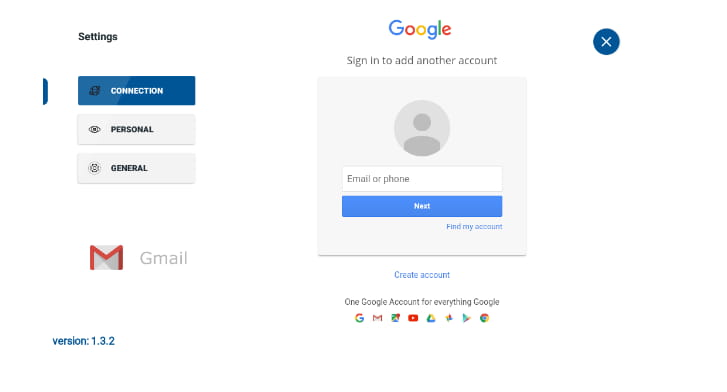
Choose specific calendar

Home screen
You can see the overview of the events by clicking on home button in the upper right corner.

There are 3 situations that may occur on the home screen
-
A meeting room is available - If the meeting room is available you can schedule ad hoc event directly from the home screen by clicking on "+" button and choose a specific time frame for the meeting. You can choose between 5 min, 15 min and 30 min time frame. Once added, temporary event will be scheduled in the calendar of the meeting room. This function can be used for the quick room reservation. If the meeting room is available, the green LED diode is active.
-
Upcoming event is scheduled and needs to be confirmed - Scheduled event needs to be confirmed before the start of the event, otherwise it will be erased from the meeting room calendar. You can enable automatic confirmation in the section Settings - Personal - Automatic confirmation
-
Meeting room is occupied - If the meeting room is occupied, you can see when the meeting ends, attendees of the meeting or cancel the meeting. Cancellation of the meetings can be enabled in the section Settings - Personal - Events that may be cancelled. If the meeting room is occupied, the red LED diode is active.
A meeting room is avaliable

Upcoming event is scheduled and needs to be confirmed

Meeting room is occupied
