Firmware update – How to do FW update or factory reset of 2N Indoor Touch 2.0
How to update 2N Indoor Touch 2.0?
2N Indoor Touch 2.0 can be updated via microSD card or web interface. The firmware package always includes the latest OS version, the 2N launcher (home screen) and 2N IP Mobile (Intercoms) application. Once the update is done, then user configuration will be preserved.
How to update 2N Indoor Touch 2.0 via SD card
Please follow the update steps below:
- Download the latest 2N Indoor Touch 2.0 firmware version from here.
- Get a MicroSD card (SDHC) with maximum capacity of 16GB and formatted to the FAT32 file system.
- Save the upgrade.zip file to root directory of the MicroSD card. Note that it is not necessary to unzip the folder content.
- Insert the SD card into the MicroSD card slot on the right side of 2N Indoor Touch 2.0.
Note: Make sure the contacts (pins) on the microSD card point towards the display of your 2N Indoor Touch unit 2.0. - Restart the device as follows:
- Press the Reset button on the back shortly
OR -
Settings>System>Restart and factory reset>Restart
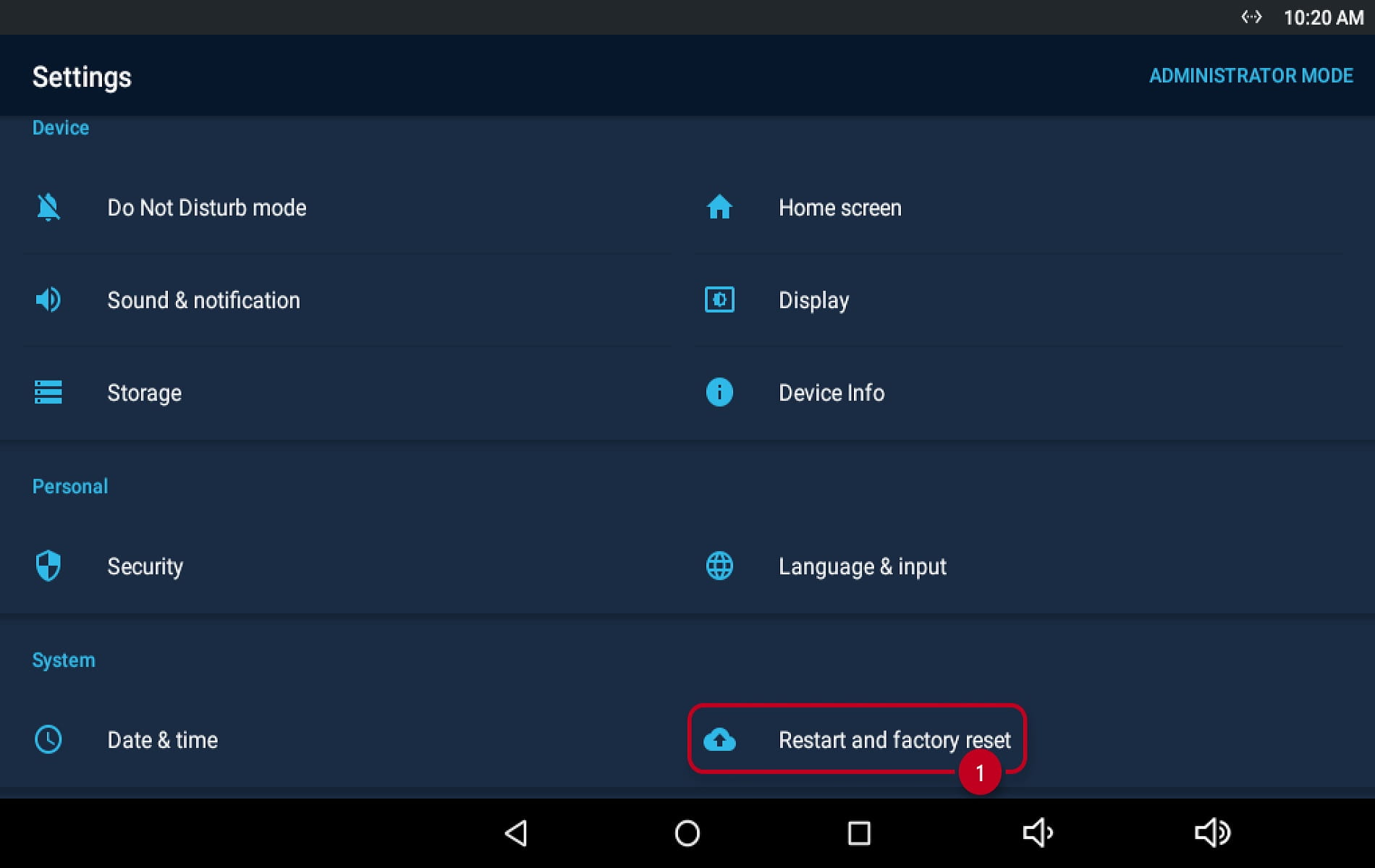
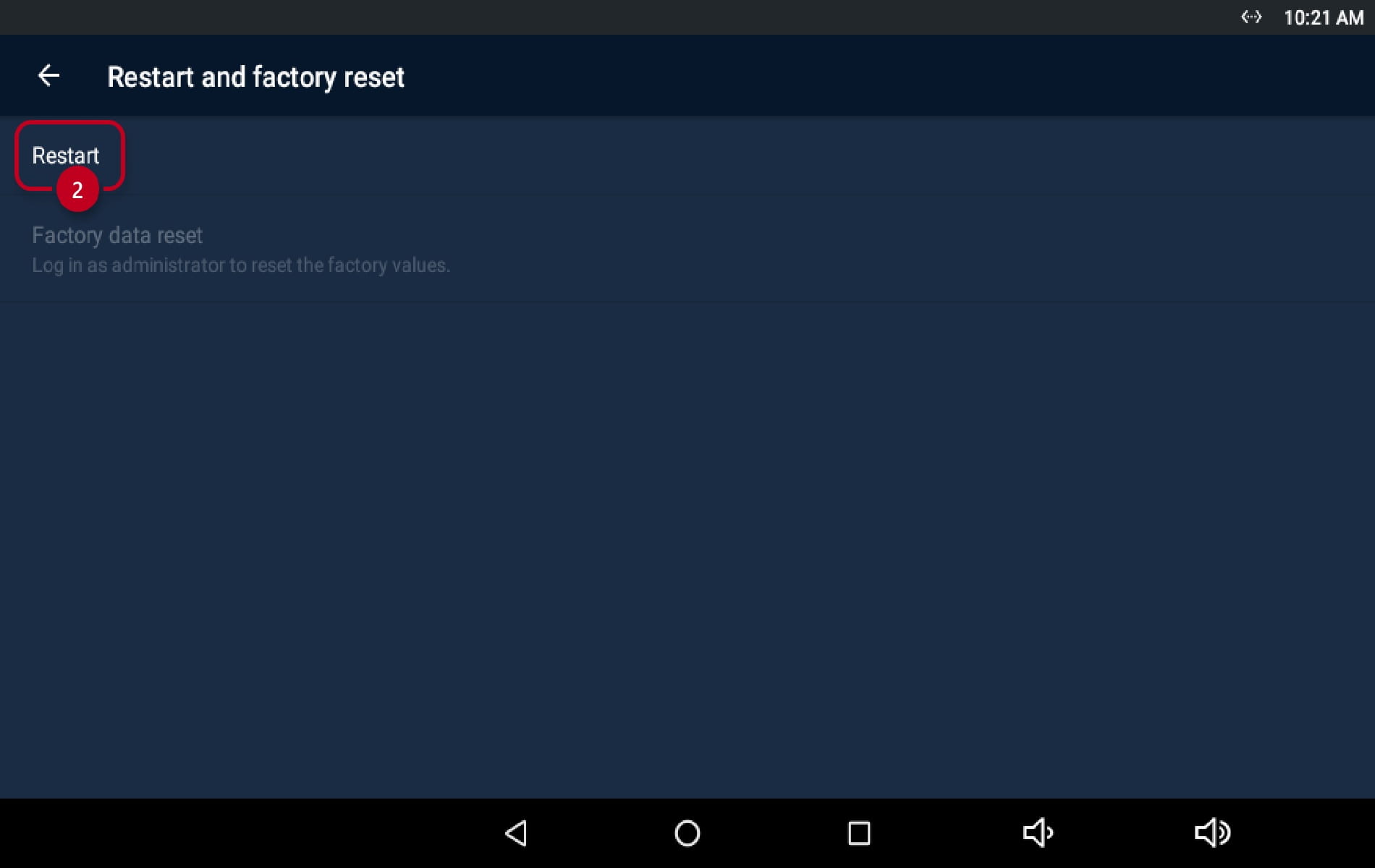
- Press the Reset button on the back shortly
- Having detected the correct firmware files, 2N Indoor Touch 2.0 invites you to confirm the update via touch screen.
The update process is also indicated by an RGB LED on the device front.
Note: Don't turn off the device until the update process is finished. The update procedure takes approx. 10-15 minutes. - Remove the MicroSD card after the update procedure has finished and tap the display to restart the system.
How to update 2N Indoor Touch 2.0 via web interface
Please follow the update steps below:
- Download the latest 2N Indoor Touch 2.0 firmware version from here .
- Open the web interface of 2N Indoor Touch 2.0 and log in (default credentials are Admin/2n).
- Device>System Administration>Firmware upgrade>"UPLOAD FIRMWARE"
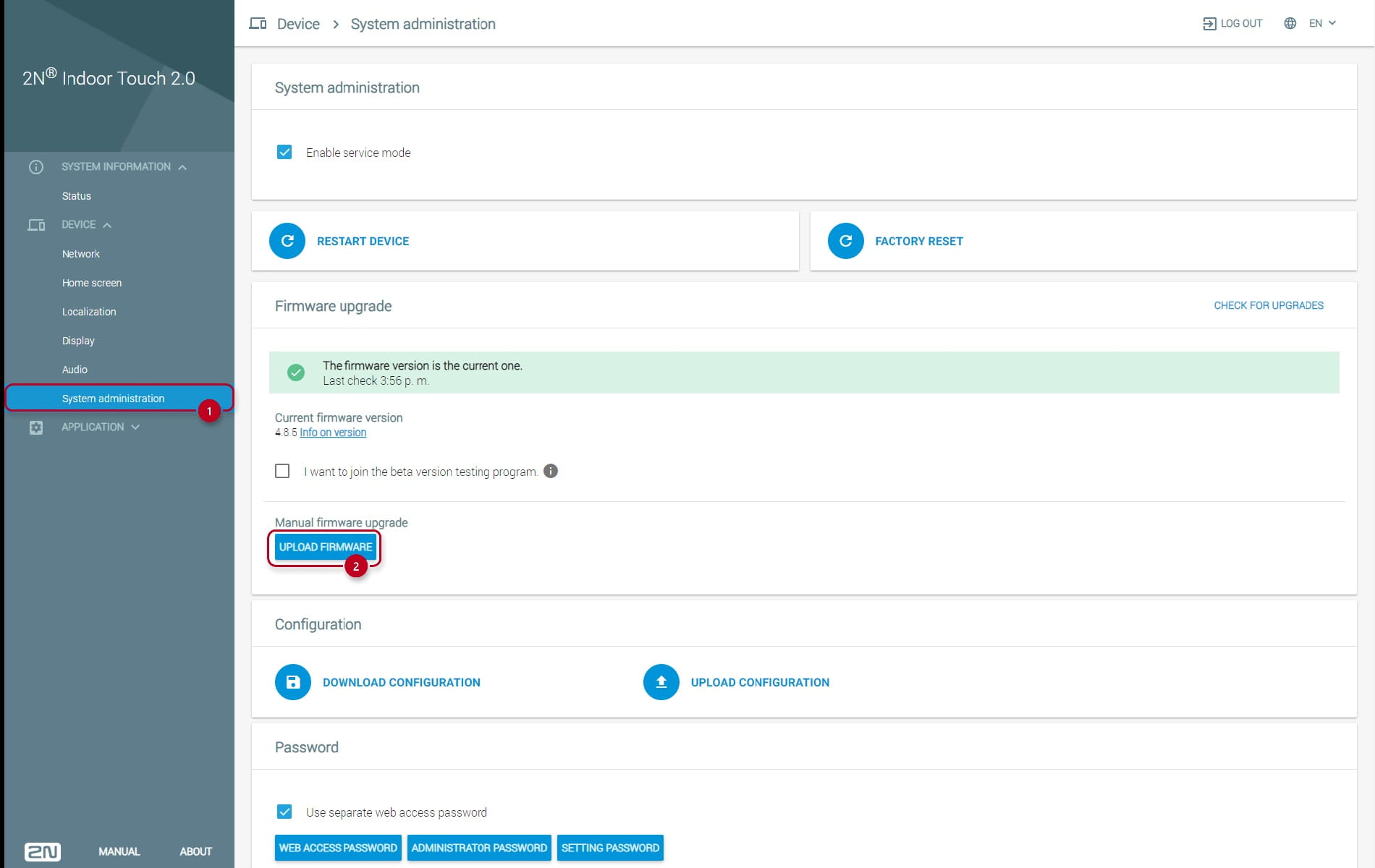
- Click on "SELECT" and navigate to the folder containing the *.ZIP file and chose the the *.ZIP file.

- Once the file is successfully uploaded and state changes to "OK, upgrade can be done", then you can click on "UPGRADE" and the update will be performed.
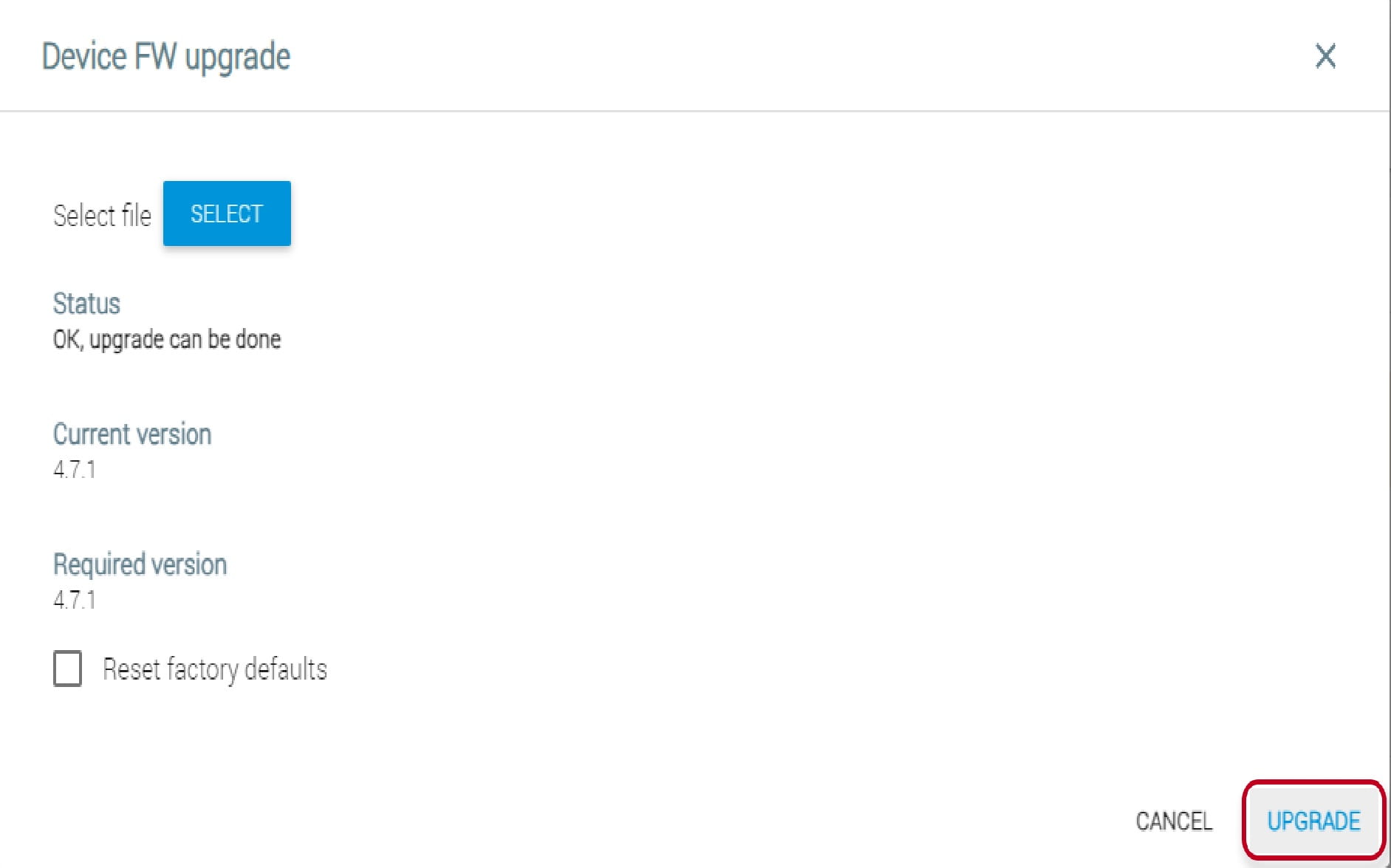
Wait approx. 10-15 minutes. The update is finished once the device boots back up.
How to do factory reset of 2N Indoor Touch 2.0?
There are 3 ways how reset the 2N Indoor Touch 2.0 factory values:
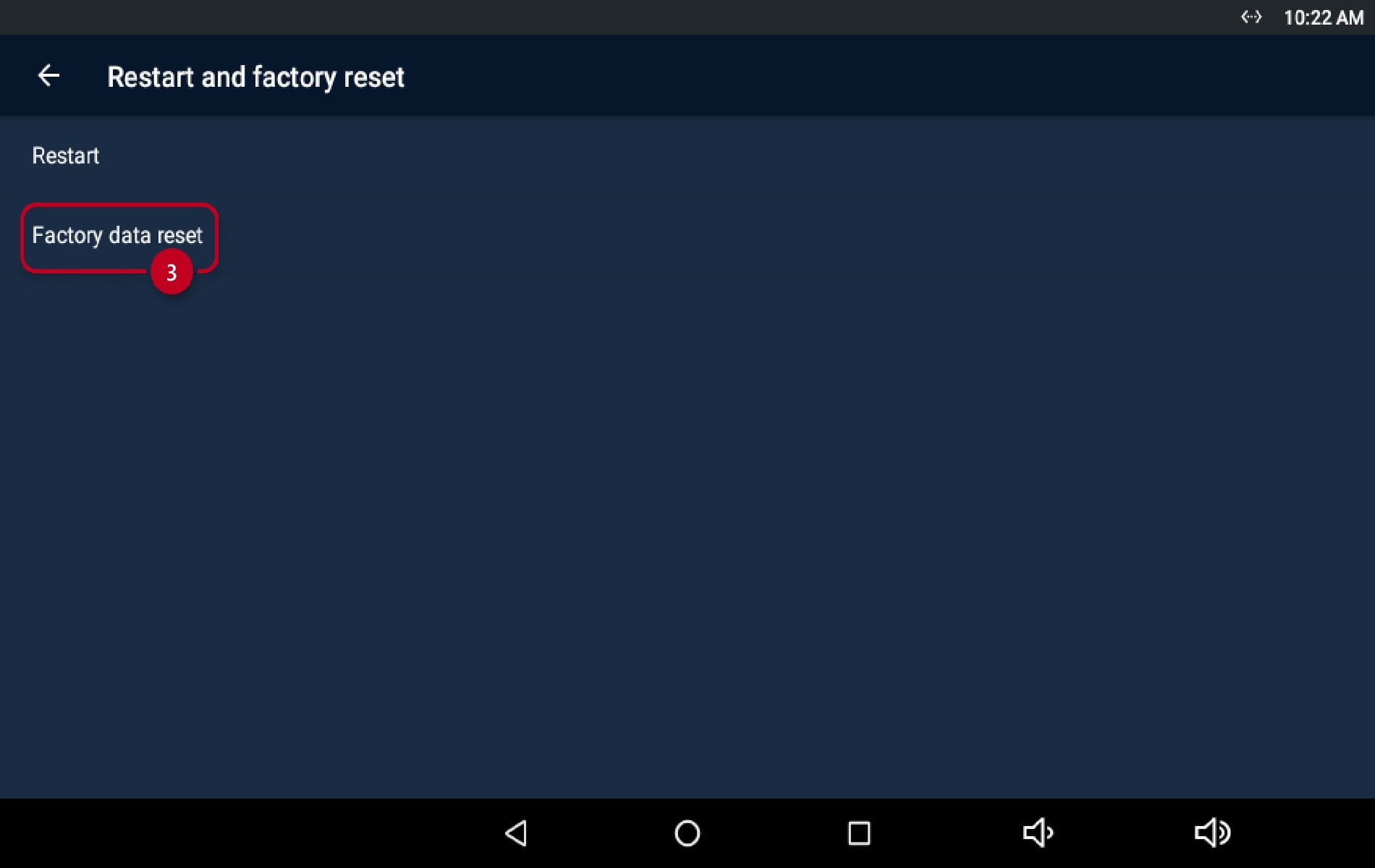
- On the display directly enter the Administrator mode settings and go to the section Restart and factory reset. Press the Factory data reset button.

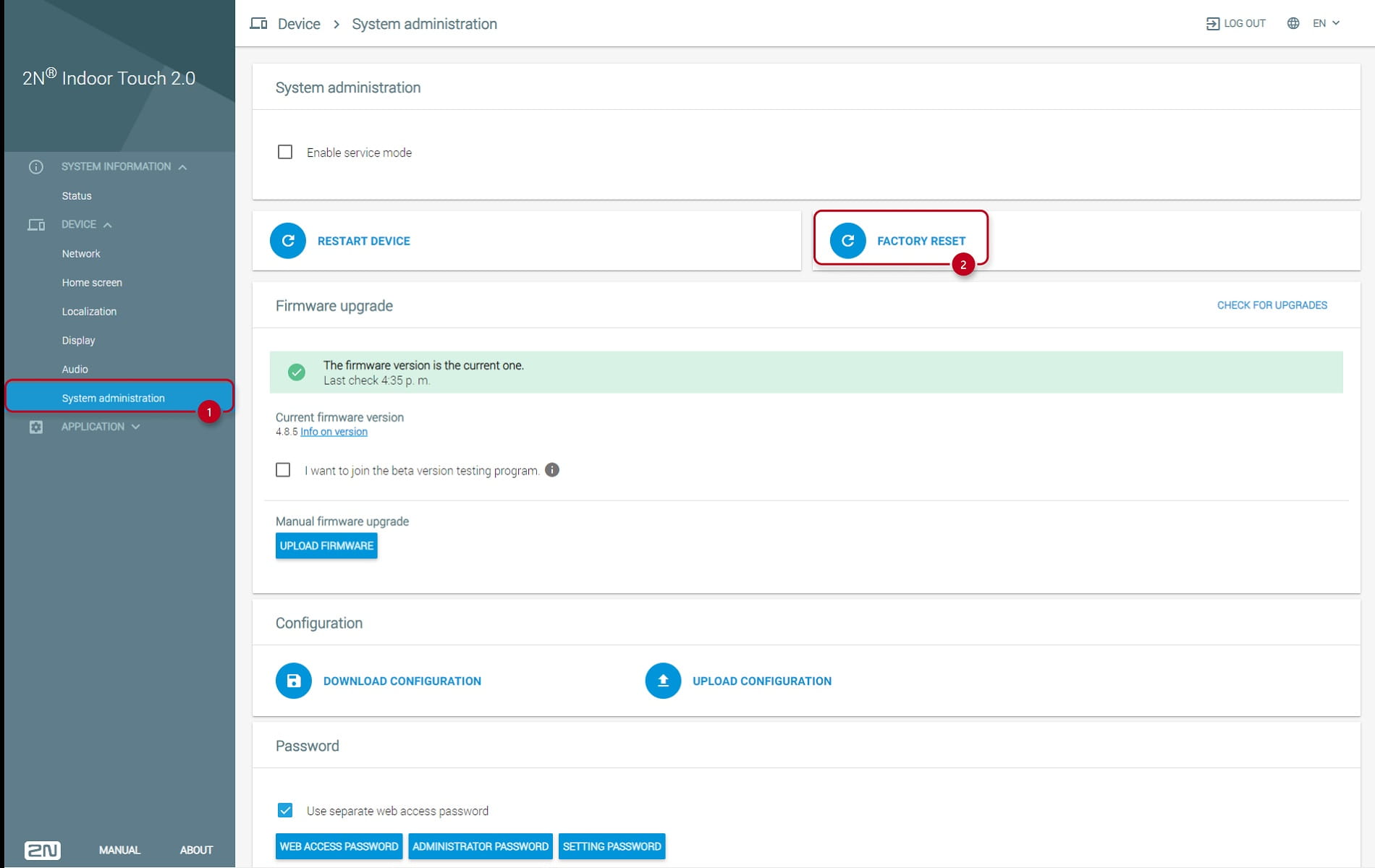
- A factory reset can also be performed via the web interface (System Administration - Factory Reset):
- However, it is most effective to reset the device using the physical button on the back of the device:
Press and hold the Reset button on the back of the device until the LED lights yellow and then release the Reset button immediately and follow the instructions displayed.
|
Behaviour description of the device while resetting:
(periods always as approx.)
|
|
Warning: Factory reset causes a complete deletion of all user data. |
Where to find the reset button on 2N Indoor Touch 2.0?
All connectors and hardware buttons can be found on the back of the device. See the picture below:
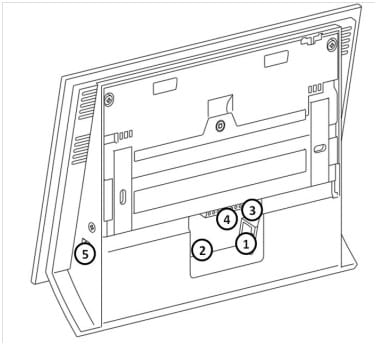
Backside Buttons/Connectors description:
- RJ-45 LAN 10/100BaseT connector
- 12V/2A DC supply terminal board (only if PoE is not used)
- Reset / Factory reset button
- Binary input/output terminal board (for application control)
- MicroSD card slot