Firmware upgrade for IP Sentrio
Sentrio- Firmware Upgrade
We always recommend having the latest firmware on your devices. This article will guide you through the upgrade procedure, even if you currently have a very old version.
The steps in this article require using the web interface of a 2N device. Please follow this manual in case this is your first time using the web interface.
Prerequesities
- 2N Sentrio
- Internet connectivity for the Sentrio in the case of the online upgrade method
- Elevator Center in case of the cloud upgrade method
Feature Properties
- The firmware upgrade does not delete your current configuration, but we recommend saving a backup configuration before starting. However, the process updates the configuration, which may render it incompatible with previous firmware versions. How to Back Up Configuration
- You can select from the online, offline, and cloud upgrade methods
- 2N Sentrio device also checks the firmware file to prevent the upload of a wrong or corrupted file.
The Firmware of the Sentrio can be downloaded from here if you are doing an offline upgrade
Offline Upgrade Method
- Go to System - Maintenance and click on the Upgrade Firmware button

- Select the firmware file and start the upgrade.


- The Sentrio will automatically get restarted and new firmware will then be available.
The whole update process takes less than a minute.
Online Upgrade Method
A
- 2N Sentrio device can download the right latest firmware file by itself.
Just go to System - Maintenance and click on the Upgrade Now button when the interom says that a new version is available.
- You can read release notes here. Click on Proceed to start the upgrade.

- 2N Sentrio device will automatically get restarted and new firmware will then be available.
The whole update process takes less than a minute.
Cloud upgrade method
- Log in to the Elevator Center and locate the device through Device Management > All Devices
- To choose your preferred device, simply click on it.

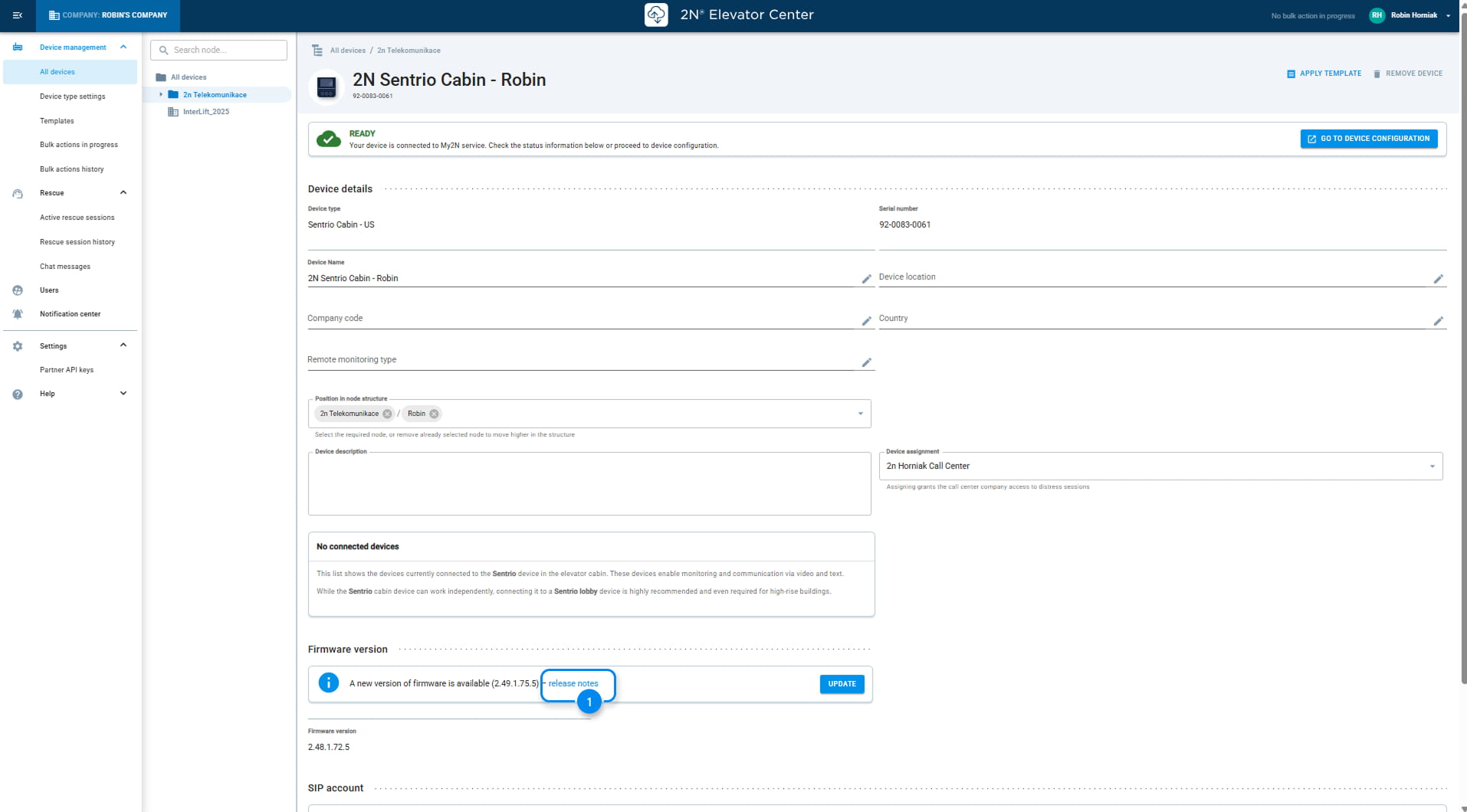
- View the release notes if you need to know the updates made in this firmware
- Update the device with a single click on the UPDATE button
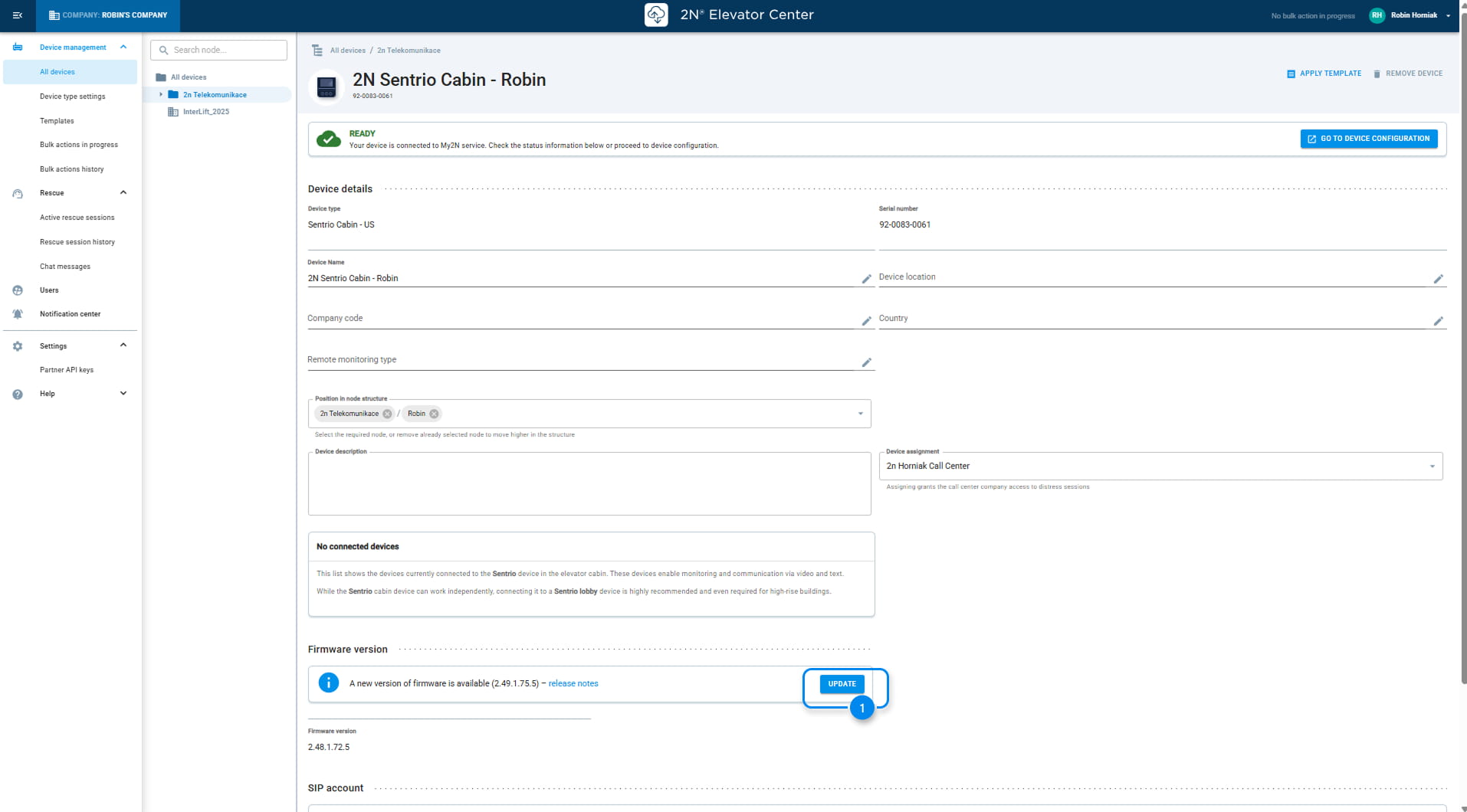
- Confirm the update by a single click on the UPDATE button
