One card for 2N Fortis and 2N Picard at the same time
This article explains, how to program one user MIFARE DESFire card or fob so it works with both 2N PICard Commander and 2N Fortis for access.
A Mifare DESFire card is designed to hold multiple secure applications side by side.
Each product stores its credentials in its own protected “area” of the card.
As long as both products follow the setup order, they won’t interfere with each other.
This means one physical card can carry credentials from both products, so your users only need to carry one card instead of two.
Requirements
Cards: MIFARE DESFire EV2 or EV3. (Note: While EV1 cards remain functional for 2N Fortis, they are not supported by 2N PICard Commander). These card types ensure optimal compatibility and security for both products.
Firmware: 2N OS version 2.50.1 or newer.
Software: 2N Access Commander version 3.6.1 or newer.
In addition to the card specifications listed above, all standard requirements for 2N Fortis and 2N PICard Commander apply. For further technical details and instructions on programming user cards, please refer to the following articles:
MIFARE DESFire EV2/EV3 - How to install 2N PICard Commander and program cards
2N Fortis deployment: Setup and Management with 2N Access Commander
Correct setup order
To make sure everything works smoothly, you need to program the user card or fob in the right order:
-
First, please program RFID card or fob in 2N PICard Commander.
This procedure deploys a PICard Commander secure application on the MIFARE DESFire card, creating a protected partition for credential storage.
- When you create project in PICard Commander make sure to remember which Main encryption key (MEK) you use in PICard Commander.

- Do not reformat the card or change global card settings later.
- For instructions on programming a user card for 2N PICard Commander, please refer to MIFARE DESFire EV2/EV3 - How to install 2N PICard Commander and program cards
- When you create project in PICard Commander make sure to remember which Main encryption key (MEK) you use in PICard Commander.
-
Then use 2N Fortis to add its application holding secure credential to card.
-
2N Fortis adds its own secure application area without disturbing 2N PICard Commander's application on card.
- When you Generate key for Electronic locks in Access Commander, you need to use exactly the same Main encryption key (MEK) you used in PICard Commander's project.

- For instructions on programming a user card for 2N Fortis, please refer to 2N Fortis deployment: Setup and Management with 2N Access Commander
-
Once both steps are complete, the card contains two independent sets of credentials and can be used in both systems.
Following the correct order avoids conflicts and ensures both applications are stored on MIFARE DESfire properly.
Troubleshooting
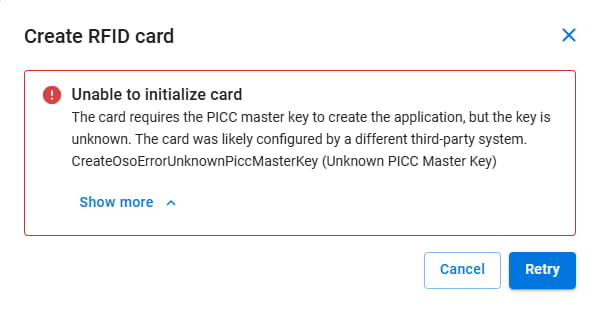
If you encounter this error, the Main encryption key (MEK) configured in PICard Commander does not match the Main encryption key (MEK) for 2N Fortis in Access Commander."