SMTP Gmail service configuration in 2N Access Commander
For the needs of e-mail communication (forgotten user passwords, notifications, or distribution of Bluetooth access data), it is possible to use the SMTP public service of Google.
Gmail in the role of SMTP server in 2N Access Commander offers greater security options for e-mail communication than standard freely available SMTP services.
Gmail in the role of SMTP server in 2N Access Commander offers greater security options for e-mail communication than standard freely available SMTP services.
|
Requirements & Ports
The 2N Access Commander supports these ports:
|
Google account settings
Due to the enhanced security of Google services, you are not able to use the Gmail SMTP server right away. You have to set up the 2-Step Verification firstly.
Create an App password (with 2-Step Verification)
This is the only way to connect your Gmail account with the 2N Access Commander.
With this option, you will get a one-time password that you will use to log in to the SMTP settings in the 2N Access Commander.
- After you activated the 2-Step Verification for the Google account, please visit this site: https://myaccount.google.com/apppasswords
- In the next step, you will have to create a new app specific password, and name it for better identification.
Then it will generate a unique password that you'll use later in the 2N Access Commander configuration.
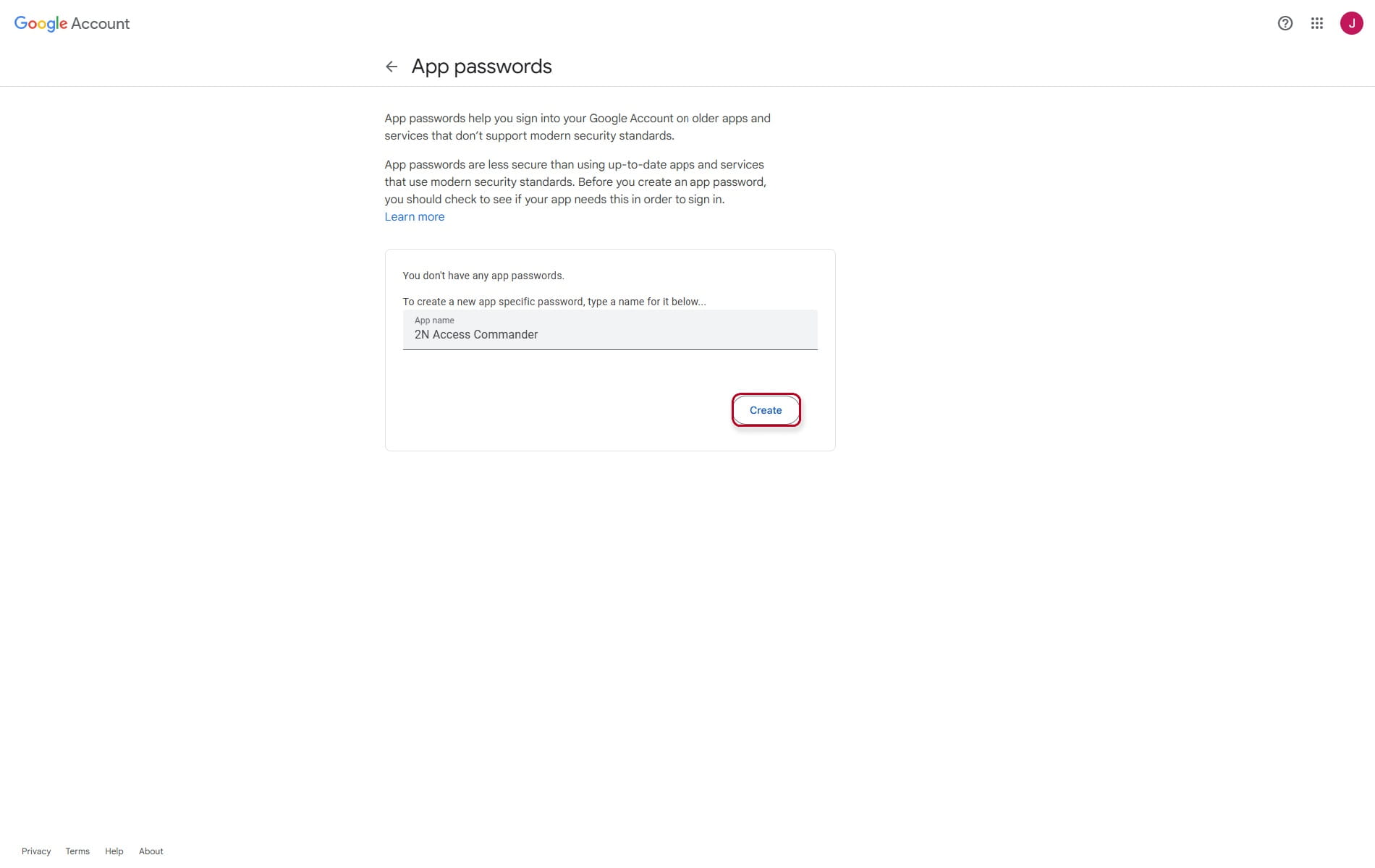

| The password cannot be displayed anymore after you press the DONE button! |
2N Access Commander configuration
After you have successfully set up your Google account, you now need to set up the 2N Access Commander as well.
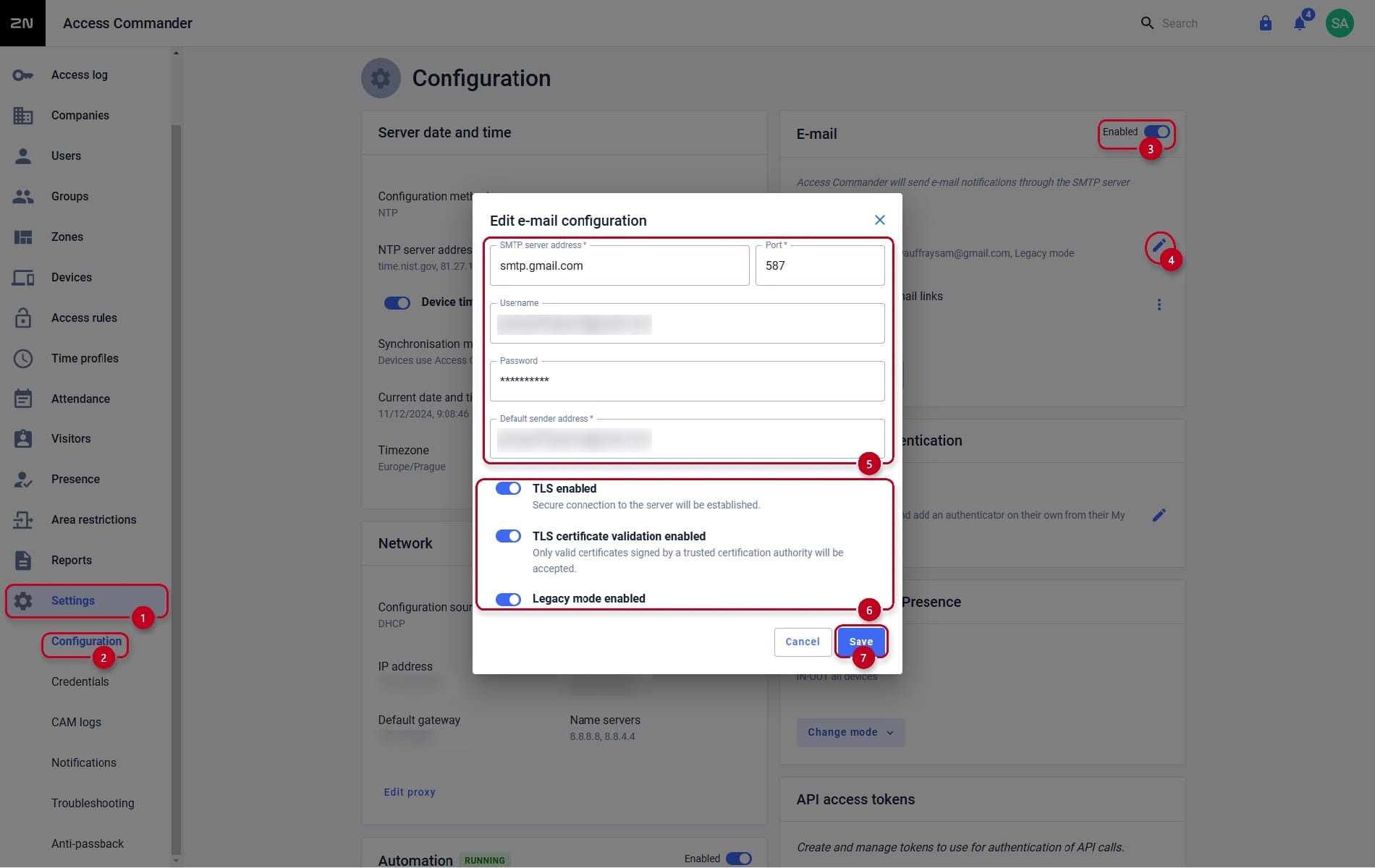
- In the web interface of the 2N Access Commander go to Settings > (Configuration) EMAIL > enable the SMTP service and click on some of the SMTP SETTINGS:
- Enter the Server Address and Port - in this case, the SMTP server is smtp.gmail.com and port 587 (TLS encryption) or 25 (unsecured).
- The User name is your full e-mail address including the domain, then enter the Google App Password - it will be stored only in the 2N Access Commander.
- The Default sender address will be the same as the user name which was filled above.
- Enable the TSL, validation of the server certificate, and Legacy mode and hit the CHANGE button to save it.
- You can also test, whether you've set everything correctly. Enter a valid Test E-mail Address (an address to which your test email will be sent) and click on SEND TEST E-MAIL. You should be able to receive an e-mail with a testing message.
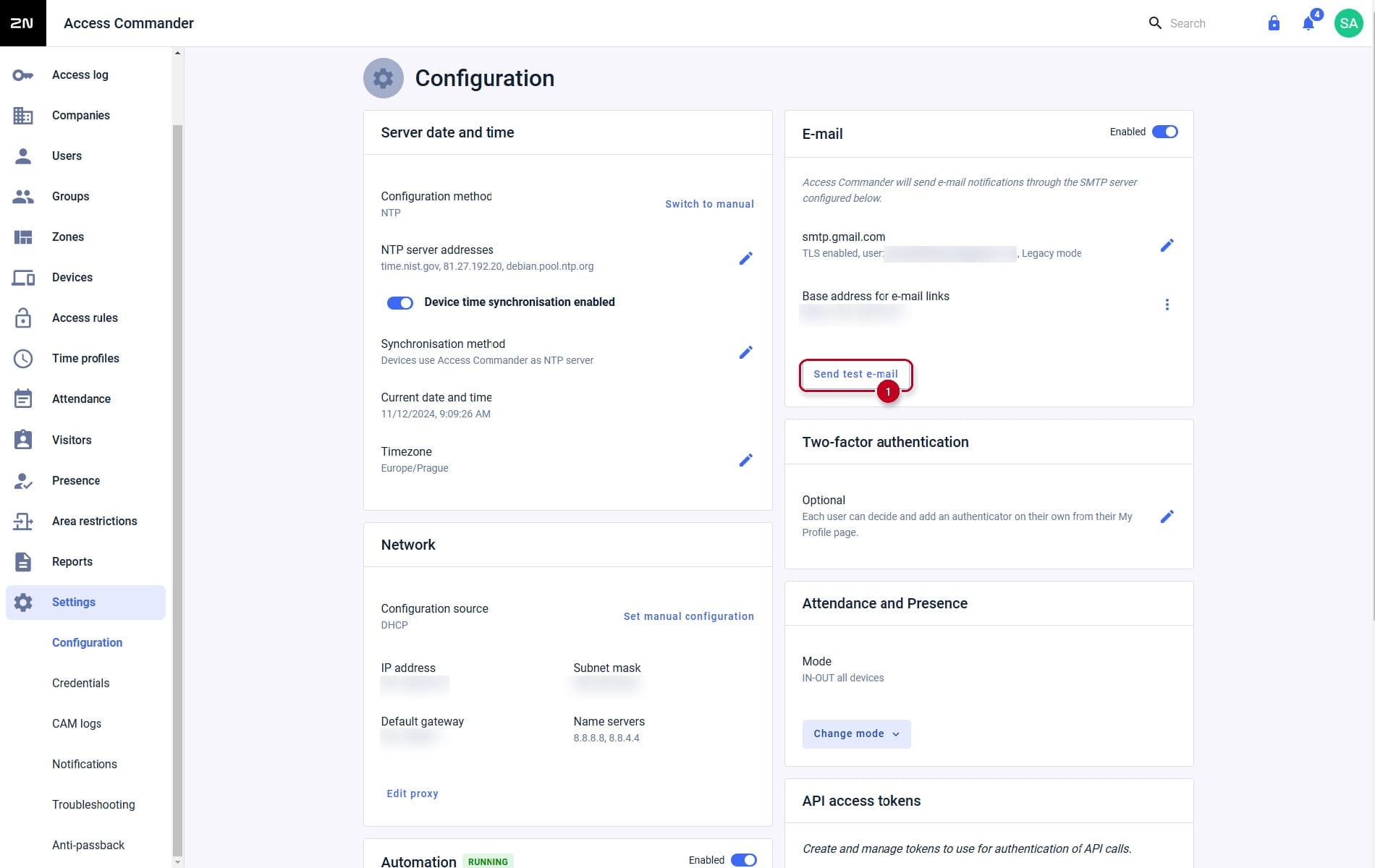 If you get a message Test email FAILURE, please double check that you set everything correctly according to this manual, otherwise please contact our support: https://support.2n.com
| If you are having issues with sending an e-mail, try to enable or disable (default) the Legacy mode. |