This explaining guide is created for 2N VoiceBlue Enterprise or 2N Office Route.
-
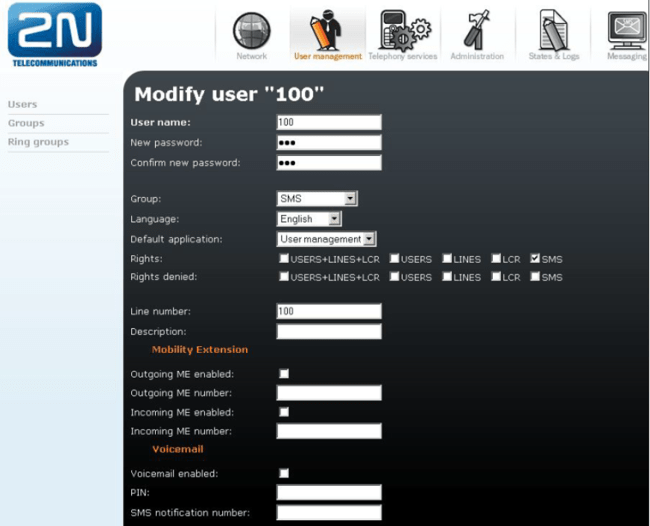
Create user in VoiceBlue Enterprise/OfficeRoute. Enable the SMS rights for this user. If you want to create the user without SIP phone, do not enter Line number.
-
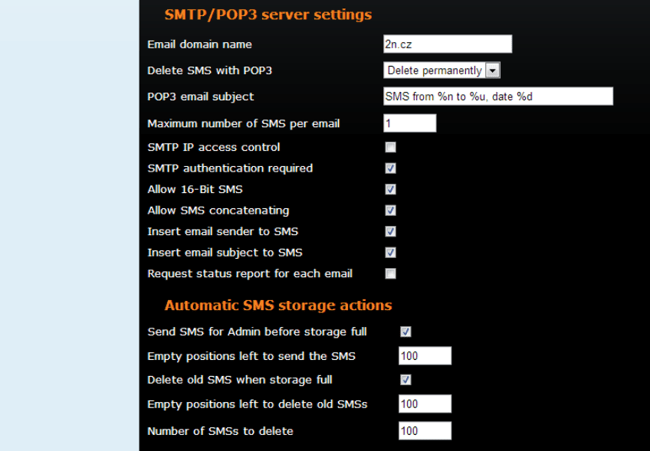
Message setting – do not forget to set up „Email domain name“.

-
To avoid the memory overload set the automatic storage action according to the picture below.
In case you would like to allow sending SMSs from a part of the network or only from one computer, tick SMTP IP access control in „SMS delivery“ and then create a rule in „SMTP IP access“. In case you would like to make restriction only for the range 192.168.50.1 – 192.168.50.255, create the rule that you can see below.

-
Now you need to set up POP3 and SMTP server in Outlook. First of all go to Tools -> Account settings and create new account. In account settings specify user name, IP address of OfficeRoute in incoming and outgoing mail server and login information.

-
After this setting click "More Setting..." button and in section Outgoing Server activate parameter "My outgoing server (SMTP) requires authentication".

-
Now you can create SMS and send it to a mobile phone. Do not forget to choose the correct account in Account setting.
