My2N Basic Settings
This section describes the basic My2N platform settings for adding devices and users.
My2N Structure
Companies, Sites and Apartments form the basic structure of the My2N platform. This hierarchy allows for a clear separation of individual installations and their management from one account.
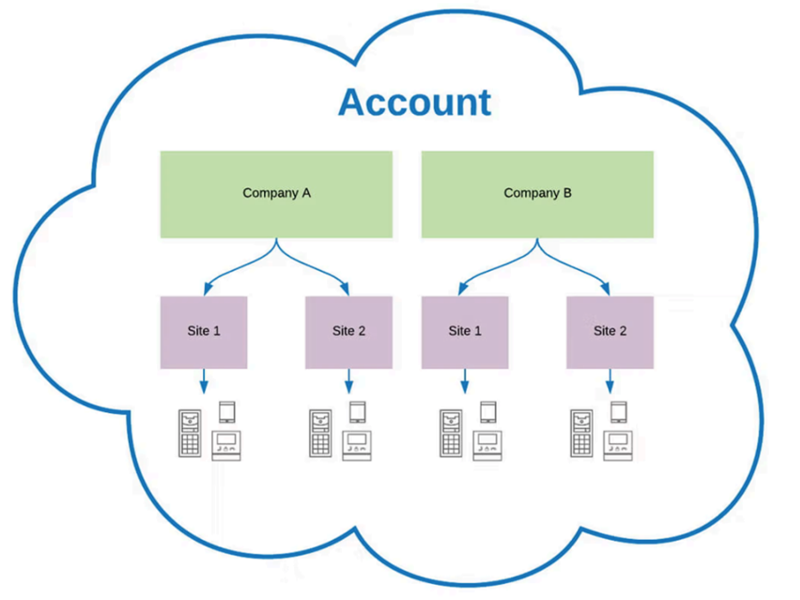 |
Company represents the top-level organizational unit where billing data is stored and from where all subordinate sites are managed.
You can create multiple sites within a Company . You can also create a brand new Company.
Each Company has billing data of its own.
A Company will be created automatically after registration.
You can switch between the companies in the Company tab in the left-hand upper corner of the My2N platform.
Tip
It is recommended that the administrators keep just one company and create a new site for each installation. Exceptionally, a new company needs to be created instead of a new site if:
Different billing data (billing address) is required for a new installation – billing data is defined separately for each Company.
A Site represents the specific physical site where the devices are located. You can create multiple sites within a single company – each with its own settings, devices and users. This structure makes it easier to manage multiple objects from a single interface.
Site contains devices, users and apartments.
A site can only be created within a specific company.
Calls between the devices can only be made within a specific site. You cannot call between the sites.
You can switch sites in the sites tab in the left-hand upper corner of the platform, you can click them in the Apartments section in the My2N app.
Site Type is determined by the payment model. The options are Residential and Commercial site types.
Residential Site Type is used for apartment buildings or family houses. By selecting the Residential site type, you choose to pay paid services in My2N for the apartment.
The limits are 4 devices per apartment, including smartphones or third-party devices for which the Site Admin must purchase a subscription.
Each answering unit (2N answering unit, smart phone or third party device) must be assigned to an apartment.
When you add a new intercom from 2N or AXIS and answering unit from 2N or AXIS, you will receive a free 2N Mobile Video license for the apartment.
Each apartment has a designated Apartment Administrator.
Commercial Site Type is used for office buildings, mixed-use buildings or any other building that does not meet any of the listed uses. By selecting the Commercial site type, you choose to pay paid services in My2N for the device.
These paid devices are smartphones, tablets, third-party answering units, third-party IP phones, but also 2N IP Handset, 2N IP Phone D7A and 2N SIP Speaker Horn.
Apartment interconnects the end users with specific devices and their services, such as calling or access.
Registration
You must first register to use the My2N platform. Registration is done through a web browser at my2n.com.
Open My2N.com.
Click Create My2N Account.
Fill in the required information, check consent and verify via reCAPTCHA.
Click Create Account.
Open the activation email message.
Click Activate Account.
Enter a new password into New Password.
Click Activate Account again.
Once the account is activated, the Default Company will automatically be created with the name you entered. The platform will then offer you to create a site.
Creating site
Name the site in Site name.
Select Site language.
Click Next.
Select Country, Region and ZIP / postal code.
You can set specific site information to better understand the users. This information is optional and can be added later.
Click Next.
Select Site Type.
The choice of the site type has a direct impact on the subscription fee, refer to My2N Structure.
Click Next again.
Select Site subtype.
The choice does not affect the subscription fee, it is an informative choice.
Click Create Site for confirmation.
The site has been created. We recommend that you set up two-factor authentication once you have created the site.
Two-Factor Authentication
Two-factor authentication provides an additional layer of security for system integrators and company administrators.
Prerequisites:
Pre-installed authentication application on your phone (e.g. Google Authenticator or Microsoft Authenticator).
Click your account in the right-hand upper corner and select My Profile.
Click Enable Two-Factor Authentication in My Profile.
Click Next.
Scan the QR code using phone.
Enter the code from the authentication application into Authentication Code.
Click Save.
Enter your password into Current Password.
Click Save again.
Copy the Two-Factor Recovery Codes and store them safely.
Check Codes are copied and stored securely.
Click Confirm Codes for confirmation.
Note
For maximum security, regenerate these codes regularly. You can do this at any time.
Subscription
You get a free 30-day trial of 2N Mobile Video upon your first registration. During this trial period, you can test all its features with an unlimited number of devices. We recommend continuing with the free trial before purchasing the first paid subscription. The current account status can be seen in Dashboard.
Credit System
Purchasing a subscription will create a credit pool. Each month, a certain number of credits is deducted from the credit pool. A monthly subscription for 1 apartment requires 1.5 credits. The credit pool is replenished through regular payments with a credit card or vouchers from a distributor.
If the amount of credits does not cover the subscription for all of the paid devices for the next month, you will be notified there of via Dashboard and prompted to make a purchase.
The amount corresponds to the number of active devices with the 2N Mobile Video service at the beginning of the month. The purchased credits are immediately deducted to cover the subscription for the current month. Therefore, the number of credits in the pool is usually zero. If provided by the distributor, the credits are deducted to cover the subscription for at least one year.
Billing Data
Before the subscription is activated, remember to fill in the billing data.
Select the desired Company.
Go to Billing Data.
Click Edit Billing Data.
Complete the mandatory data.
Click Save Changes.
Subscription Purchase
Select the desired Company and Site.
Go to Subscriptions, Licenses.
Select 2N Mobile Video.
Click (View prices) for information on pricing for the service.
Select the desired subscription type and check Recurring Payment.
If you need an invoice order, fill in Your Order.
Check the mandatory fields:
I agree that this purchase includes an immediate download of the digital content and I acknowledge that I thereby forfeit my right to cancel the contract upon completion of the purchase.*
I agree with the My2N Cloud Agreement and have read the Consumer Information.
Caution
By ticking the checkboxes and making payment, you waive your right to withdraw from the contract within the time limit set by law. Refer to Terms and Conditions for more information.
Note
The VAT fee is included in the price as a standard. To purchase without VAT, please contact our customer service (for example, to verify your VAT number). This process is necessary for fraud protection. It is required to prove the identity of the buyer. Please refer to Terms and Conditions for more information.
Click Order with obligation to pay.
The next step gives you an overview of the payment details. Please double check them. Direct payment from the account is currently only possible with a credit card.
Note
If you do not want to use a credit card, you can purchase a voucher from one of our distributors. See here to find out how to use a voucher.
Click 3D Secure Payment.
Complete the mandatory data.
Once the payment has been successfully completed, Thank you for your payment will appear on a new tab. You can close this tab. An invoice for payment will be sent to the email.
In the Dashboard section, you can check whether the payment has been processed and the service is active. You can see the total cost of the payment, as well as details of when the next payment will be made.
In the event that the payment has not been processed for any reason, e.g. an expired credit card or low balance on the account, you will be notified by email. You will have 3 days to resolve the issue, during which the service will still be active. After this period, the service will be deactivated.