2N Fortis Commander - overview and how to use it
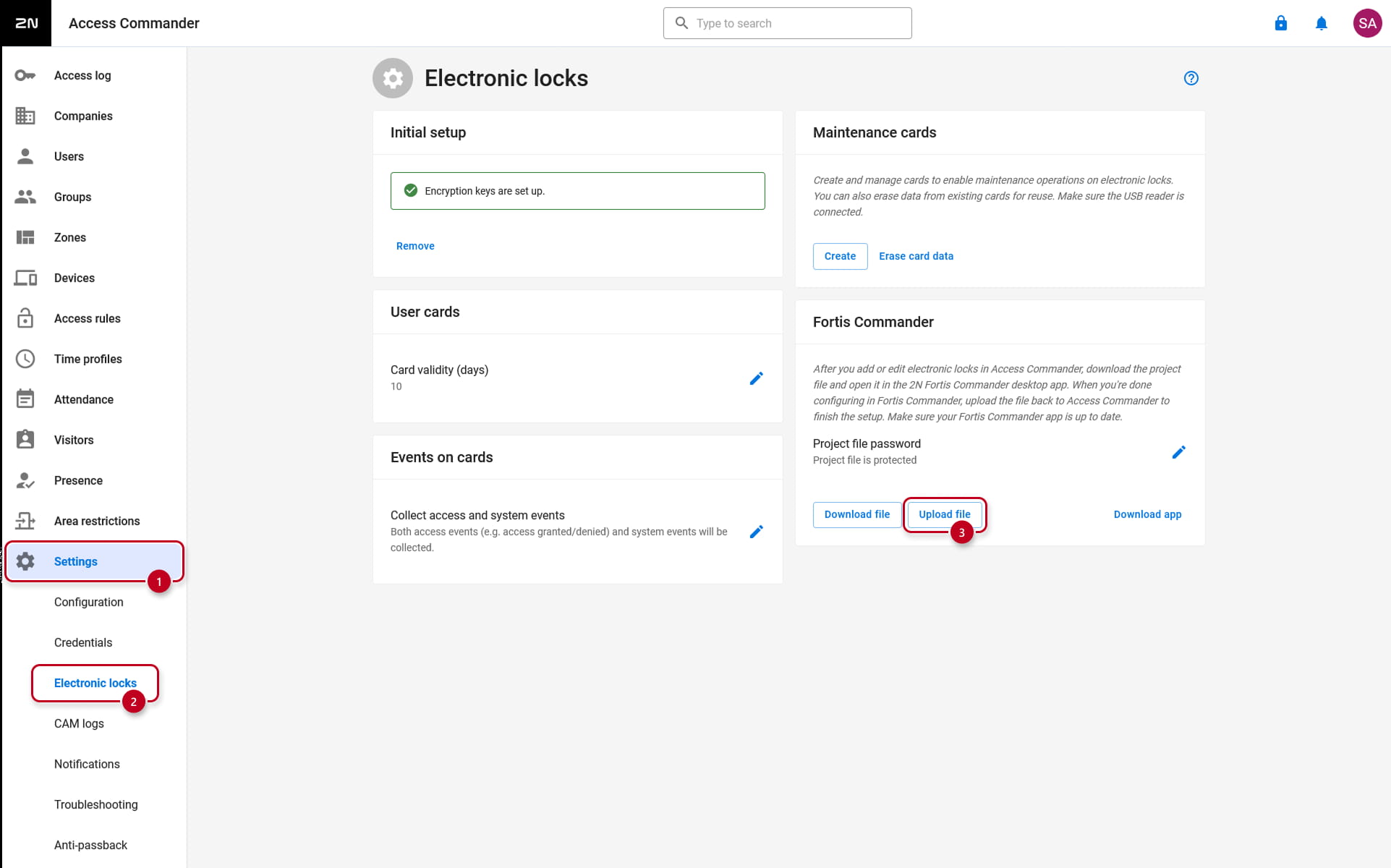
Since the Access Commander 3.5 version, it is possible to configure 2N Fortis Electronic locks with the 2N Fortis Commander software. A project file needs to be downloaded from the "Settings -> Electronic locks -> Fortis Commander" section of the 2N Access Commander.
The 2N Fortis Commander software can be downloaded from the 2N Download Centre. The link is available in the "Settings -> Electronic locks -> Fortis Commander -> Download app" section of the Access Commander's web interface as well.
Every action in the 2N Fortis Commander is saved automatically and does not need to be confirmed.
- Initial projects page
- Opening a project
- Project page
- Connecting to a device
- Connected device detail page
- Closing the project
Initial projects page
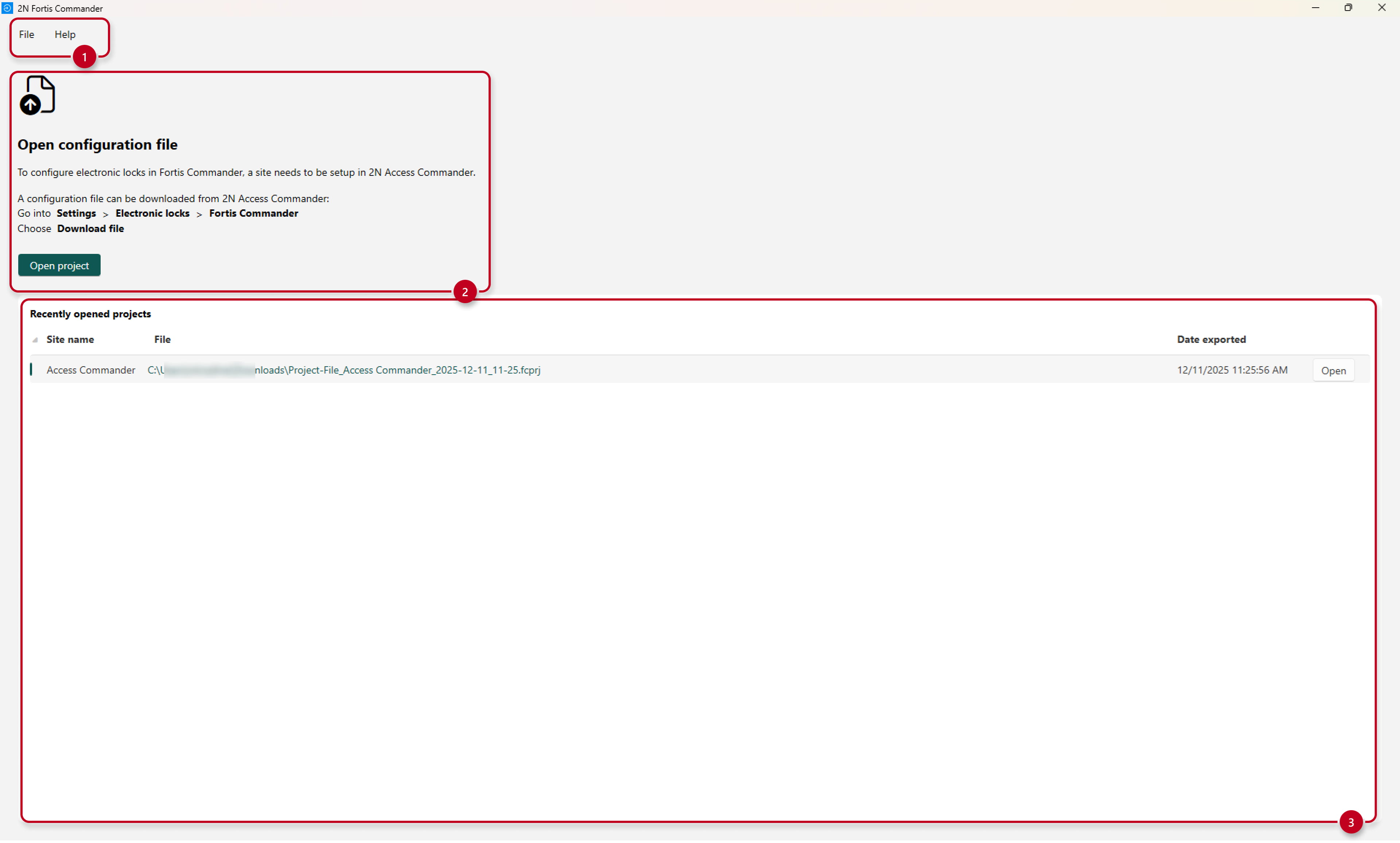
When running the 2N Fortis Commander, it is possible to see the File and Help options (1), Instructions for opening a project/configuration file (2) and Recently opened projects with details about the files (3).
Opening a project
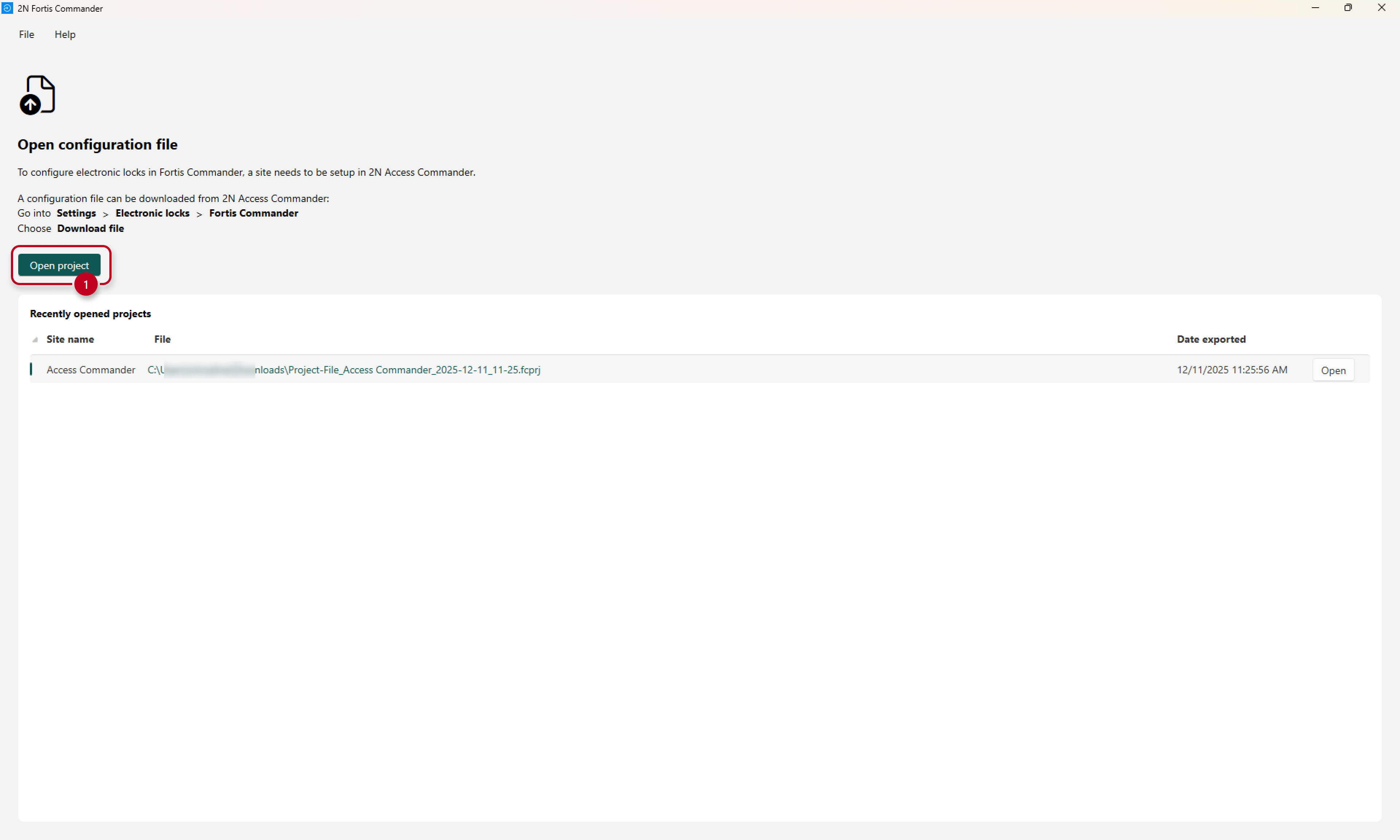
To open a project, you can either open the project file, which was downloaded from the 2N Access Commander on your computer.
Or you can click on the Open project button and navigate to the project file, which was downloaded from the 2N Access Commander.
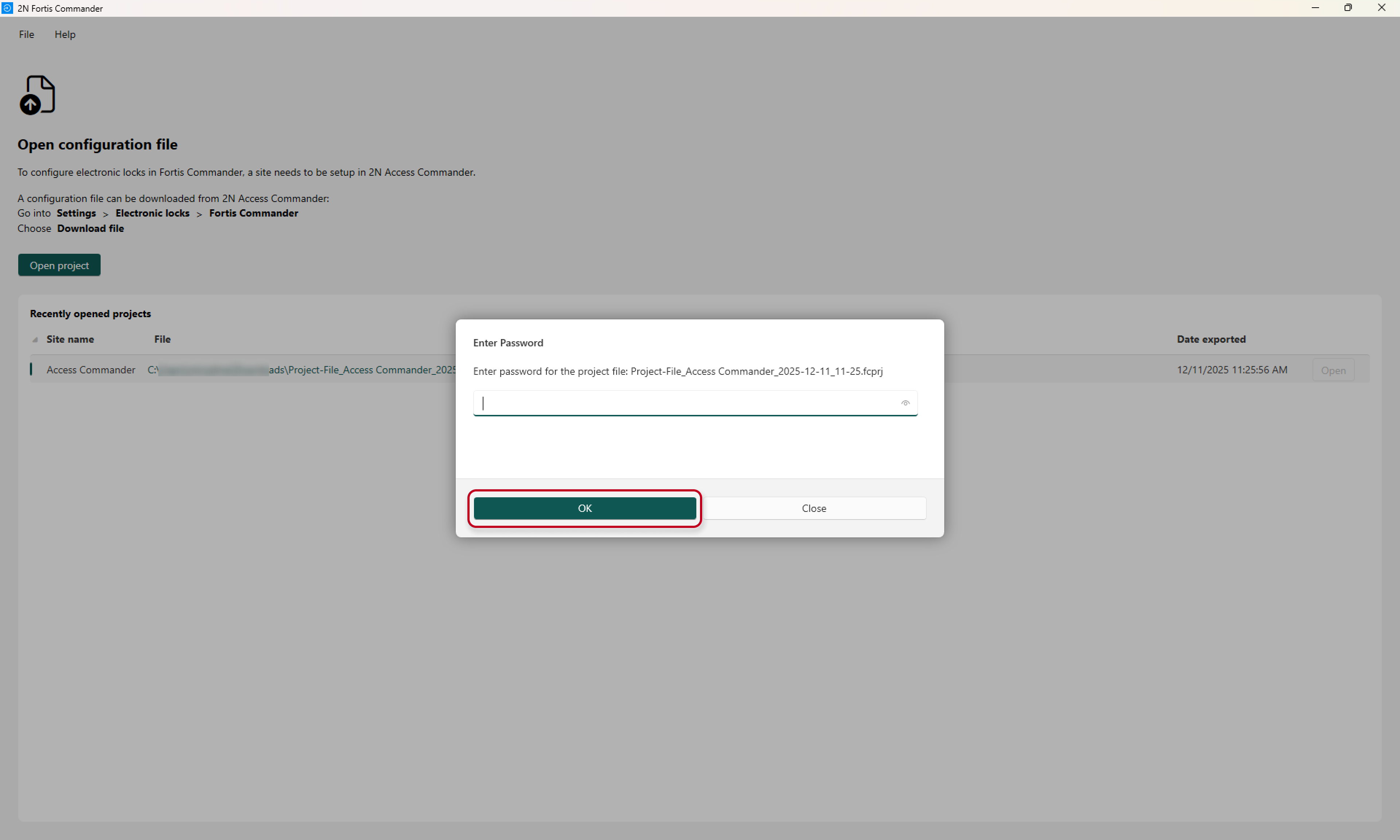
Either way, the 2N Fortis Commander will ask you for the password of the project file, which is set up in the "Settings -> Electronic locks -> Fortis Commander" section of the 2N Access Commander when downloading.
Project page
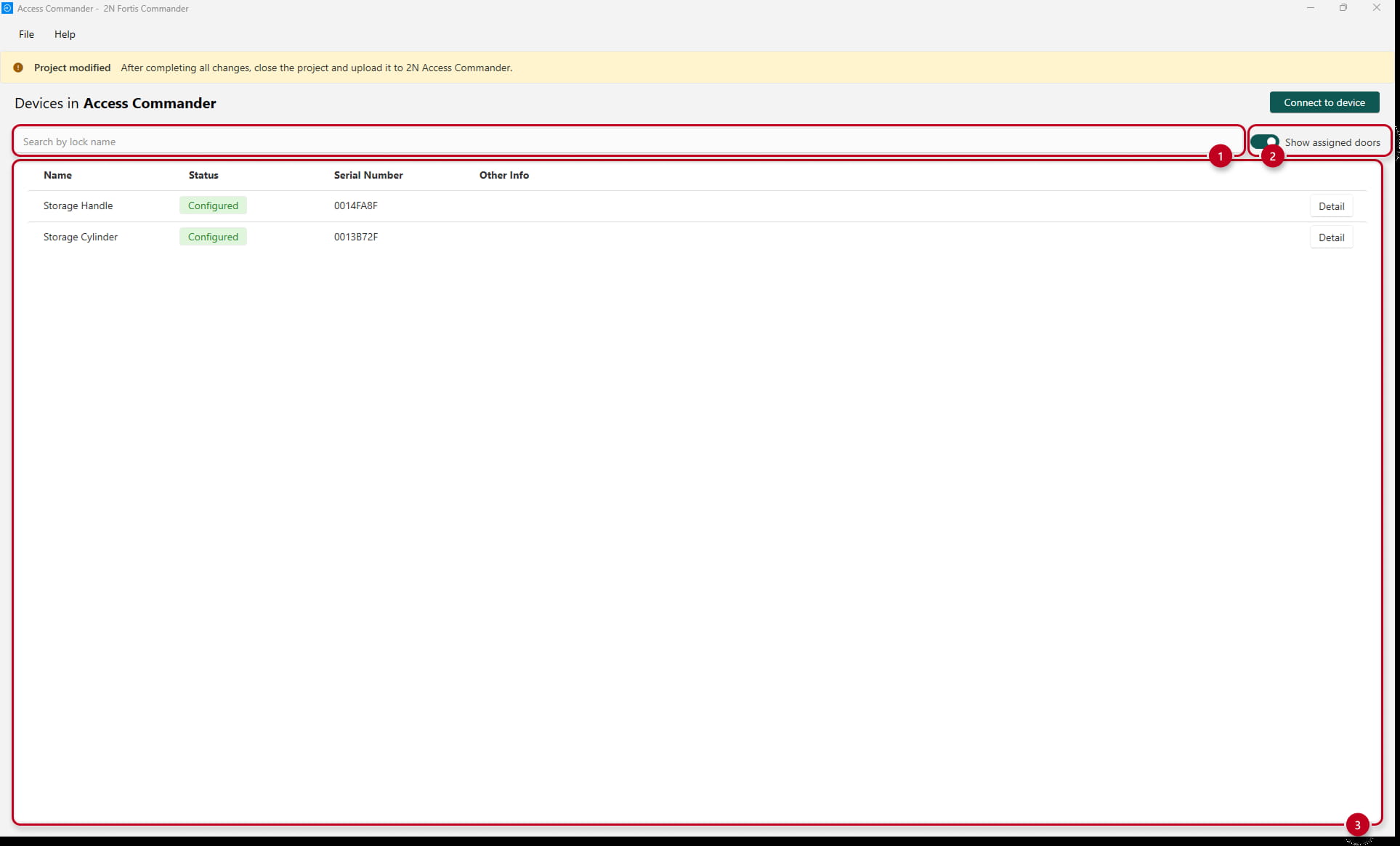
The project page contains the information of 2N Fortis devices assigned to the Electronic locks pre-configured in the 2N Access Commander.
It is possible to search by a lock name (1), show/hide assigned doors (configured 2N Fortis devices) (2) and see the list of 2N Fortis devices (3).
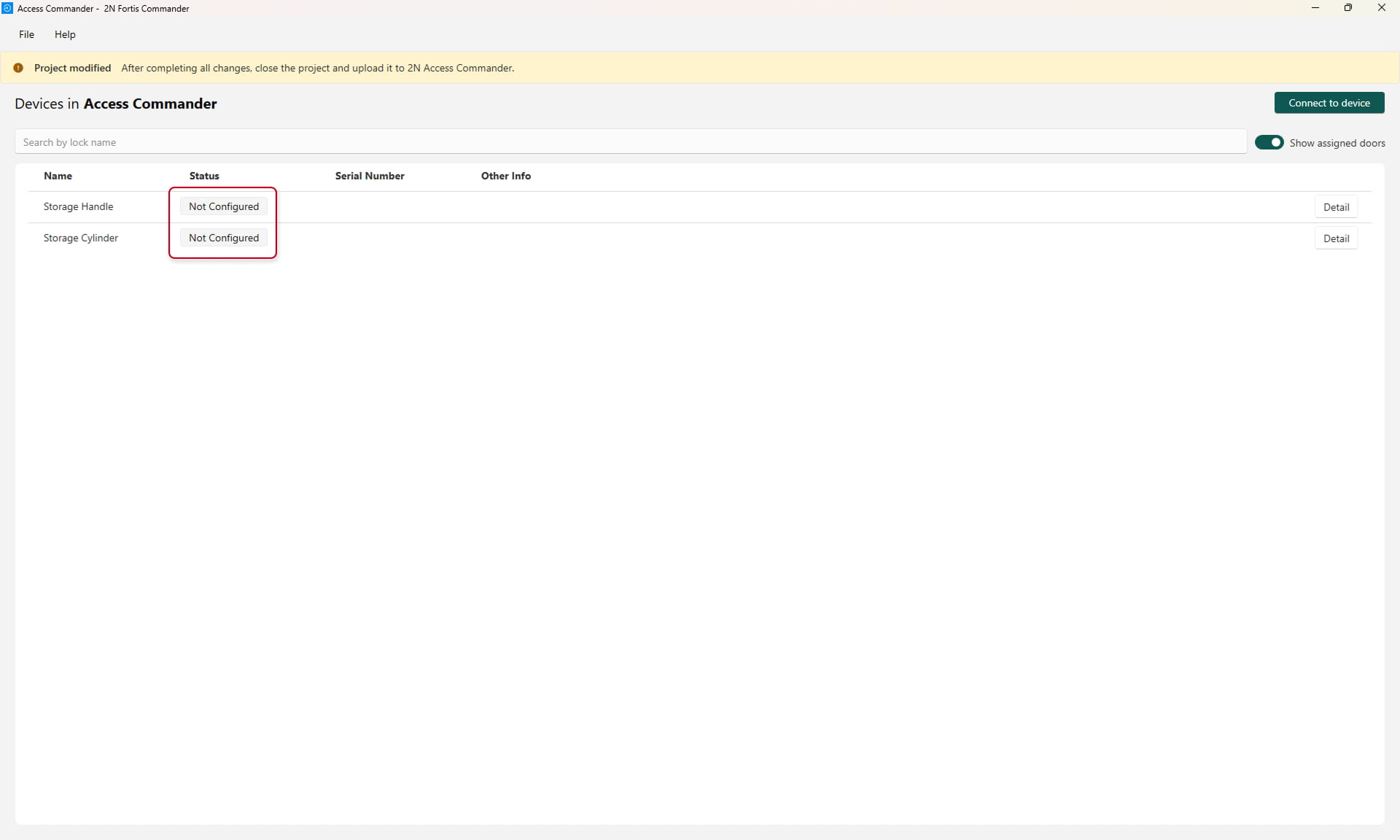
When a new project from the first initialisation of 2N Fortis in 2N Access Commander is opened, there are no assigned devices at first, and they are shown as not configured.
Connecting to a device
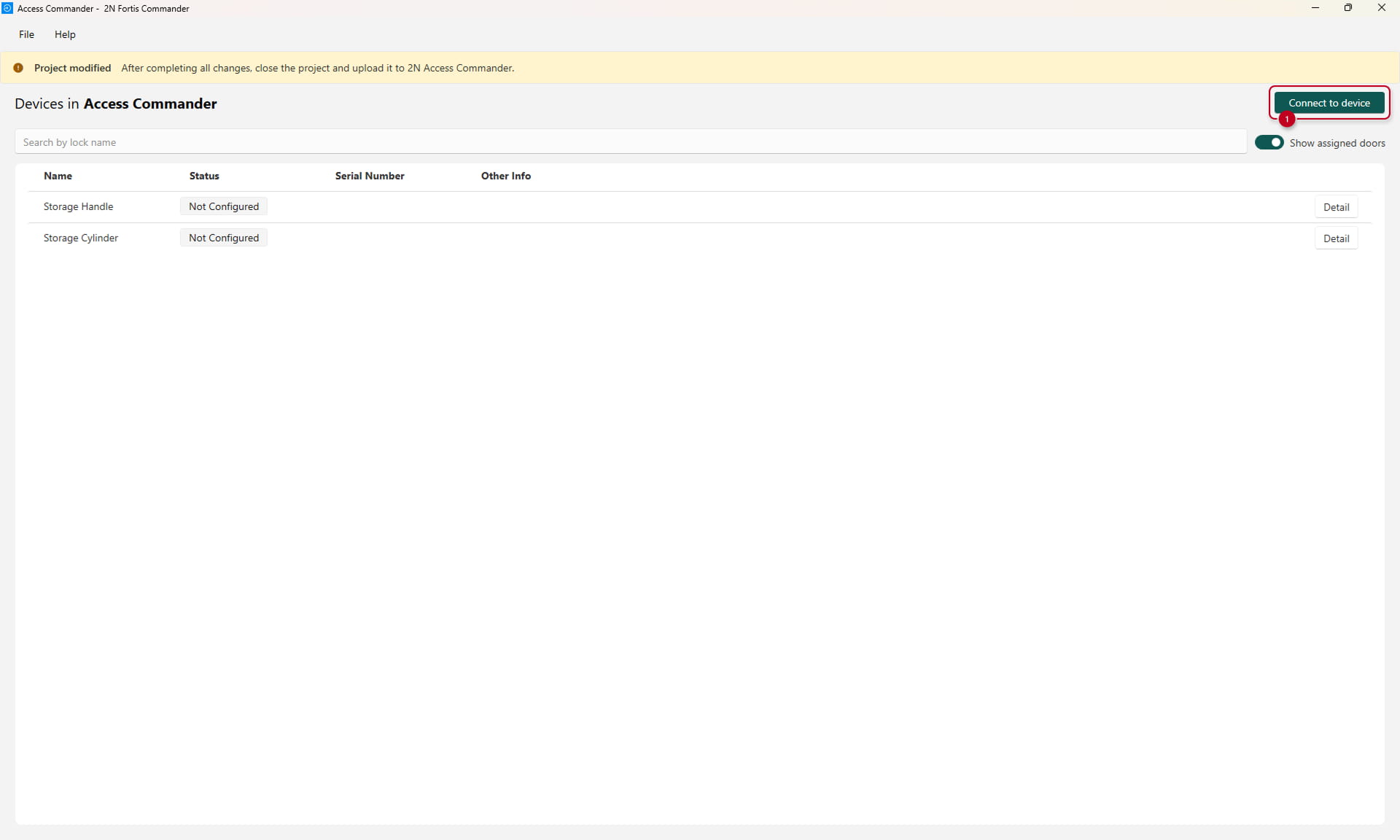
To connect to a 2N Fortis device, the computer running the 2N Fortis Commander needs to be equipped with Bluetooth.
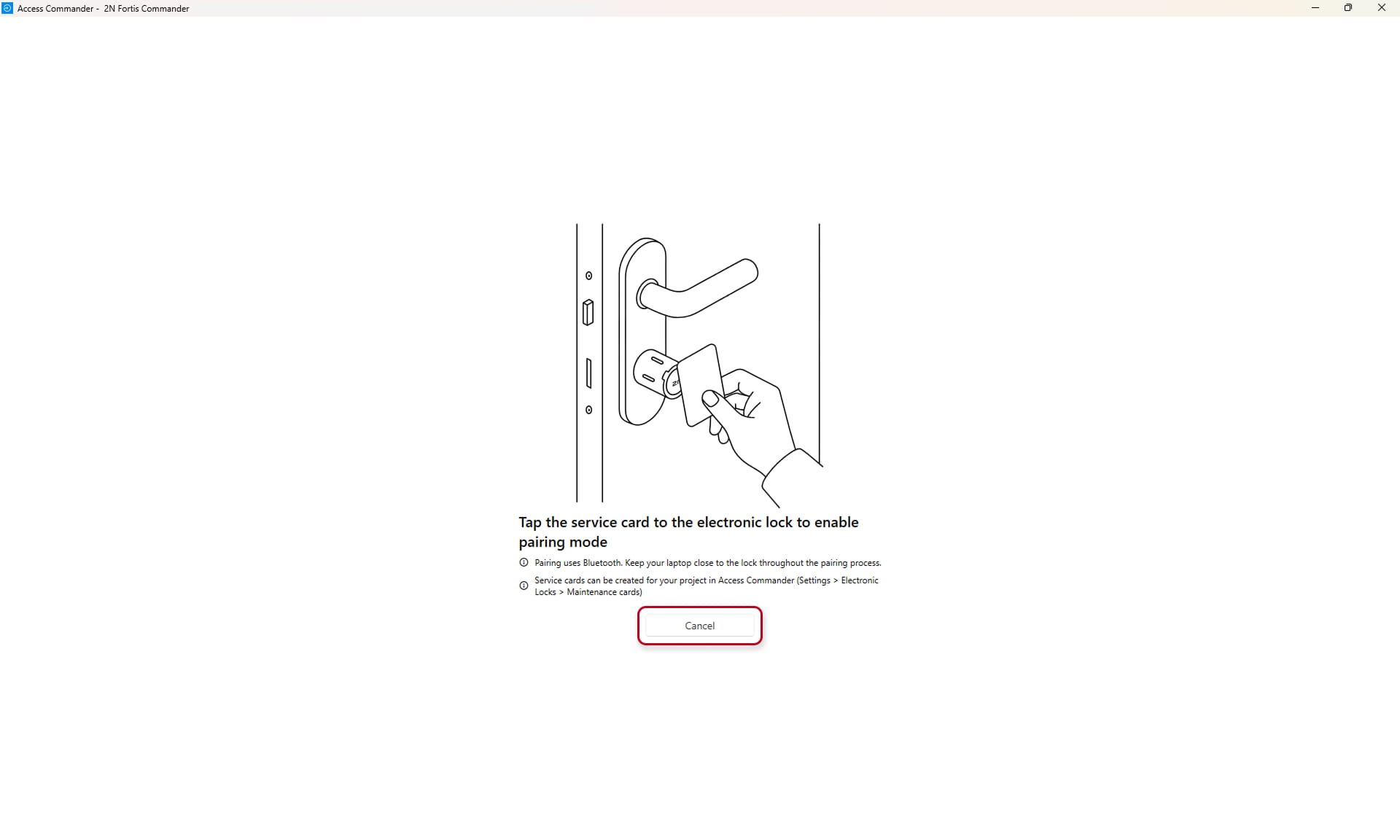
Click on the "Connect to device" button and swipe the Lock set up & Service card to the electronic lock to enable the pairing mode. The lights on the 2N Fortis Cylinder or Handle will be blinking with a blue light.
Keep your computer close to the 2N Fortis Cylinder/Handle throughout the pairing process.
Lock setup & Service cards can be created for your project in the Access Commander (Settings > Electronic Locks > Maintenance cards) section of the 2N Access Commander.
During the pairing/connecting process, it is possible to cancel it as well.
Once the 2N Fortis Commander connects to the 2N Fortis device, you will see the device's details.
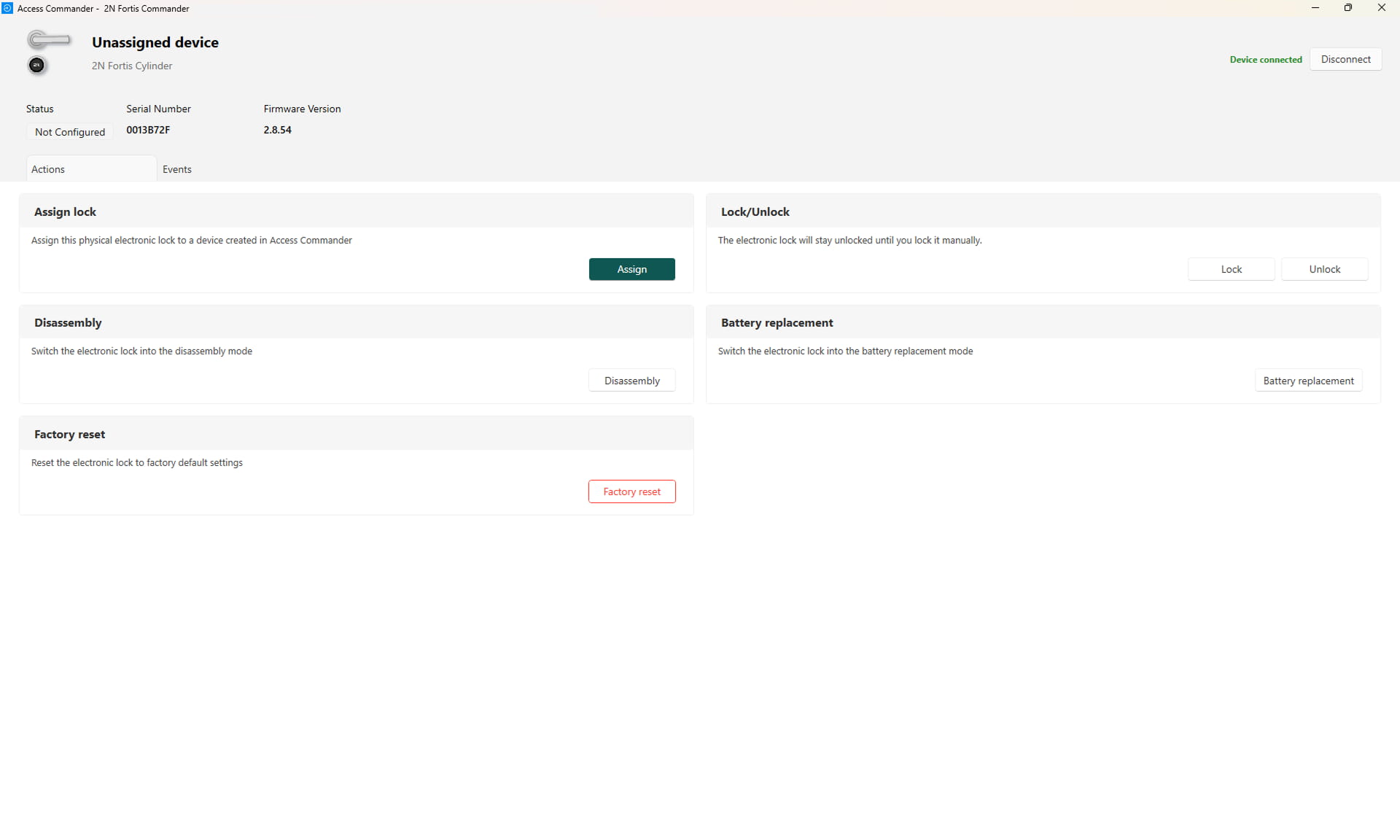
Connected device detail page
Actions page
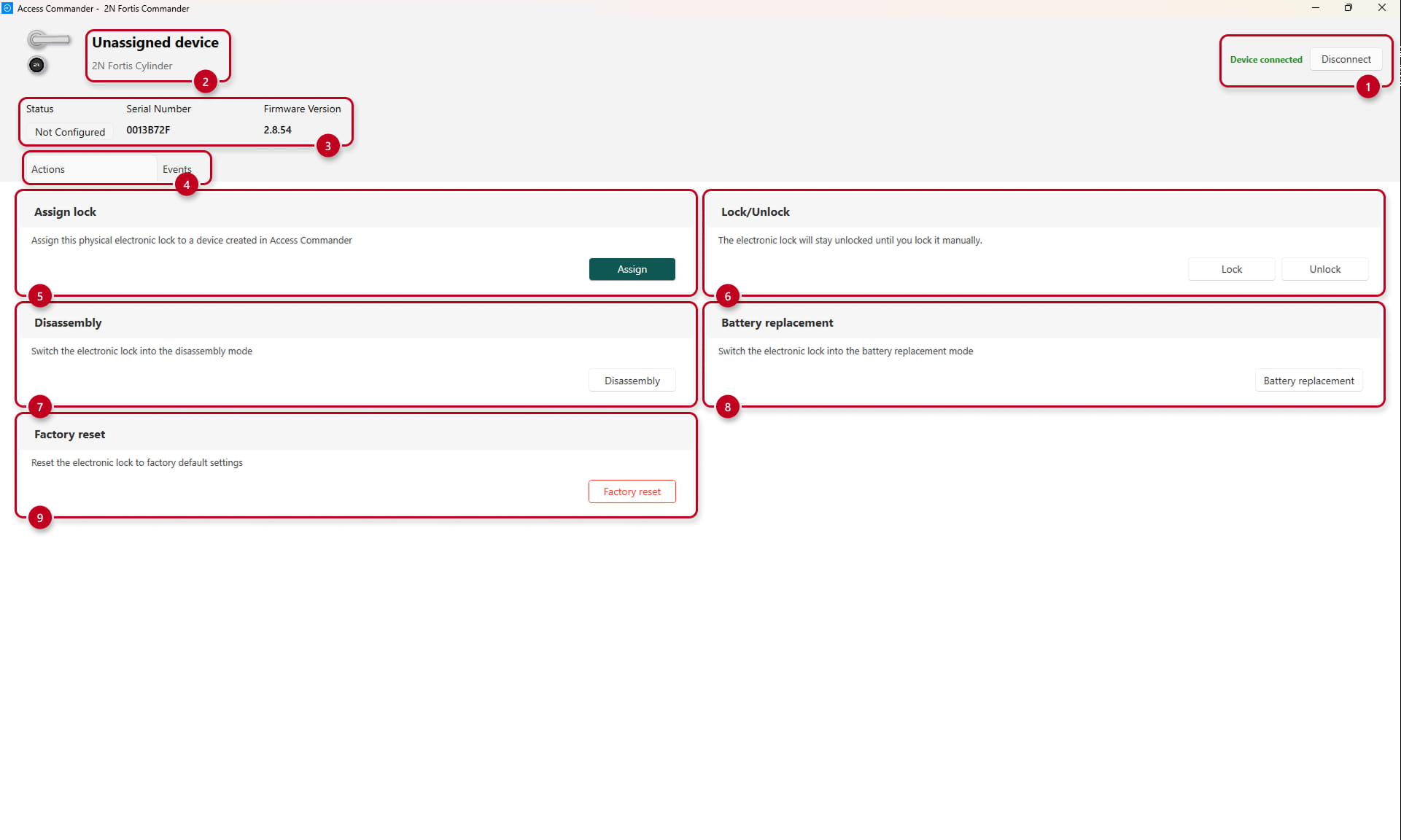
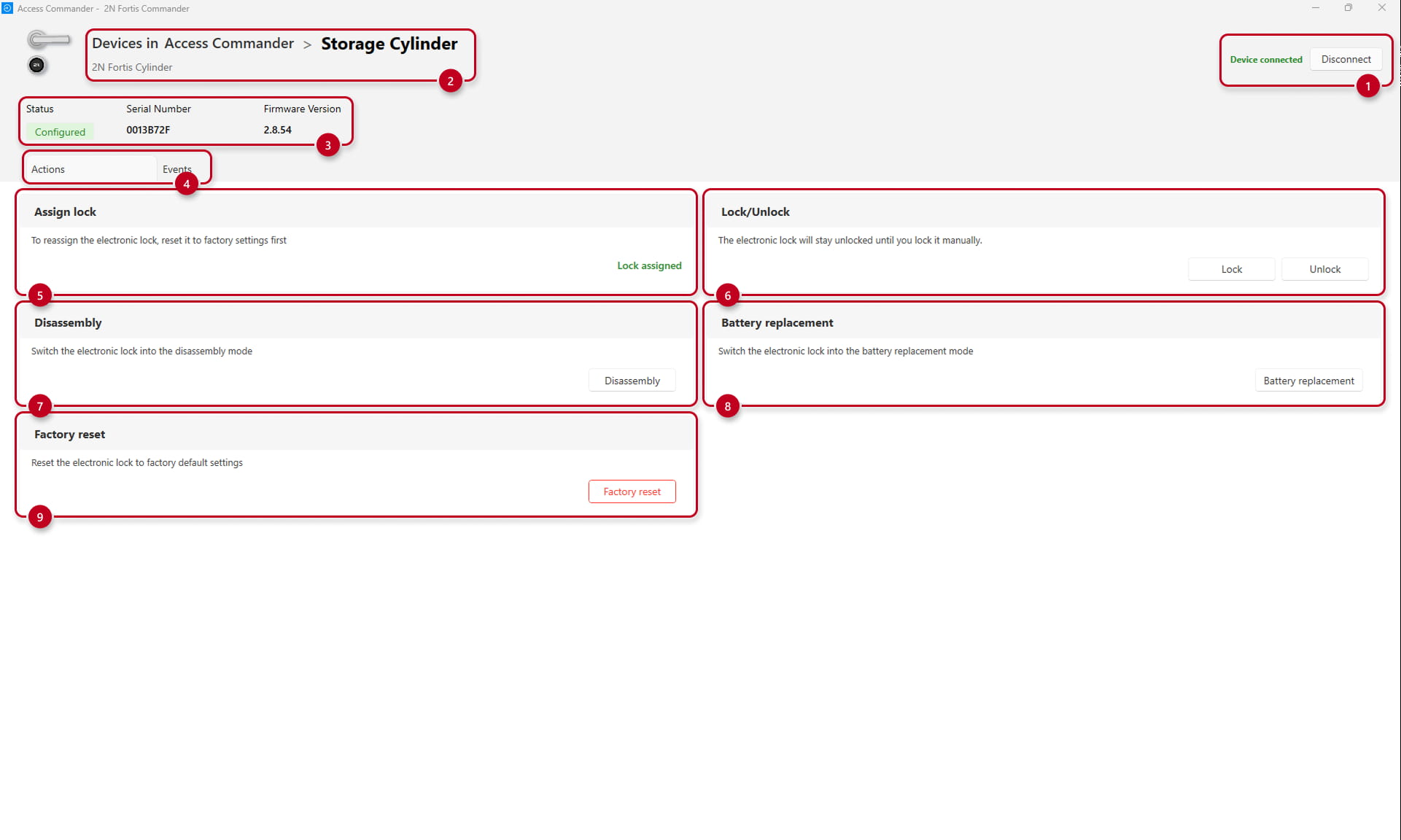
When connected to a 2N Fortis electronic lock with the 2N Fortis Commander, it is possible to disconnect from the device and see a few sections:
1 - Disconnect from the device
2 - Device name (if device is already assigned and configured) and the device type (2N Fortis Cylinder or 2N Fortis Handle)
3 - Device status, its serial number and firmware version
4 - Actions and Events tab - the Actions tab is shown by default
5 - Assign lock section to to assign it to the device pre-configured in the 2N Access Commander
6 - Device Lock/Unlock options (Lock button also restore normal operation - after using Disassembly or Battery replacement buttons on 2N Fortis Cylinder)
7 - Disassembly option - available only for the 2N Fortis Cylinder to dismount the electronic lock
8 - Battery replacement option - available only for the 2N Fortis Cylinder, for removing the cylinder cover to replace the batteries
9 - Factory reset option - more information can be found in this FAQ article
Events page
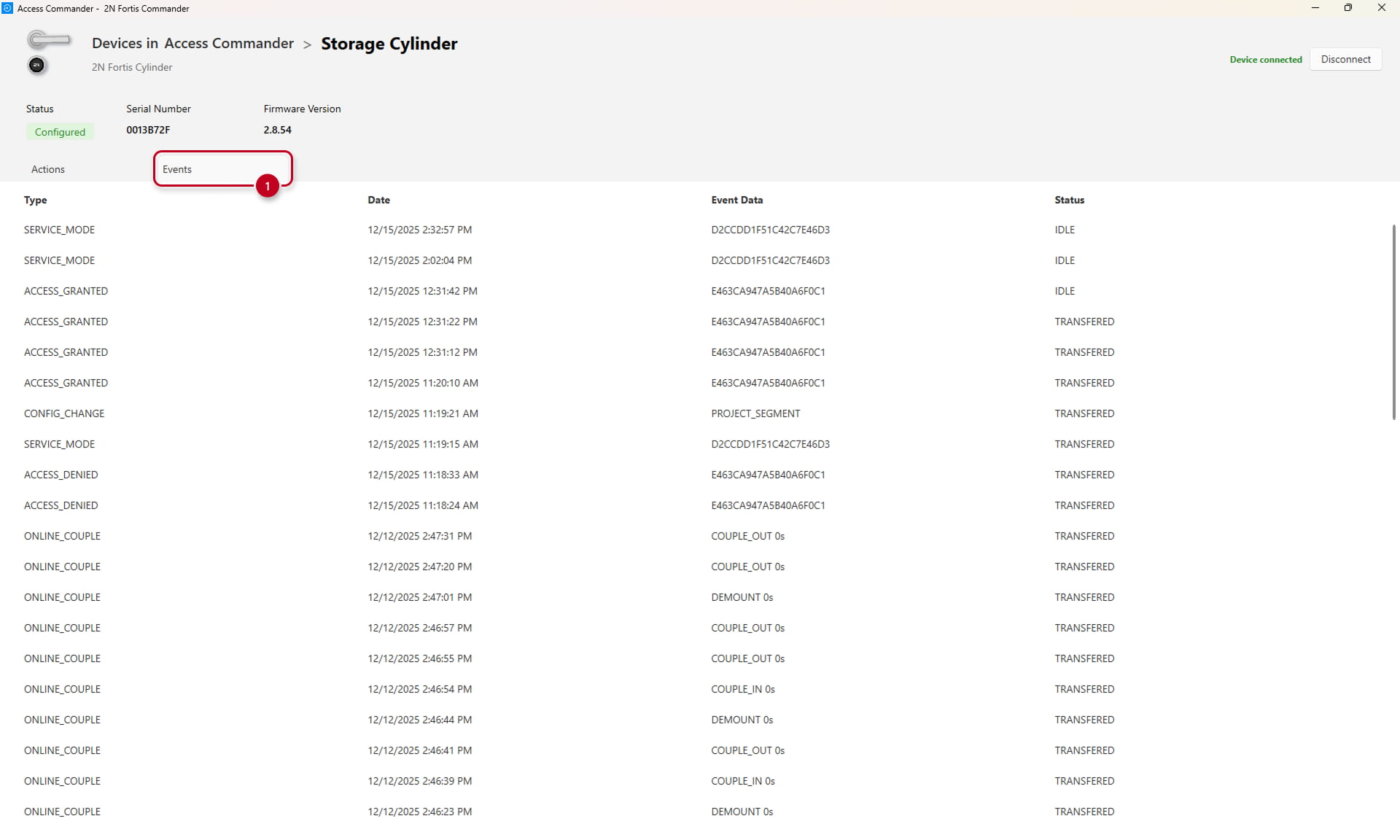
Each time the 2N Fortis Commander connects to the 2N Fortis device, it automatically pulls the Events from the device.
These events can be uploaded to the 2N Access Commander by uploading the 2N Fortis Commander project file back into the "Settings -> Electronic locks -> Fortis Commander" section of the 2N Access Commander's web interface. No changes to the 2N Fortis device are necessary. Only to connect to the device to pull out the Events.
Closing the project
After the changes have been made and the 2N Fortis Commander is disconnected from the devices, the information about the devices will be displayed.
There is also a message display informing about the next step to upload the configuration to the 2N Access Commander.
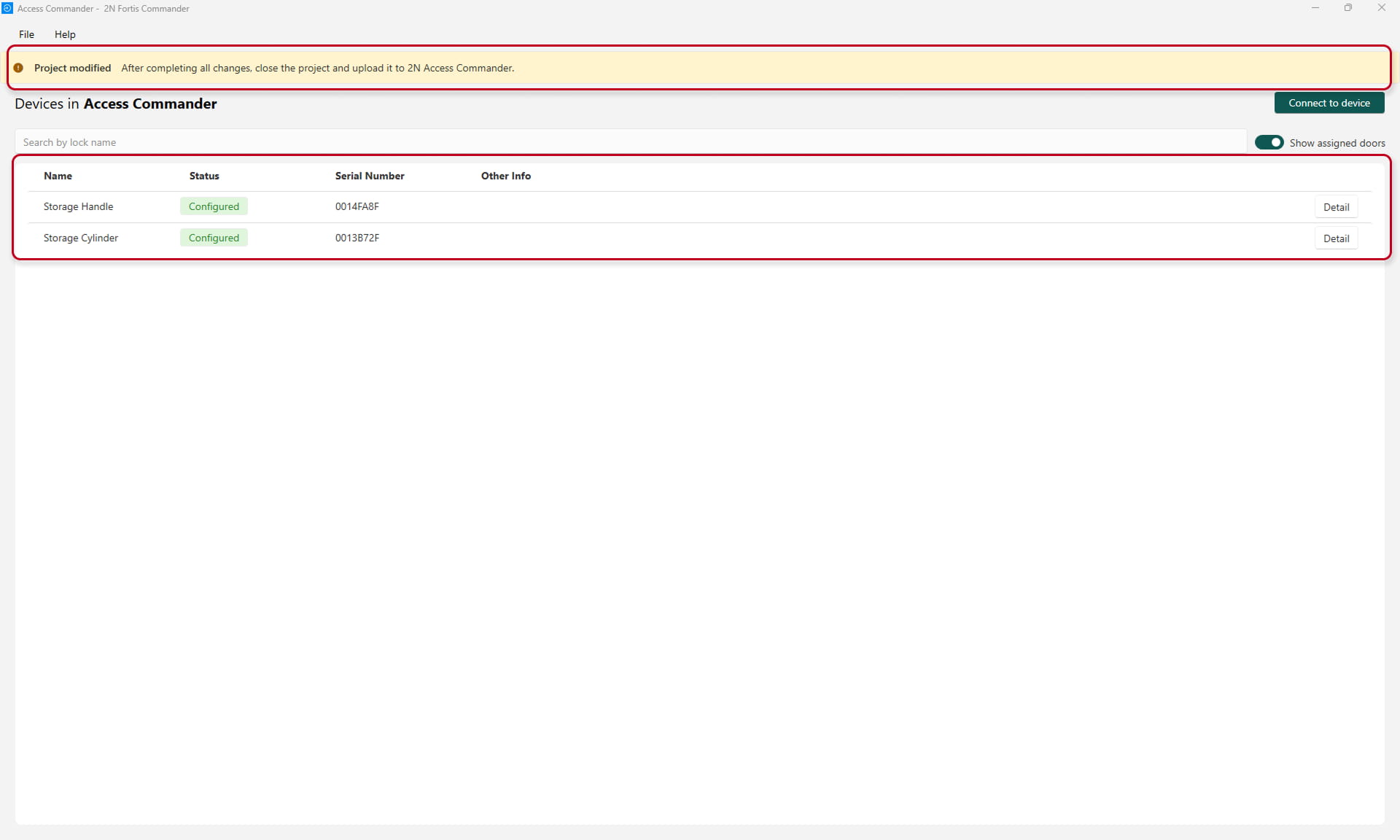
The 2N Fortis Commander project needs to be closed so the file can be uploaded to the 2N Access Commander in the "Settings -> Electronic locks -> Fortis Commander" section of the web interface.
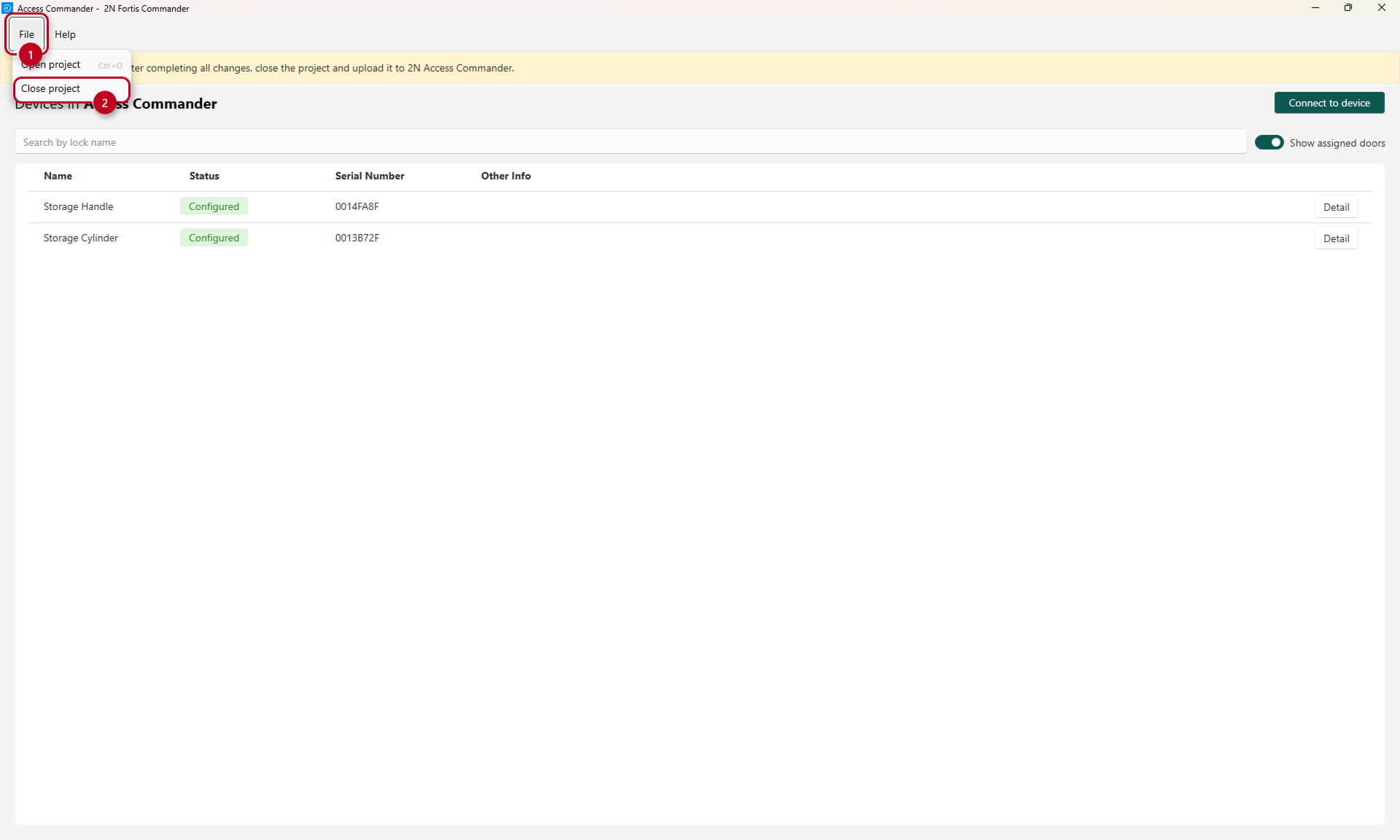
The project can be closed in the "File -> Close project section, and the view will be changed back to the Projects page.
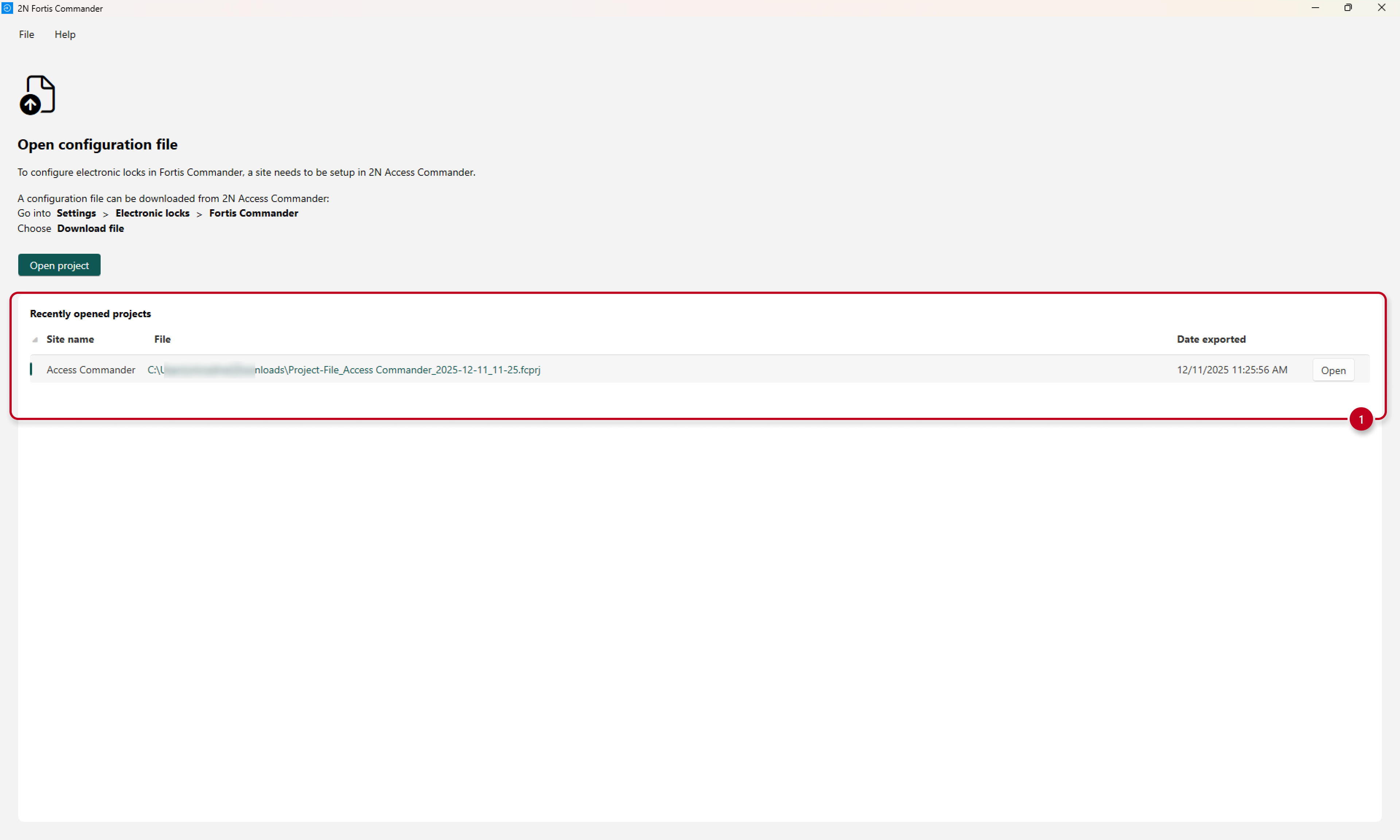
Finally, after closing the 2N Fortis Commander project, it is possible to see all the projects and their dates with the option to open them again, if necessary.
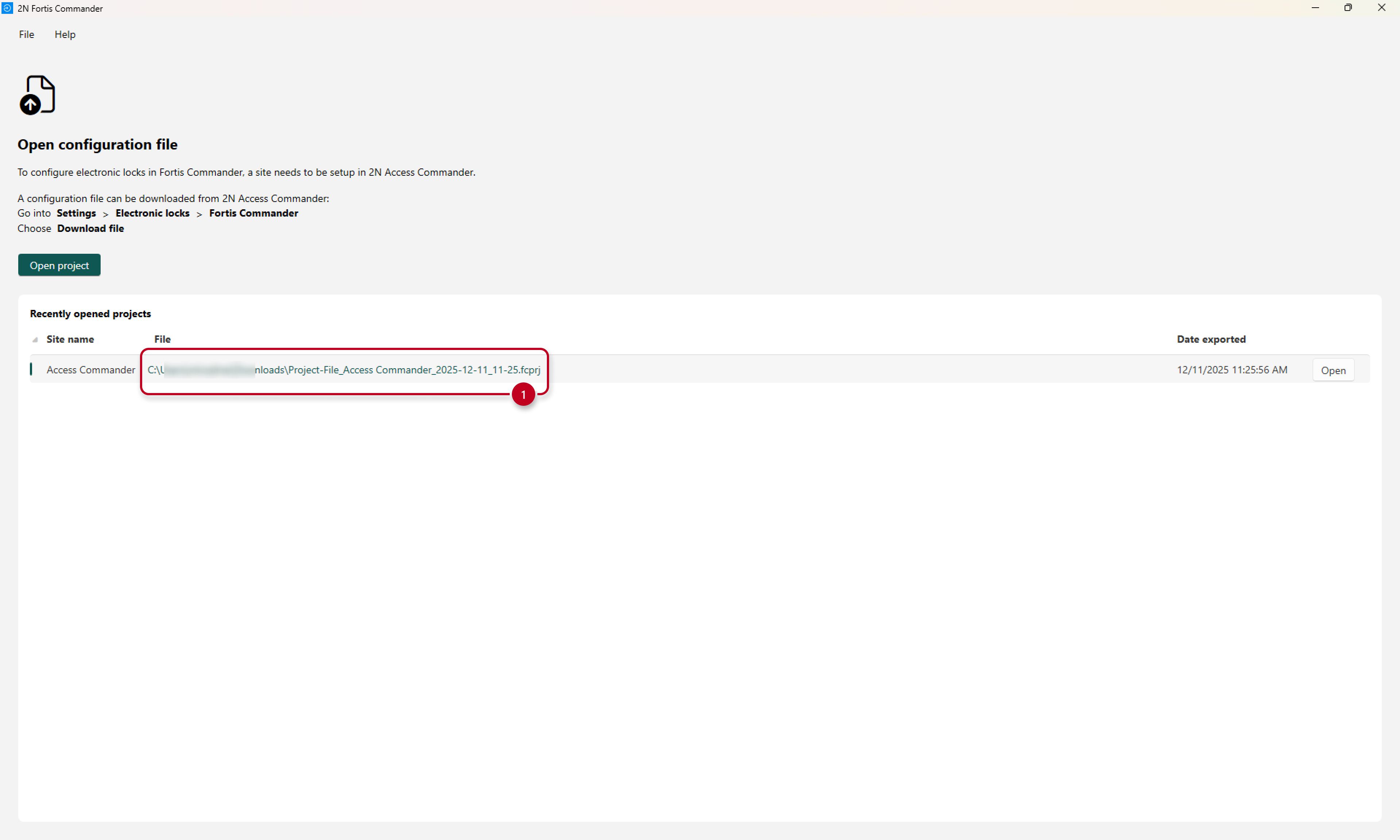
When clicking on the file path of the 2N Fortis project file, the Windows file explorer is opened with the project file highlighted.
The last step is to upload the edited 2N Fortis Commander project to the 2N Access Commander in the "Settings -> Electronic locks -> Fortis Commander" section.