Update of the system
The nerve centre of our access control solution is 2N Access Commander. Use it for managing access to the building and monitoring the status of 2N access devices in real time. Its intuitive user interface lets you set up the system quickly and delegate everyday activities directly to the customer.
c
We recommend to keep the system up-to-date.
Prerequisities
- 2N Access Commander, no additional license is required.
- Internet connectivity for 2N Access Commander is necessary, the update is only possible on-line.
Be sure, the network configuration is set properly, you can eventually follow this article:
2N Access Commander - Static IP address setup - Before updating please always make a system backup according to this instructions:
2N Access Commander - Backup and restore of the system
Feature properties
- The update must be proceeded incrementally to the next sequential version. It is not possible to jump to the latest version directly.
- It is not possible to downgrade the Access Commander from the current version to older.
Update of 2N Access Commander version 3.0 and higher
- Go to 2N Access Commander web interface, section Settings, part System update.
You will see a notification about available update, please follow this procedure:
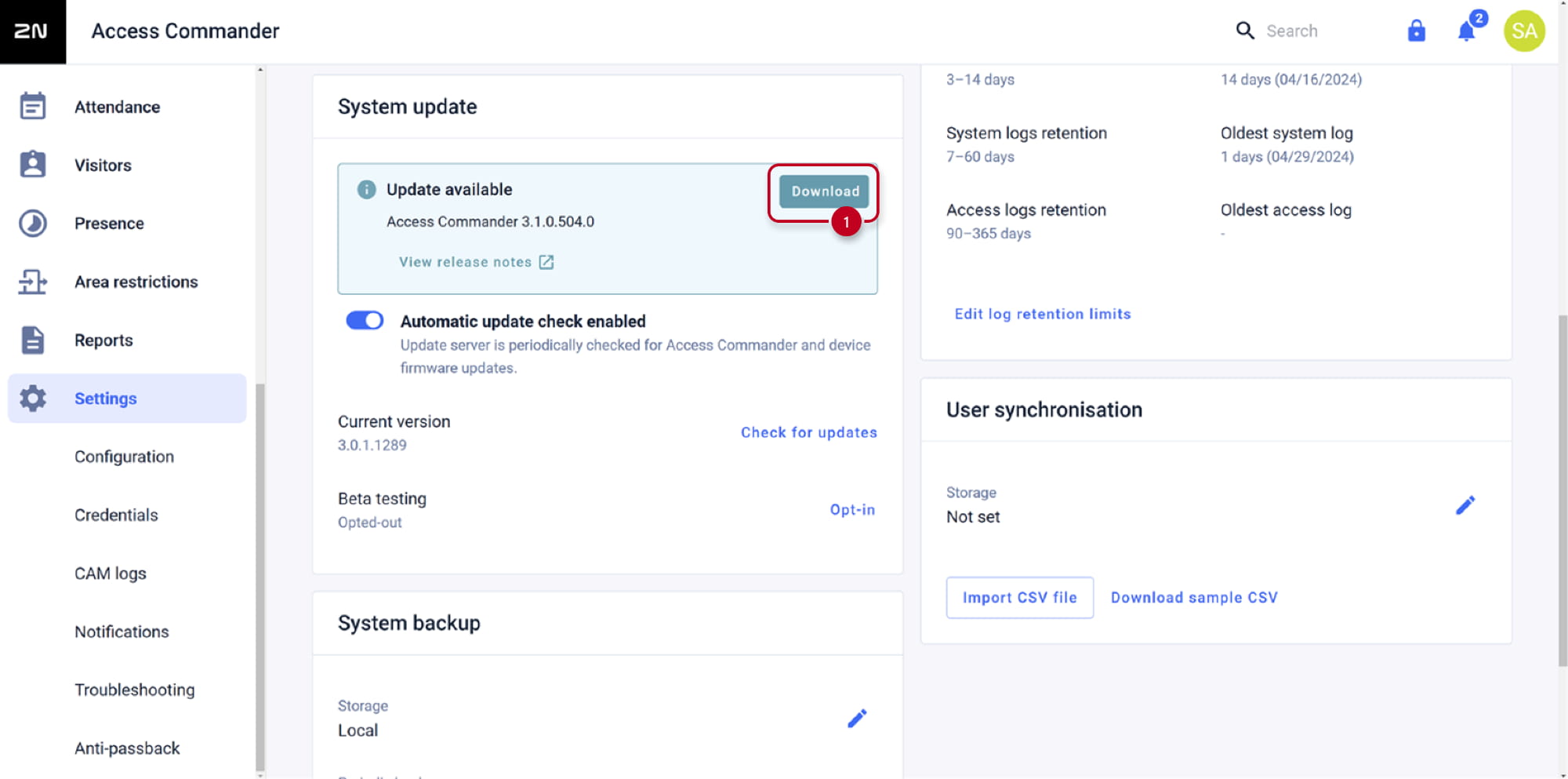
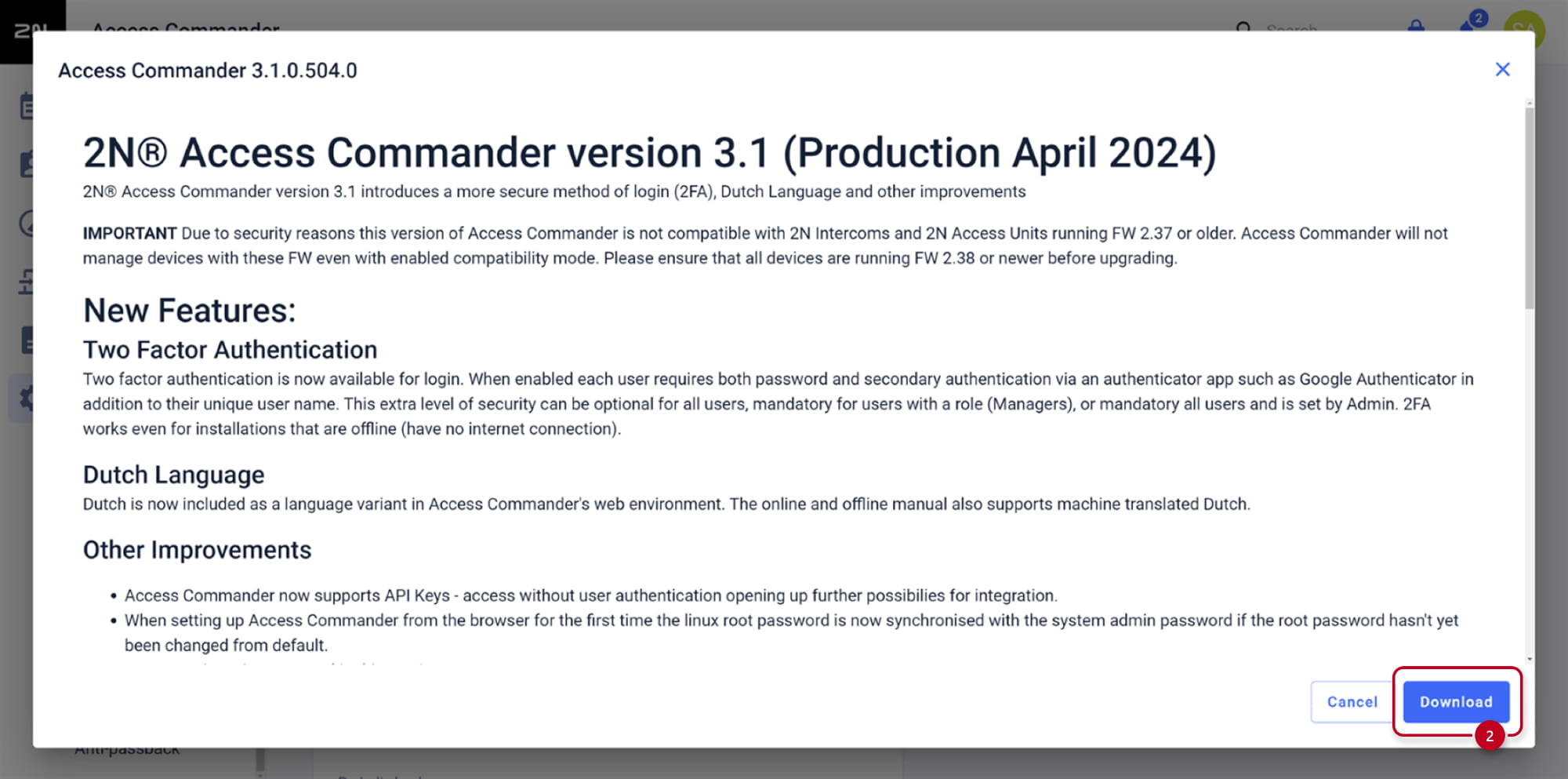
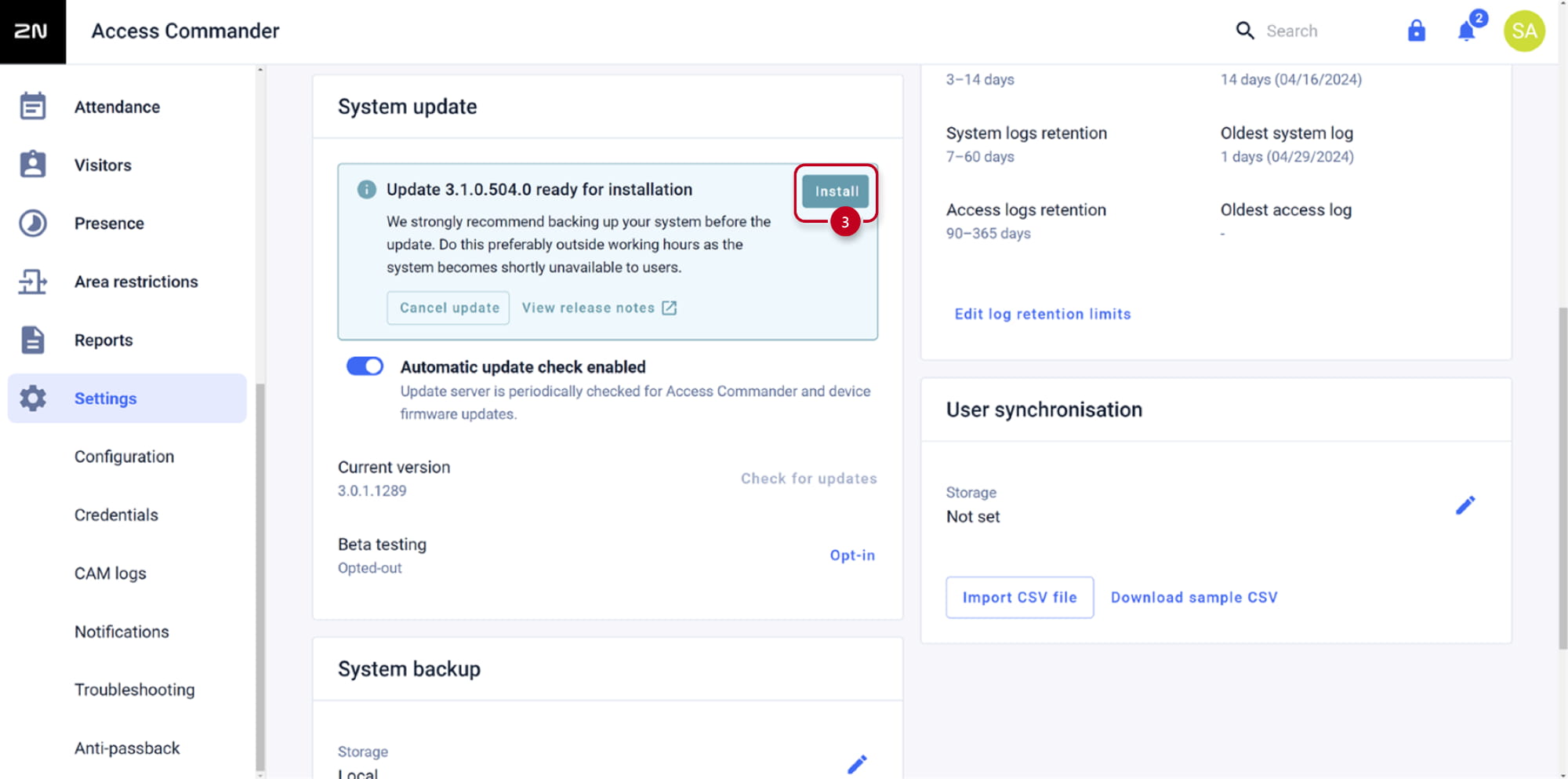
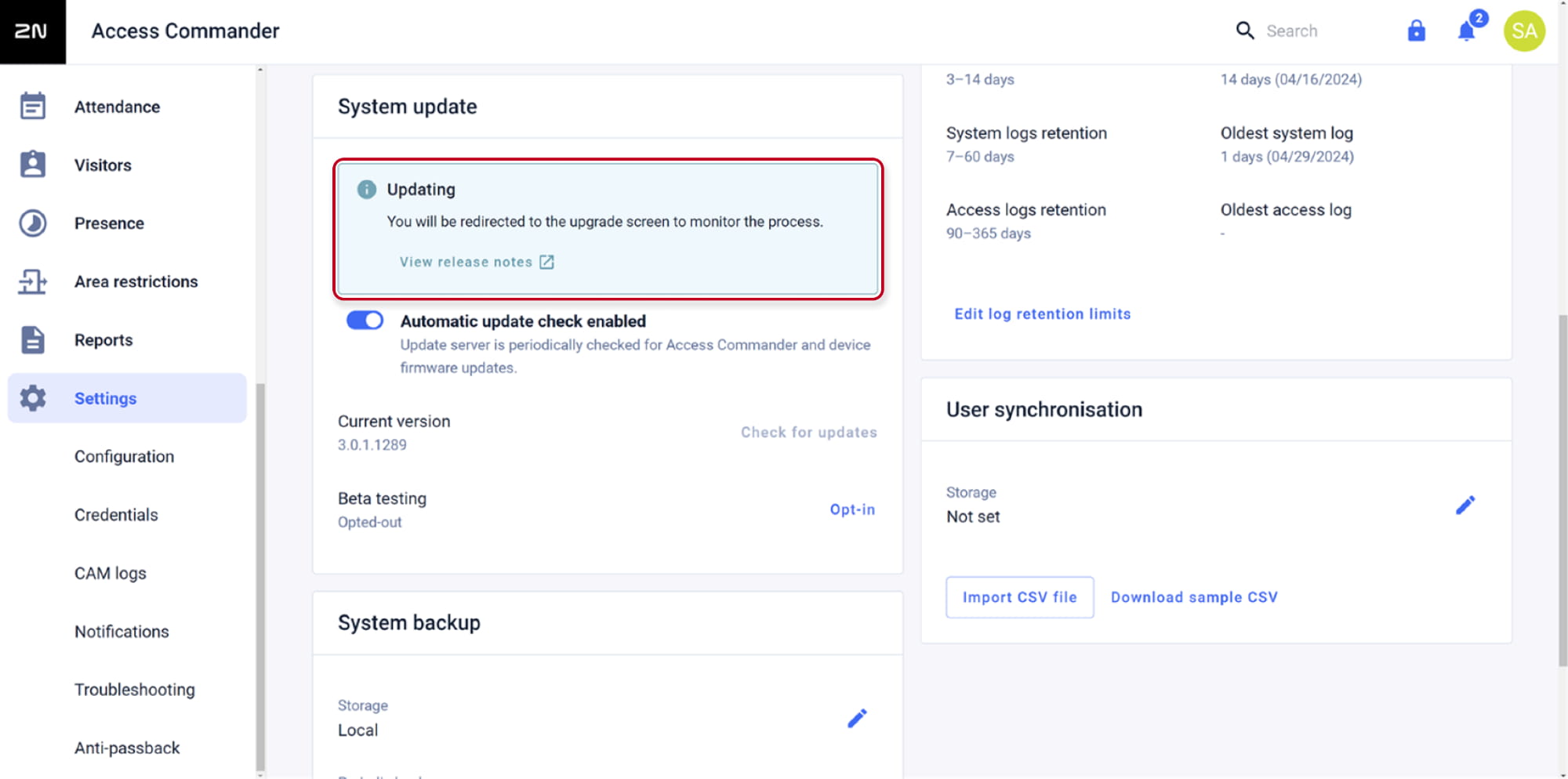
- During preparation of necessary components to update the system you will loose the access to the system, please be patient and wait few minutes till the update process starts. When all necessary components are ready to update the system, you will see an update console window showing process status.
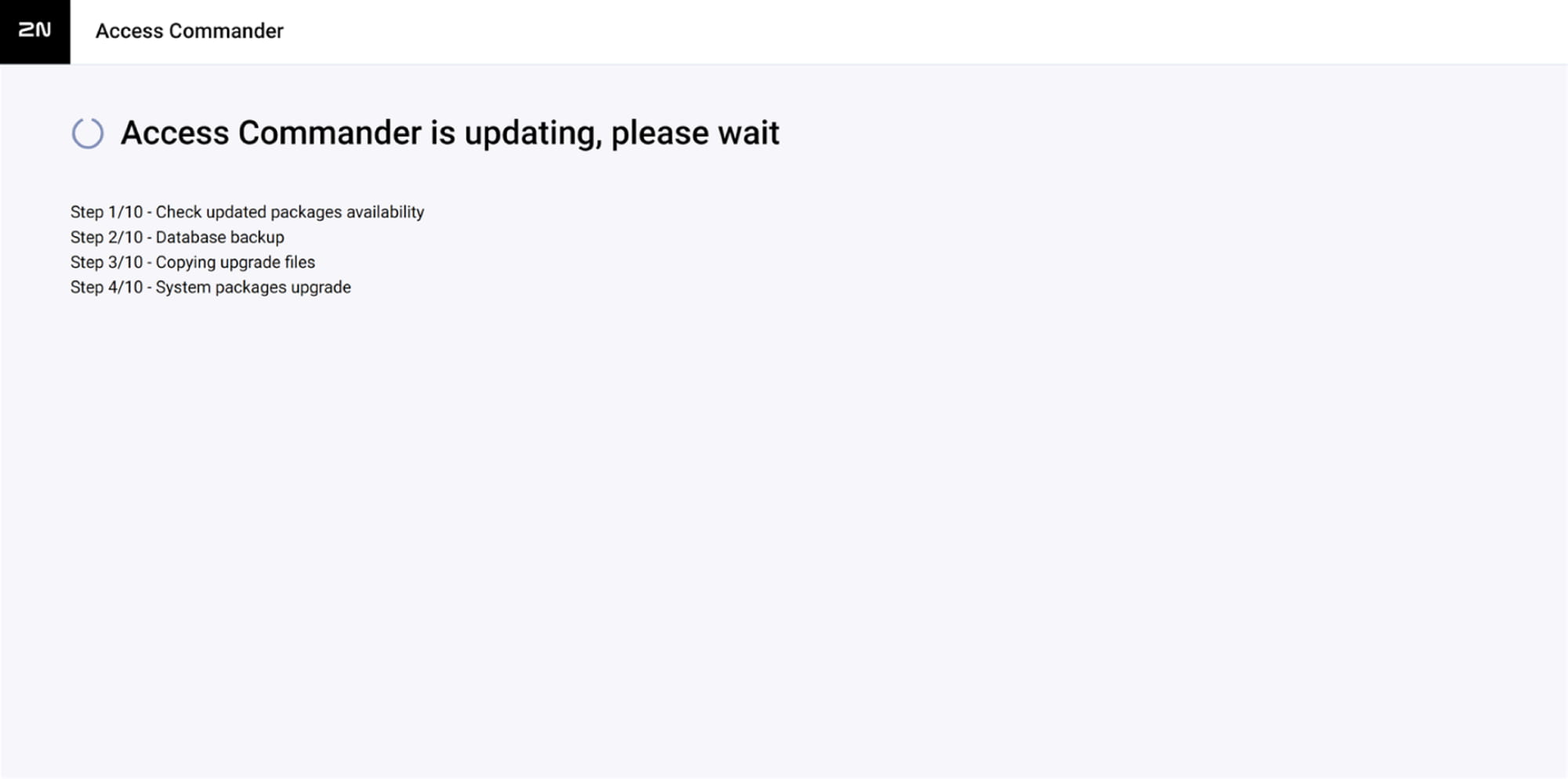
- Do not turn off or reboot the appliance during the update process.
It is necessary to wait for the blue "Go to login" button showed when the update is complete.
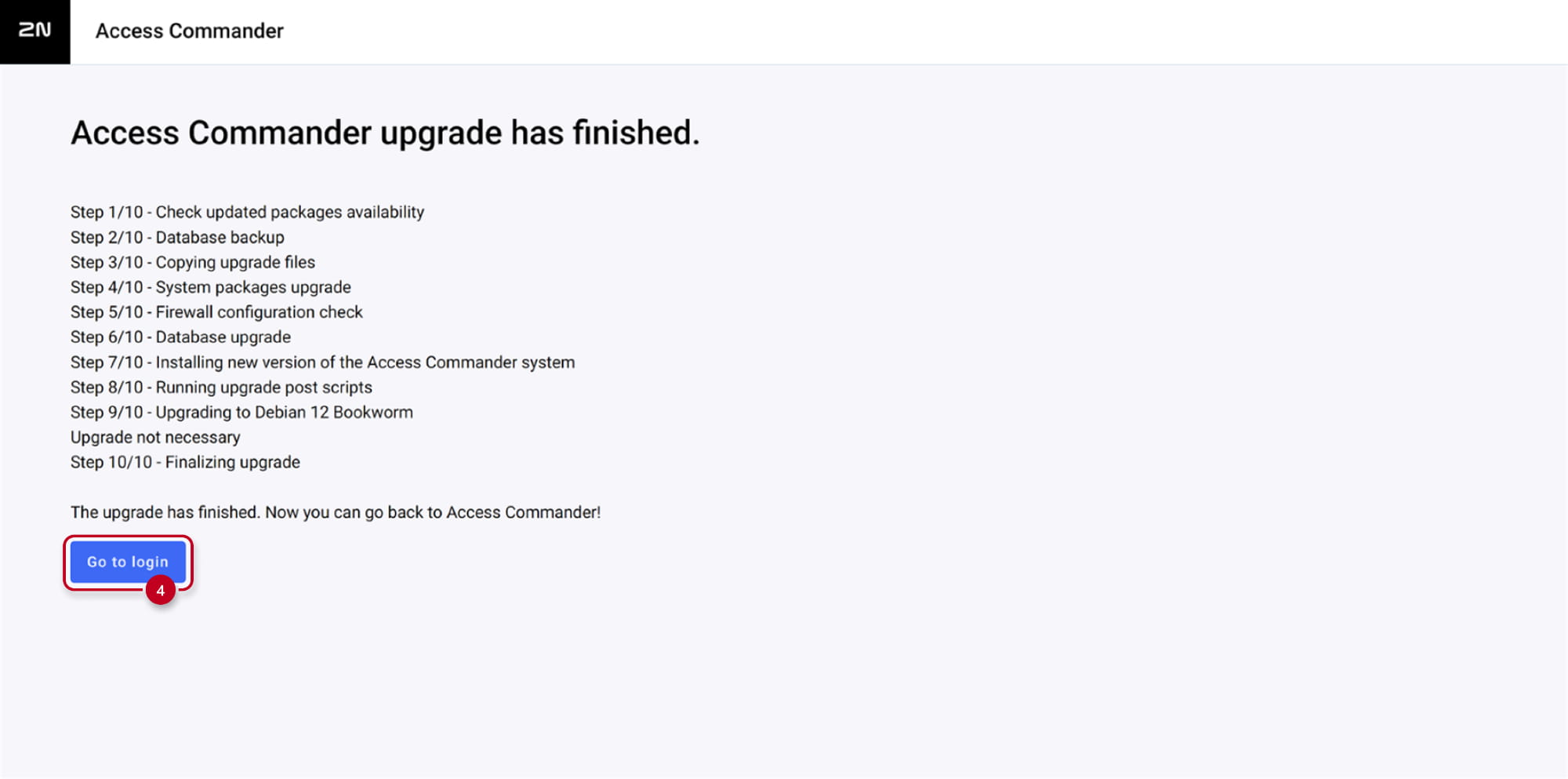
-
Now you can login back and repeat the procedure up to the latest available version.
If you have older version of the system with different look of the web interface, please click here.
Update of 2N Access Commander version 2.7 and lower
- Go to 2N Access Commander web interface, section Settings, part SYSTEM UPDATE.
You will see a notification about available upgrade, please follow this procedure:
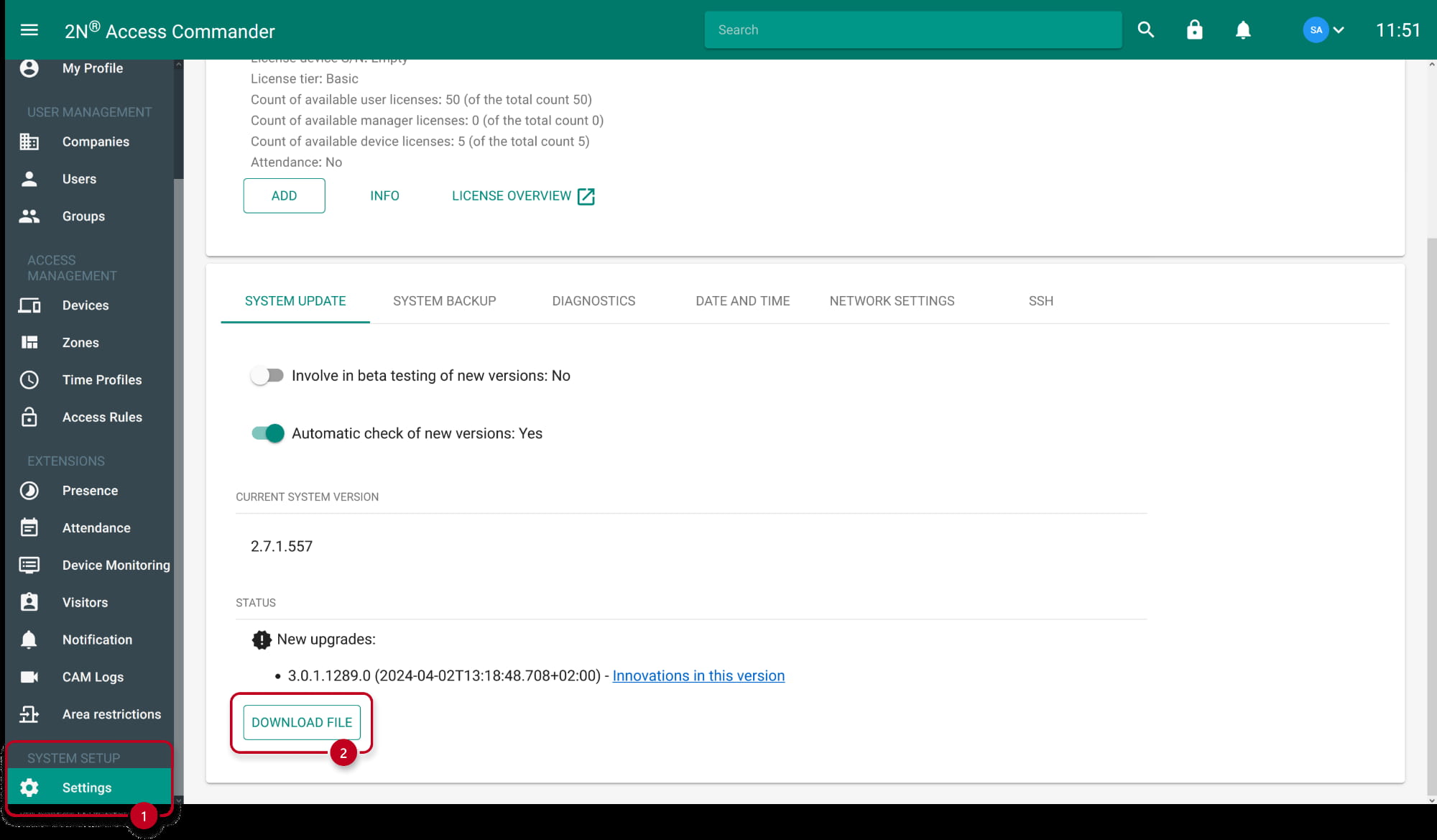
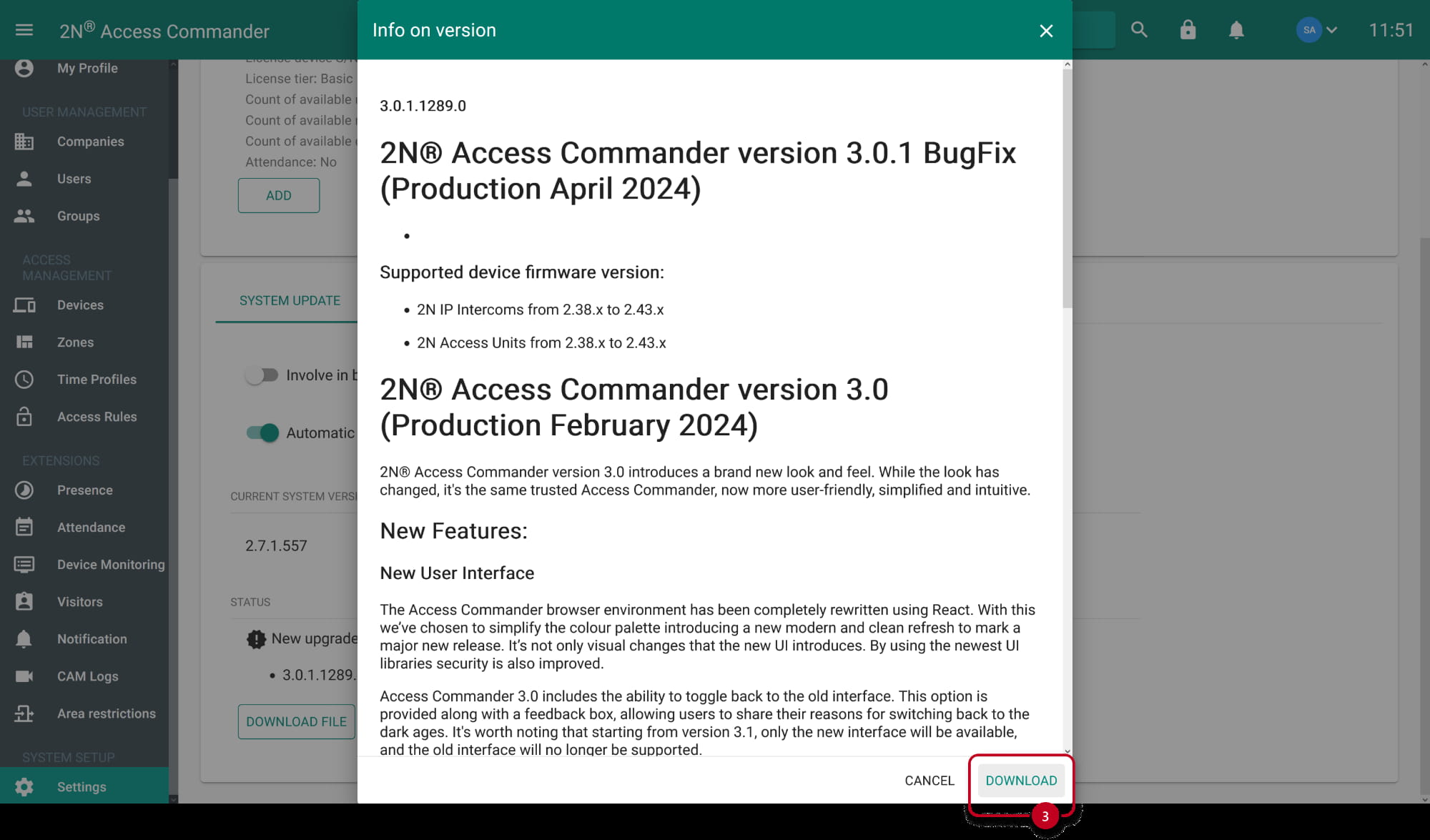

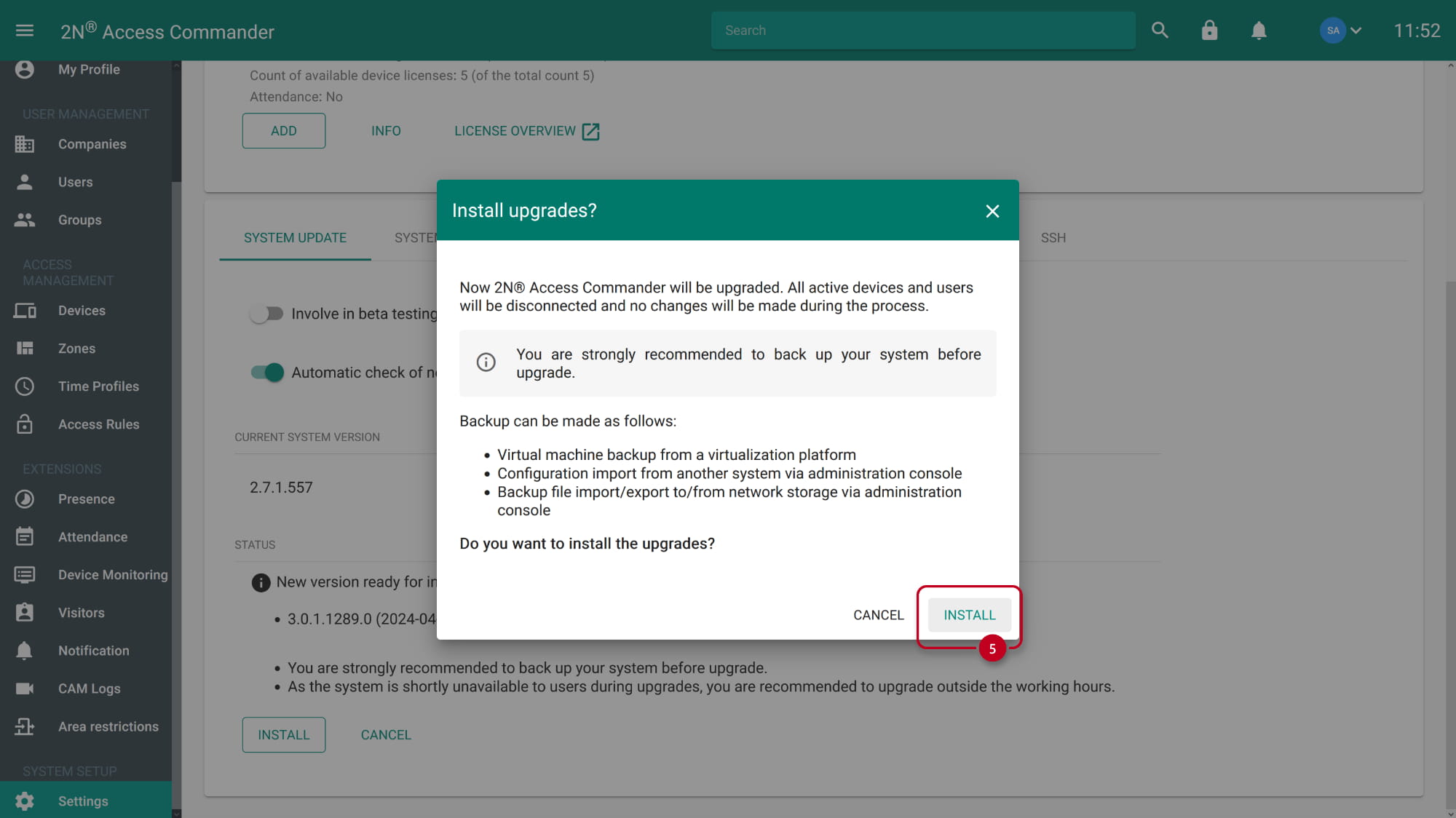
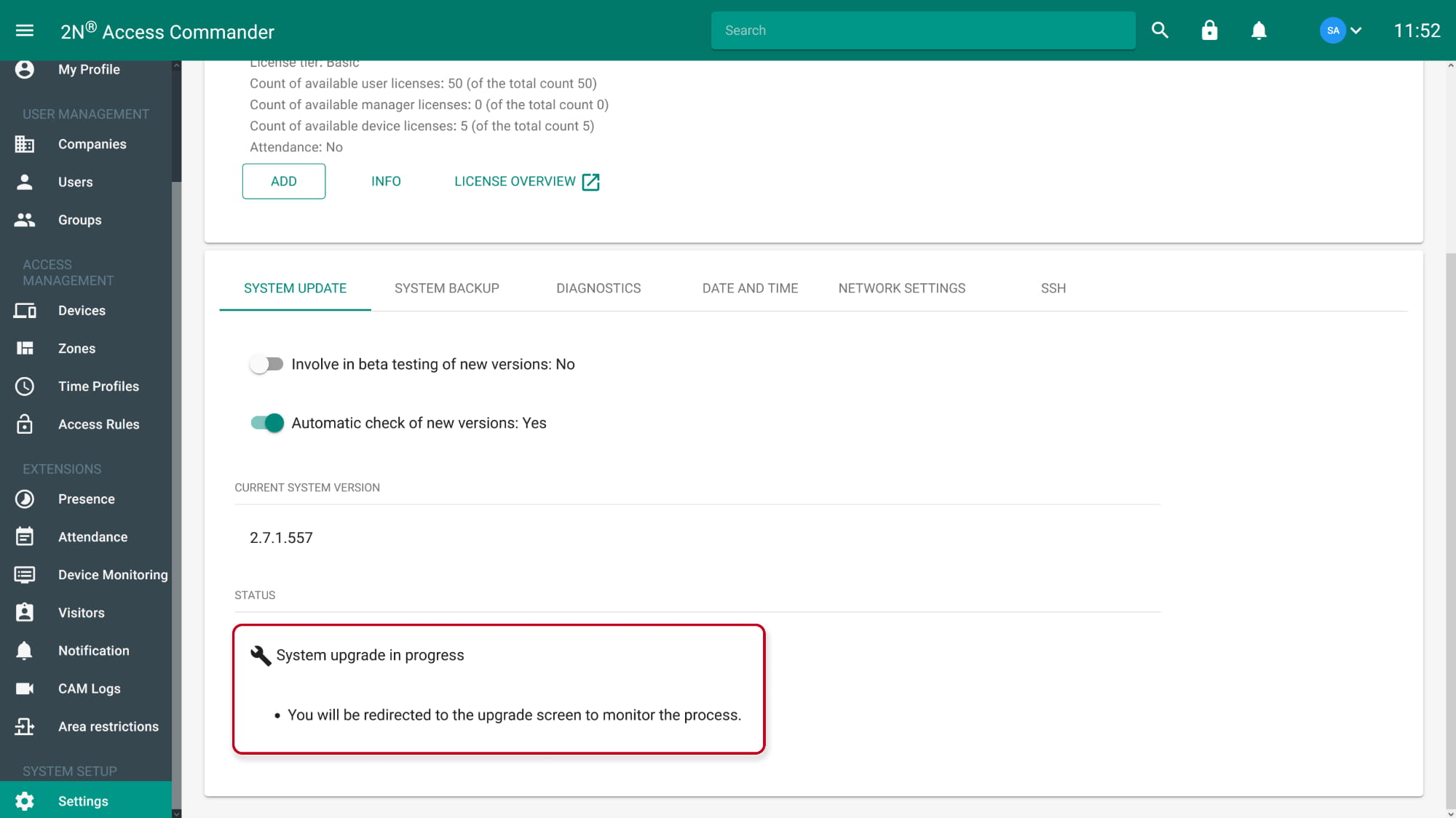
- During preparation of necessary components to upgrade the system you will loose the access to the system, please be patient and wait few minutes till the upgrade process starts. When all necessary components are ready to upgrade the system, you will see an upgrade console window showing process status.
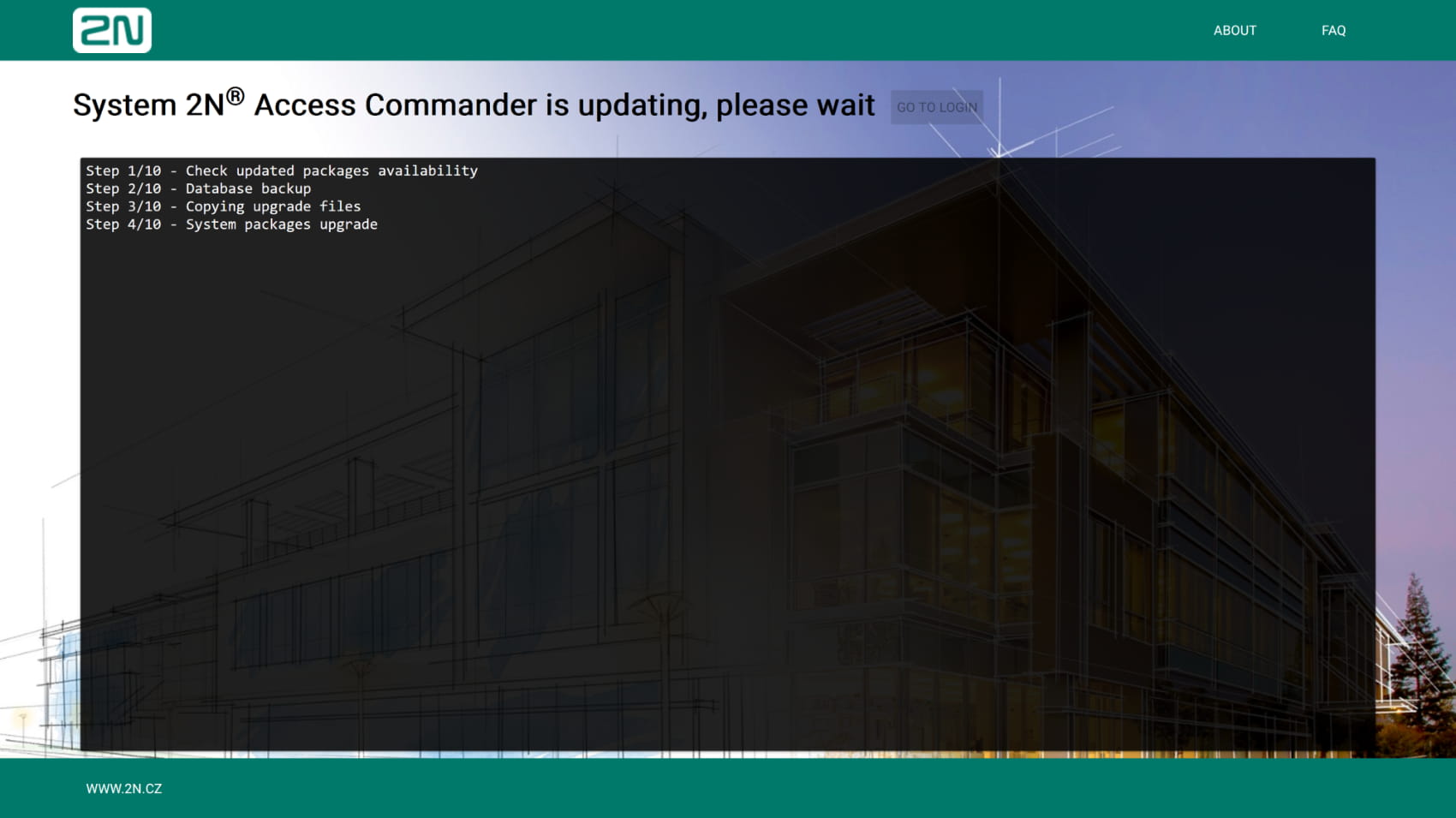
- Do not turn off or reboot the appliance during the upgrade process.
In some versions, the upgrade is still being performed even the message "The upgrade has finished." appears.
After this message, watch the "GO TO LOGIN" button. It is gray during performing upgrade and green, when the upgrade is complete.

- Now you can login back and repeat the procedure up to the latest available version.