The My2N Management Platform allows you to easily update the firmware of your 2N OS devices.
Update via My2N
Log into the My2N portal and locate the device
-
Select correct My2N Site (1)
-
Open the "Devices" (2)

Open the Device details
- Click on the desired device (3), or, click on the tree dots (3) on the right side and select "Edit device" (4)

Perform the update remotely
-
View the release notes "See the benefits" (5) containing all changes and improvements
-
Update the device using one of the UPDATE (6) buttons
- Upgrade process will reboot the unit, causing it temporarily show as "Offline" in the My2N device overview

Update via device's web interface
If the update via My2N won't be possible, you can always try to use the intercom's web interface to update the firmware using a file or online update.
- We recommend doing a configuration backup before you proceed with the update.
Open the Remote Configuration
-
Expand the Remote Configuration Services menu by clicking on the arrow (1)
-
Click on the "OPEN CONFIGURATION" (2)

Intercom's web interface
-
Fill out the login credentials (3)
- Log into the Intercom (4)
-
Note, device password is not linked to the My2N account password:
From Old Web Interface:

From The New Web Interface:
Perform the update manually
- Click on the "System" (5)
In the Old Web Interface:
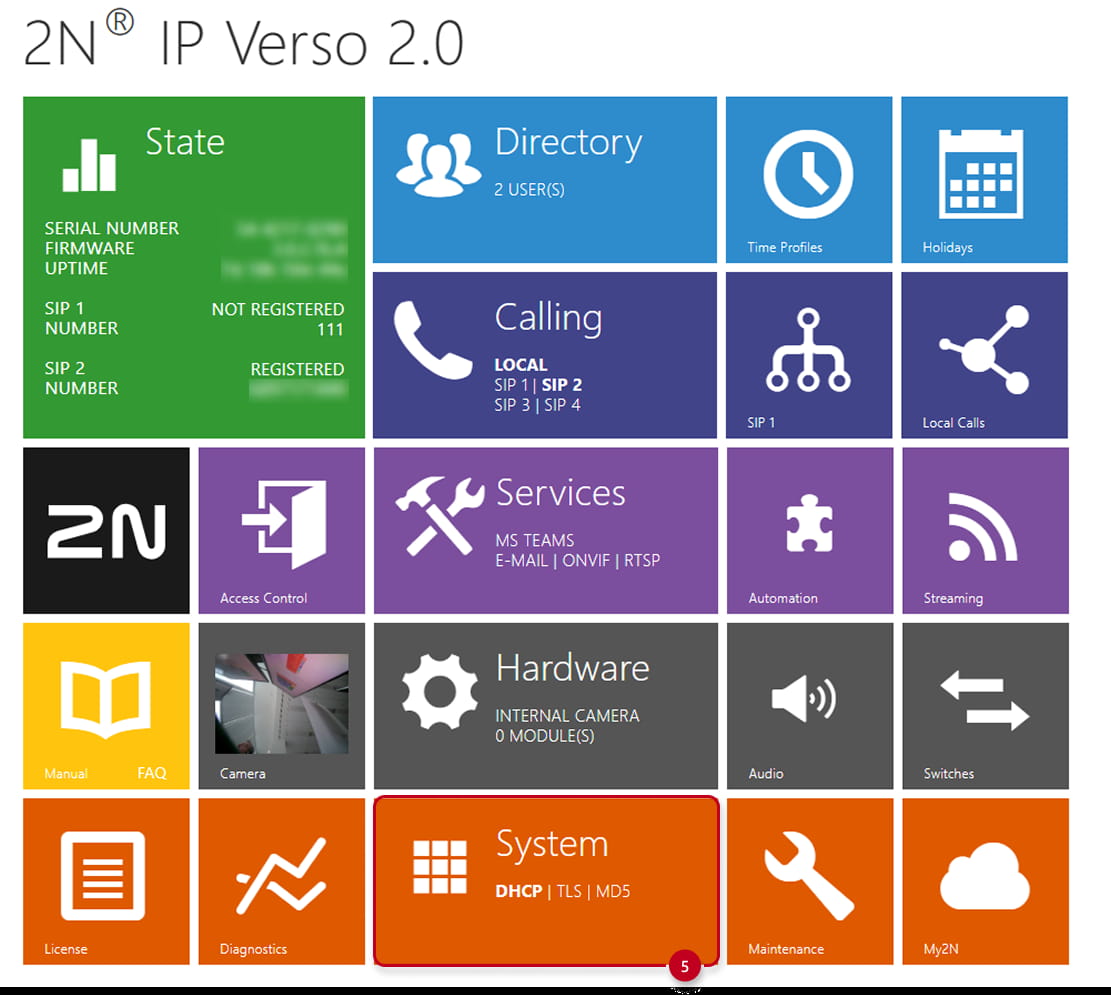
In the New Web Interface:
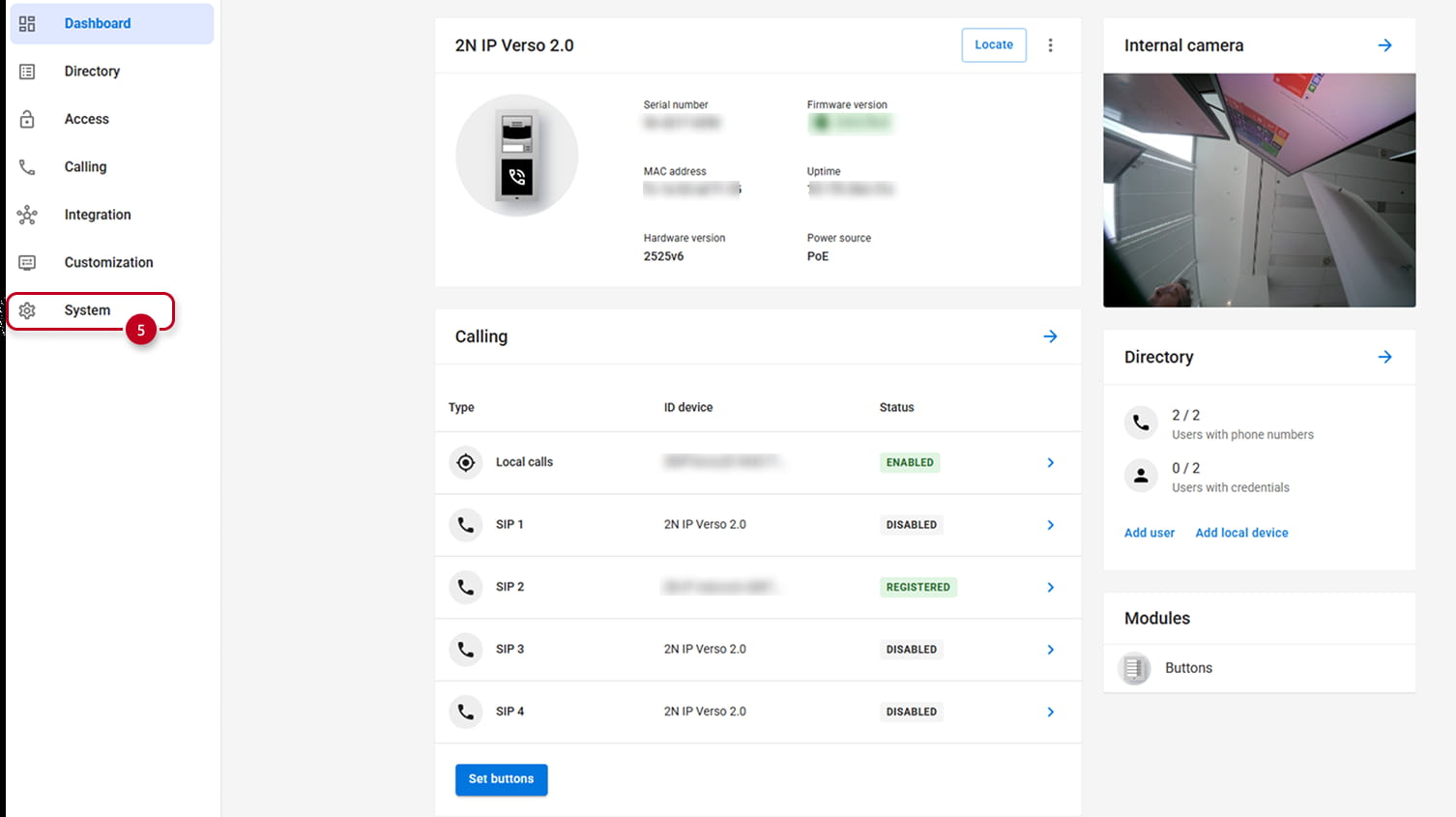
-
Select the "Maintenance" (6) tab and then click on the "Upgrade Now" (7) button
In the Old Web Interface:

In the New Web Interface:
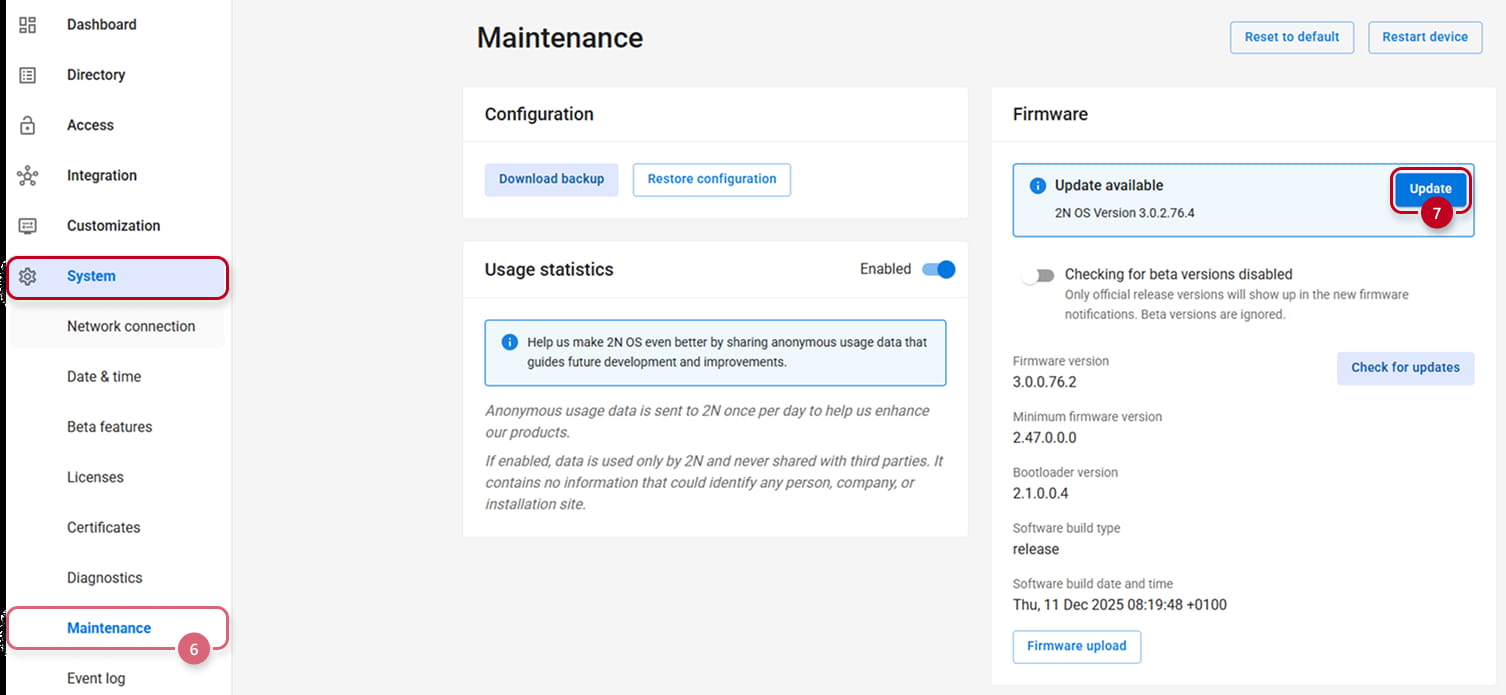
- Upgrade process will reboot the unit, causing it temporarily show as "Offline" in the My2N device overview