HTTP API - Configuration upload
You can edit various configurations in the 2N IP Intercoms via HTTP API commands:
- Configuration backup
- RTSP Configuration example
- H.264 parameters
- Configuration Example
- HTTP API Test Tool
The HTTP API was designed for controling selected 2N IP Intercom functions via the HTTP protocol. It enables 2N IP Intercoms to be integrated easily with third party products, such as home automation, security and monitoring systems.Below is an example how you can change configuration parameters of the 2N IP Intercom (video framerate/resolution) and upload them into the 2N IP Intercom via HTTP API.
- You can find a complete manual on this page: 2N IP Intercom HTTP API manual
- Once you download the config backup from the intercom, you can open it in Notepad++ or any other text editor (or Web Browser).
Configuration backup
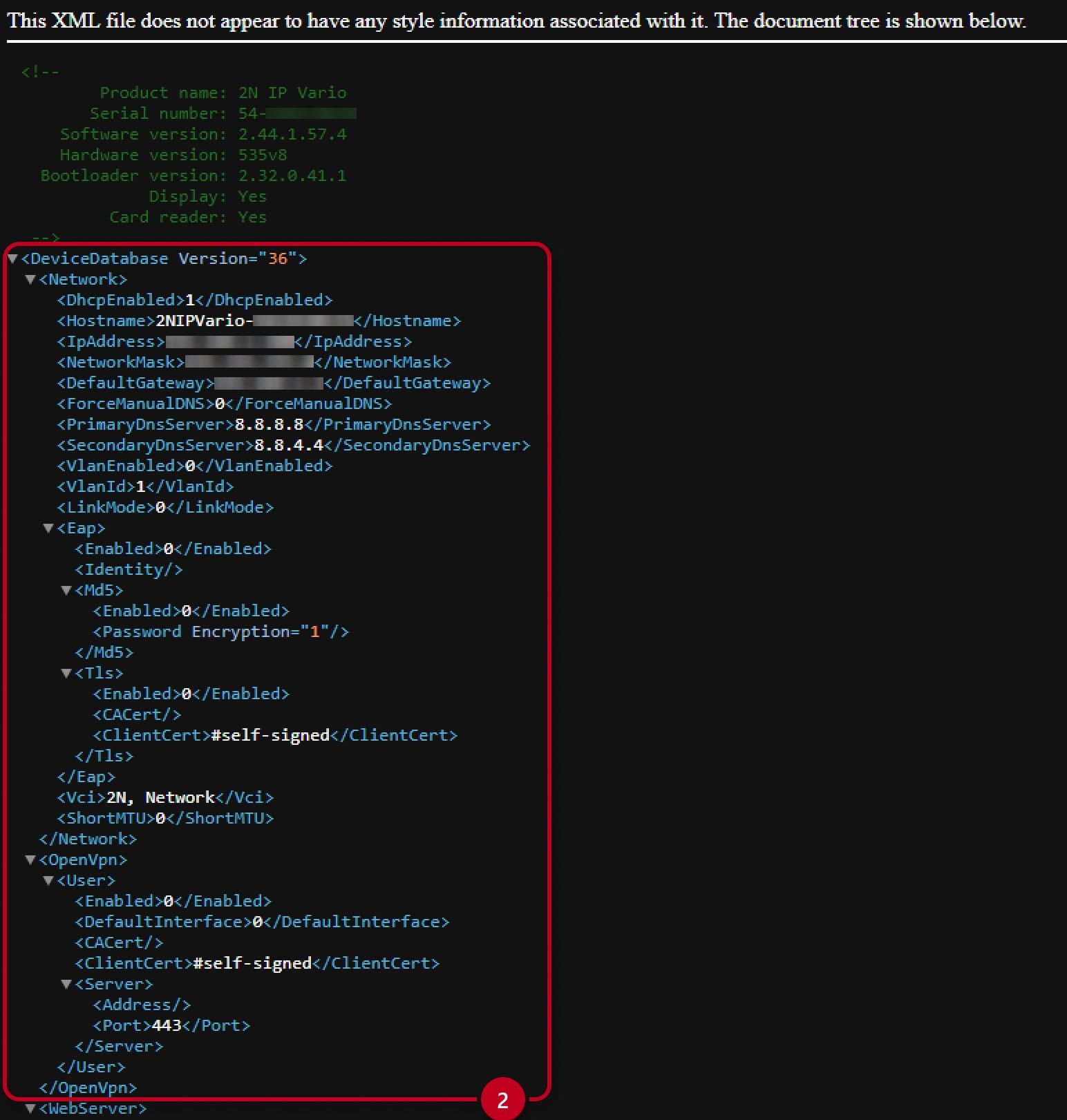
- After downloading the config.xml file and opening it, you can see the configuration:

- You can collapse (1) and expand (2) each category of the configuration file:
RTSP Configuration example
- In the picture you can see the section for RTSP:

For the H.264 codec, you can see:
<Resolution> - 3
<Bitrate> - 4
These numbers correspond with the settings on 2N IP Intercoms — the number means always the position of the parameter, as shown on this screenshot above.
H.264 parameters
-
Video Framerate: 30 fps - (number 1 in the config file)
-
Video Resolution: VGA - (number 3 in the config file)
-
Video Bitrate: 512 kbps - (number 4 in the config file)
The logic for those parameters is always the same - always start from 0.
For example, Video Resolution in IP Vario with Camera:
- 0 - QCIF (176x144)
- 1 - QVGA (320x240)
- 2 - CIF (352x288)
- 3 - VGA (640x480)
The /api/config function helps you upload or download the device configuration.
The function is part of the System section and the user must be assigned the System Control privilege for authentication if required. The function is available with the Enhanced Integration licence (up to v2.35) or included in the basic installation (v2.35 onwards).
Use the PUT method for configuration upload. The reply is in the application/json format and includes no other parameters.
Configuration Example
- If the command is sent successfully, following line will be returned:
PUT /api/config
{
 "success" : true
}
HTTP API Test Tool
The put request can look like this https://192.168.50.163/api/config where the 192.168.50.163 is the IP address of the intercom.
You can try this by using the HTTP API test tool available on https://2N_IP_Intercom_address/apitest.html
The example is in the attached picture, you need to upload the xml file with the configuration:
