

Pairing the My2N app with 2N device
-
2N device configuration
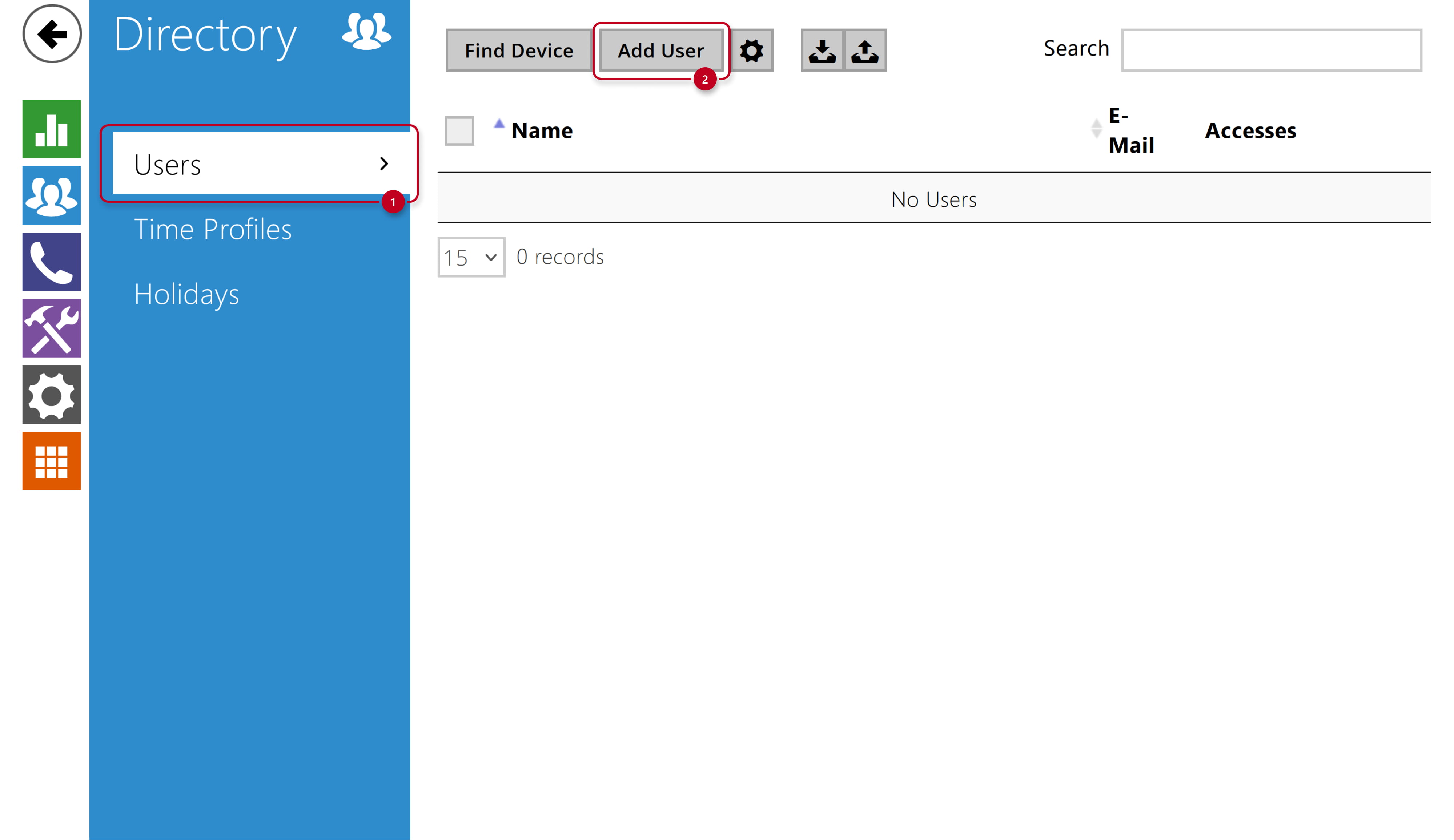
- Go to 2N device web interface, section Directory - Users, here open an existing user or create a new one.
-
- In the User Basic Information part, fill in at least the name and save.

-
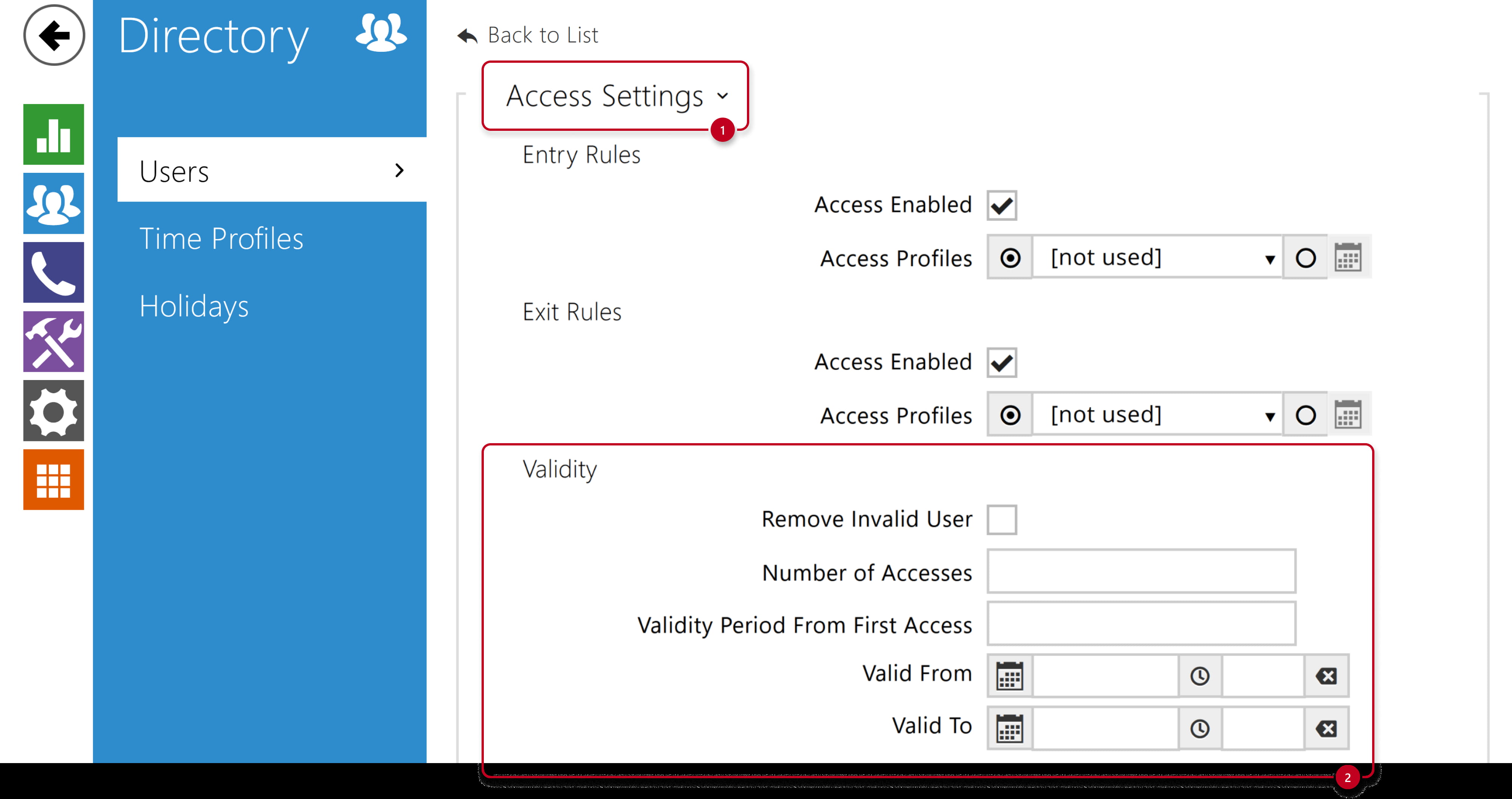
- In the Access Settings part, you can limit the access validity, typically for guest access purposes.
-
- In the WaveKey part, click the middle button with the Bluetooth symbol to generate the Pairing PIN.


-
- In default, the pairing PIN validity is limited to 1hour.
You can adjust this in the section Services - Access Control - WaveKey.
- In default, the pairing PIN validity is limited to 1hour.

-
My2N app configuration
-
- Tap the + icon and enter the prepared pairing PIN.

-
- Go nearby the pairing device and start the pairing.

WaveKey modes configuration and usage by My2N app
Bluetooth (WaveKey) authentication is available in 4 modes, please click on the one you are interested in:
Tap In App mode
- Go to 2N device web interface, section Hardware - Extenders, here locate the Bluetooth module.
Check that In App mode is activated as Start Authentication.
It is also possible to specify the distance (Signal Strength) within which your smartphone will communicate with the Bluetooth module.

-
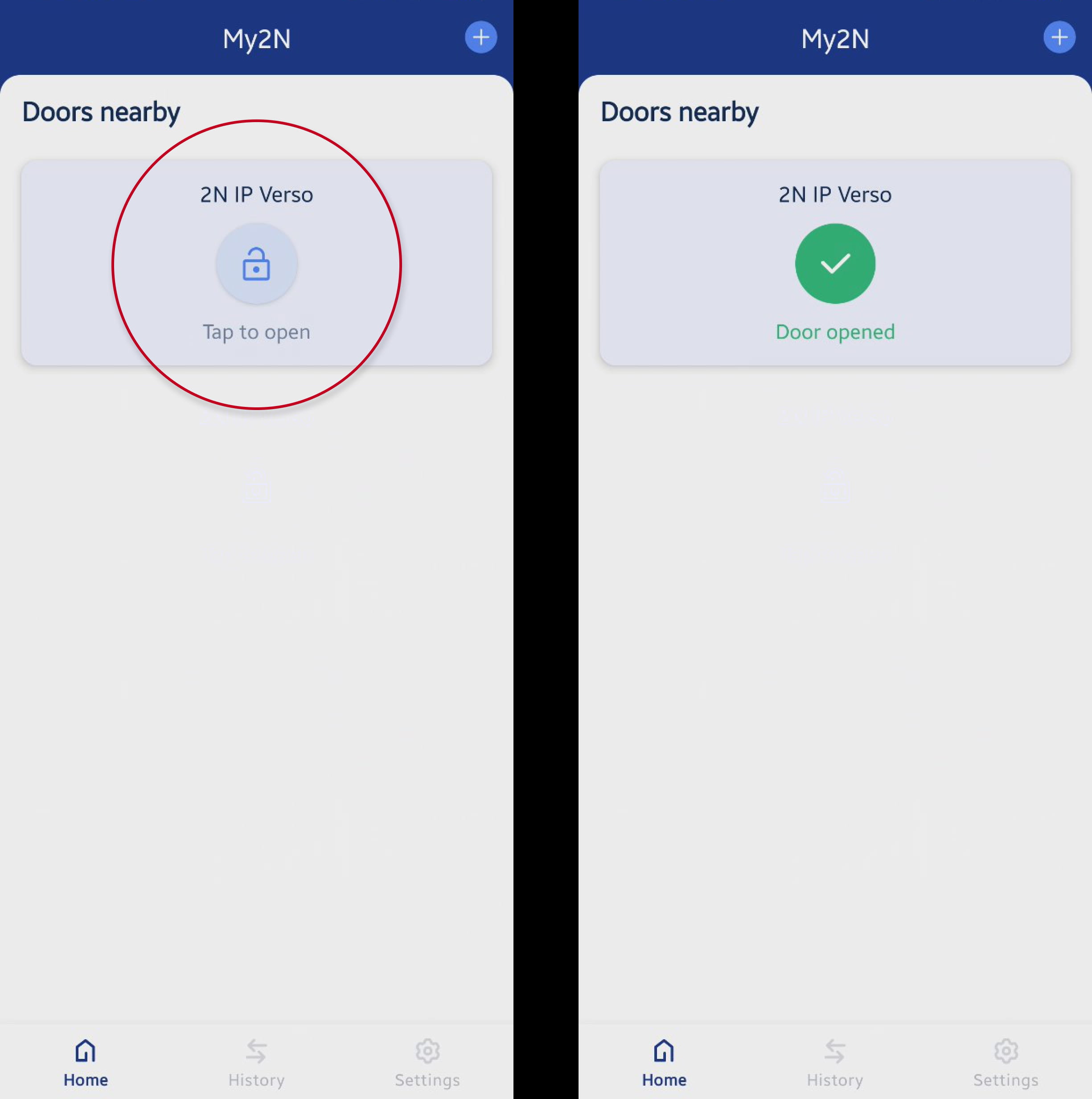
Go to close proximity of the device, open the My2N app and select the door you wish to access.
Touch On Device mode
- Go to 2N device web interface, section Hardware - Extenders, here locate the Bluetooth module.
Check that On Device mode is activated as Start Authentication.
It is also possible to specify the distance (Signal Strength) within which your smartphone will communicate with the Bluetooth module.
- Go to My2N app settings - Access cards section and enable background scanning.

-
Go in front of the device and tap the reader part or Bluetooth symbol (according to used 2N device) to open the door.

Card mode
- Go to My2N app settings - Access cards section and enable background scanning and card mode.

- Swipe the smartphone across the Bluetooth symbol as you would have a card.
Please be advised that sensitivity will be increased within confined metallic spaces such as small elevators.

Motion Detection mode
Please be advised that this mode requires GOLD licence because of using motion detection.
- Go to 2N device web interface, section Hardware - Extenders, here locate the Bluetooth module.
Check that Via Motion Detection is activated as Start Authentication. It is also possible to specify the distance (Signal Strength) within which your smartphone will communicate with the Bluetooth module, the optimal is Long.

- Go to section Hardware - Camera - Internal Camera and enable the Motion Detection feature.
You can also select how sensitive you wish to set the motion detection to be by adjusting the Sensitivity Threshold and Detection Area.

- Go to My2N app settings - Access cards section and enable background scanning.
-
Walk towards the 2N device to activate the motion detection. If you are authorized, the door will open.

If you are using the no more supported 2N Mobile Key app ...
If you are using the no more supported 2N Mobile Key app, click here to see the instructions for it.
-
Pairing the 2N Mobile Key app
- When in close proximity to 2N IP Intercom equipped with a Bluetooth module, run the application and tap on the PAIR NEW DEVICES button


Android
iOS
- When in close proximity to 2N IP Intercom equipped with a Bluetooth module, run the application and tap on the PAIR NEW DEVICES button
-
- The app will start searching for devices in close proximity.


Android
iOS
- The app will start searching for devices in close proximity.
-
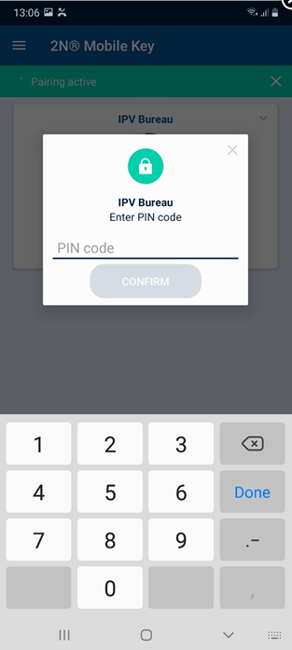
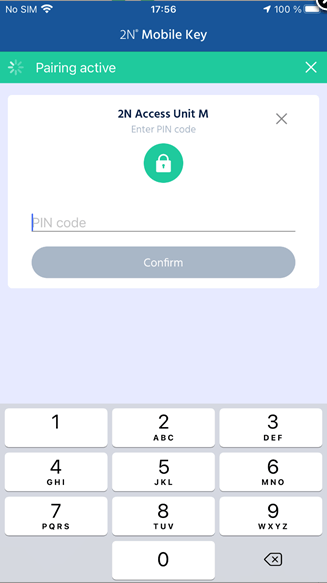
- The app will ask for authorization. Please insert the pairing code you generated in the previous steps and tap on CONFIRM button.
Android
iOS
- The app will ask for authorization. Please insert the pairing code you generated in the previous steps and tap on CONFIRM button.
-
Using the 2N Mobile Key app
- Tap In App mode
- If you have already paired the 2N Mobile Key app with the 2N IP Intercom equipped with a Bluetooth module, go to close proximity of BT reader.
- Open the 2N Mobile Key app and select the door you wish to access. Tap the button in the app to open the door.
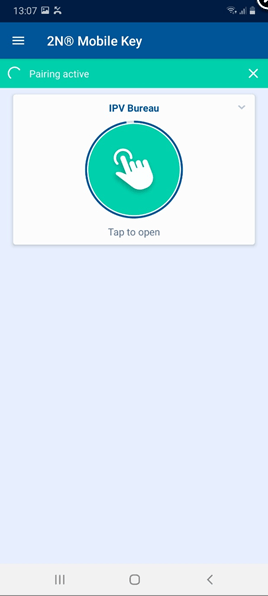

Android
iOS
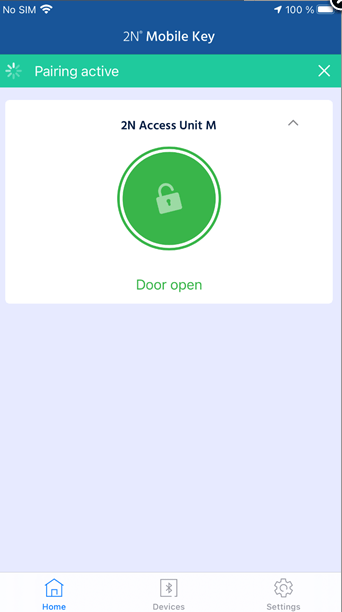
- If you are authorized, the door will open, and a green circle will appear.

Android
iOS
- If you have already paired the 2N Mobile Key app with the 2N IP Intercom equipped with a Bluetooth module, go to close proximity of BT reader.
- Tap In App mode
-
- Touch On Device mode
-
In the app settings enable Unlock door on the background (Android) or Background scanning (iOS).


Android
iOS
-
Go in front of the device and tap the reader part or Bluetooth symbol (according to used 2N device) to open the door.
-
- Card mode
-
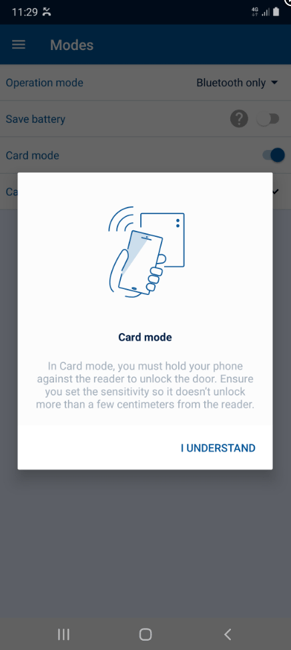
In the app settings go to Modes (Android) or Advanced (iOS) and enable Card mode, you can also adjust its sensitivity.
Android
iOS


Android
iOS

Android
iOS
- Swipe the smartphone across the Bluetooth symbol as you would have a card.
Please be advised that sensitivity will be increased within confined metallic spaces such as small elevators.
-
- Touch On Device mode
-
- Motion Detection mode
Please be advised that this mode requires GOLD licence because of using motion detection.
- Motion Detection mode
-
-
- Go to 2N device web interface, section Hardware - Extenders, here locate the Bluetooth module.
Check that Via Motion Detection is activated as Start Authentication.
It is also possible to specify the distance (Signal Strength) within which your smartphone will communicate with the Bluetooth module, the optimal is Long.
- Go to 2N device web interface, section Hardware - Extenders, here locate the Bluetooth module.
-
-
-
- Go to section Hardware - Camera - Internal Camera and enable the Motion Detection feature.
You can also select how sensitive you wish to set the motion detection to be by adjusting the Sensitivity Threshold and Detection Area.
- Go to section Hardware - Camera - Internal Camera and enable the Motion Detection feature.
-
-
-
-
In the app settings enable Unlock door on the background (Android) or Background scanning (iOS).
Android
iOS
-
-
-
-
-
Walk towards the 2N device to activate the motion detection. If you are authorized, the door will open.
-
-