This FAQ will explain how to configure the email client on 2N Indoor Touch unit. This email notification could be helpful in case of a missed call from any 2N intercom (except 2N IP Base and 2N IP Uni) because the notification can contain the picture of the person who has been trying to reach you.
2N Intercom SMTP settings
The first step is to configure the SMTP client on the intercom side like on the following figure:
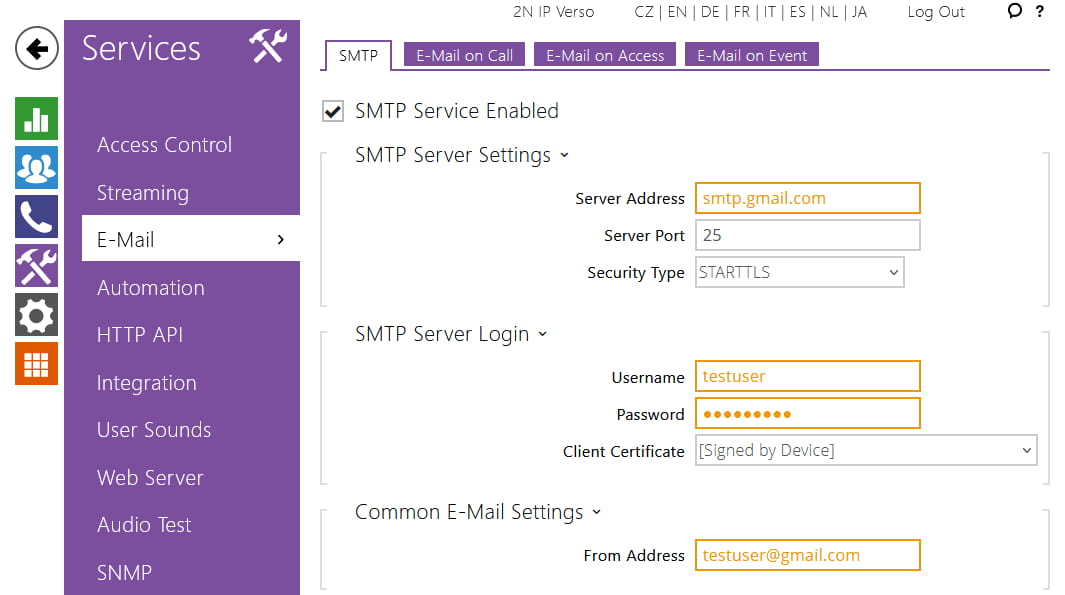
Figure 1: SMTP settings
|
You can make a test and verify if the setting of the SMTP service is correct by using Email service diagnostics on the same section of the page Services->E-mail->SMTP->Email sending diagnostics. |
In this example let's assume that i have assigned the user under the quick dial button of the intercom and i would like to receive the e-mail notification with the picture of the person who has been trying to call me. In this case it is necessary to configure the e-mail address to that specific quick dial button.

Figure 2: user E-mail setting
|
Settings when the email has to be sent can be found in the section: Services->E-mail->E-mail on call. For further details please read the following manual page: |
2N Indoor Touch SMTP client settings
To be able to access the E-mail client on the 2N Indoor Touch, you have to change the application on the main screen. This can be done in two way:
-
Via web interface (Figure 3)
-
Physically using the touchscreen (figure 4)


Figure 3: Configuration of the main screen via web interface
To be able to change the main screen layout and adjust the application shown there, you have to enter the settings. Default password is: 2n.
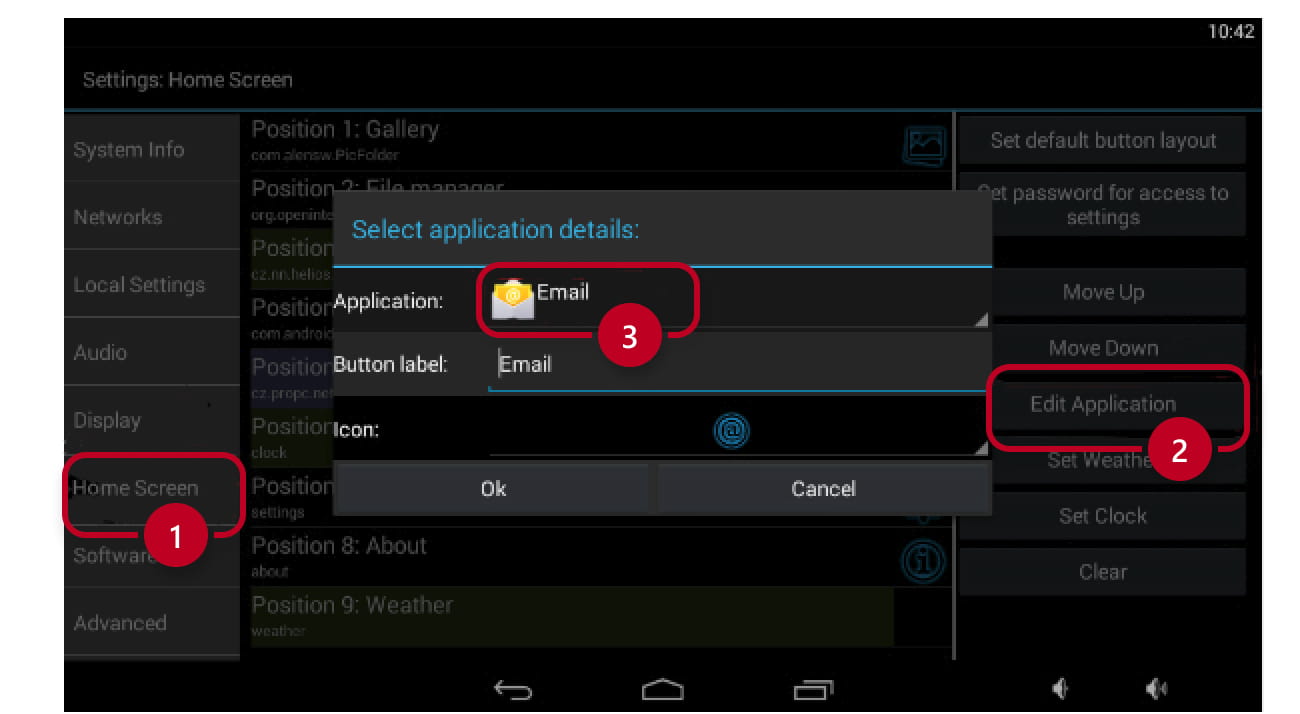
Figure 4: Configuration of the main screen via touchscreen
Once the previous step is done, you can enter the e-mail application and login into your email account and receive the email notifications based on your setting.

Figure 5: E-mail client