2N Access Commander (Linux terminal) is using US English pc105 keyboard layout.
In order to change the keyboard layout, you need to take the following steps:
-
Access the Linux terminal of the 2N Access Commander and log in using the root username and password. The default credentials are root/2n.
How to access the Linux terminal?
In case of virtual machine you can access the Linux terminal by using the virtual machine terminal from virtualization.
In case of BOX or BOX 2.0 you can do that by connecting display and keyboard to the computer.
You can use for both types of 2N Access Commander distributions access over SSH if enabled.
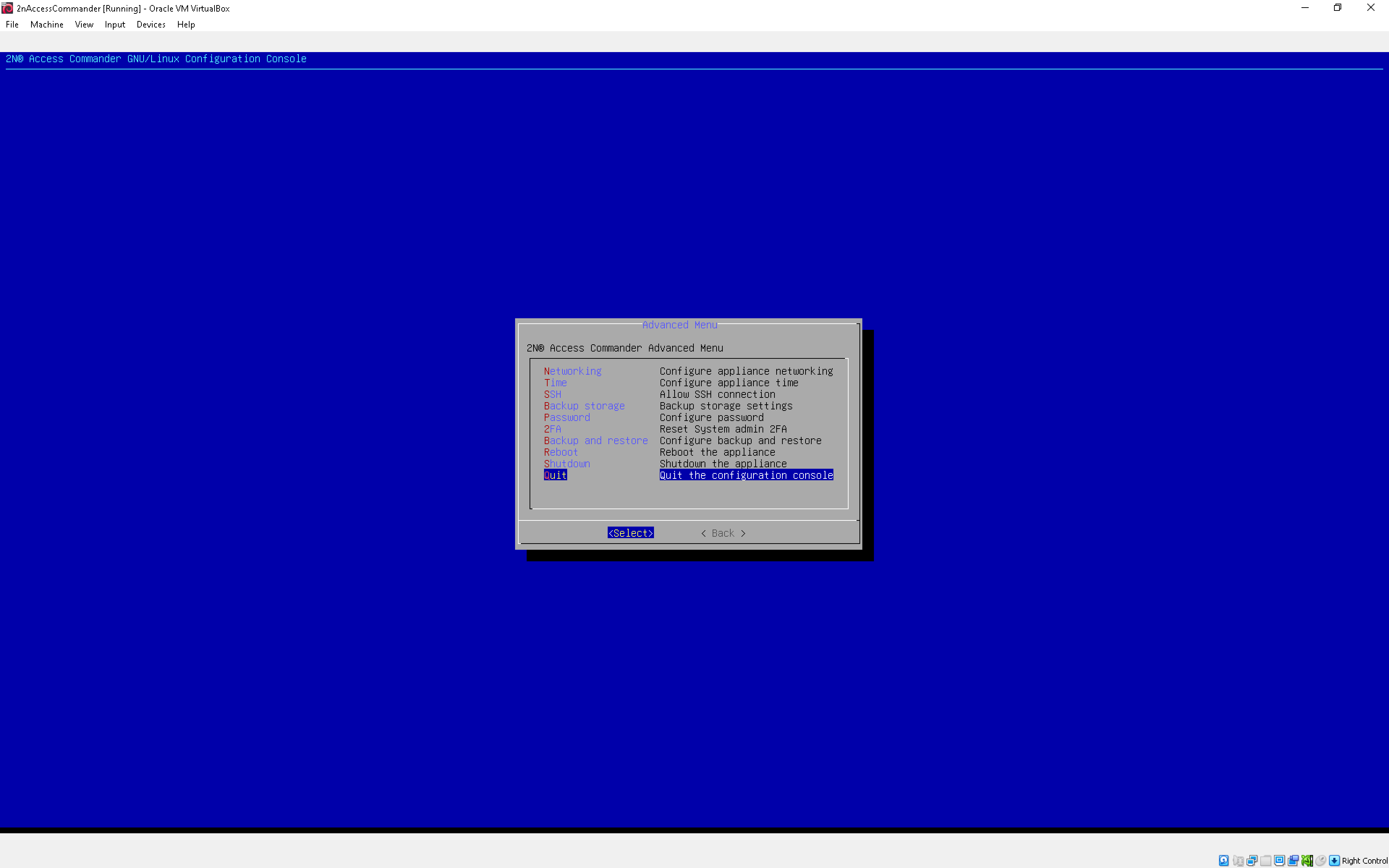
After logging in, please Select Advanced Menu in GNU/Linux Configuration Console and press Enter.
If using default password, you will be asked to change it to secure password of your own. Please do it.
Continue to Quit, press Enter, choose Quit again and press Enter.

-
Once you are in terminal, please edit file /etc/default/keyboard using editor "nano".
To edit this file you have to type following command:
nano /etc/default/keyboard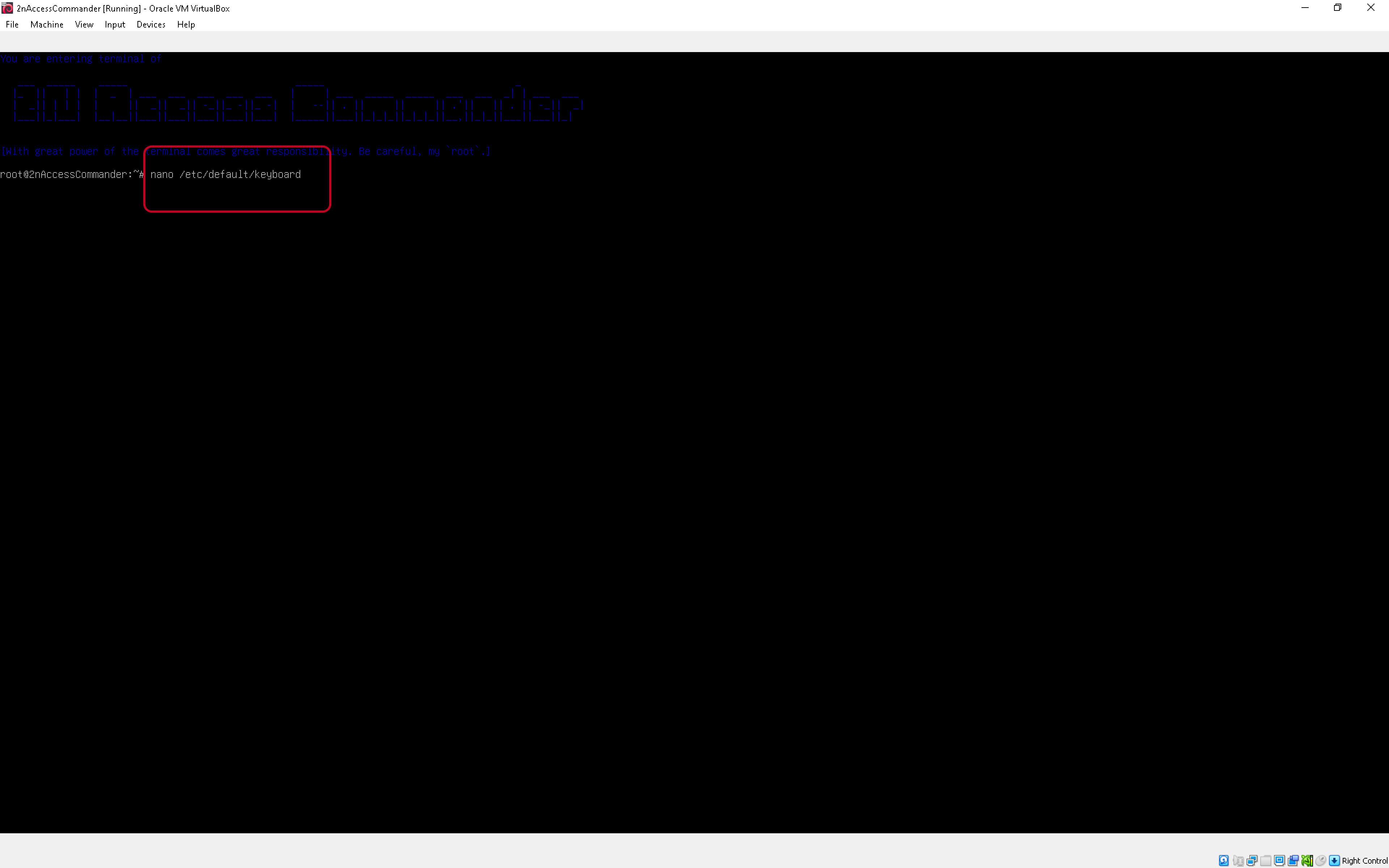
-
Edit line "XKBLAYOUT" and change it to the desired keyboard layout:
XKBLAYOUT=fr - for AZERTY
XKBLAYOUT=uk - for AZERTY
XKBLAYOUT=us - for QWERTY
XKBLAYOUT=de - for QWERTZ
XKBLAYOUT=cz - for QWERTZ
XKBLAYOUT=sk - for QWERTZ
and many more...
-
Save your changes and leave back to terminal:
nano - press "ctrl+x" and then press "y" and Enter to confirm changes -
Restart the 2N Access Commander by entering the reboot command or selecting the Reboot option in the Linux interface.

Now you have the keyboard layout changed to your modified settings.