Migrate configuration from old installation to new one (the same version)
The nerve centre of our access control solution is 2N Access Commander. Use it for managing access to the building and monitoring the status of 2N access devices in real time.
It also allows migrating configuration from your current installation to a new one (the same versions).
Prerequisites
- Two installations of 2N Access Commander;
no additional license is required for them- Your source installation the latest possible version
- New installation the same version as the source installation
Installation of virtual machine and Box solutions
Update of the system
- Your source installation the latest possible version
Feature properties
- The procedure can be applied only between the same 2N Access Commander versions.
- Supported by a virtual machine (VirtualBox, VMware, Hyper-V) and also by a Box (mini PC) distribution.
- Virtual machine configuration can be migrated to another virtual machine or to Box distribution as well.
- Box distribution configuration can be migrated to virtual machine or to another Box distribution as well.
- Virtual machine configuration can be migrated to another virtual machine or to Box distribution as well.
- After the migration the source installation can no longer be used.
It is turned off automatically and its web server is deactivated (you can´t access it more).
Web interface method
- In the source installation...
- Go to Settings - Configuration section, enable SSH and set the root password.

- In the new installation...
- Go to Settings - System backup section and click on Migrate.

-
- Fill in details about the source installation of 2N Access Commander (IP address and root user credentials), confirm by clicking on Migrate.

-
- After a successful migration the source installation can no longer be used.
It is turned off automatically and its web server is deactivated (you can´t access it more).
The new Access Commander now contains all data from the source Access Commander.
Please check if everything works properly.
- After a successful migration the source installation can no longer be used.
Linux console method
- If you would like to import to a virtualization platform, install the new image of Access Commander the same version.
Installation of virtual machine and Box solutions
If you would like to import to a Box distribution, connect a VGA or HDMI monitor and USB keyboard to the device with Access Commander the same version. - In the source installation...
- login to the linux console as root,
- note IP address,
- enable SSH connection,
- do not turn it off, it must be still running.
- login to the linux console as root,


- In the new installation...
- login to the linux console as root;
If you login for the first time, use the factory password 2n and then set new strong password. - check the network settings, IP address must be unique,
not the same as used for the source installation.
- login to the linux console as root;


-
- Go to the section "Backup and Restore" - "Import", fill in the IP address of the source installation, enter the root password and complete the process.


- After a successful migration the source installation can no longer be used.
It is turned off automatically and its web server is deactivated (you can´t access it more).
The new Access Commander now contains all data from the source Access Commander.
Please check if everything works properly.
Your system will be synchronized only with new Access Commander now.
The source installation is prepared for deleting after checking of the new installation.
If you have older version of the system with different look of the web interface, please click here.
Web interface method
- In the source installation...
- Go to Settings - SSH section, enable SSH and set the root password.

- In the new installation...
- Go to Settings - SYSTEM BACKUP section and click on IMPORT.

-
- Fill in details about the source installation of 2N Access Commander (IP address and root user credentials), confirm by clicking on IMPORT.

-
- After a successful migration the source installation can no longer be used.
It is turned off automatically and its web server is deactivated (you can´t access it more).
The new Access Commander now contains all data from the source Access Commander.
Please check if everything works properly.
- After a successful migration the source installation can no longer be used.
Linux console method
- If you would like to import to a virtualization platform, install the new image of Access Commander the same version.
Installation of virtual machine and Box solutions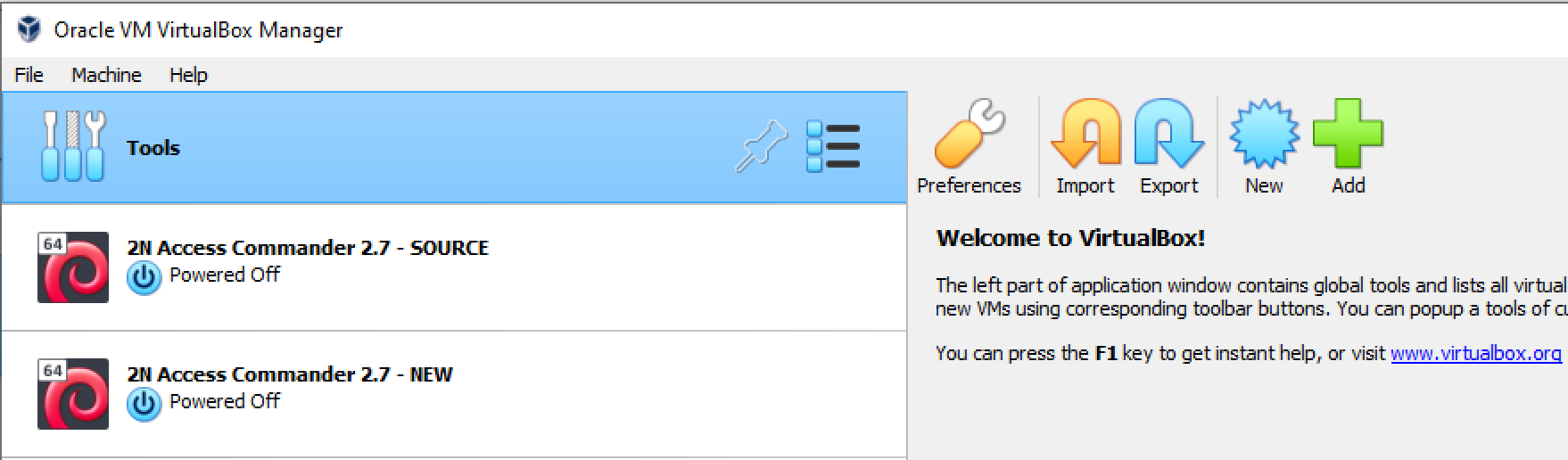
If you would like to import to a Box distribution, connect a VGA or HDMI monitor and USB keyboard to the device with Access Commander the same version. - In the source installation...
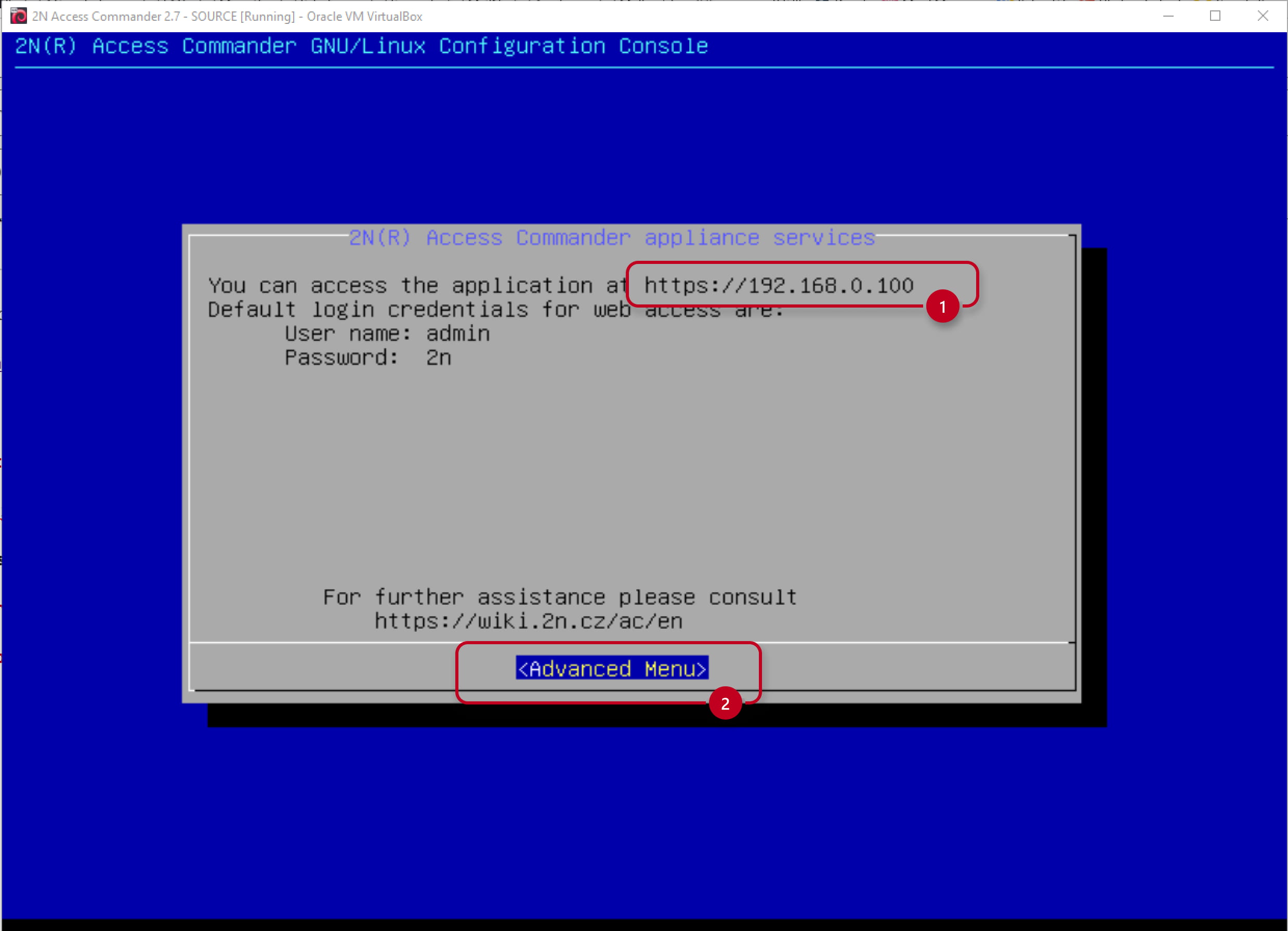
- login to the linux console as root,
- note IP address,
- enable SSH connection,
- do not turn it off, it must be still running.
- login to the linux console as root,


- In the new installation...
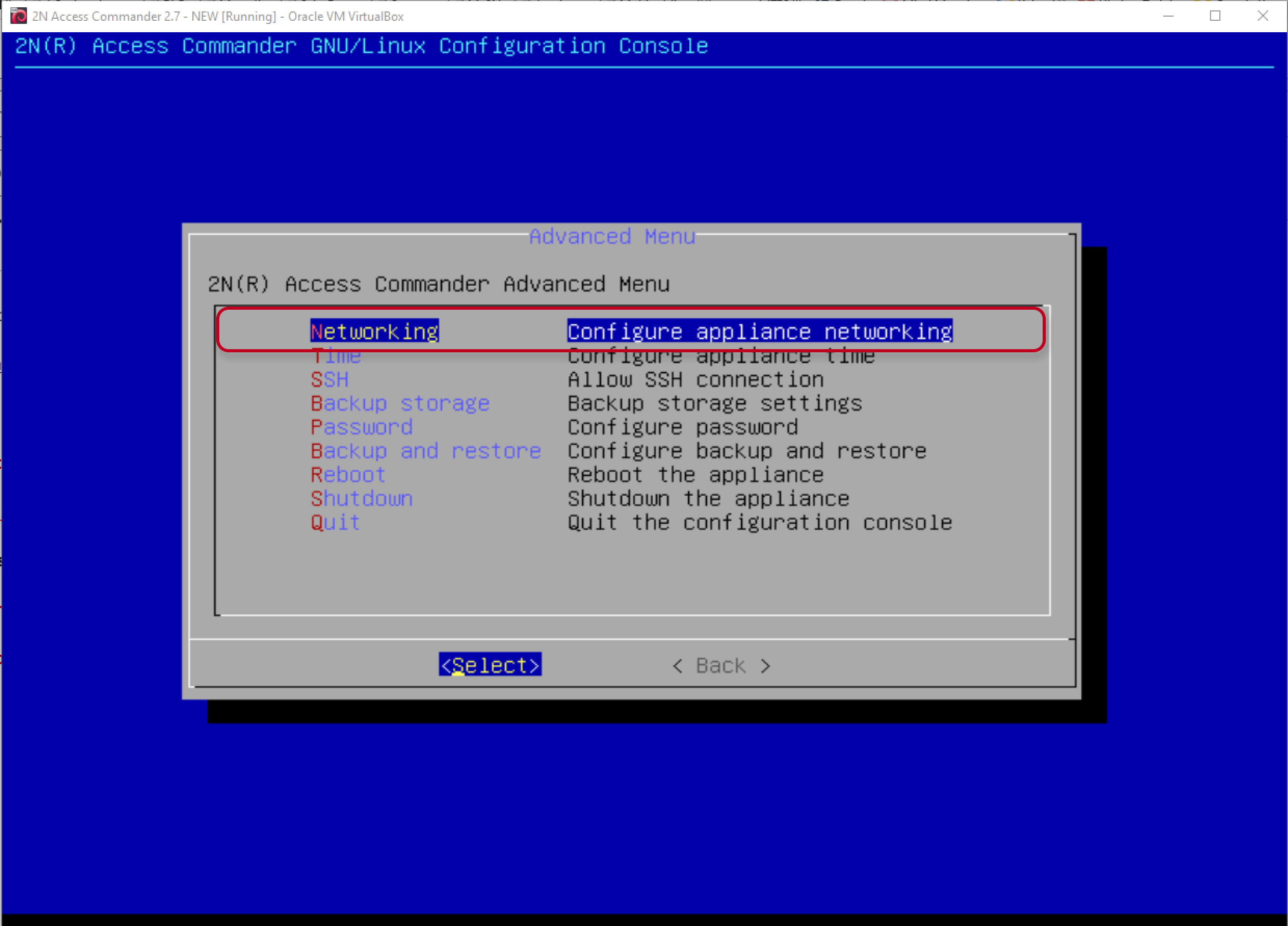
- login to the linux console as root;
If you login for the first time, use the factory password 2n and then set new strong password. - check the network settings, IP address must be unique,
not the same as used for the source installation.
- login to the linux console as root;


-
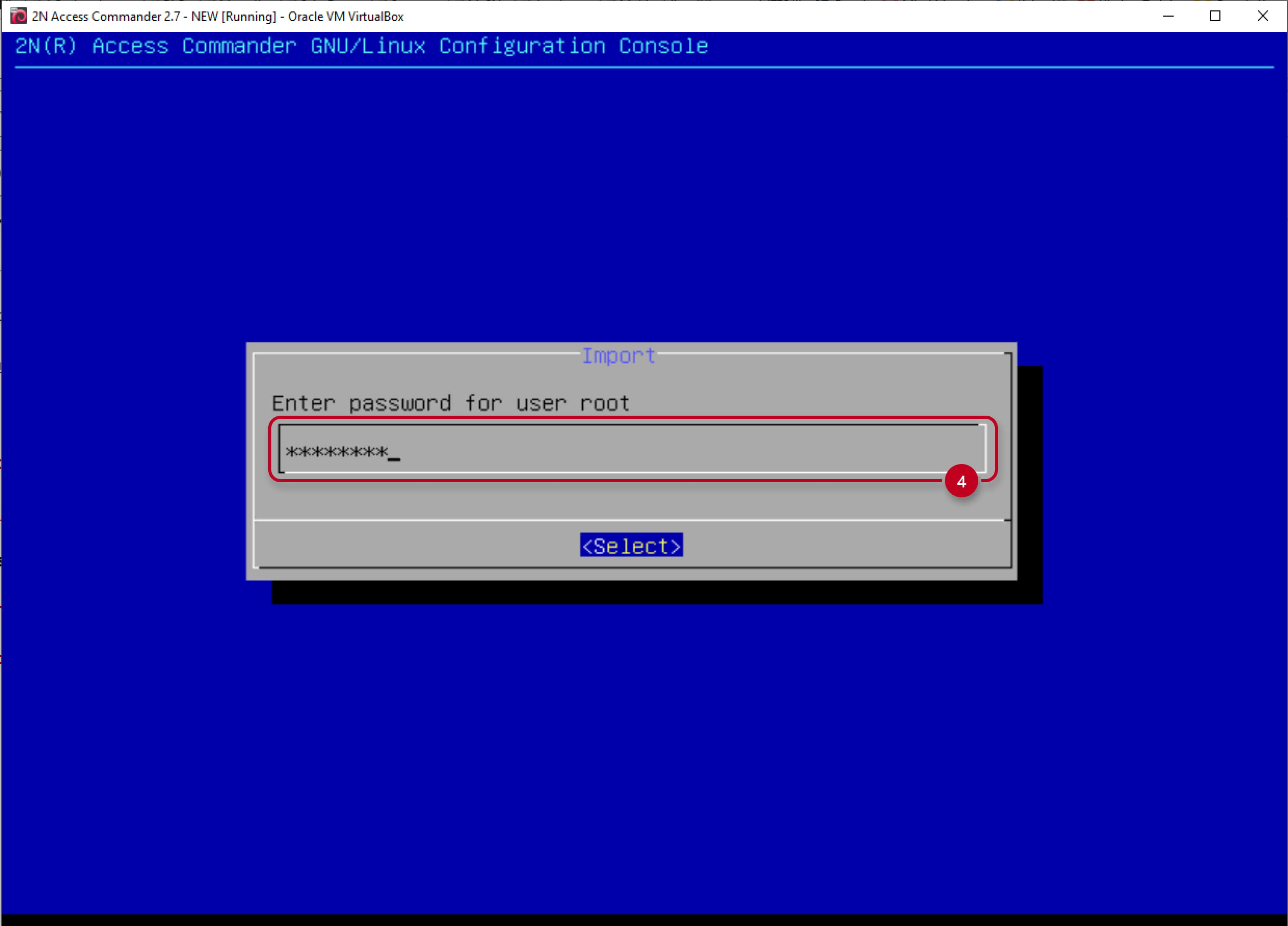
- Go to the section "Backup and Restore" - "Import", fill in the IP address of the source installation, enter the root password and complete the process.


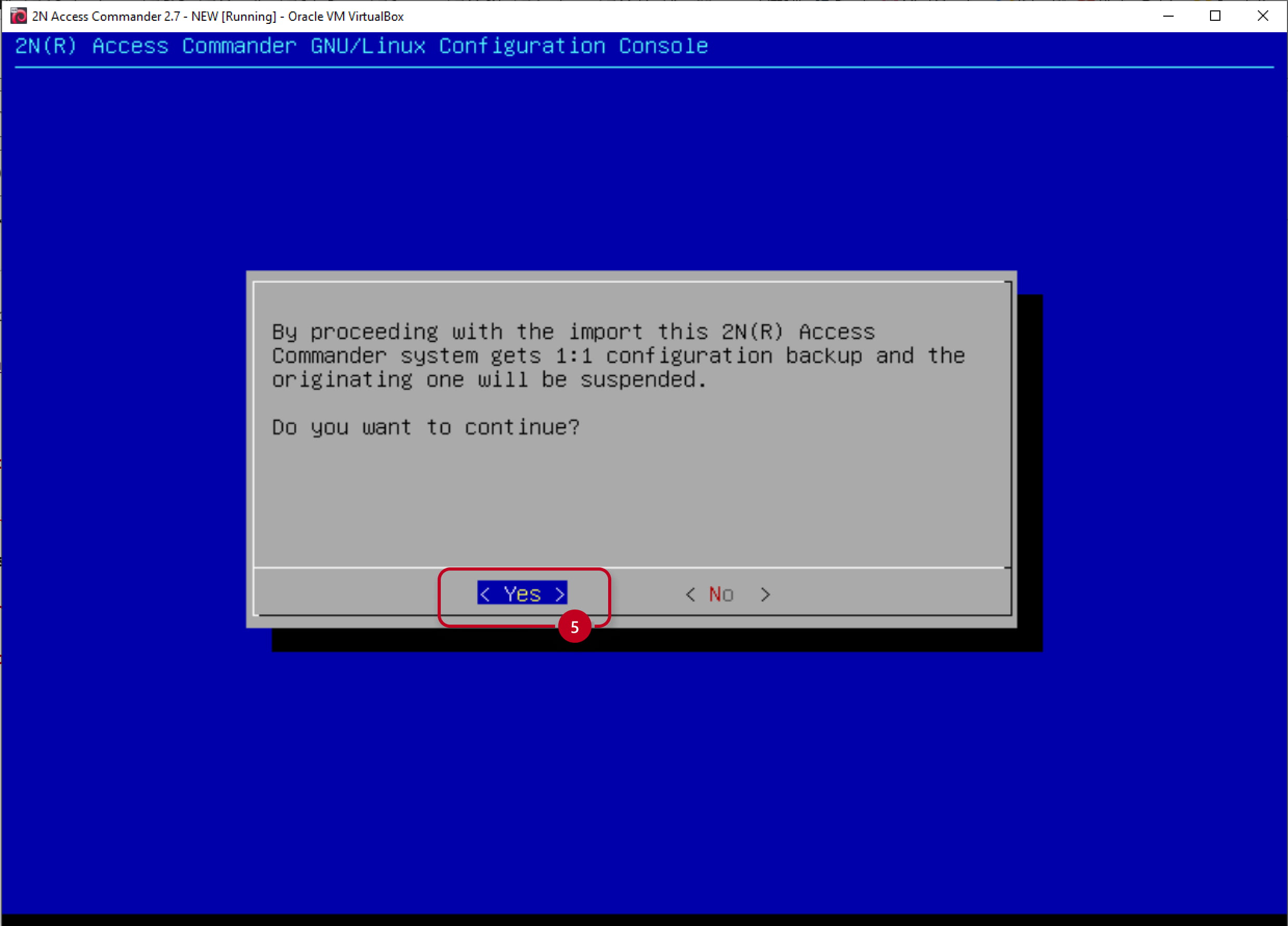

- After a successful migration the source installation can no longer be used.
It is turned off automatically and its web server is deactivated (you can´t access it more).
The new Access Commander now contains all data from the source Access Commander.
Please check if everything works properly.
Your system will be synchronized only with new Access Commander now.
The source installation is prepared for deleting after checking of the new installation.