Device Control
2N IP Verso is an intercom allowing you to:
call other devices
use quick dial buttons
dial phone book position
dial phone number
receive and reject incoming calls
activate switch (e.g. door opening, lift control, etc.)
The device works as an authorization intermediary, which authenticates the user access rights and, if the user access is valid, activates the switch. The door lock, lifts etc. can be controlled by the switch.
The device control depends on the product version:
using RFID cards and chips – by tapping a card/chip on the device,
using the 2N My2N application – by pressing the device touchscreen in the vicinity of a mobile device with 2N My2N logged in,
using NFC,
using biometric data (fingerprint)
by entering a numeric access code via a keypad , touch keypad or in the 2N My2N application
control the device using a touch display
activate/deactivate users or profiles using the 2N My2N mobile application
Speed Dial Buttons
By pressing the speed dial button on the main unit, you can make a quick call to the assigned position in the phone book, see the Intercom Configuration > Calling > Dialing chapter in the Configuration Manual.
Use extending modules to extend the number of quick dial buttons to up to 146.
Call setup is signaled by a long intermittent tone or otherwise as configured in the PBX connected.
Pressing the same button repeatedly during or while making a call can be assigned the function of hanging up or hanging up simultaneously with a call to the next phone number of the called party. Alternatively, pressing the same button repeatedly may have no function, see in the Configuration Manual.
For keypad equipped models, you can also hang up the call at any time by pressing  if enabled so by the Button function during an outgoing call parameter, see in the Configuration Manual.
Calling to Phone Book Position
The Phonebook 2N IP Verso can contain up to 10 000 pre-programmed positions. Depending on the number of speed dial buttons actually installed, you can call a given number of positions in the phone book. The remaining positions can be retrieved via the numeric keypad if the Speed dial using digits is enabled in configuration.
Enter the position number using your numeric keypad (05, 15, 200 e.g. – two digits at least and four digits at most) and press
for confirmation.For keypad equipped models, you can also hang up the call at any time by pressing
if enabled so by the Button function during an outgoing call parameter, see in the Configuration Manual.
Calling to User-Defined Phone Number
If the Phone Function Enable parameter is set, you can use the numeric keypad to call a user-entered phone number.
Press the
button.You will hear a continuous tone from the speaker.
Enter the telephone number using the numerical keypad and repress
for confirmation.For keypad equipped models, you can also hang up the call at any time by pressing
if enabled so by the Button function during an outgoing call parameter, see in the Configuration Manual.
Incoming Call Answering/Rejecting
If the automatic incoming call answering function is turned off, an incoming call is signaled by a loud ringing tone. Push the button to answer the call and the  button to reject the call.
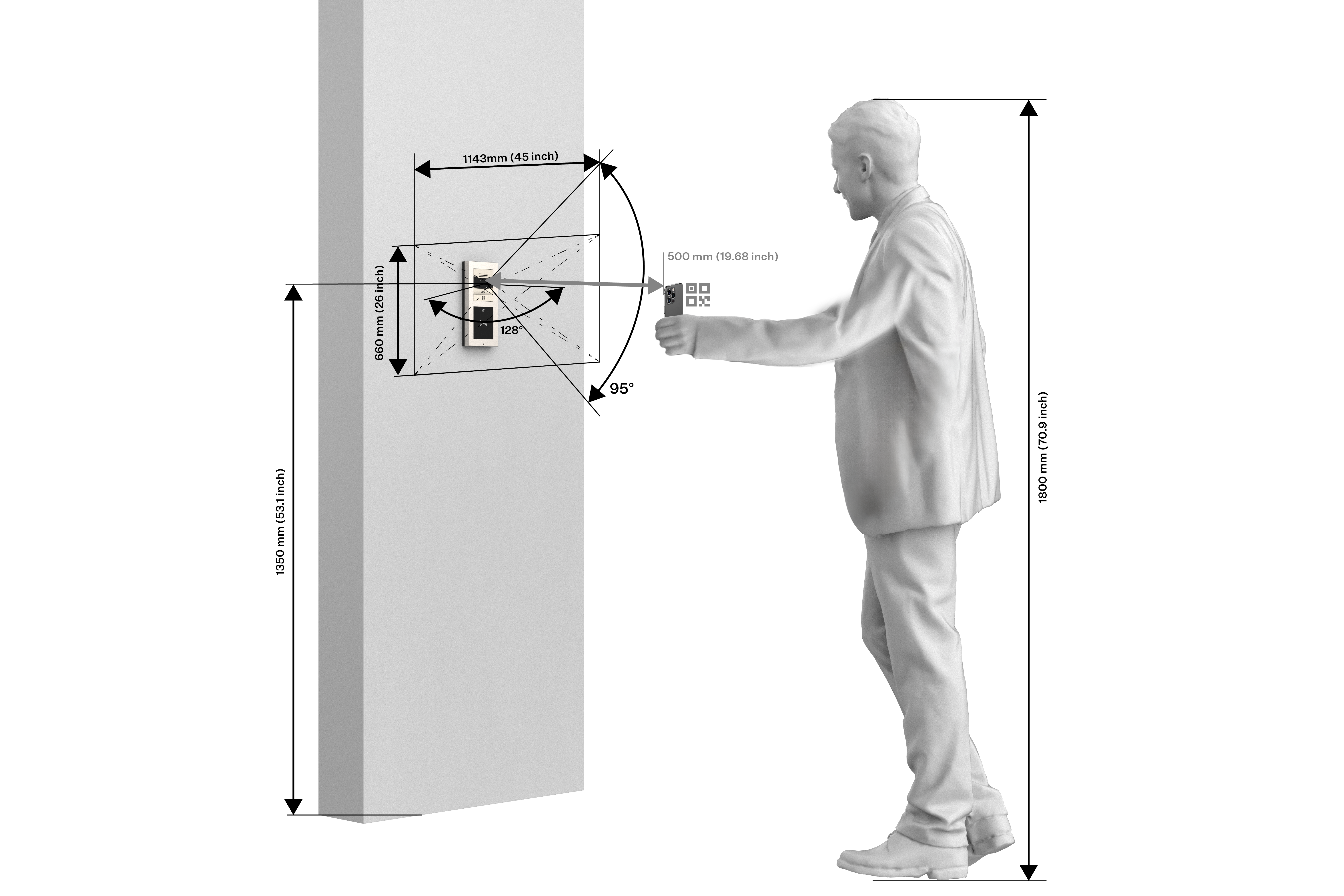
Switch-Off Using QR Code
The visualization below shows the (range of the) field of view and optimum installation height for the device camera. It is recommended that the QR code is placed 50 cm in front of the camera for optimum reading.
Door Opening (Switch Activation) by Code
2N IP Verso is equipped with a door unlocking switch. Enter the valid code (refer to Subs. Switchesof the Configuration Manual for IP Intercoms) using the numeric keypad to activate this switch.
Enter the switch activating numeric code using the numeric keypad and press the
button for confirmation.A valid code is notified visually and by a continuous switch activation tone or a predefined unlocking user sound. An invalid code or interruption longer than as defined in Timeout for Entering Numbers is signaled acoustically
 or using a user sound.
Door Opening (Switch Activation) by Biometric Reader
The Fingerprint reader is used for verification of human fingers for access control and intercom control. Refer to the Directory > Users subsection in the Configuration Manual for IP Intercoms for how to load a fingerprint into a user profile.
Apply your finger to the reader scanning area.
Reader authentication light signalling indicates the status of:
Green – the fingerprint has been recognised successfully.
Green flashes to red – the fingerprint has been recognised but access is denied. Check the user time profile setting state and multiple authentication setting. Access can also be blocked by a previous tamper switch blocking.
Red – the fingerprint has not been recognised.
Caution
A higher moisture may deteriorate the finger papillary line scanning. You are advised to dry your finger and the reader scanning surface for successful authentication.