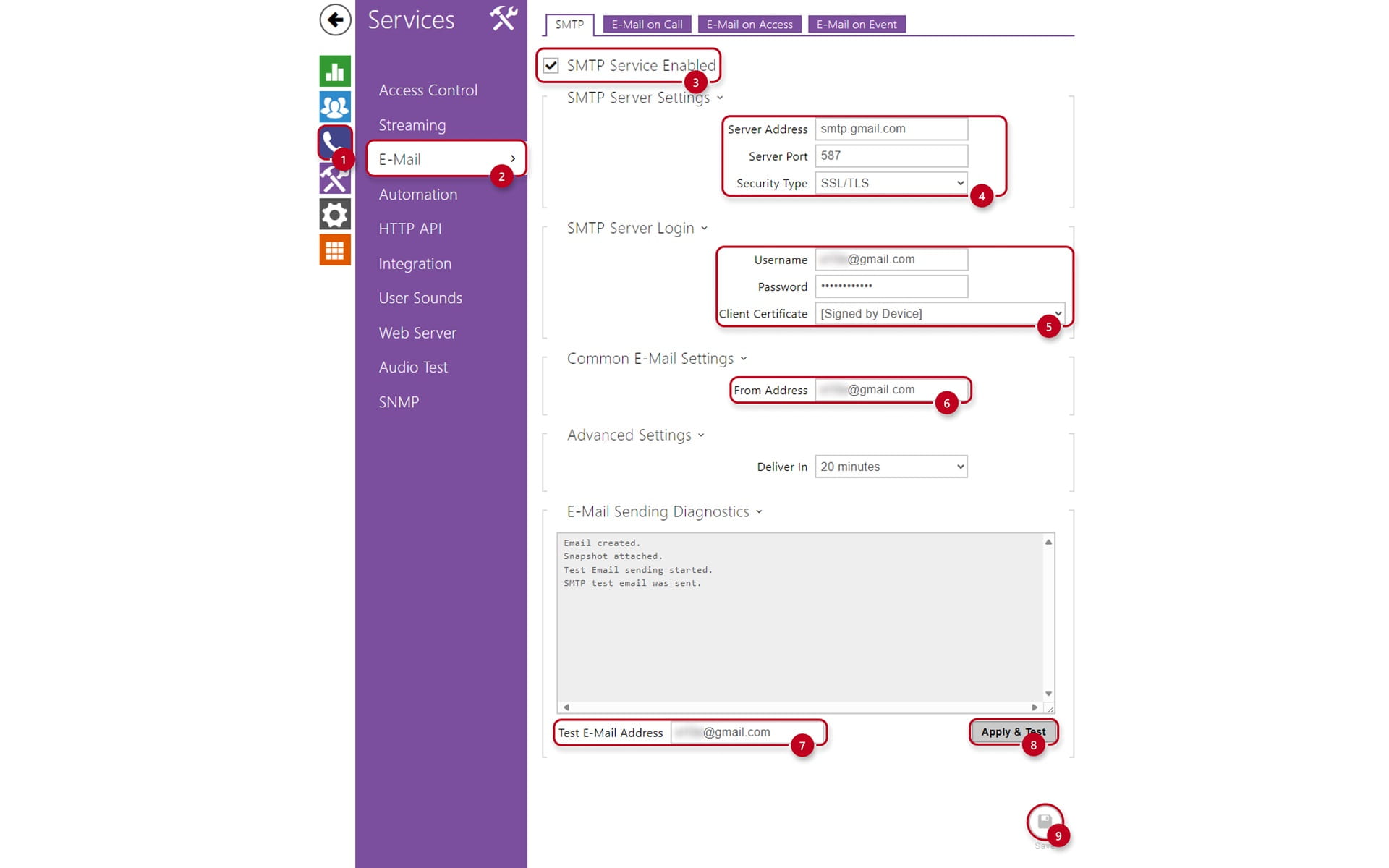
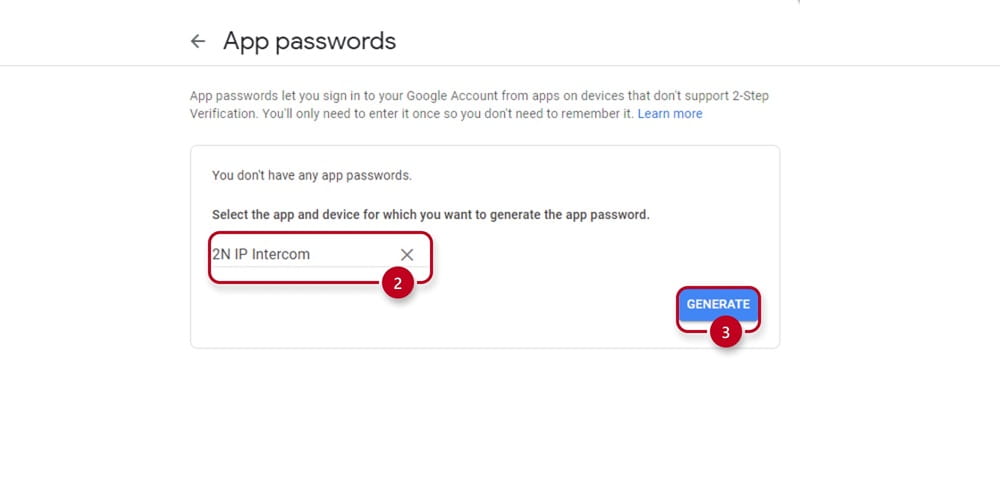
After you have set your Google account, you now need to set the 2N IP Intercom as well:
-
Go under the "Dialing" (1) tab and select "E-Mail" (2)
-
Enable the SMTP Service (3)
-
Fill out the "SMTP Server Settings" (4):
-
"Server Address" (SMTP server is smtp.gmail.com)
-
"Server port" is 587 (SSL/TLS encryption) or 25 (STARTTLS)
-
Set the "Security Type" accordingly to the selected port
-
Fill out the "SMTP Server Login" (5):
-
"Username" is your email address complete with domain (@gmail.com)
-
"Password" is the unique password created under "App Passwords"
-
Set the "Client Certificate", by default the "Signed by Device" is selected
-
Enter the sender email address under "Common E-Mail Settings" and "From Address" (6)
-
You can test the configuration by entering your email under "Test Email Address" (7)
-
Lastly, save the configuration (9)