Both 2N Access Commander BOX and 2N Access Commander BOX 2.0 can be set to automatically boot up when power is connected to it.
This is particularly helpful if site where the BOX is installed encounters a power outage, so the BOX will start automatically once the power is restored.
This tutorial is valid only for the hardware distribution – 2N Access Commander Box and 2N Access Commander box 2.0
Access Commander Box 2.0
-
If BOX is turned on, switch off the Box by short pressing the blue Power button on top of the Box.
-
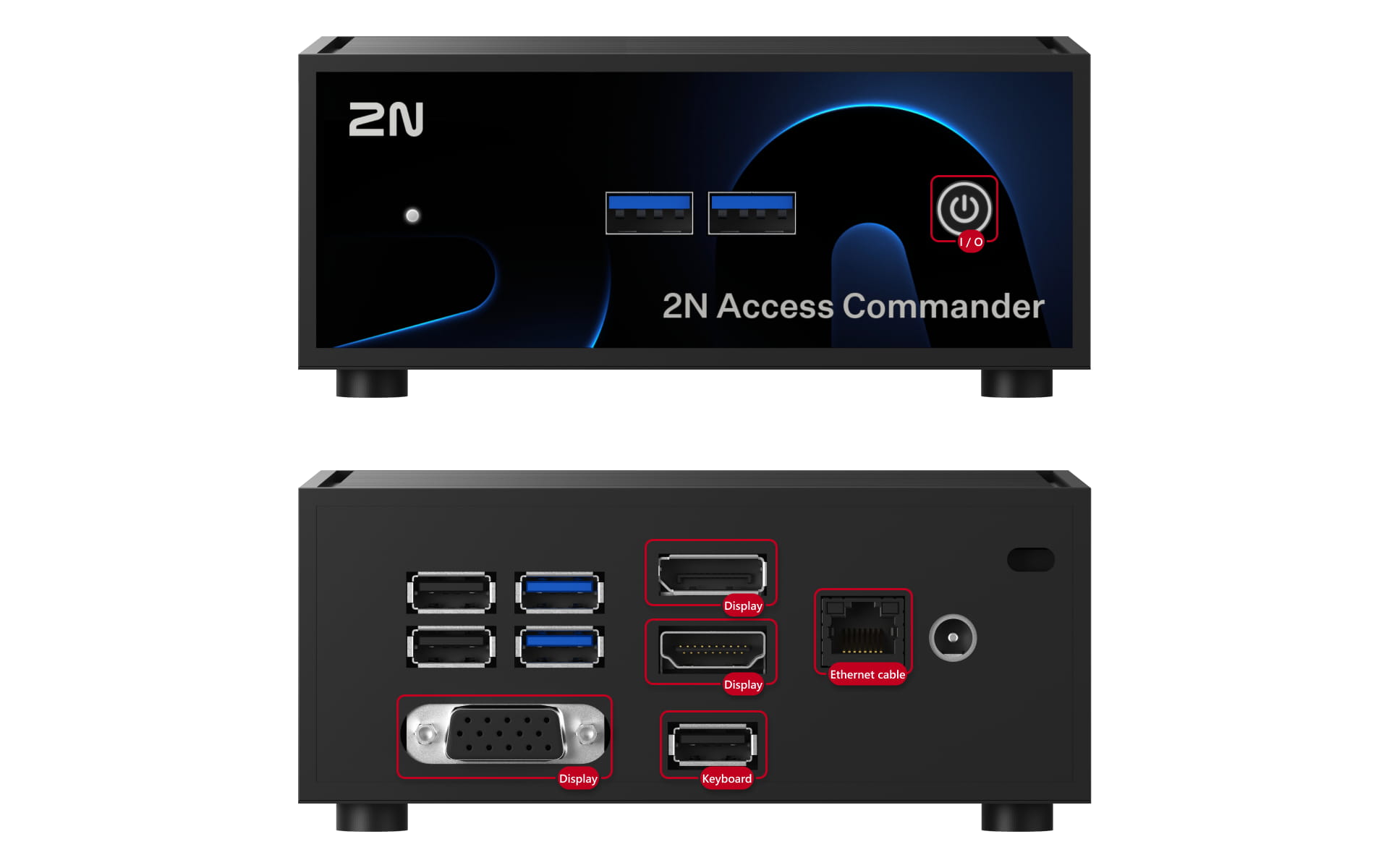
Connect a display (VGA/HDMI/DisplayPort) and keyboard (USB) to the relevant port on the Box
-
Start the device boot up sequence by pressing the Power button
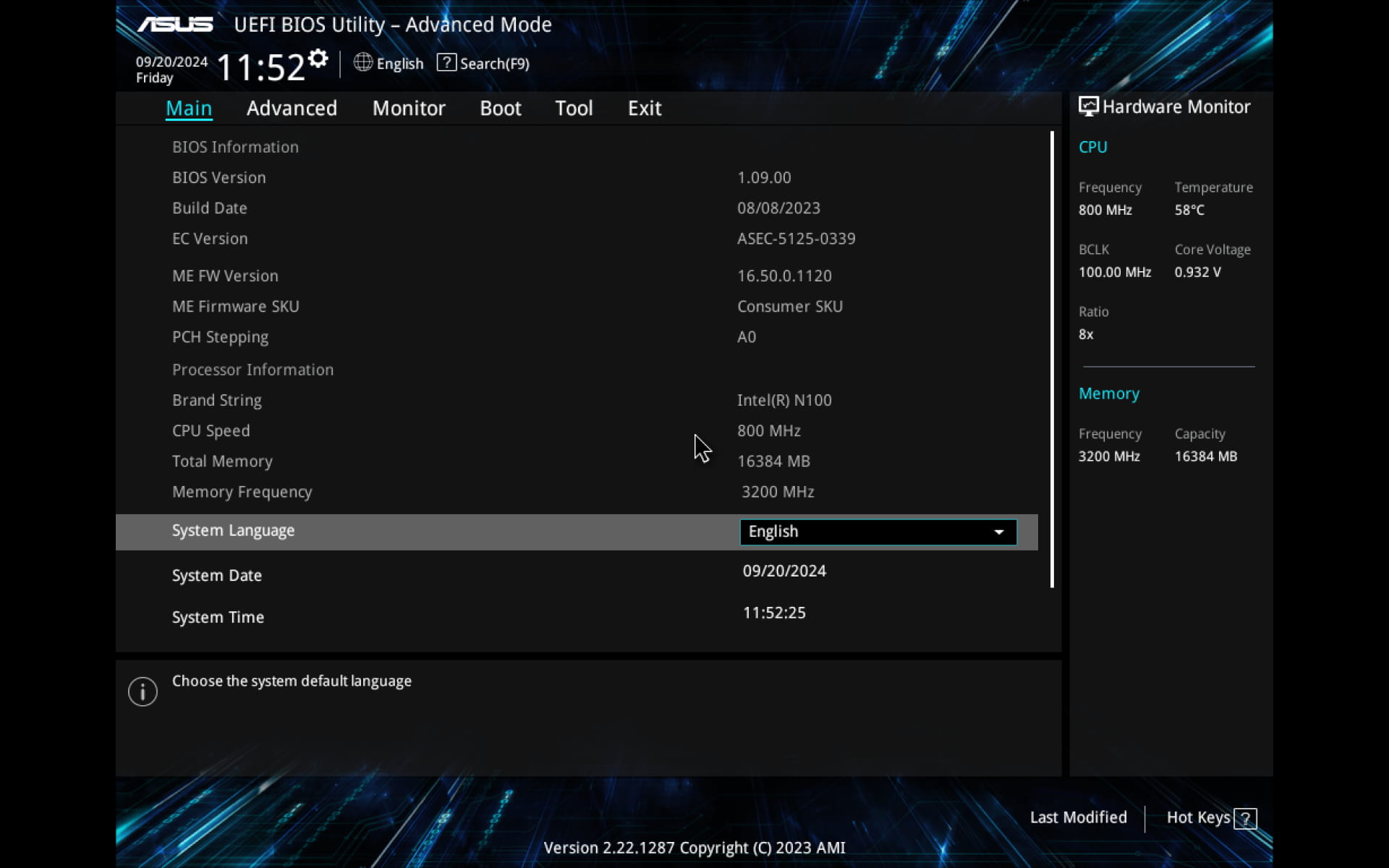
- On the first screen press DEL to access the BIOS Utility
-
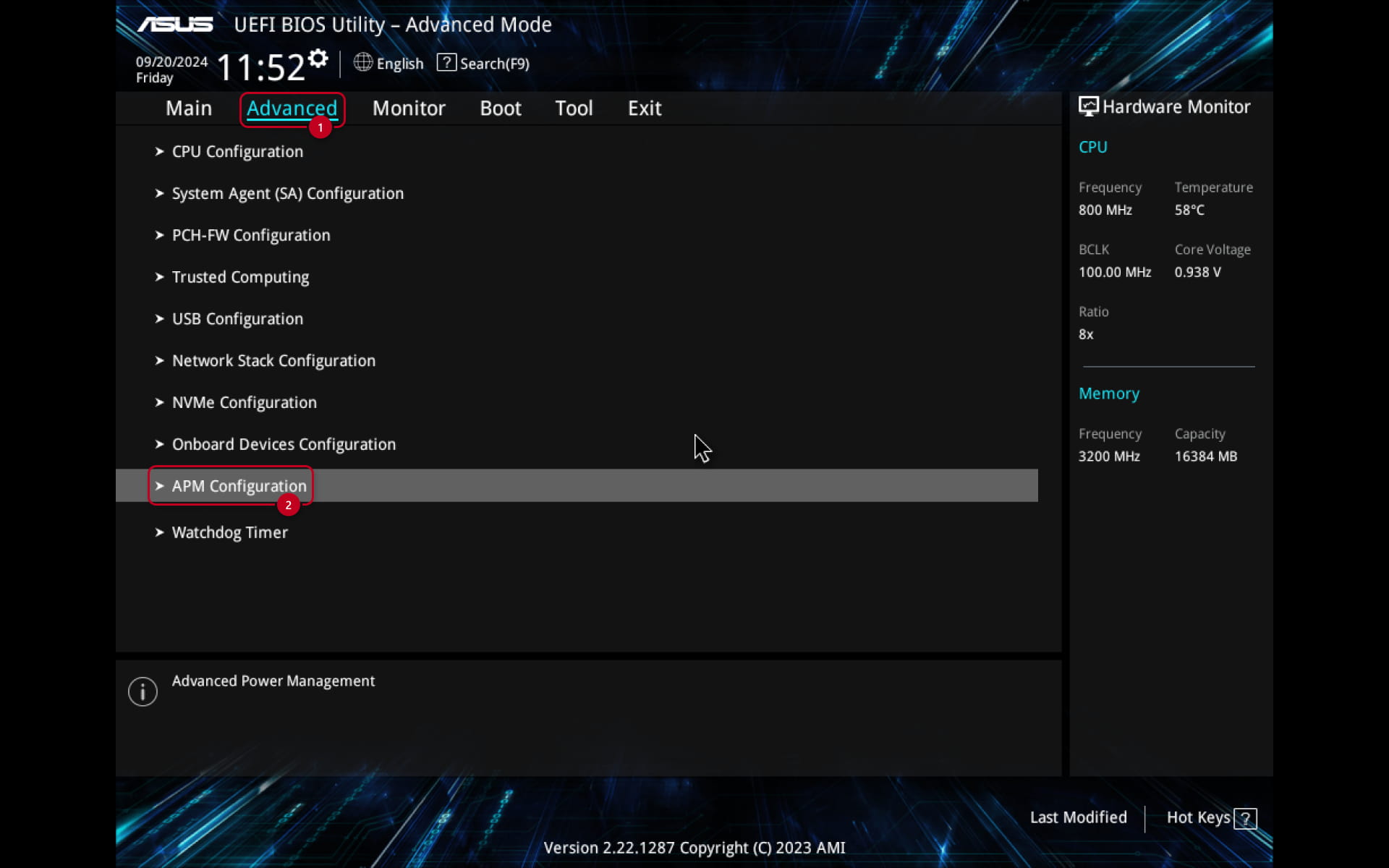
Navigate to Advanced -> APM Configuration
- Select Restore AC Power Loss and pick Last State
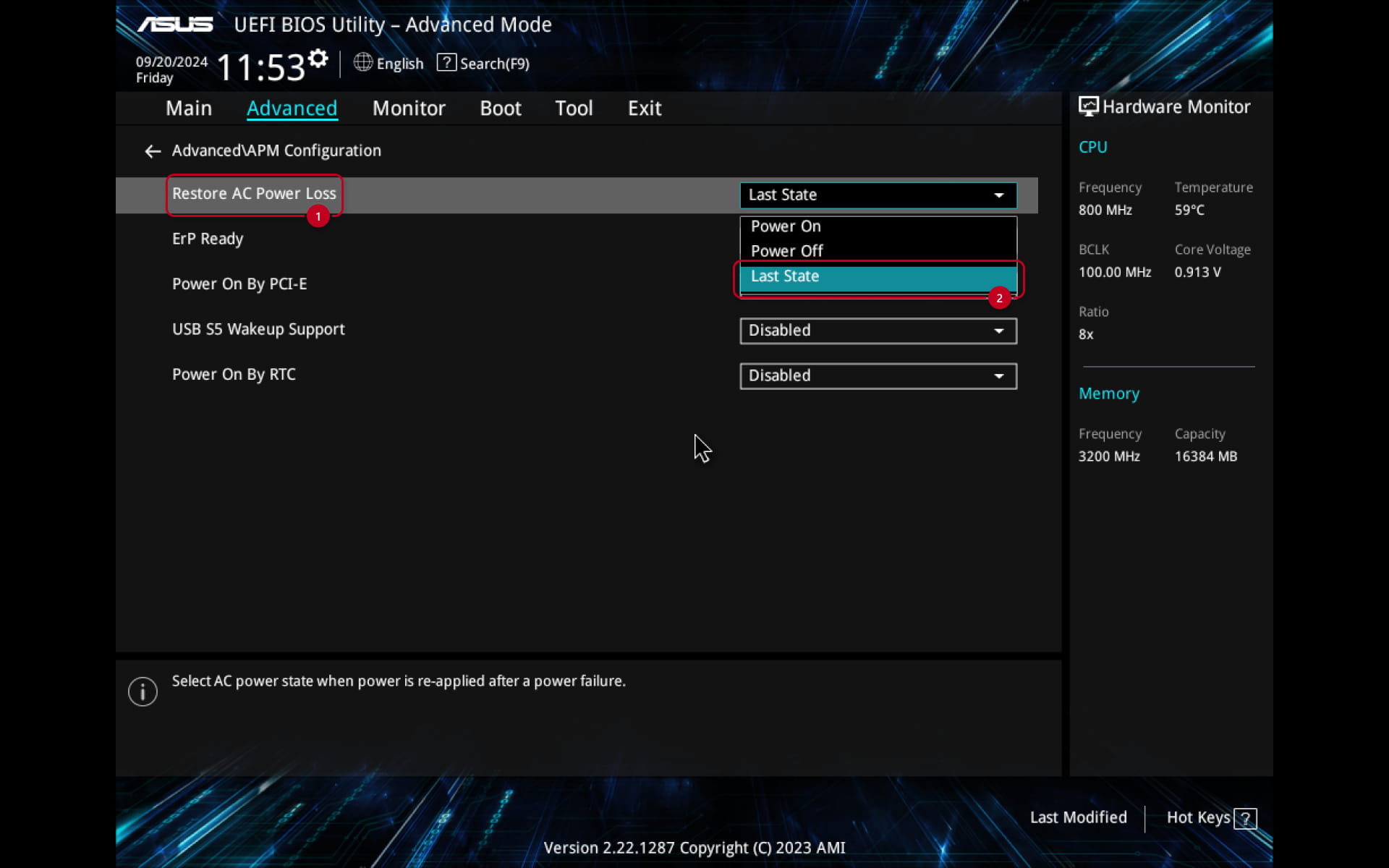
Access commander Box
-
If BOX is turned on, switch off the Box by short pressing the blue Power button on top of the Box.
-
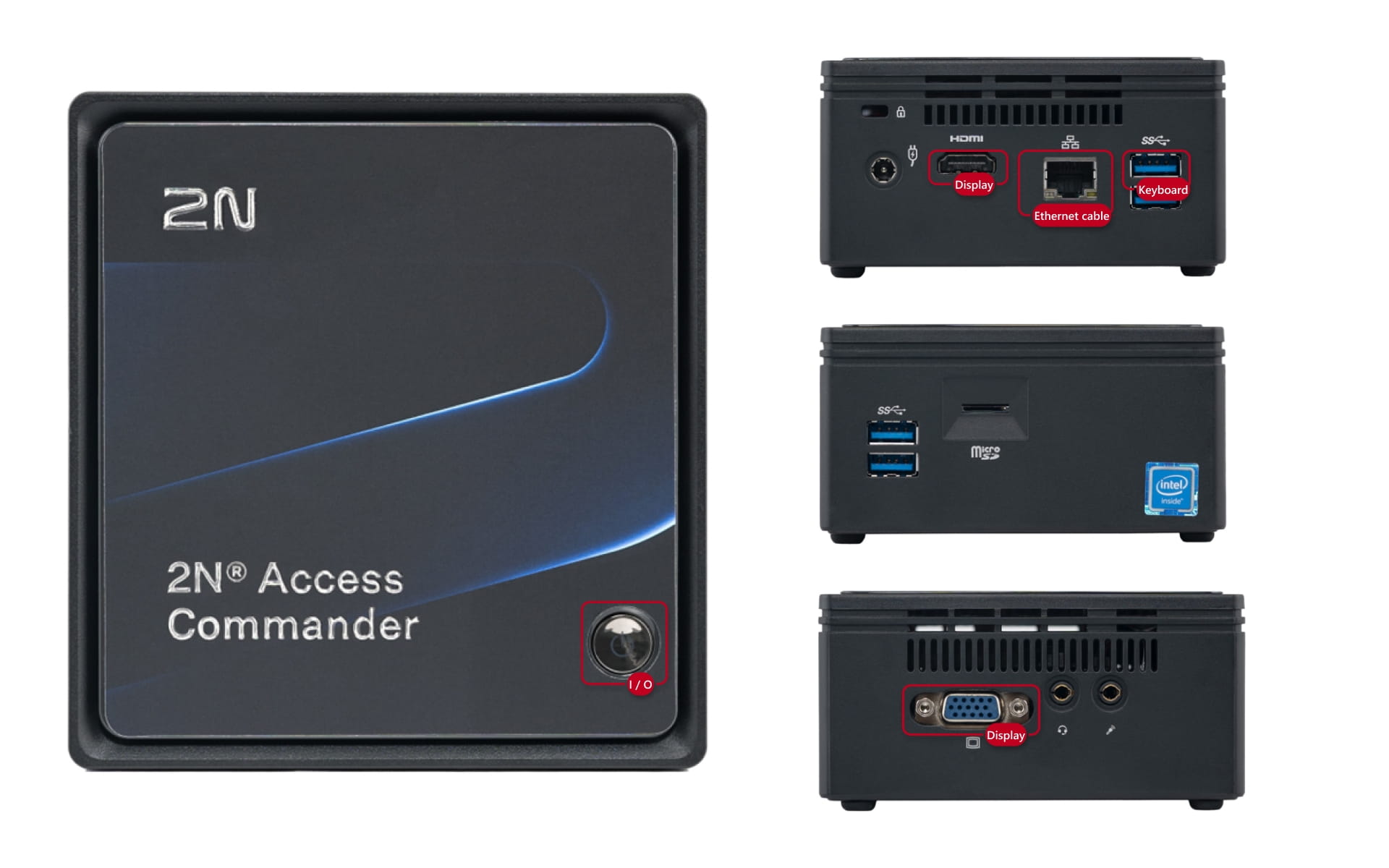
Connect a display (VGA/HDMI) and keyboard (USB) to the relevant port on the Box
-
Start the device boot up sequence by pressing the Power button:
-
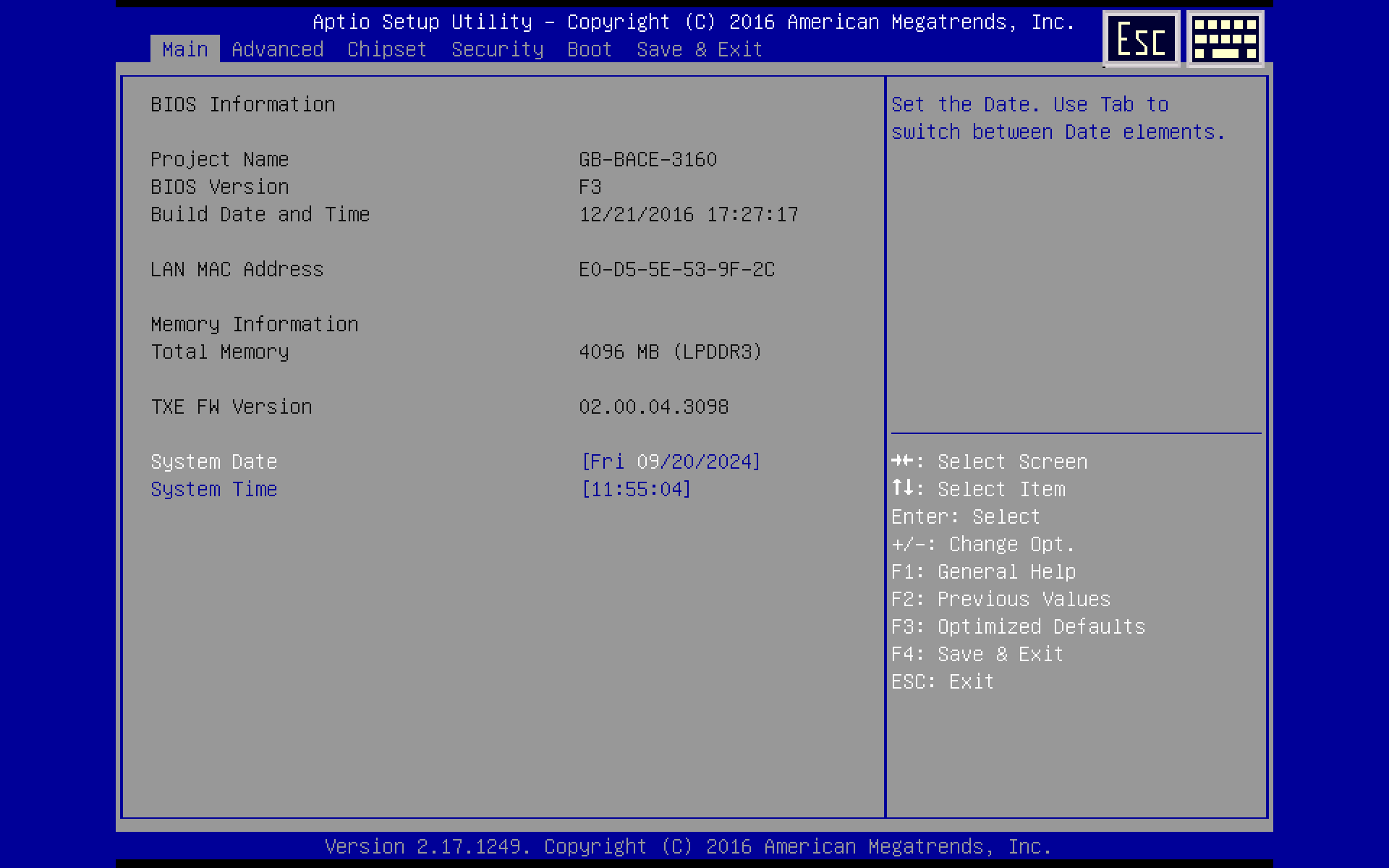
Once BOX starts to boot up, please hit DEL or F12 button on connected keyboard.

-
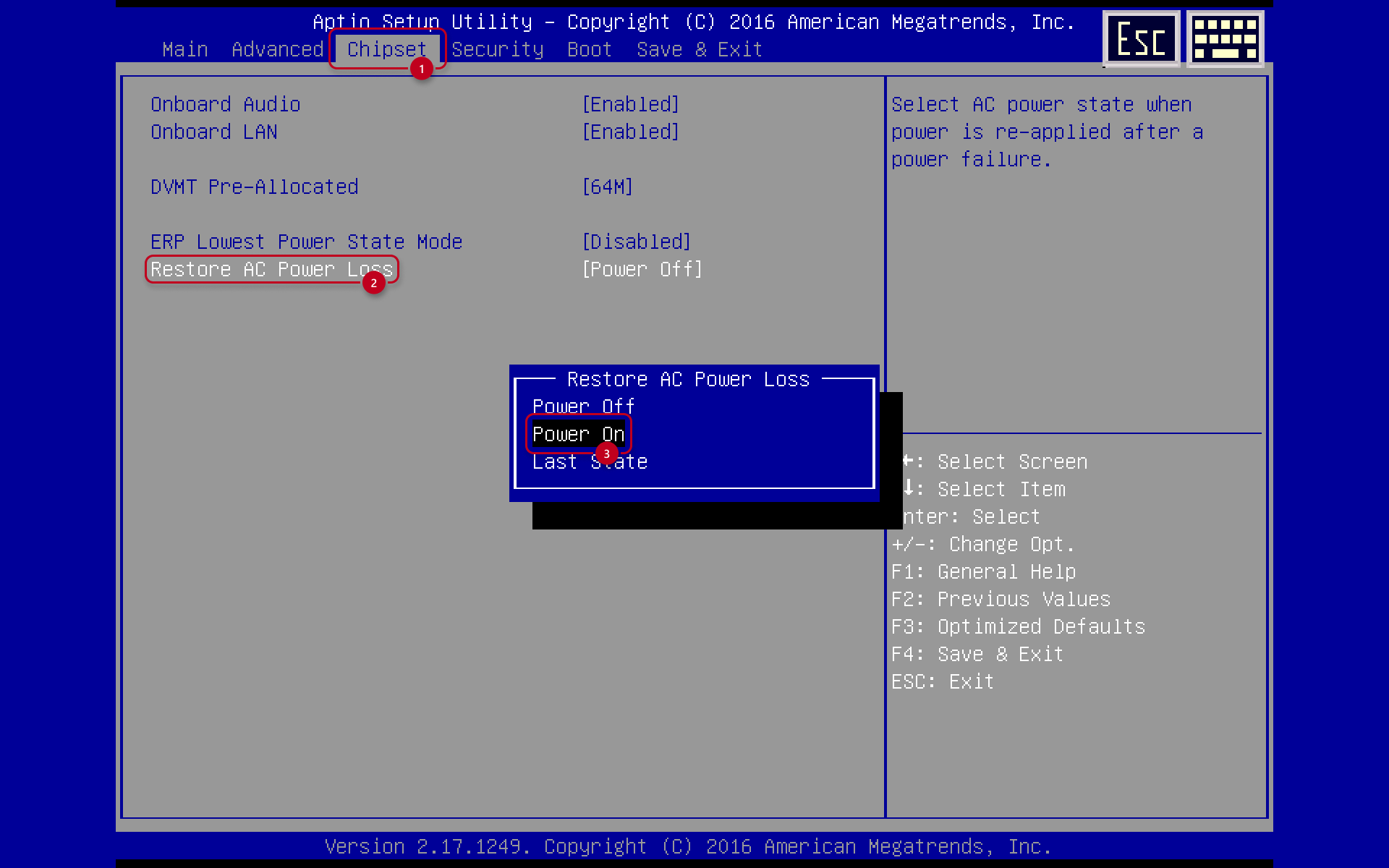
You will enter BIOS of device, please navigate to Chipset tab and choose Power On option for parameter restore AC Power Loss
-
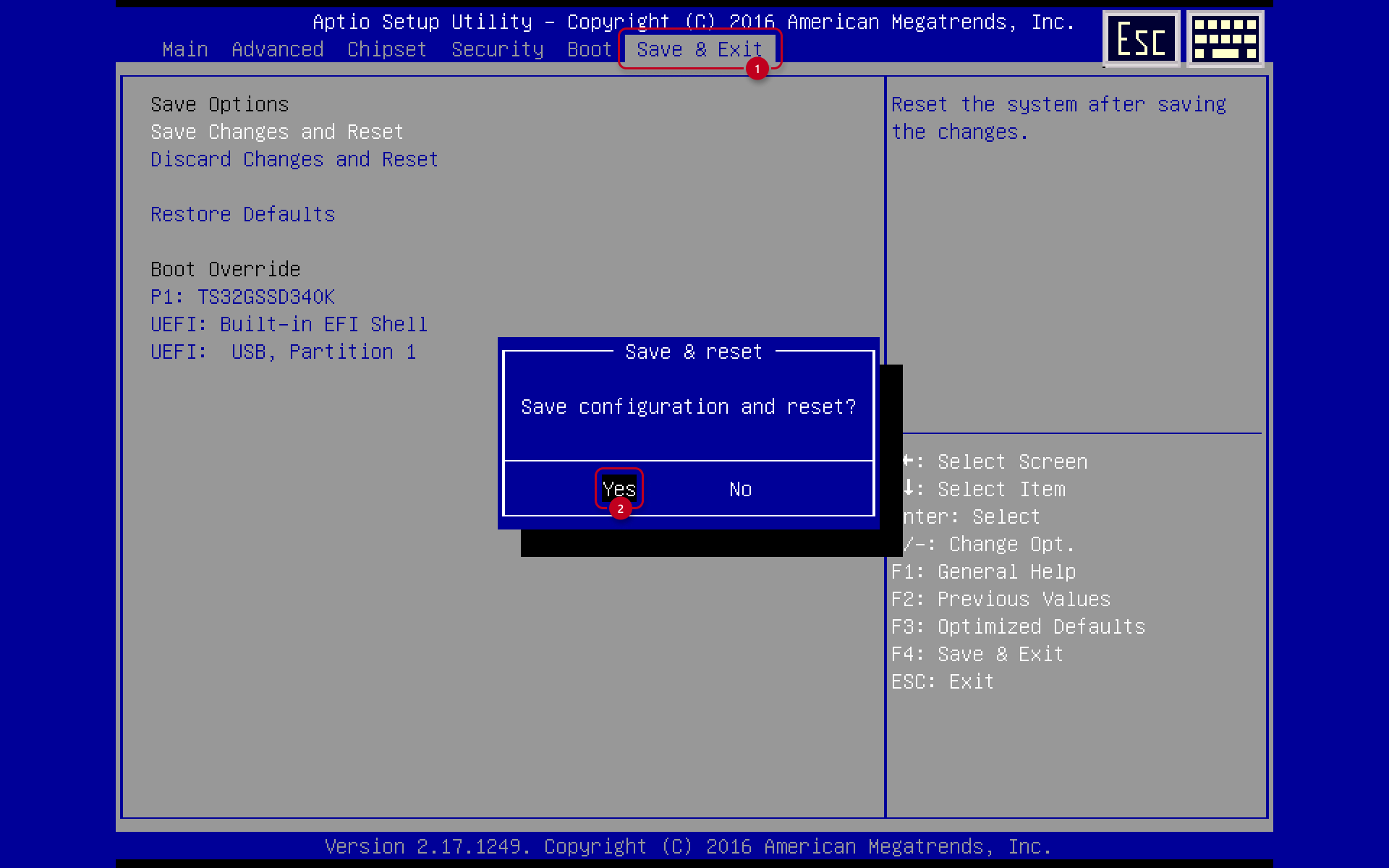
Save your changes in Save & Exit tab.