The steps in this article require using the web interface of a 2N device. Please follow this manual in case this is your first time using the web interface.
You can download logs, network traces and a configuration file in case of some issues with your unit. These files will be requested by technical support during the troubleshooting.
Logs
Logs can be downloaded in case of some issues with the unit. We recommend to enable extended logging feature of the Intercoms application in case of some issues and troubleshooting.
-
Extended logging can be enabled in the section Application -> Settings -> Logging (Figure 1).
-
Logs can be downloaded in section Device -> System administration -> download all logs (Figure 2) .
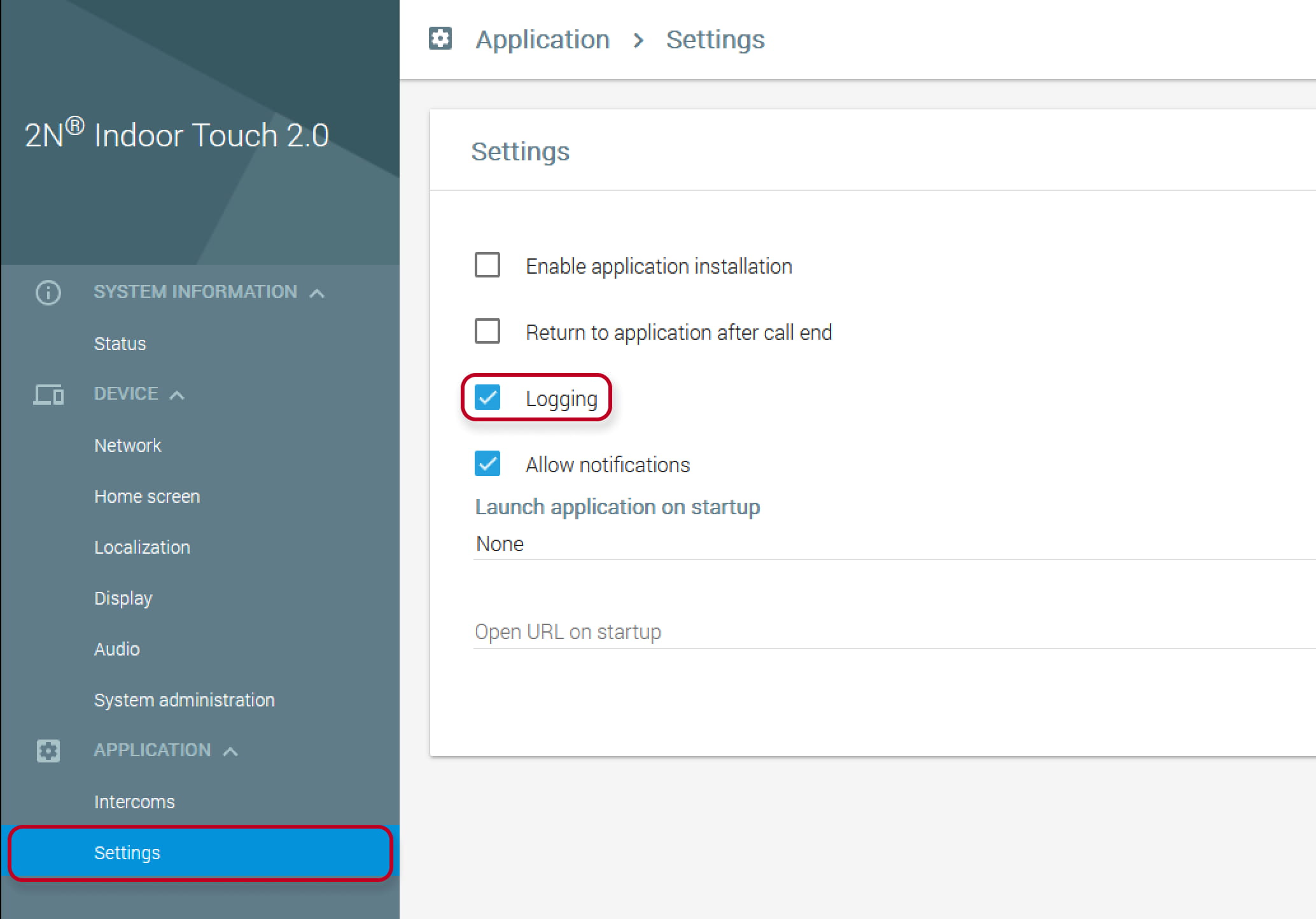
Figure 1

Figure 2
Network trace
If the 2N Indoor Touch communicates with other devices like 2N IP intercoms, a network trace can be useful. You can capture network trace on the side of the 2N IP intercom, on the side of the 2N Indoor Touch or alternatively also by using a PC with the Wireshark utility running in the same physical LAN.
Network trace on the 2N Indoor Touch side can be downloaded in section Device -> System administration -> Network trace (Figure 3) :

Figure 3
Please note that the buffer size limit is 20480 kB - the oldest records of the trace will be lost once exceeded.
How to make the configuration backup
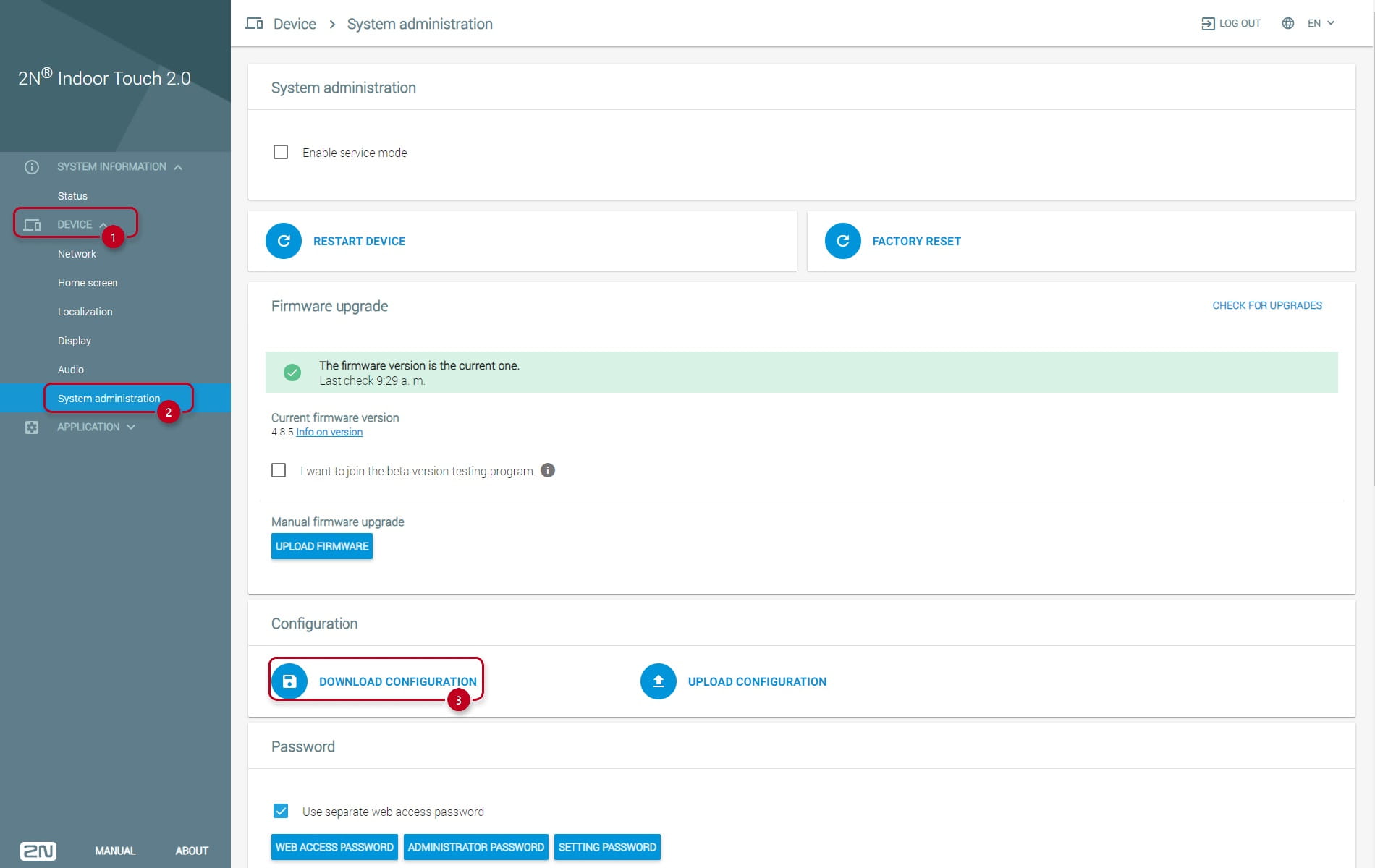
You can download the current device configuration in the web interface of the device in the section Device -> System Administration -> Download Configuration.
| Note: Before reporting an issue, please first always test the issue with the latest version of FW, which you can download from here: Indoor Touch 2.0 FW |