FAQ describes how to set 2N SmartCOM PRO for AMS function by SMS message. 2N SmartCOM PRO automatically detect M-Bus meters. Then reads data from M-Bus meters and store data in internal memory. 2N SmartCom server with web interface readout 2N SmartCOM PRO units and parse M-Bus messages to CSV files.
Tested with firmware (SCE_1-12-0-12-252). Ask 2N for this firmware or access to test web server - contact your salesman or send a request go to https://support.2n.com
Connect you 2N SmartCom PRO unit to your 2N SmartCom server. In this scenario will be used 2N SmartCom test server with web interface.
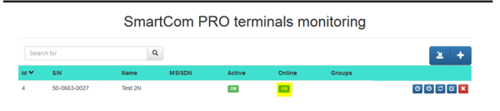
Check, that your unit is connected to the server. (Web interface or in software 2N Control panel)
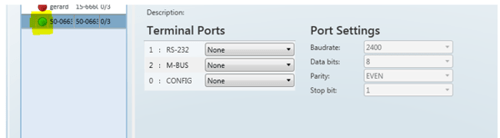
Use software 2N® Control panel or AT commands and configure M-Bus port parameters.
2N Control panel
In the page "Terminals", you can also set parameters of RS232,RS485,MBUS. Default M-Bus parameters are
Baudrate: 2400, Databits: 1, Parity: Even, Stop bit: 1, (Parameters of you M-Bus meter may be different – check it)
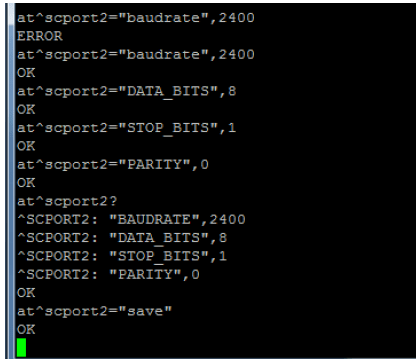
AT Comands
Settings M-Bus: speed 2400bd/s - data bits 8 – stop bits 1 – parity – even
at^scport2="baudrate",2400 Set baudrate
at^scport2="DATA_BITS",8 Set data bits
at^scport2="STOP_BITS",1 Set stop bits
at^scport2="PARITY",1 Set even parity
at^scport2? Check settings
at^scport2="save" Save settings
Enable AMS function (0 = AMS turned off)
at^scams="enable",1
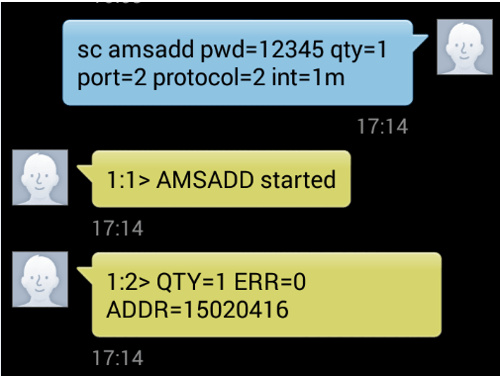
Meter installation SMS
Performing this command deletes all the data from 2N®SmartCom PRO terminal memory as well as the meter reading configuration part. All the connected meters during the SMS processing will be available for the readout. The parameter interval is global for all installed meter by SMS.
SMS command:
SC AMSADD PWD=<password> QTY=<n> PORT=<port> PROTOCOL=<protocol> INT=<interval>
Parameters:
-
PWD - SmartCom PRO password
-
QTY - number of meters installed on SmartCom PRO M-Bus interface
-
PORT - number of SmartCom PRO physical port (M-Bus port = 2)
-
PROTOCOL - number of protocol to be used for data reading (M-Bus protocol = 2)
-
INT - interval for data reading from meters - values: 1M, 2M, 3M, 4M, 5M, 6M, 10M, 12M, 15M, 20M, 30M, 1H, 2H, 3H, 4H, 6H, 8H, 12H, 1D
SMS Answer:
QTY=n ERR=error_code ADDR=address#1, address#2,…, address#n
Parameters:
-
QTY - number of meters found on SmartCom PRO M-Bus interface
-
ERR - error code if any
-
address – secondary address
- error codes
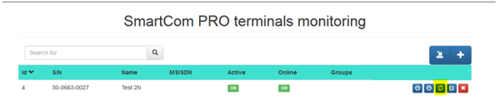
Go to web interface to section "Terminals Monitoring" and synchronize your 2N® SmartCom PRO unit with 2N® SmartCom server.
Pres Start sync
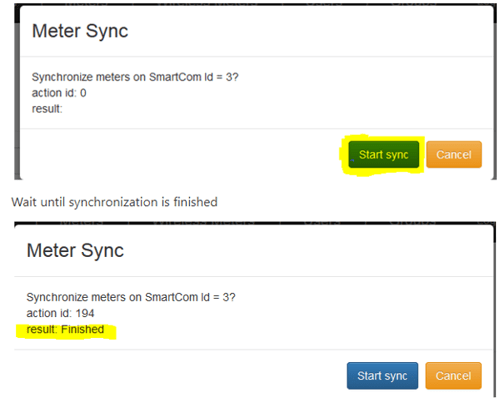
Wait until synchronization is finished
In section "Meters" you can find information about your M-Bus meters
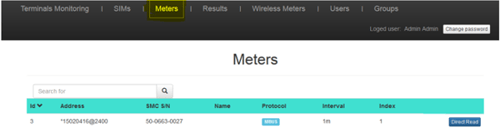
Results are in section - "Results" - For the access data (login, password) please contact your salesman or send a request go to https://support.2n.com
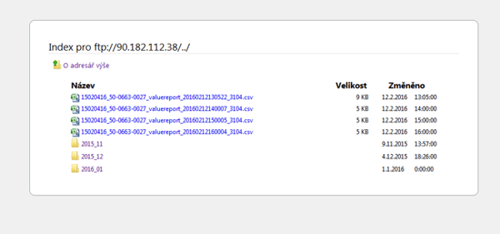
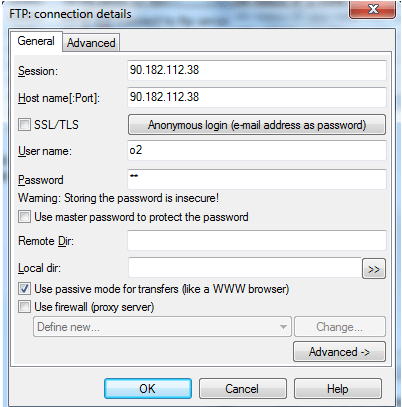
or can be download by FTP client - loggin name:o2 pass:o2