Device Security - Certificate Validation feature
The steps in this article require using the web interface of a 2N device. Please follow this manual in case this is your first time using the web interface.
Starting with Access Commander version 3.3, software now offers a new 'Certificate fingerprint validation' option as a part of the Device certificate validation feature. This option adds an additional level of security and ensures that the device that Access Commander is communicating with is an approved 2N device. This can be convenient for Access Commander users who would like to continue using self-signed certificates, just with an extra layer of security.
The default setting is 'None', which implies that the communication between Access Commander and 2N devices is still encrypted, but certificates are not being validated.
When you enable the 'Certificate fingerprint validation' option, devices with unrecognized certificate fingerprints will become unsynchronized until you manually approve them. Please see the steps on how to achieve that below.
When you enable the 'Full certificate validation (PKI)' option, communication with devices will be subject of complete certificate check according to PKI rules and using this option devices will require certificates signed from trusted authorities.
How to manually approve the fingerprint certificate
Before you proceed, make sure that your 2N devices are running on firmware version 2.46 or newer.
In device configuration:
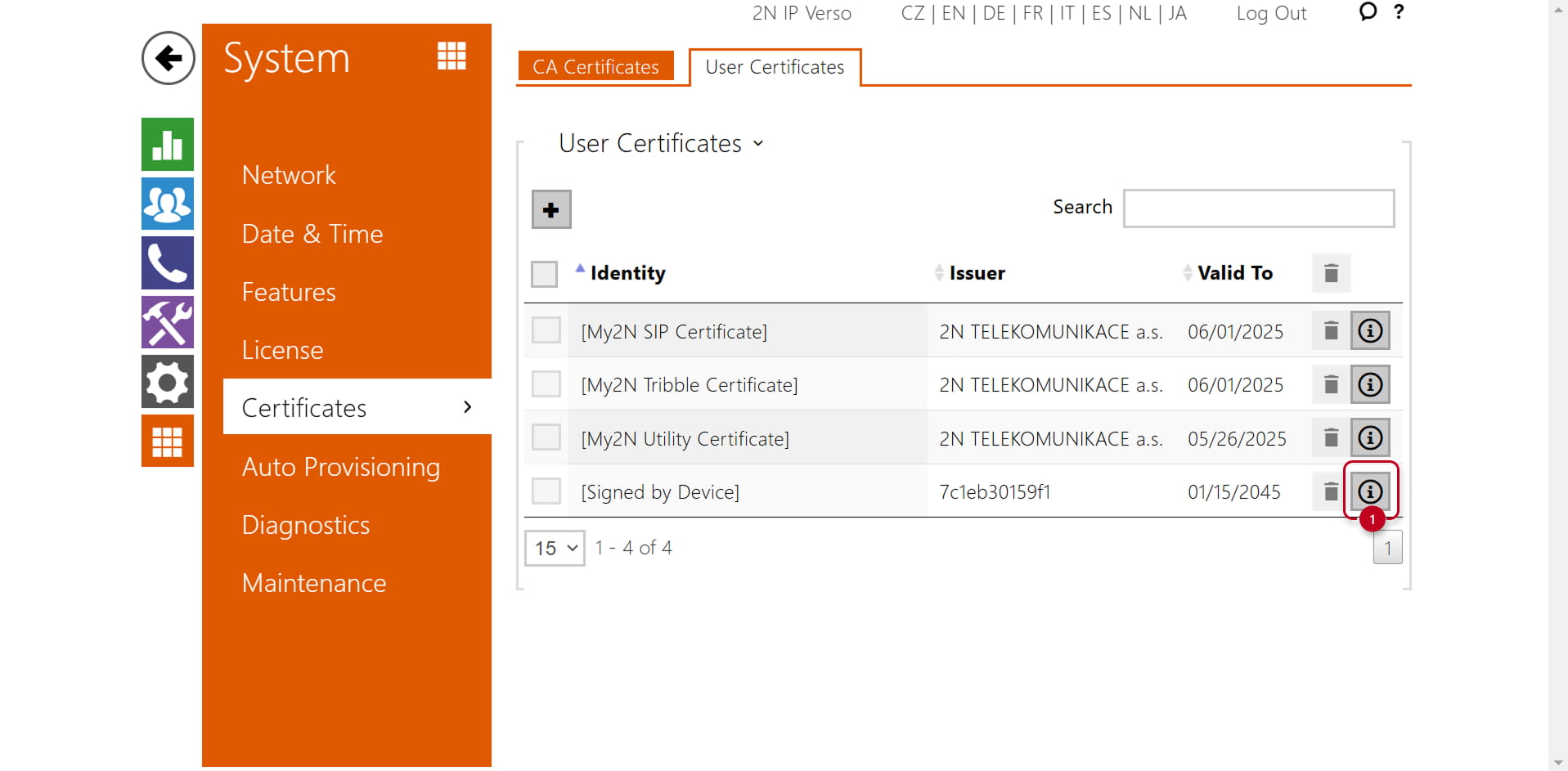
- Navigate to System > Certificates > User Certificates
- Locate [Signed by Device]
- Click on the information button next to it
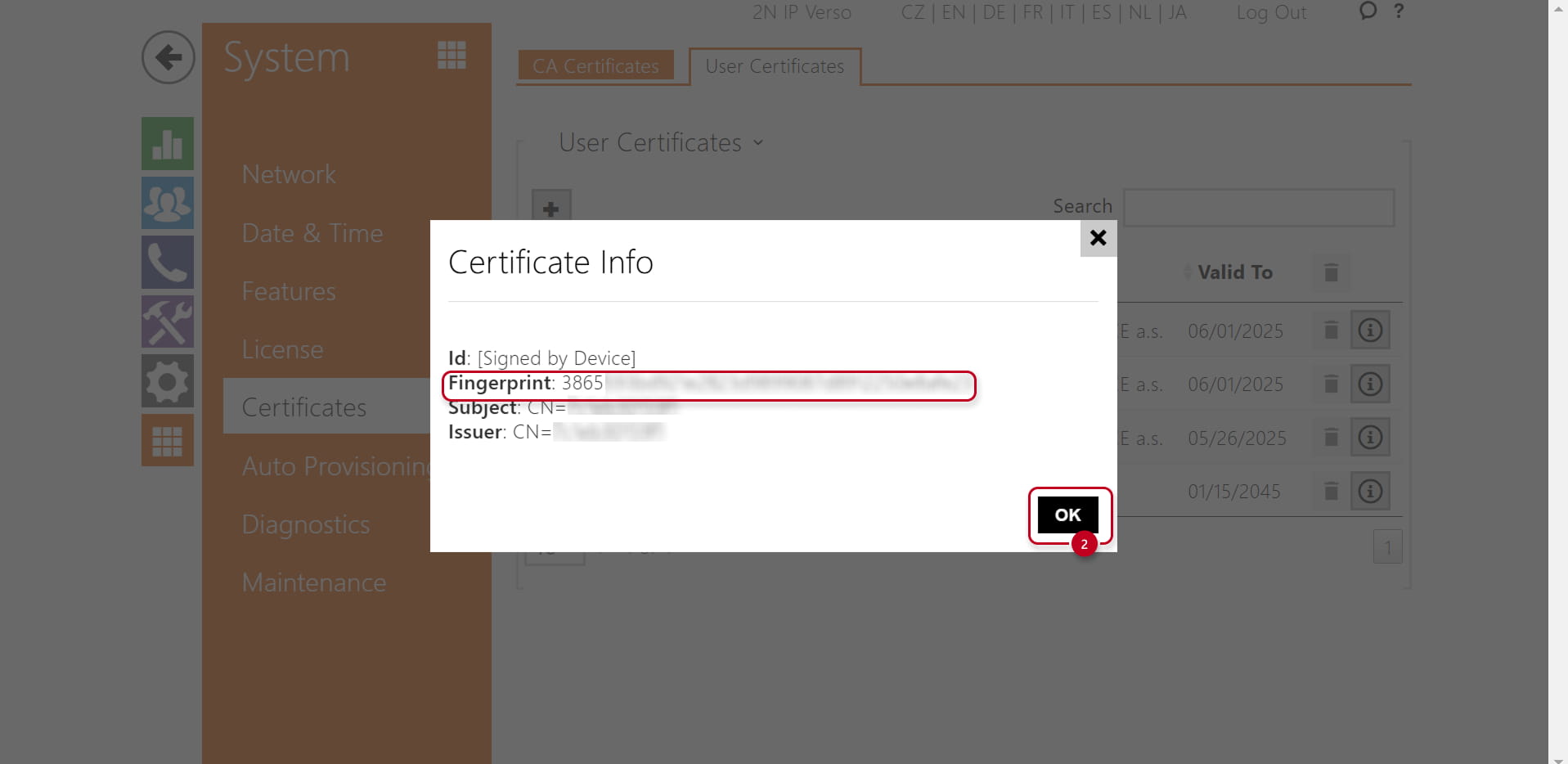
- Copy the Fingerprint ID and click 'OK'
In Access Commander:
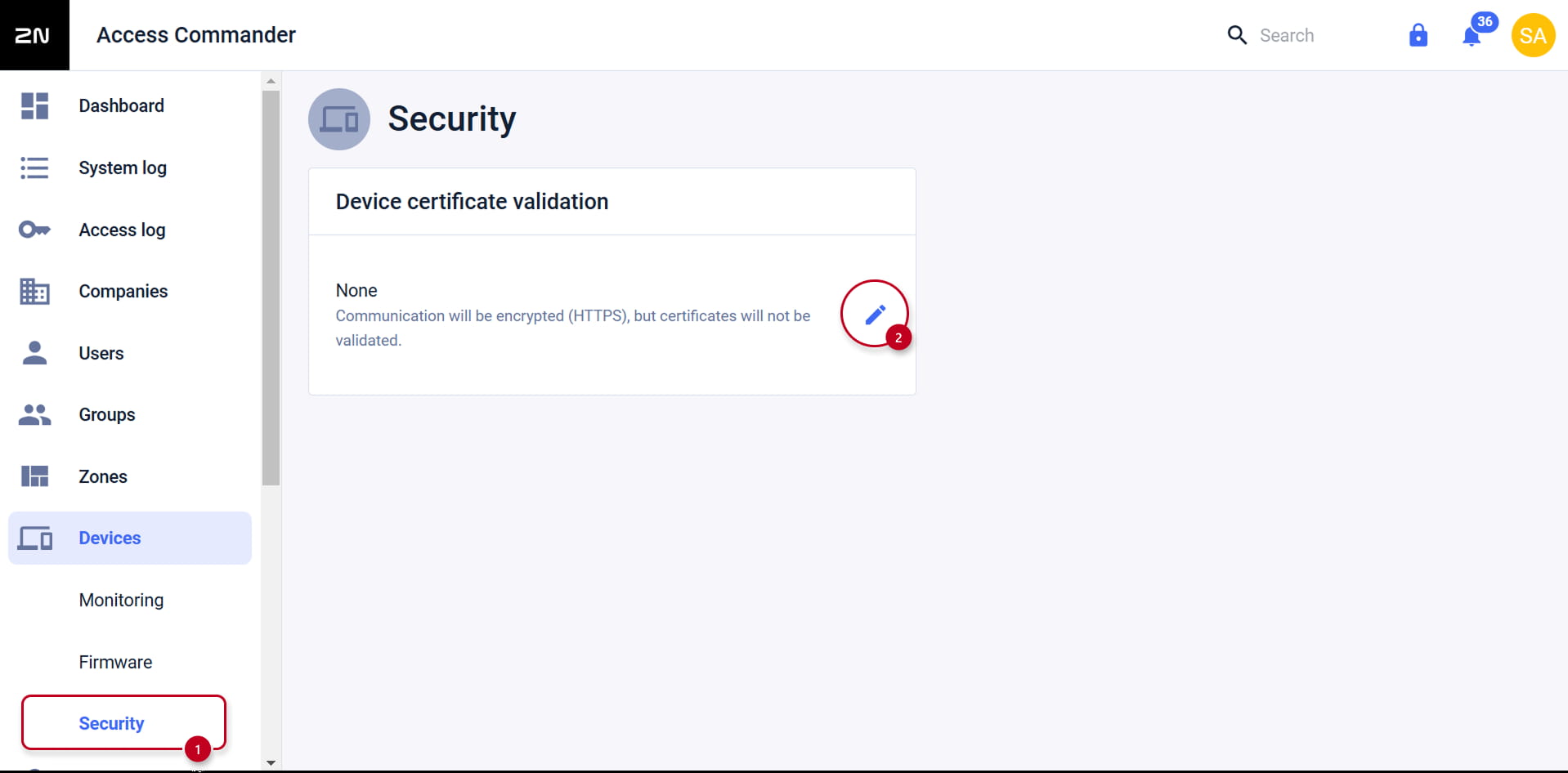
- Navigate to Devices > Security
- Click on the blue pen icon next to 'Device certificate validation'
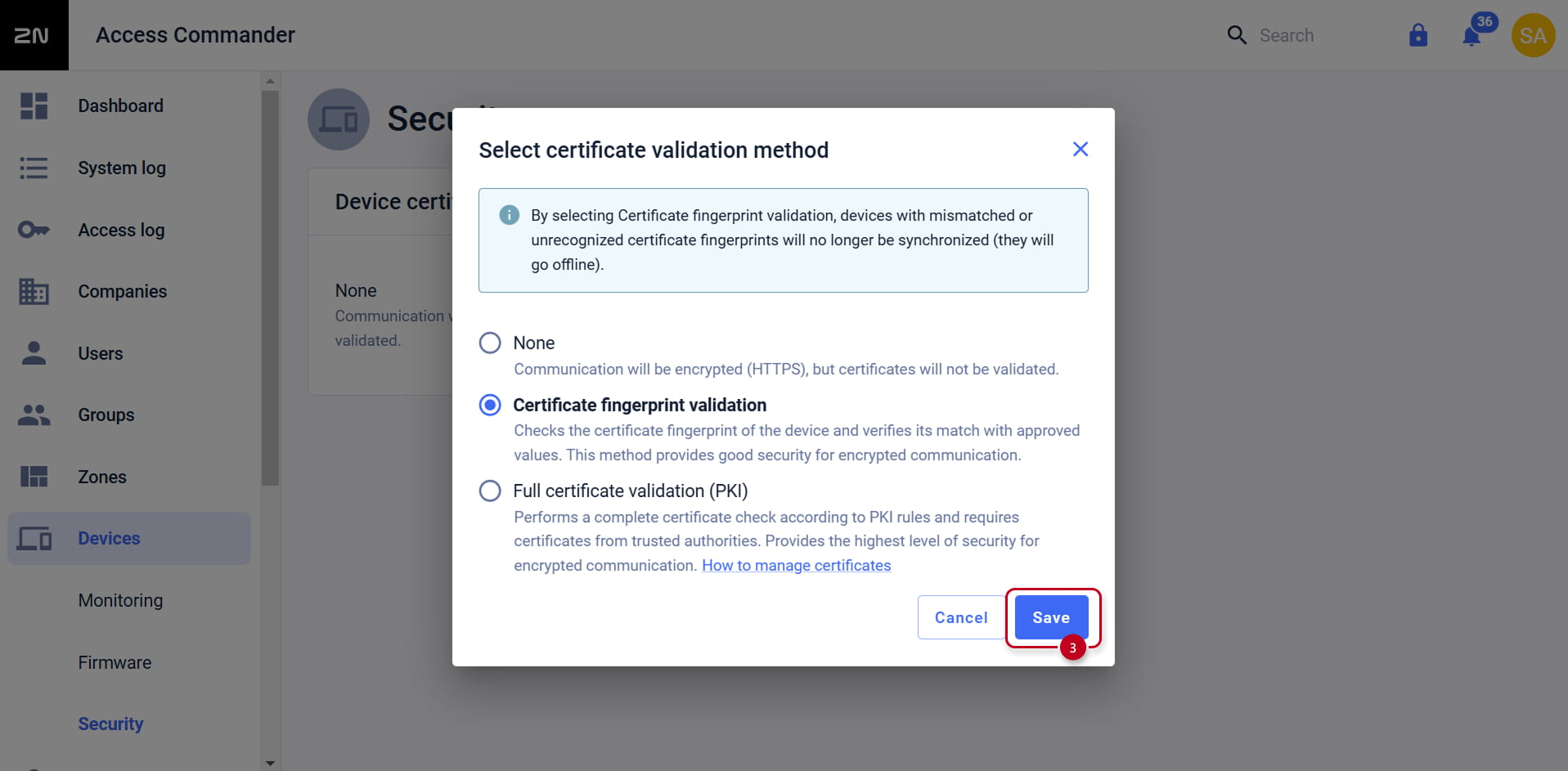
- Select 'Certificate fingerprint validation' and click 'Save'
- Go back to 'Devices' and select the device you earlier found and copied the Fingerprint ID of
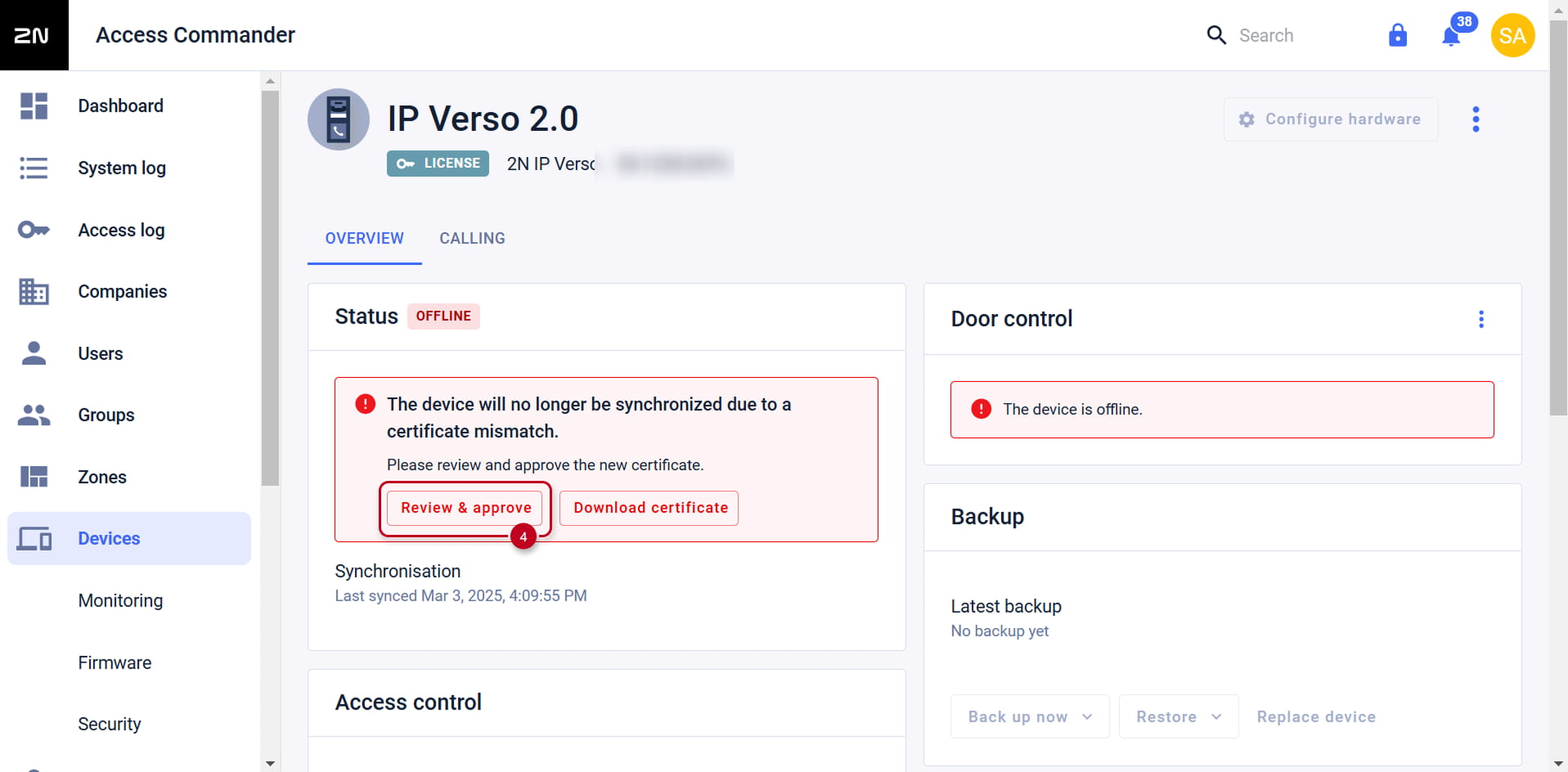
- On the error message, click 'Review & approve'
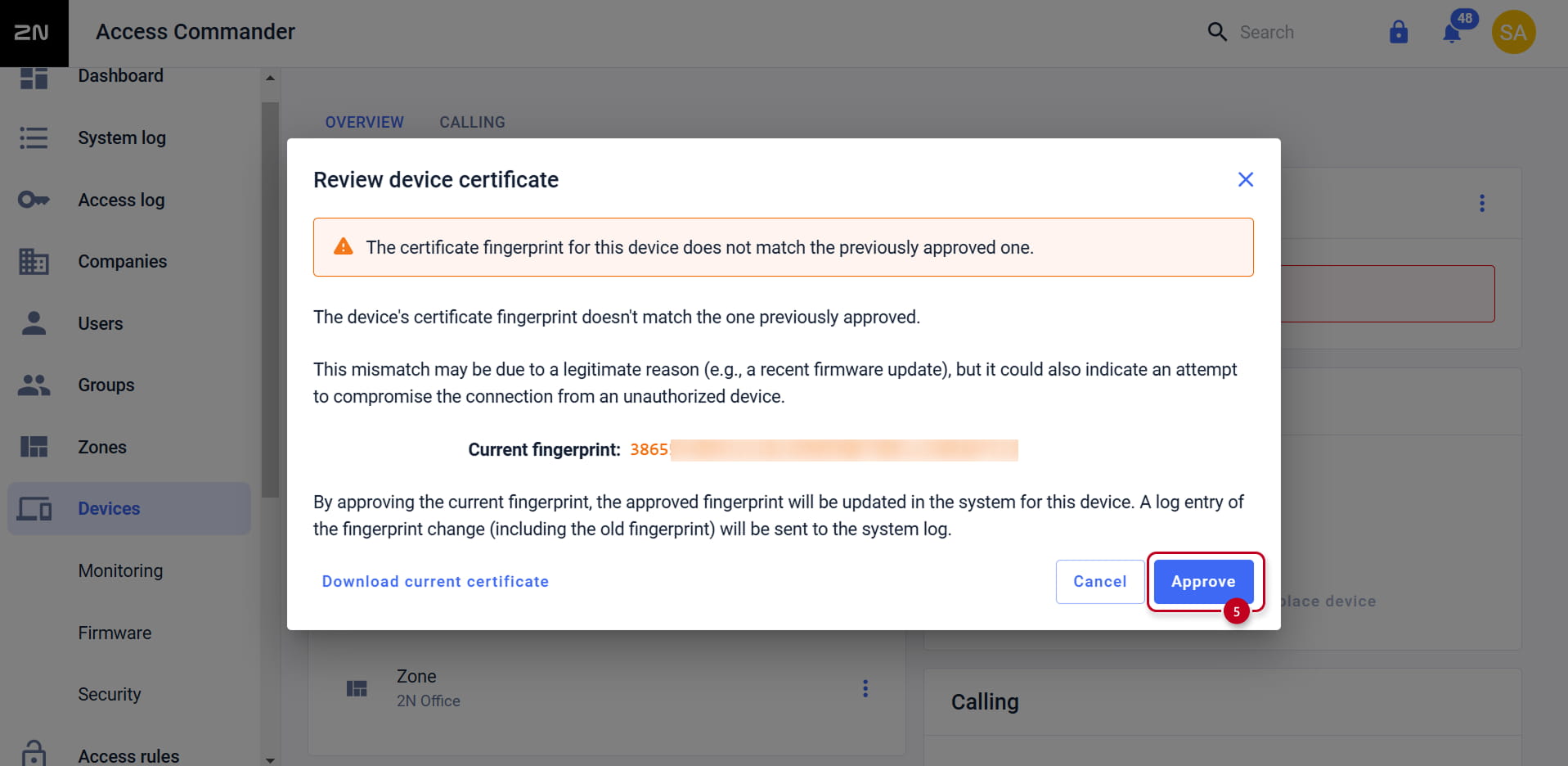
- Compare the Fingerprint ID to the one you copied earlier. If it matches, click 'Approve'
- The device will synchronize with Access Commander in about a minute. Repeat for as many devices as necessary.