Reports - what data are exported

The nerve centre of our access control solution is 2N Access Commander. Use it for managing access to the building and monitoring the status of 2N access devices in real time.

Within Reports feature you can export summary data on added users based on 4 pre-configured filters to CSV file.
Be careful, some of them contain sensitive information.
 

Prerequisites

  • 2N Access Commander the latest version
    • required license tier:  Advanced / Pro / Unlimited
    • required user role:  Admin  (or User manager just for Mobile Key report)


Download Reports

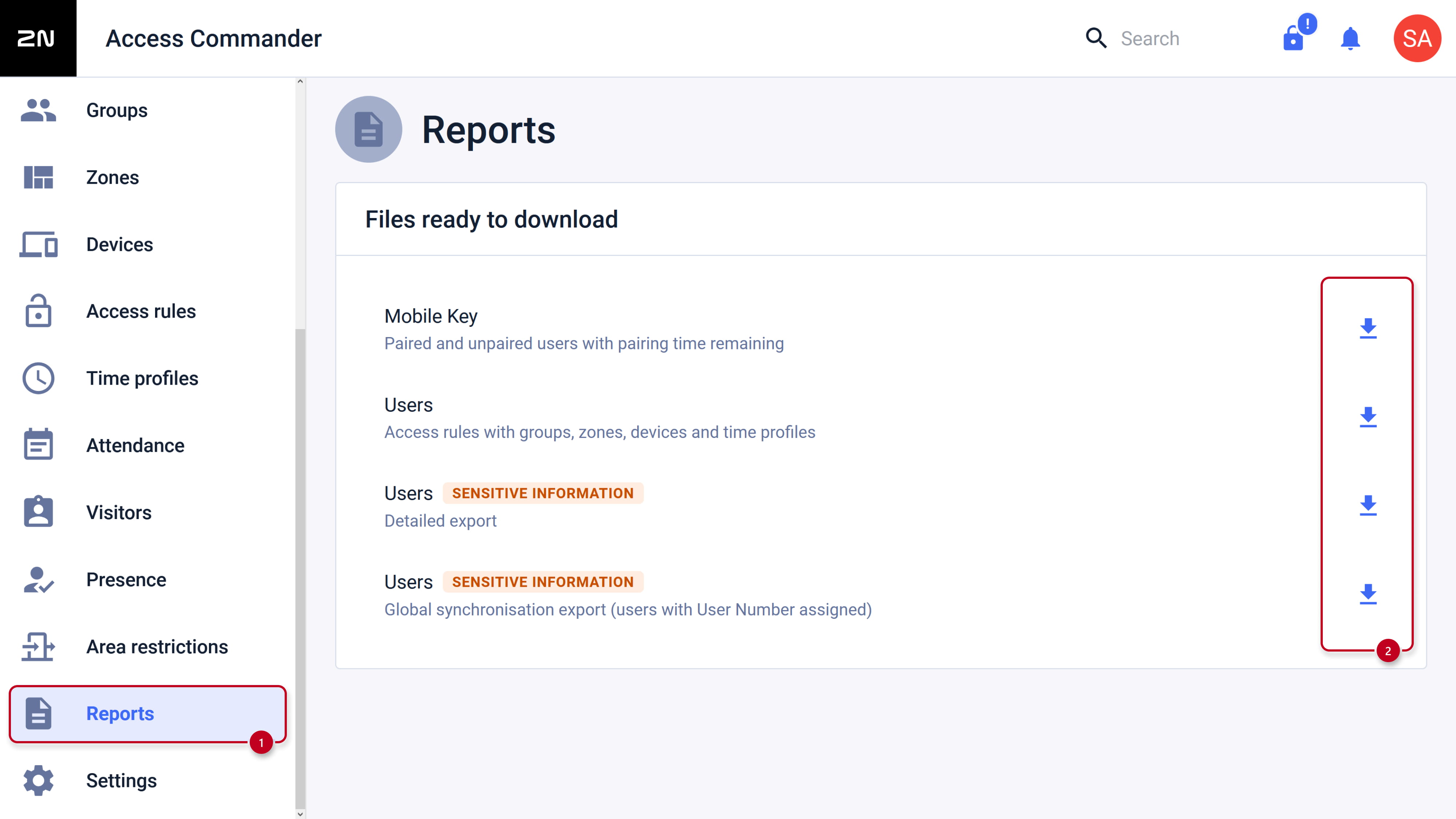
  • Go to 2N Access Commander web interface, section Reports and click the download button on the right side to export in CSV file.

2N Access Commander - Reports


Pre-configured filters

Pictures from the exports are only examples from our demo system https://acdemo.2n.com/.
Do not belong to any existing system.

  • Mobile Key - paired and unpaired users with pairing time remaining

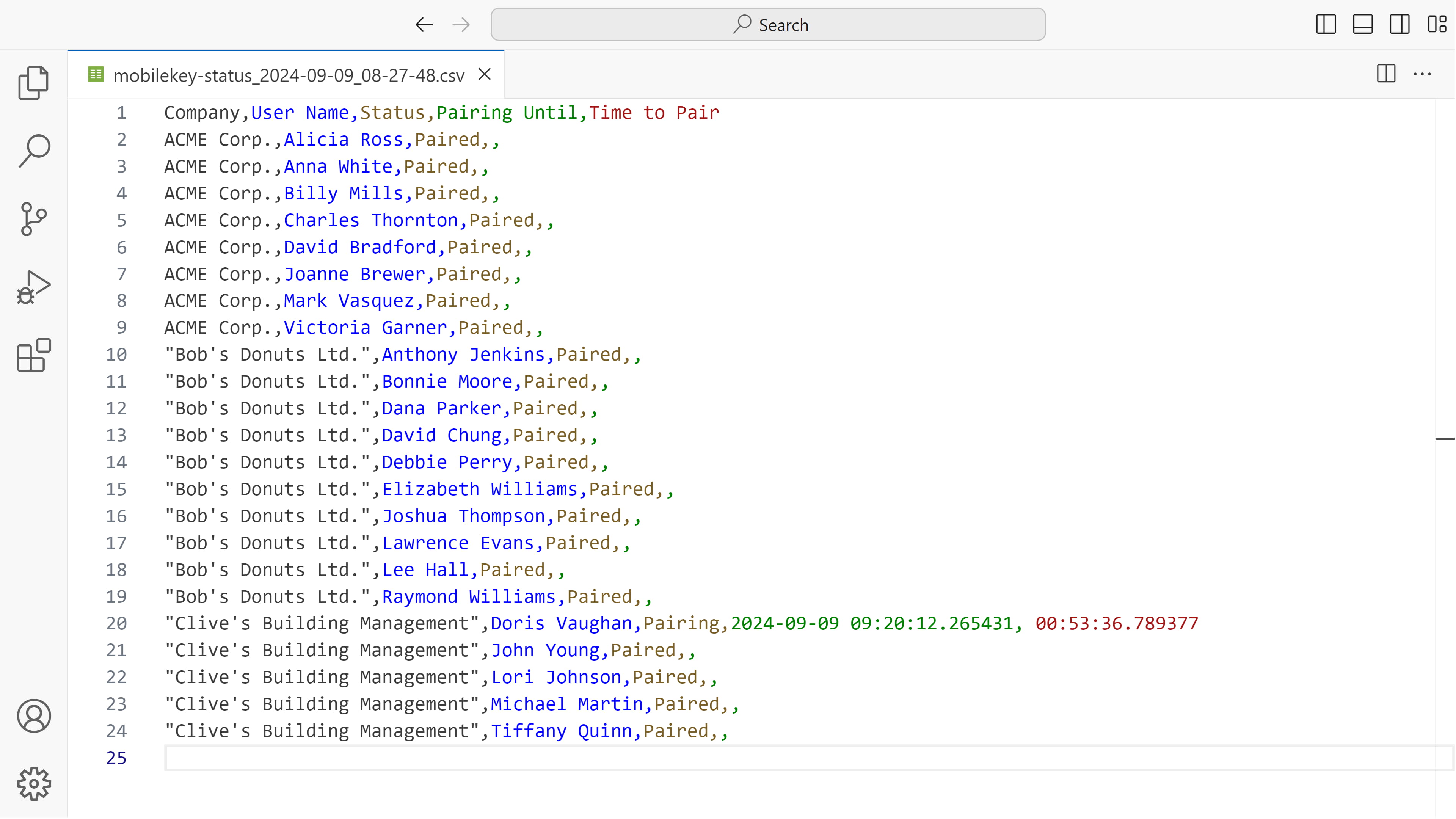
    In the CSV file, you will find a list of users along with the Bluetooth pairing status. 
    The status could be either "Paired" or "Pairing", and the pairing time is also provided.

2N Access Commander - Reports - Mobile Key


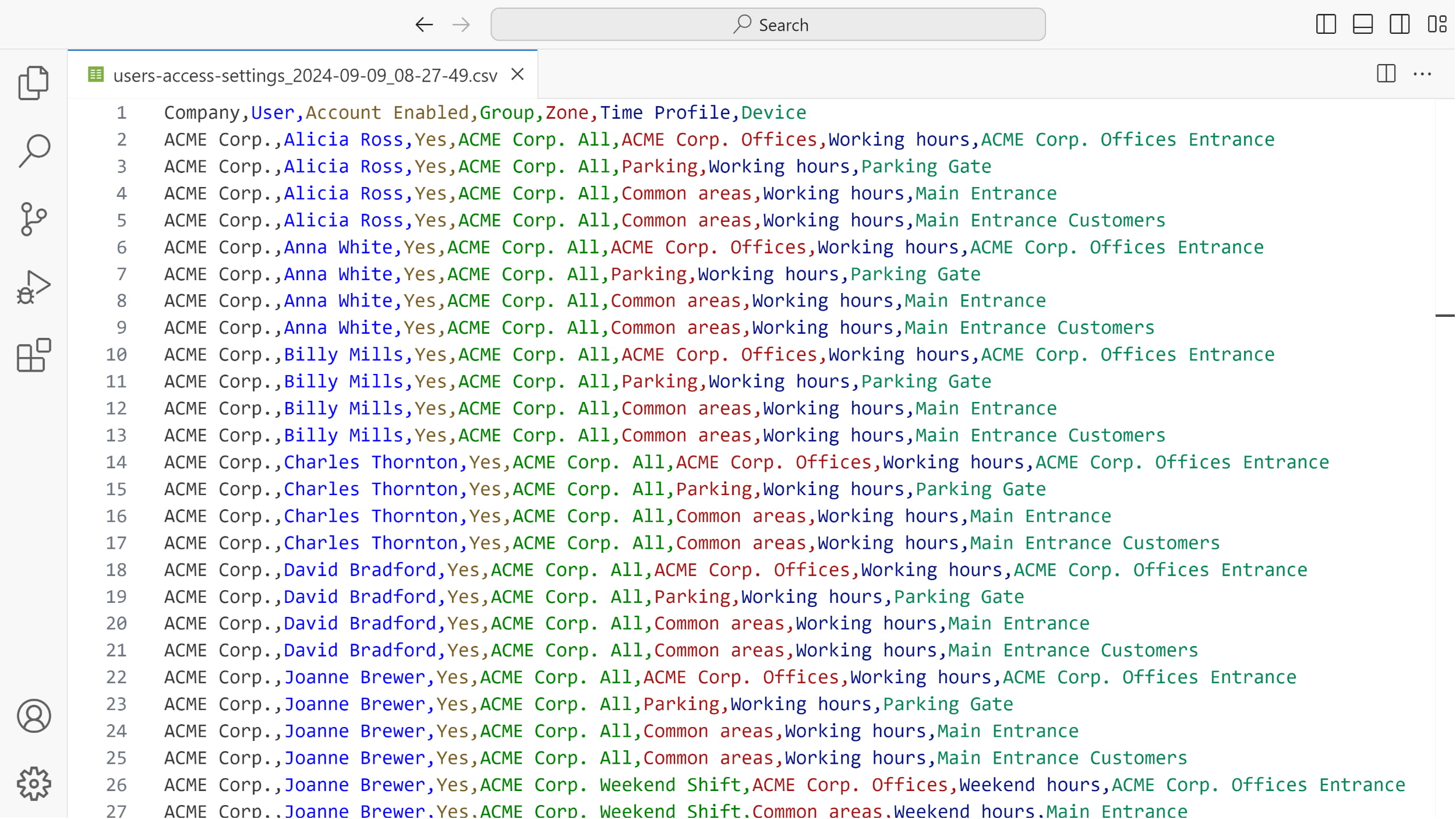
  • Users – access rules with groups, zones, devices and time profiles

    In the CSV file, you will find a list of all users along with details about the groups they belong to, 
    the devices they have access to in specific zones, and any time restrictions that have been implemented.

2N Access Commander - Reports - Users access settings


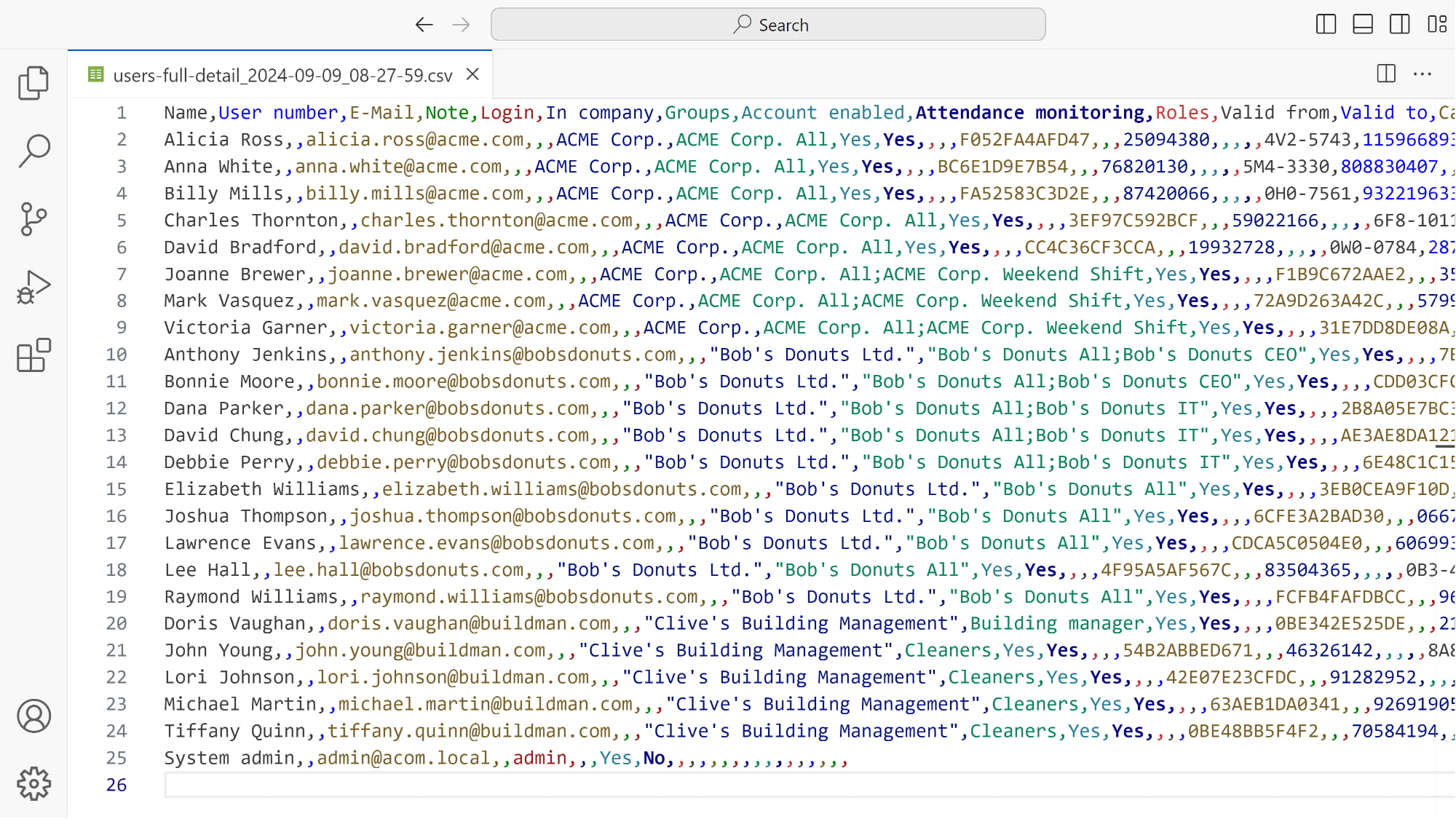
  • Users – detailed export (SENSITIVE INFORMATION)

    In the CSV file, you will find all user details (incl. e-mail, role, access methods), sorted by the company.

2N Access Commander - Reports - Users full detail


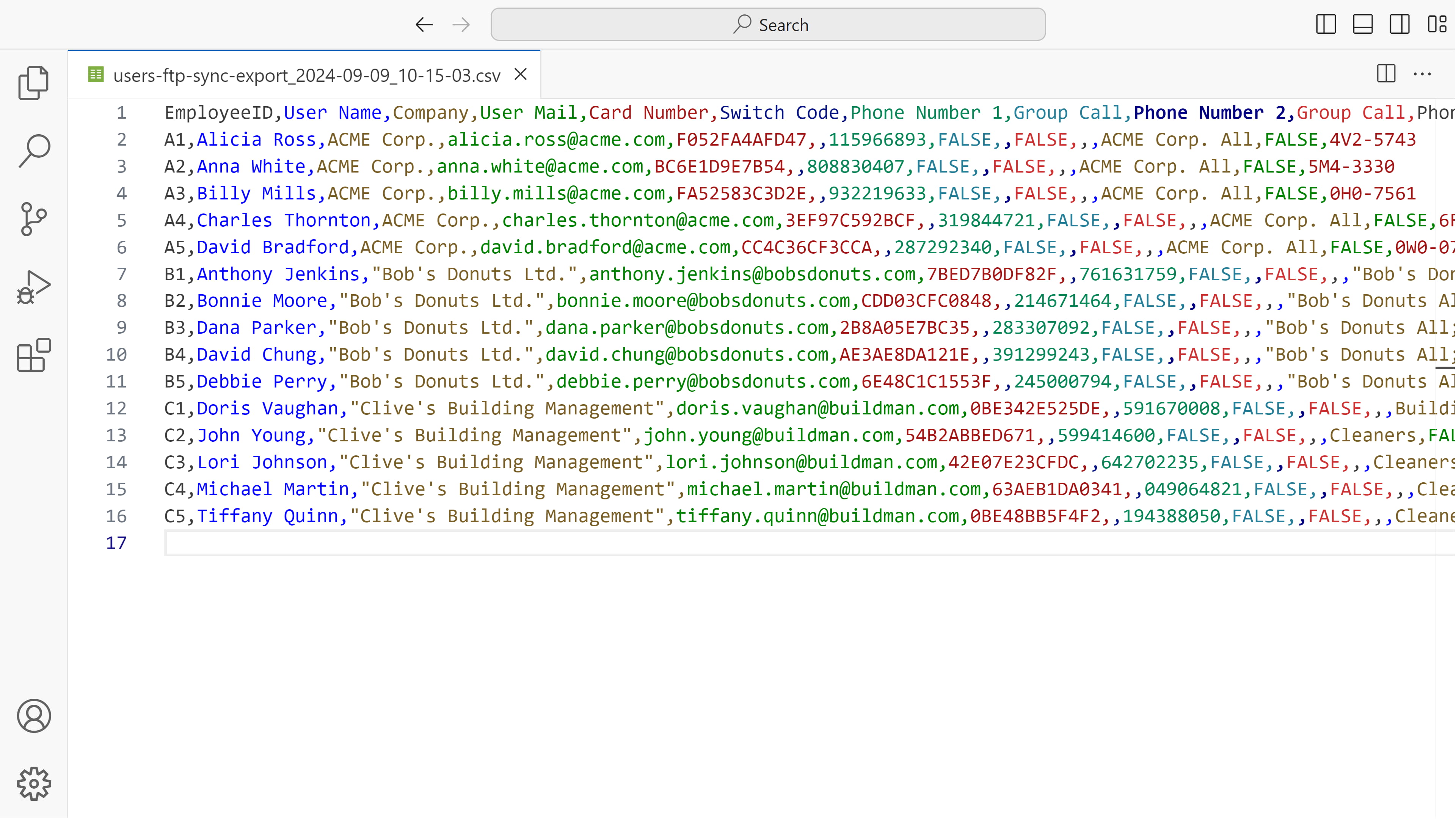
  • Users – global synchronisation export (users with User Number assigned) (SENSITIVE INFORMATION)

    In the CSV file, you will find only users with assigned User Number together with their details.

2N Access Commander - Reports - Users global synchronisation


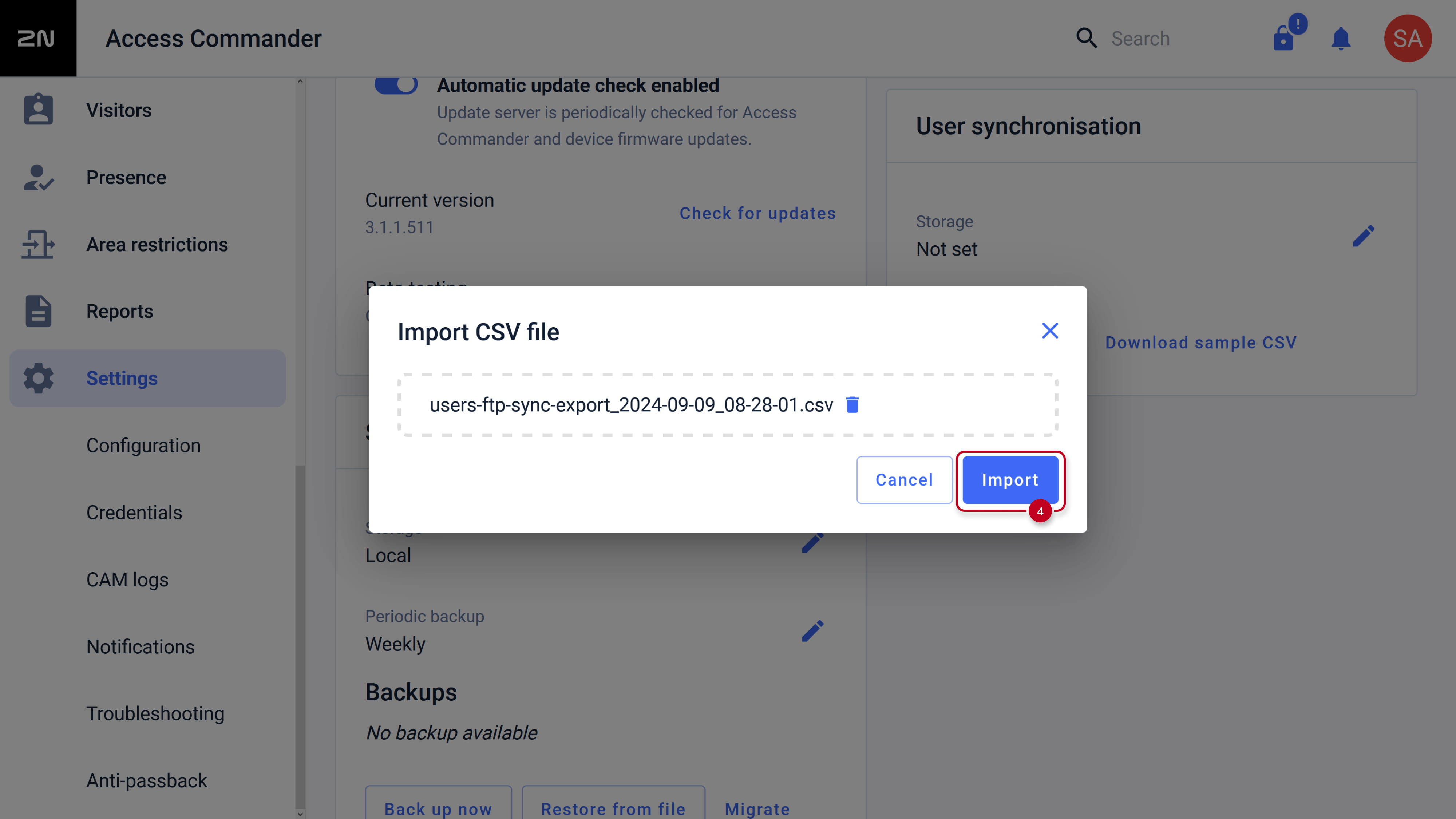
After editing, you can import it back.
More information here: 2N Access Commander - CSV Synchronisation to import / remove users with their details
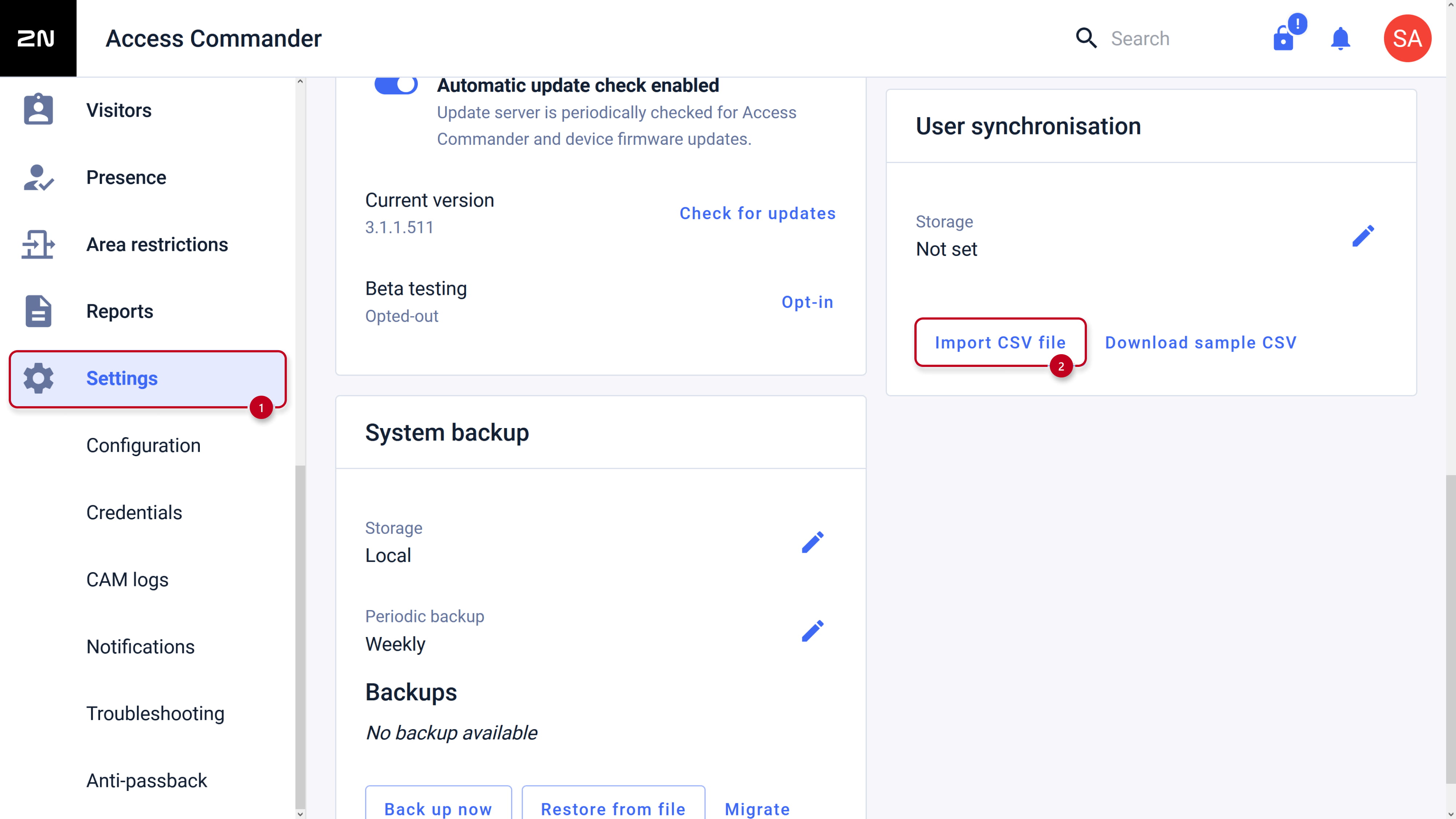
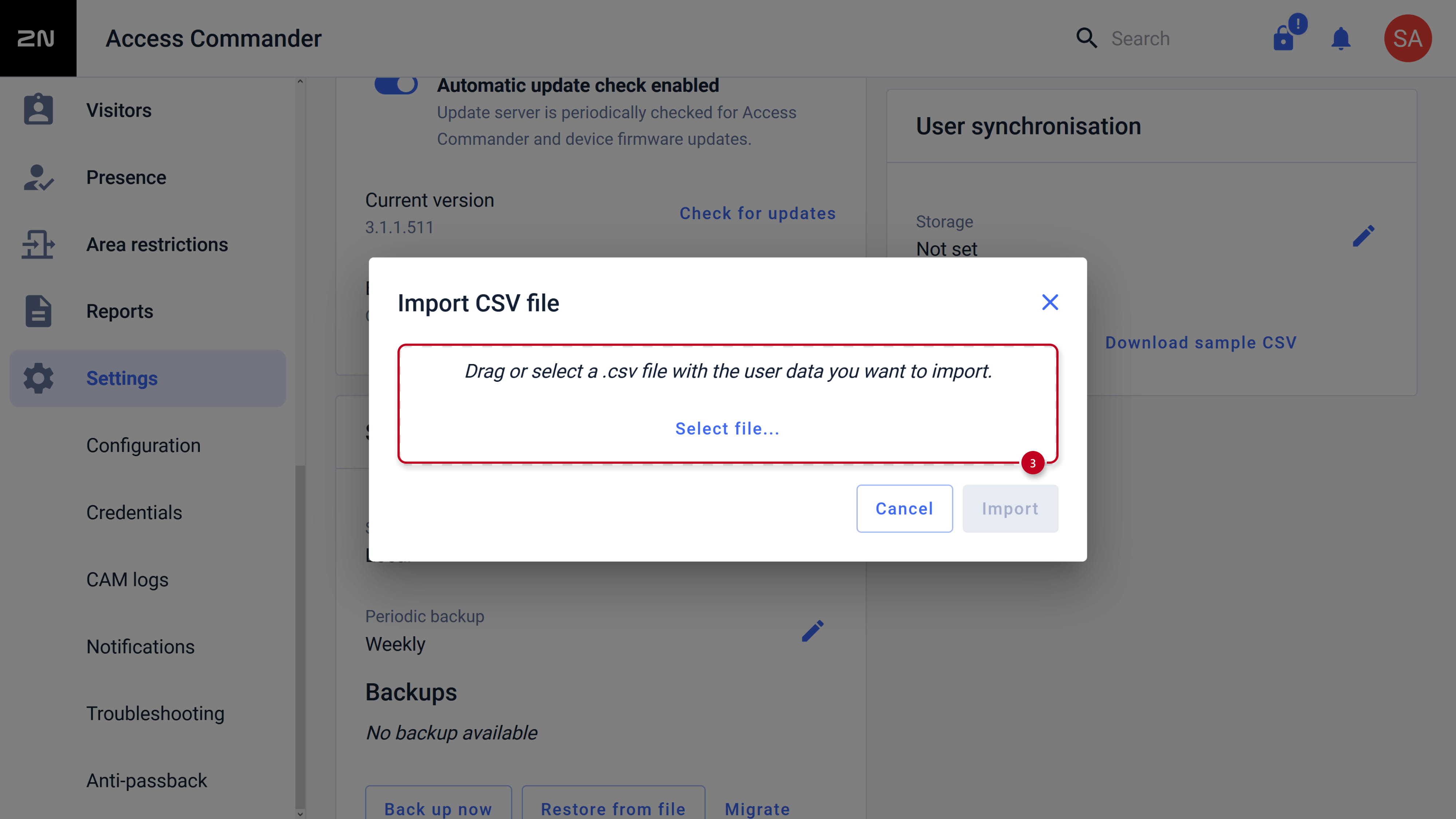
2N Access Commander - Import CSV file

2N Access Commander - Import CSV file - Select the file

2N Access Commander - Import CSV file - Import selected file


Esta página foi útil?