SIP calling using My2N

1) Log into your My2N Account

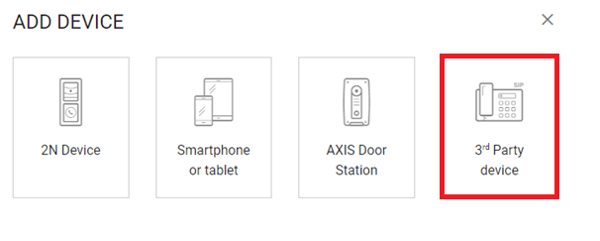
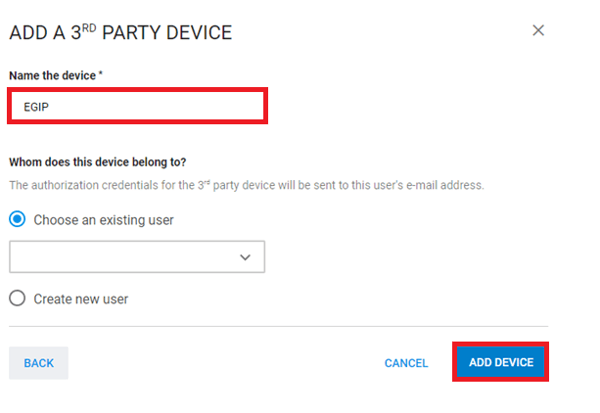
2) Add new device as 3rd party device and name it

3) Choose a user and press add device

images/download/attachments/100573390/image2023-4-24_22-1-19.png

images/download/attachments/100573390/image2023-4-24_22-1-28.png

images/download/attachments/100573390/image2023-4-24_22-1-40.png


When you open the new device you can see credentials at the bottom of the page

images/download/attachments/100573390/image2023-4-24_22-1-54.png

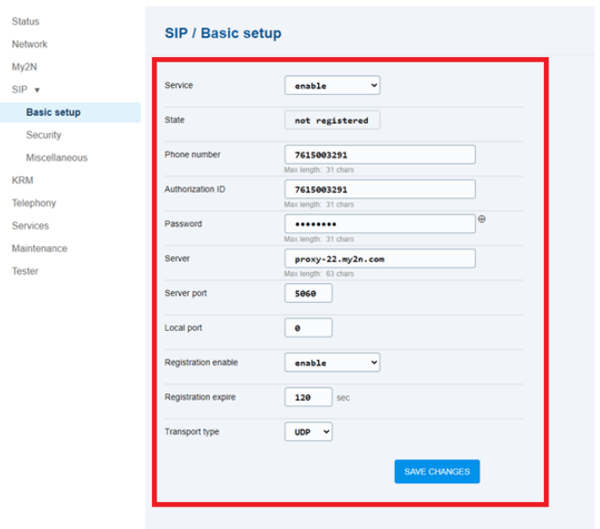
Enter these credentials into the EGIP web configuration
images/download/attachments/100573390/image2023-4-24_22-2-6.png


After reboot, the SIP will be displayed as registered in both – the EGIP web interface and My2N so it’s ready to use

images/download/attachments/100573390/image2023-4-24_22-2-15.png

images/download/attachments/100573390/image2023-4-24_22-2-23.png


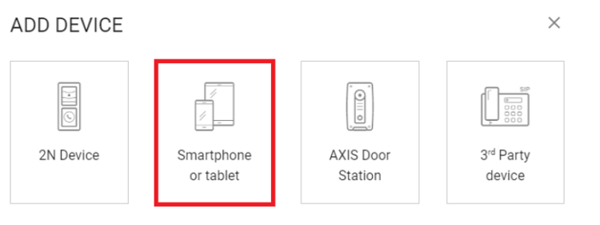
Next, add another device the same way as EGIP but now choose the smartphone or a tablet option
images/download/attachments/100573390/image2023-4-24_22-2-31.png


Enter the credentials into the mobile app or simply scan the QR code
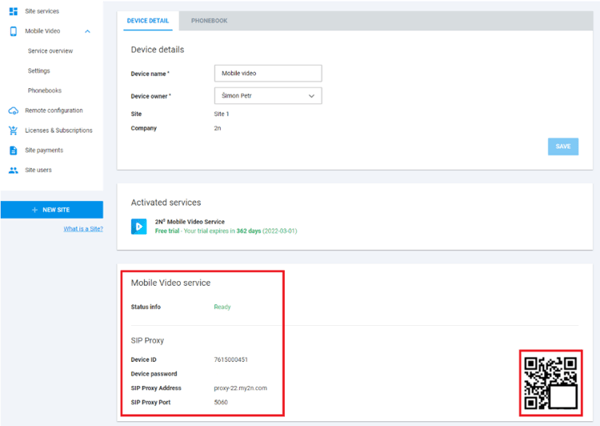
images/download/attachments/100573390/image2023-4-24_22-2-55.png


Please, keep in mind that you have to assign the mobile app to the same phonebook as the EGIP is
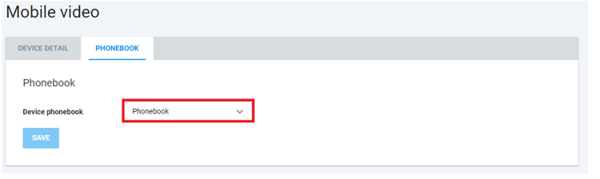
images/download/attachments/100573390/image2023-4-24_22-3-12.png


After both devices are registered you can call them by entering their My2N number

Esta página foi útil?