Visitors management - Manage visits in 2N Access Commander
How to assign access data to a visitor and send it to them via e-mail
- Open 2N Access Commander and go to the 'Visitors' section and click '+ Visitor' button in the top-right corner:

- Fill in the mandatory details of the visit - name, visited company, visit start / end, and choose whether to invite them via PIN code or QR code. Optionally, you can fill in the name of the visited person, access card, access group, license plate, notes. Click 'Create' to save the visitor:

- You will be taken to the visitor's profile. Here you can manage their access. If you have chosen to invite them via PIN code, you can fill in their email and send it to them. Please note that in order to do that you need to have enabled SMTP server. More information on that can be found in this article: SMTP Gmail service configuration in 2N Access Commander

- In this view, you can start the visit manually:

- Additionally, you can return the visitor's card and manually end their visit:
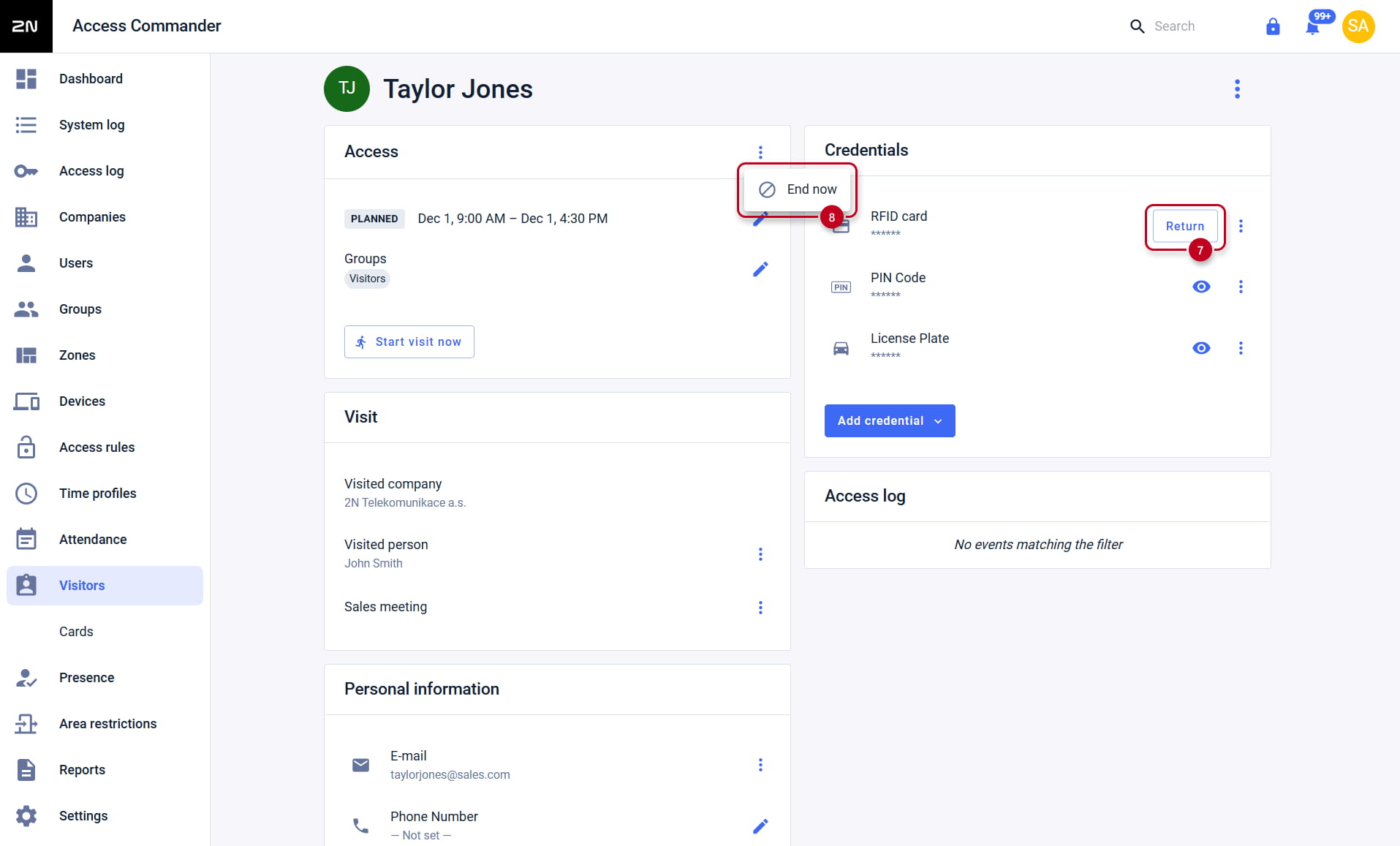
- In 'Visitors' overview, you can also end the visit by clicking the three dots icon near the visitor's name:

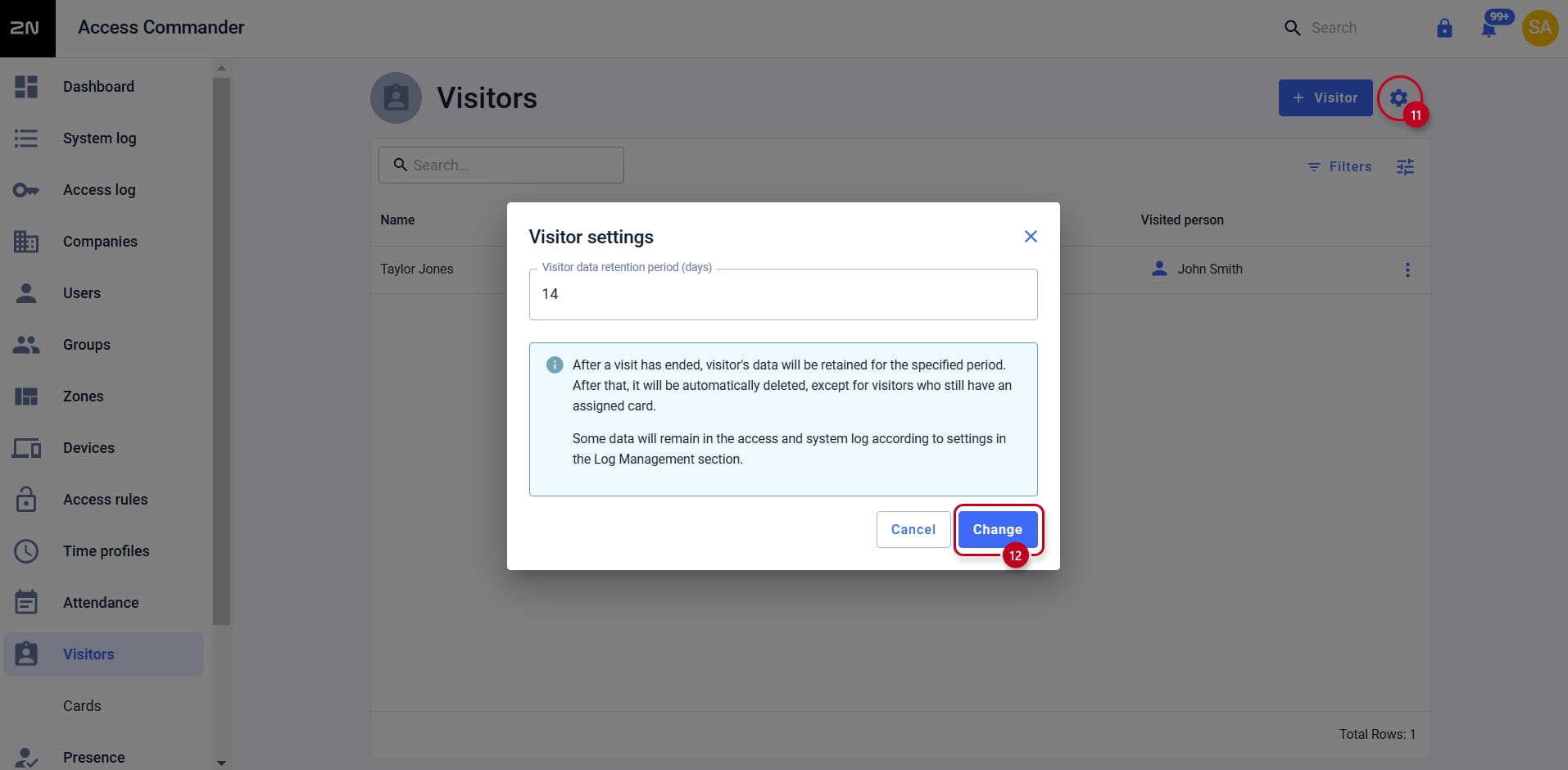
- From this view, you can also manage the visitor data retention period by clicking the gear icon in the top right corner:
Available presets
Visitor cards
- Open 2N Access Commander's web interface, go to the 'Visitors' section and open the 'Cards' tab
- Click the '+ Visitor Card' button:

- Name the card, enter its ID (which can be entered manually or read from an external USB reader), then select to which company the card is going be assigned and click 'Create':

Sample email
-
In 2N Access Commander, go to the Companies section, select a company and go to the 'Emails' tab. Here you can edit e-mail templates with the PIN code / QR code that you send to visitors:

- Here you can edit the parameters of the email, as well as send a test email. Simply click 'Save' when you are done editing:

- On the previous page, you can also define the background colour and the foreground text colour of the email:

Group for adding visitors
- In 2N Access Commander's web interface, go to the 'Companies section and scroll down to 'Visitors'
- Here you can select a group which will be automatically pre-filled for new visitors by clicking on the blue pen icon near the 'Default groups for new visitors' parameter:

- Simply select a group from the dropdown menu and click 'Save':

-
Here you can also define which group the managers can add manually:
