Settings Menu
A long press of the right-hand bottom button at | 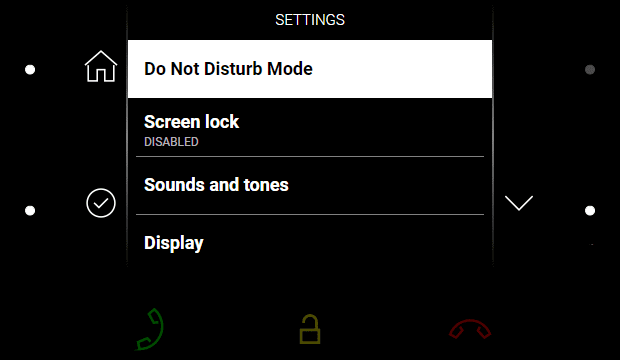 |

Do Not Disturb Mode
Enable/disable the DND mode after confirmation using the left-hand lower button.
In the DND mode, the  icon on the Home screen is red backlit. The device does not play the selected ringtone. The display shows the camera view if available, CLIP and Incoming call message.
Device Lock
Enable/disable the device lock after confirmation using the left-hand lower button.
With the device lock on, enter the PIN code to enable the screen lock. Enter the same PIN code to disable the screen lock.
Sounds and Tones
Here set the ringing/call volume and select the ringtone and door bell ringtone.
Caution
Remember to press the left-hand bottom button to confirm a setting change. The change will not be saved unless confirmed.
Display
Here set the display brightness, idle timeout and button backlight.
Caution
Remember to press the left-hand bottom button to confirm a setting change. The change will not be saved unless confirmed.
Screen timeout – timeout after which the device automatically goes into Sleep Mode if there is no activity.
System
Here set date and time, My2N/SIP Proxy state and language and get basic information on the device.
Caution
Remember to press the left-hand bottom button to confirm a setting change. The change will not be saved unless confirmed.
Date and Time
Date and time automatically – enable the use of the NTP server for automatic internal time synchronization.
Date Format – select one of 3 format options: (MM/DD/YYYY, DD.MM.YYYY, YYYY-MM-DD).
Use 24hour time format – enable/disable the 24hour time format.
Date Setting – set the date manually unless automatic date synchronization is enabled.
Time Format – set the time manually unless automatic time synchronization is enabled.
Time Zone – set the time zone for your installation site. to define time shifts and summer/winter time transitions.
My2N/SIP Proxy state
The My2N/SIP Proxy section displays the current state of the My2N/SIP Proxy connections.
Language
You can disable language setting using the 2N Indoor Compact display. In that case, you can only set the language in the web configuration interface, refer to Display.
Language – set the language for the texts to be displayed. Choose one of the pre-defined languages.
Tip
If the language offer is insufficient, you can upload a text of your own in the web configuration interface, refer to Display.
About
This section provides basic information on the device (serial number, MAC address, FVW version, IP address etc.).
Press and hold the right-hand bottom button to select the network interface port mode to be offered for auto-negotiation, refer to Network. The mode can be selected only if the required port mode is defined automatically.