Examples of Flows
Access Commander offers several basic automated tasks that represent the possibilities of using automations. The flows of these tasks can be installed when you first run Automation in Access Commander, but you can import them later, see Flow Export/Import. These pre-installed flows can simply be modified for your own purposes.
Get all users

This flow generates a list of all users, including user information. The task is initiated by the Inject node activation. You can apply a filter in the REST API – get users endpoint node to specify the users to be returned by the process. In this way, you can make the process output meet the administrator’s needs.
Get users from one company

This flow generates a list of all users within one company, including user information. The task is initiated by the Inject node activation. Set the company selection in the REST API – get users endpoint with filter by entering the company ID.
Get system log
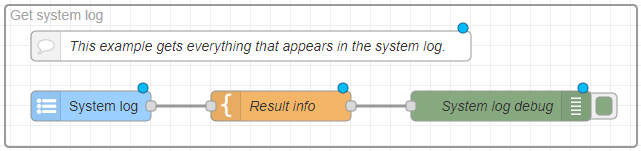
This flow loads all the new entries in the System log. You can specify a filter in the System log to make the event selection more precise.
Show access granted

This flow loads all the new records in the Access log. The flow is set to load granted access only. You can change this restriction in the Access log node.
Write to system log
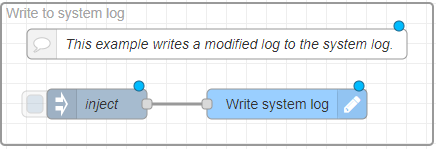
This flow creates a record in the System log. You can set the record Severity, Name and detailed Description in the Write System log node.
Create user with data

Use this flow to create a new user. The task is initiated by the Inject node activation. The Inject node contains a message body that specifies the username Joe Doe and its inclusion in the company with ID 1. This body is applied in the REST API - create user endpoint node and the user is created on this basis. The Result info node sets the message text to appear in the Debug messages.
Groups of users that get into building
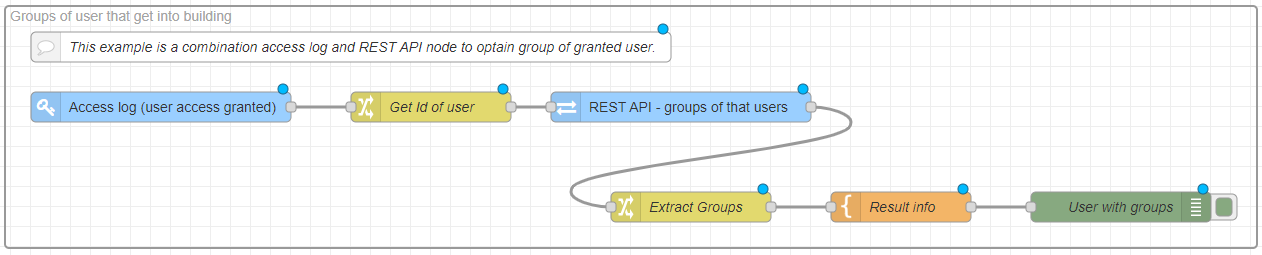
This flow loads the user groups that have been granted access. Permitted accesses are loaded from the Access log. Subsequently, the flow obtains the ID of the user with the granted access and uses the REST API node - groups of those users node to retrieve data about this user. The Extract Groups node retrieves the group names for this user and the Result info node compiles the text of the final message.
Create company and add a user and virtual number with the same index
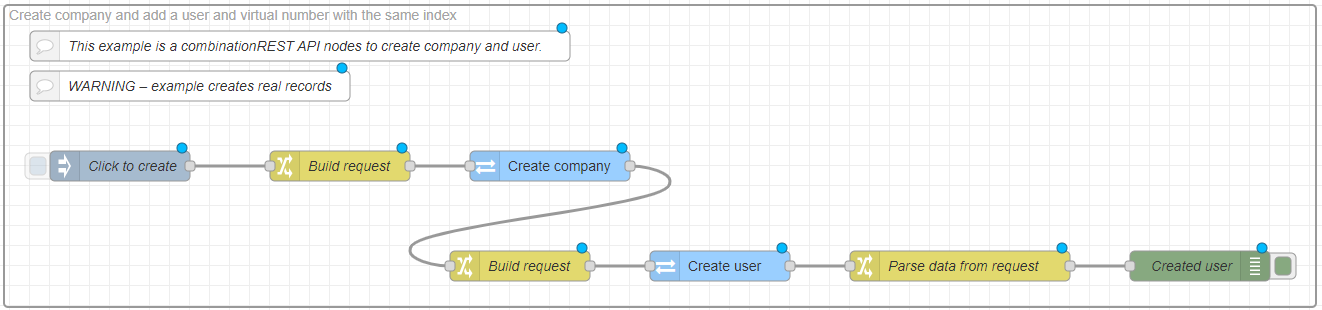
This flow creates a new company, the first user in the company and its virtual number. The task is initiated by the Inject node activation. When initiating, a random integer is generated to be used in the company name and the user name and serve as the user virtual number. The Create company node creates a company with the defined name. From the response of this node, a company ID is obtained, on the basis of which the following Create user node creates a new user in this company and simultaneously assigns the user a virtual number. The Parse data from request node then retrieves the company name, the user name and the user virtual number.