IP Sentrio - Factory reset
The IP Sentrio device offers two distinct methodologies for executing a factory reset: the Hardware method and the Software method, the latter of which is facilitated through the Web Graphical User Interface (GUI).
Hardware Method:
The Reset button for the IP Sentrio can be located on the rear side of the IP Sentrio.

- Press the button RESET and keep it pressed.
- Wait until the red and green LEDs go on simultaneously on the device and the acoustic signal can be heard (approx. 15–35 s).
- Wait until the red LED goes off and the acoustic signal can be heard (approx. for another 3 s).
- Wait until the green LED goes off and the red LED goes on again and the acoustic signal can be heard (approx. for another 3 s).
- Wait until the red LED goes off and the acoustic signal can be heard (approx. for another 3 s).
- Release the RESET button.

Software Method:
The steps in this article require using the web interface of a 2N device. Please follow this manual in case this is your first time using the web interface.
Fill the IP address of the 2N Sentrio in your browser
- Go to the section System- Maintenance - Configuration
Click on the button Restore Configuration
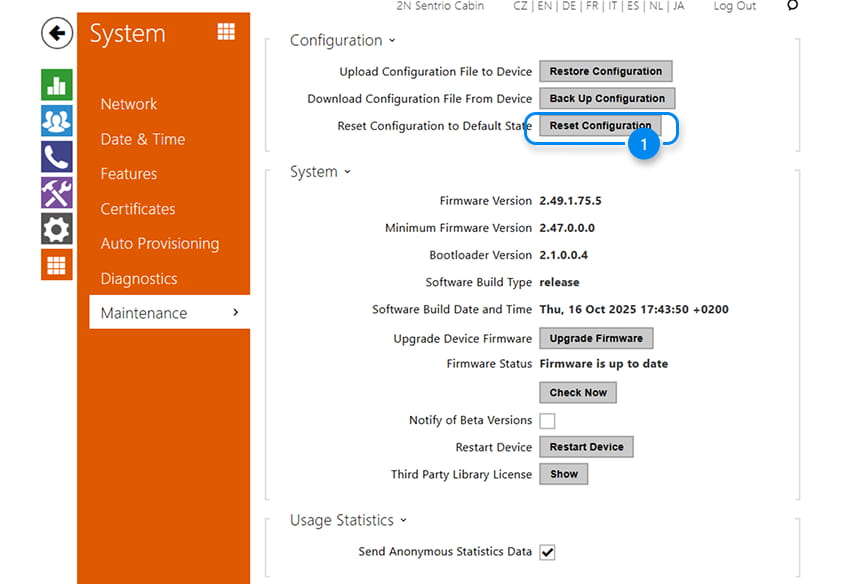
2. Check the Button Reset the Network Settings and Certificates if a reset of network settings is needed, and click on the Button Yes to finish the process, and the device will restart.
