External USB readers - Driver installation & usage
The steps in this article require using the web interface of a 2N device. Please follow this manual in case this is your first time using the web interface.
Most of our external USB readers require 2N driver for their operation - to add access control method to the 2N IP Intercom´s and 2N Access Unit´s users directly from your computer.
9137420E : External RFID Card Reader 125kHz (USB)... this does not require the driver
External USB RFID reader 125kHz EMarine - Usage without any additional driver

- 9137421E : External RFID Reader 13.56MHz + 125kHz (USB)
9137424E : External RFID Reader 13.56MHz + 125kHz (USB), secured

- 9137422E : External Bluetooth Reader (USB)
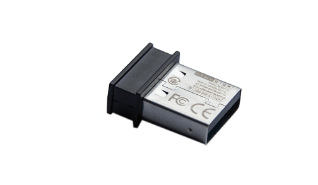
- 9137423E : External Fingerprint Reader (USB)

Prerequisities
- 2N external USB reader requiring the 2N driver
9137421E / 9137422E / 9137423E / 9137424
- 2N IP intercom or 2N Access Unit with the latest firmware, equipped with matching hardware for each mentioned technology.
- Optionally 2N Access Commander the latest version
- A computer with Windows based operating system (Windows 7 x64 or higher)
Driver Installation
- Download the driver from the 2N webpage and extract it from the archive.
Please always use the latest driver.

- Install the USB driver on your computer, ideally as administrator.
In case of any warning message, please use Ignore button.


- Launch the driver. A blue icon will appear in Windows notification.
Please note that Windows may move the icon to the Notification overflow area, unless you set the icon to show permanently.

- Connect your external USB reader to your computer.
The driver will automatically detect it and you can start using it.
When connecting any of external USB reader for first time, it may take few seconds (based on your computer) until the driver is properly set.
Driver configuration
Opening driver's settings by right clicking on its icon and then left clicking on the Settings option.

- When connected properly, the reader will be shown in the reader sections (COM port number may vary).
- Card Reader
In default settings, the driver is enabled to read both 13,56MHz and 125kHz RFID cards.
When using HID secured cards, please be sure to enable the support, otherwise only the UID will be read.
The support must be disabled if you are using non-secured cards.

- Bluetooth Reader

- Fingerprint Reader

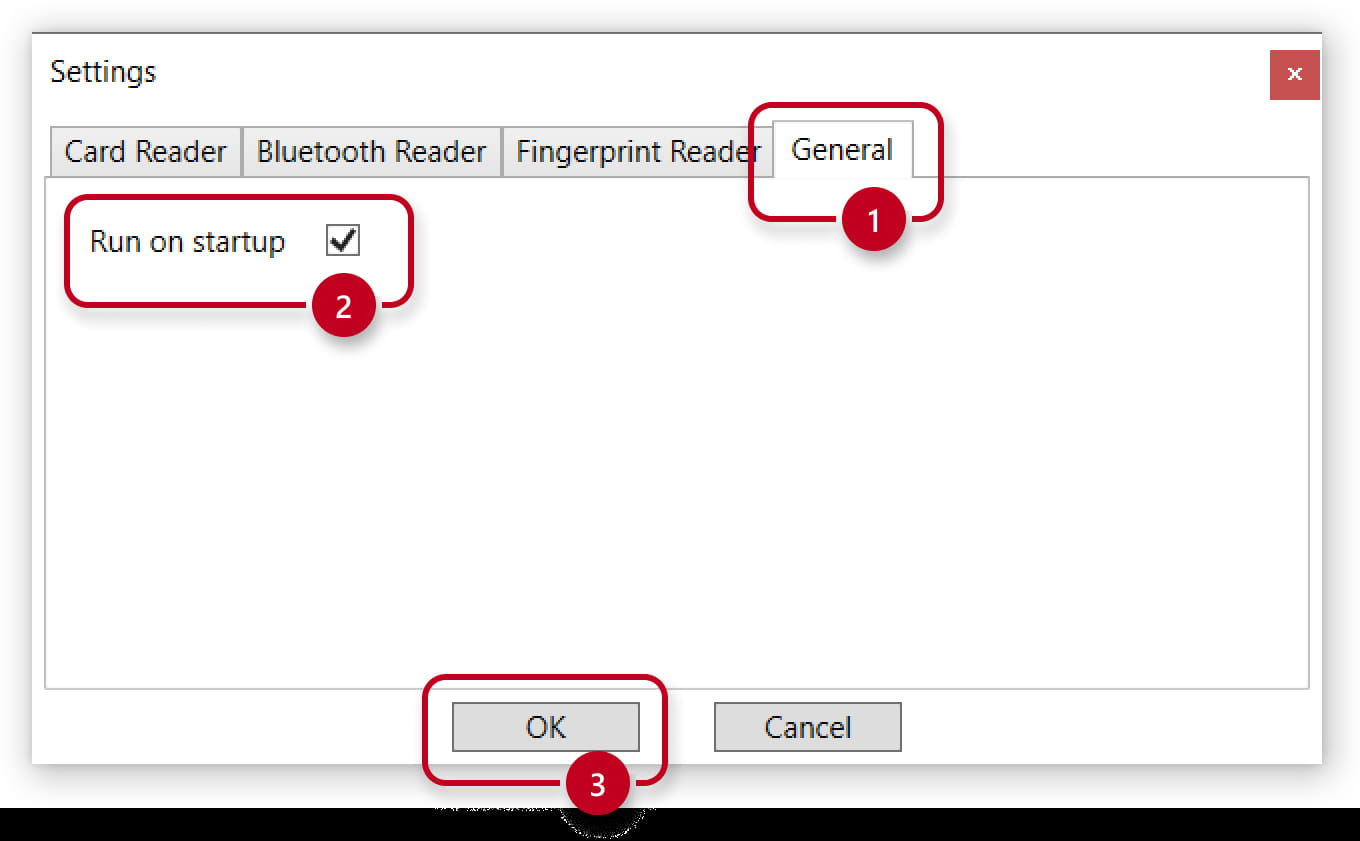
- If you wish to start the driver along with Windows, you can set this in the General section.
Driver usage
- 2N IP intercom or 2N Access Unit
- Use your web browser to open the web configuration, section Directory - Users.
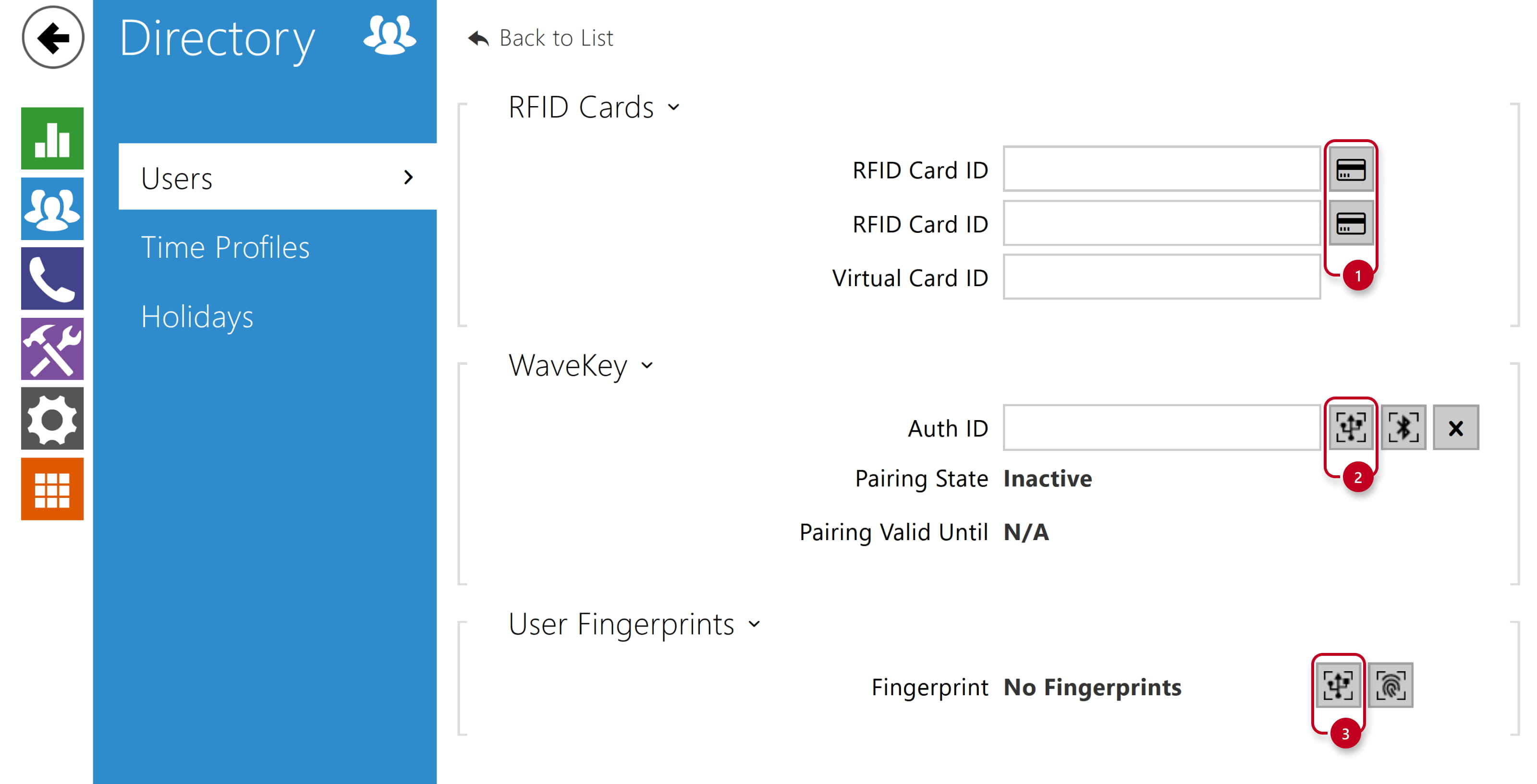
- Add the RFID card / My2N app (Bluetooth) / Fingerprint to the user using connected USB reader - by clicking the buttons shown on following picture.
- 2N Access Commander
- Use your web browser to open the web configuration, go to Settings - Credentials section and enable each reader you intend to use.

- In Users section add the RFID card / My2N app (Bluetooth) / Fingerprint to the user using connected USB reader.
