2N Elevator Center Basic Configuration
The 2N Elevator Center cloud solution helps users audio/video/chat communicate with 2N Sentrio during the alarm call. It also enables users to configure the device remotely – set the communication messages to be displayed on the device during alarm calls with the call center, e.g., including language mutations. Refer to the on-line 2N Sentrio Configuration Manual for more 2N Elevator Center configuration details.
The cloud solution can be used in the modes according to the type of users that will use the solution:
Lift company – standard display of the 2N Elevator Center cloud environment
Call Center company – simplified cloud environment focused on the operation of alarm calls
Lift Company Configuration Options
The Lift company can add devices, allow access of the Call Center company to selected devices in 2N Elevator Center.
It is necessary to apply for access to the 2N Elevator Center cloud solution via the 2N business contact. Subsequently, the Company Admin account will be created for the company, which can create and manage accounts for the company.
With the account created, add the device to the system.
Click .
Complete the device name, location in the node if necessary, production number and My2N Security Key (available on the product or product package).
Press for confirmation.
Tick off the device for which access shall be allowed.
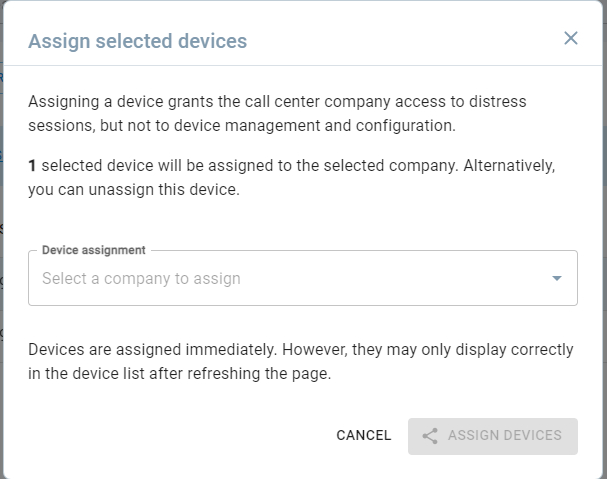
Once the device is selected, the button is displayed for you to choose .
A box will be displayed for you to choose one Call Center company (you can choose multiple devices, but just 1 company). Press for confirmation.
Remove the added devices for the Call center company on the device card.