Overview of LED Indicators
The 2N LiftGate status is signaled by the LED indicators on the device front side. Refer to the table below for the states.
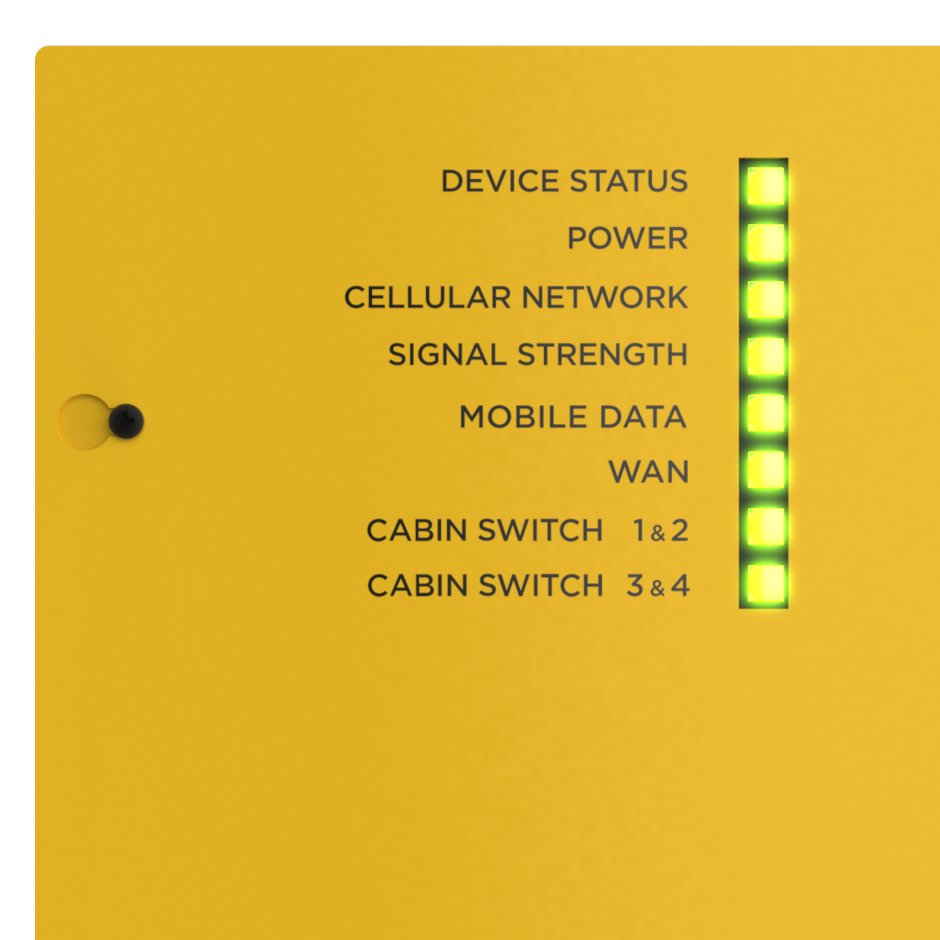
Flashing Frequencies | |
|---|---|
Slow flashing | Flashes 1:1, interval 1 s = 0.5 s light on (ON) + 0.5 s no light (OFF). |
Fast flashing | Flashes 1:1, interval 0.2 s = 0.1 s light on (ON) + 0.1 s no light (OFF). |
Short flashing | Interval 4 s = 0.2 s light on (ON) + 3.8 s no light (OFF). |
LED Indicators | |
|---|---|
DEVICE STATUS Indicates the general system status. | Blue – device status OK, device operational |
Blue, slow flashing – device error that does not affect the full functionality of the device | |
Red – temporary error (to be solved automatically, e.g. provider service failure) | |
Red, slow flashing – permanent error (admin intervention is required, e.g. via the device web interface) | |
Red, fast flashing – HW error, on-site service intervention is required (e.g. DSL short-circuit, battery error/defect) | |
POWER Indicates the general power supply status. | Blue – external supply is progress, battery is kept charged |
Blue, short flashing – external supply in progress, low battery life | |
Blue, slow flashing – external supply in progress, battery is being charged (90–100 %) | |
Blue, fast flashing – external supply in progress, battery is being charged (0–90 %) | |
Red – battery supply in progress, battery capacity over 50% | |
Red, slow flashing – battery supply in progress, battery capacity below 50% | |
Red, fast flashing – battery supply in progress, battery capacity critically low (less than 10 %) | |
No light indication – battery disconnected | |
CELLULAR NETWORK Indicates the mobile network connection status. | Permanently on – SIM OK, Internet connection available. The LED color signals the network technology used:
Slow network LED flashing indicates that the SIM card and registration are OK, but the Internet connection is unavailable. |
Red, slow flashing – SIM OK, network search in progress | |
Red, fast flashing – SIM error (PIN unset or card rejected by network) | |
No light indication – SIM not inserted | |
SIGNAL STRENGTH Indicates the signal strength. | Blue – strong signal (> = −80 dBm) |
Green – medium signal (< −80 dBm) | |
Red – weak signal (< −100 dBm) | |
No light indication – no signal (< −110 dBm) | |
MOBILE DATA Indicates the Internet availability via a module. | Blue – connection is working
|
Red – connection is not working
| |
No light indication – connection is disabled (in configuration) | |
See below for examples of connection statuses and signaling. | |
WAN Indicates the Internet availability via WAN | Blue – connection is working
|
Red – connection is not working
| |
No light indication – connection is disabled (in configuration) | |
See below for examples of connection statuses and signaling. | |
CABIN SWITCH 1 & 2 Indicates the states of connected cabin switches 1, 2. | Blue – voltage OK, connected |
Blue, slow flashing – disconnected (no consumption) | |
Red – voltage warning (overconsumption, current > 750 mA) | |
Red, fast flashing – voltage error (consumed current > 1050 mA, overload or short-circuit) | |
Examples of Connection Statuses and Signaling
The MOBILE DATA and WAN LEDs indicate the general network connection of the device.
Active Primary Connection – both LEDs are permanently blue.
Active Backup Connection (Primary Connection unavailable) – the primary connection LED is permanently red, the backup connection LED is flashing blue.
Example:
MOBILE DATA LED is permanently red and WAN LED is flashing blue – the Internet connection is established using backup connection via WAN.
MOBILE DATA LED is flashing blue and WAN LED is permanently red – the Internet connection is established using backup connection via MOBILE DATA.
No Connection Available – both LEDs are red and fast flashing.