Users
Access Commander helps you manage Users, modify their accesses, administer their contact data, etc.
The user list shows all the users that have been created. Above the list, you can filter the users (number 2 in the figure) or search for a specific user by name, email or phone number.
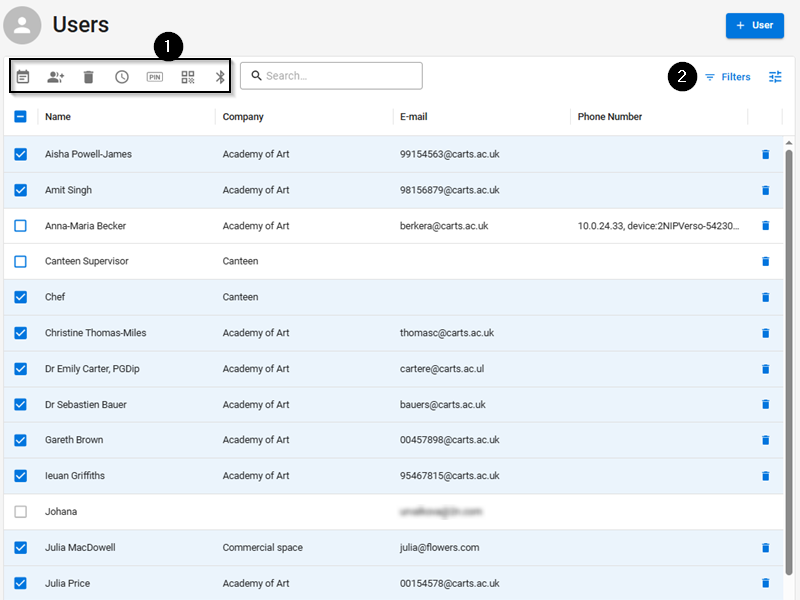
Select multiple users to be applied the following bulk actions to (number 1 in the figure):
 Enable user attendance monitoring
 Add user to group
 Remove user
 Set access validity time interval
 Assign access PIN code to those users who have not been assigned PIN/QR code
 Assign access QR code to those users who have not been assigned PIN/QR code
 Assign mobile key to those selected users who have not been assigned any mobile key
Note
Make sure that a valid e-mail address has been completed for the user to be assigned the PIN/QR code or mobile key.