Hotel Mode
In the Hotel mode, the device can dial calls to one preset contact and receive incoming calls. The device displays time and weather. The other functions are limited. The Do Not Disturb mode cannot be set from the device. The device does not allow access to the Directory, Call Log and Settings menus. The device does not provide quick access to the weather settings. The device does not display notifications (missed calls, door contact states, etc.). The Hotel mode switches into the Idle mode after the preset timeout passes. NoteActivate the Hotel mode in the web configuration interface (). | 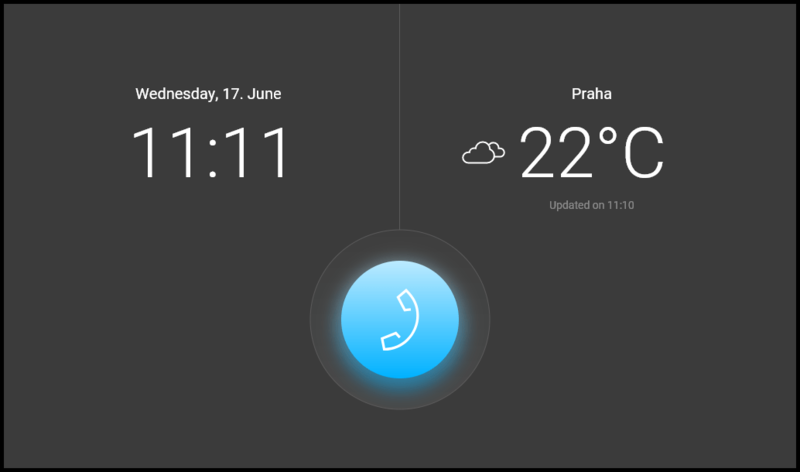 |
Possible actions | Performance | Action result |
|---|---|---|
Send the set HTTP command | Press the set HTTP command icon | The HTTP command is sent to an external device. |
Outgoing call setup |
| A call to the preset contact is started. Specify the contact in the web configuration interface. Enable the Call After Short Press in Hotel Modefor the contact in the Directory. |
Incoming call receiving |
or touch of the display beyond the other icons | Connection with the other device has been established, a call is in progress. |
Ringtone Disable |
| The ringtone stops playing when a call comes in. The incoming call is not ended. |
End of Call |
| The outgoing call is cancelled./The incoming call is rejected./The active call is interrupted. |
Target device lock opening (in an active call) |
| A specifically configured unlock code is sent to the target device and, if the code is compatible with the device, the target device lock opens. If no unlock code is set, the default unlock code is sent to the target device. Door unlocking is signaled by a tone and green flash of the lock button. NoteIf no unlocking code is set in the device and no default unlock code is set, the lock button is not displayed. |
Mute call (in an active call) |
| 2N Indoor View Wi-Fi does not transmit audio to the called device. The microphone icons turns red. “Noone can hear you” is displayed in the active call. |
Call volume control |
| The call volume is increased/decreased by one level by each press of +/− or a scale shift. |
Called Device Camera Preview Switch |
(Cannot be displayed until | The camera preview is switched to another camera assigned to the device. The icon number indicates the camera placement in the sequence. |
Camera Preview Focus on Face | (Cannot be displayed until | The camera preview focuses on the face of the person standing at the device. |
Screenshots |
| The screenshot is saved in the call log detail. Up to 5 screenshots can be added to one record. |


