Attendance Settings
Access Commander helps you monitor user attendance. The user entry/exit times are recorded in the Attendance mode.
FREE
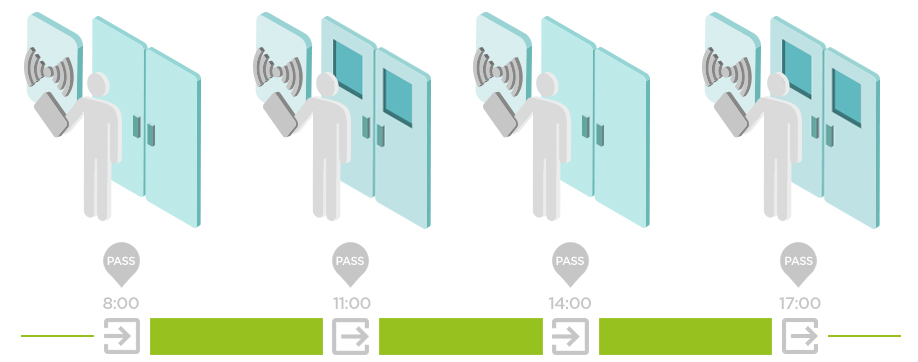
Arrivals/departures are recorded by the first and last authentications of the user on any device in one day The Presence module is disabled in this mode.
IN-OUT
It is necessary to set the arrival and departure devices for a proper function.
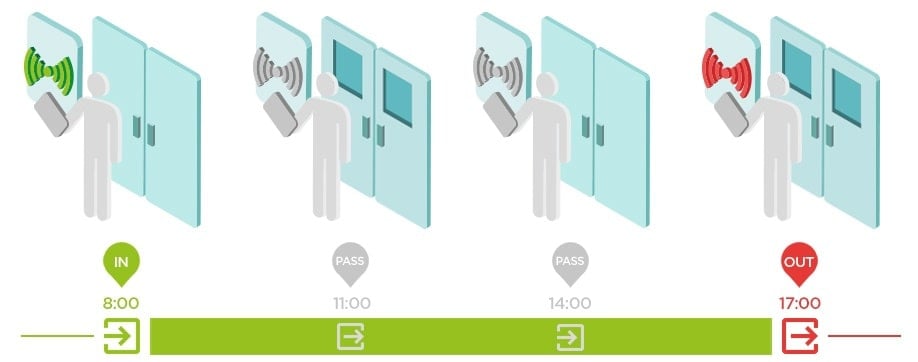
IN-OUT for All Devices
This mode allows Presence to be monitored. Arrivals are recorded on the entry devices, departures are recorded on the exit devices. Movement across zones is not registered as arrival/departure.
IN-OUT for Selected Devices
This mode allows Presence to be monitored. Arrivals and departures are recorded on selected devices that are set as entry or exit. Arrivals and departures are only registered on these selected devices. Thus, arrival/departure recording can only be set for the main entrance of the building, for example.
Setting Device Access Points
The devices (2N intercoms or 2N Access Units) can have up to two access points. Each access point allows for passage in one direction. Access points differentiate passage direction through the device. Each access point can be assigned one or more readers that are connected to the device and work in the direction of the point. Access points are used for recording a zone entry/exit. They have to be used if the device is located on a zone border.
In addition, access points help monitor the users in the Presence module. Also, access points are used for monitoring entries/exits in Area restrictions.
Note
The access point settings in Access Commander are propagated into Services > Access control in the device web interface:
Access point 1 = Entry Rules
Access point 2 = Exit Rules
Enter the web configuration of the selected device.
Tip
Click
 in the list on the Devices page to enter the web configuration interface.
Go to .
Find the module that provides the access to be used as access point 1 (Entry) or access point 2 (Exit).
Set the required direction in the Door parameter and save the setting.
Go to Zones in Access Commander.
Press
in the right-hand upper corner and enable the use of access points.