Reading Key Export
To access the data on encrypted cards, the 2N devices need to know the reading keys of the selected project. It is possible to export the reading keys from PICard Commander to a 2N device or Access Commander for distribution to all of the connected 2N devices. Once the reading keys are uploaded, the devices will also be able to read the cards that are encrypted in the selected project after the reading key export.
Click Export in Reader keys export in the application introductory interface.
There two project reading key exporting options:
Caution
If you connect a new RFID card reader extending module to a 2N device via a VBUS cable, you need to pair this module with the device. Pair the card reader via the device web interface in the Extending Modules menu of the Hardware section.
Export keys to file
The application generates a key file and saves in onto the disk. Import the file into the 2N device settings or Access Commanderu via the respective web interfaces. Now you can set the file protecting password.
Import to Access Commanderu (version 3.00 and higher) via web interface: Settings > PICard key >
Import to 2N Access Commander via web interface:
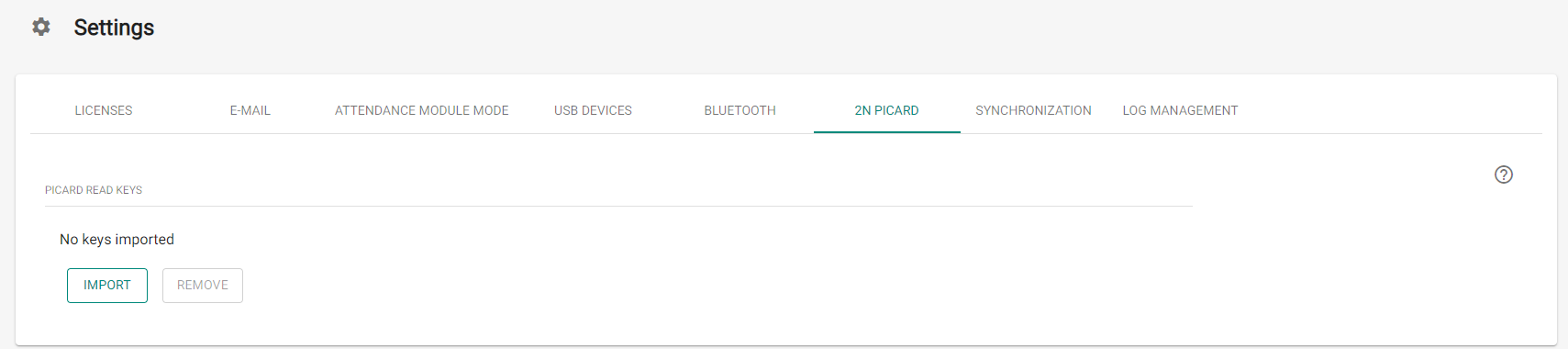
Import to 2N device via web interface:
Upload keys to Access Commander
2N PICard Commander uploads the reading keys directly into Access Commander for subsequent distribution to the connected 2N devices. In the next step, enter the administrator login data to the Access Commander license.
Address – HTTP address of the Access Commander web interface.
Login name – login name of the administrator account in Access Commander.
Password – login password to the account in Access Commander.