The steps in this article require using the web interface of a 2N device. Please follow this manual in case this is your first time using the web interface.
Introduction
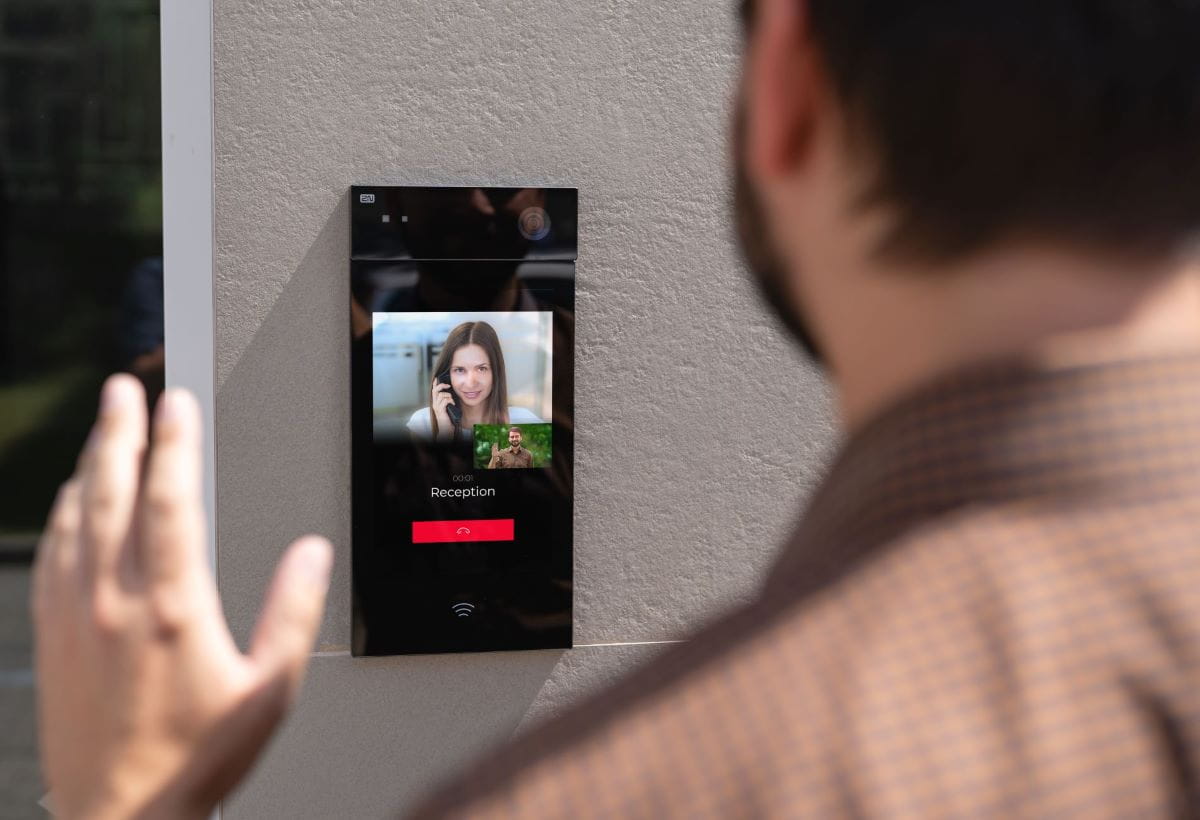
Since FW v2.35, visitors can now see the receptionist they’re calling directly on the display of 2N IP Style . It is ideal for receptions and remotely managed info/SOS points; it’s also a great feature for the hearing impaired as they can communicate using sign language. Please note that the person on the other side of the call must have a compatible device with camera: 2N IP Phone D7A or another 2N IP Style are good options.
Configuration
The configuration of bi-directional video function is very simple, you just need to log in to 2N IP Style's web interface and navigate to Calling → General Settings → Enable Incoming Video as displayed below:
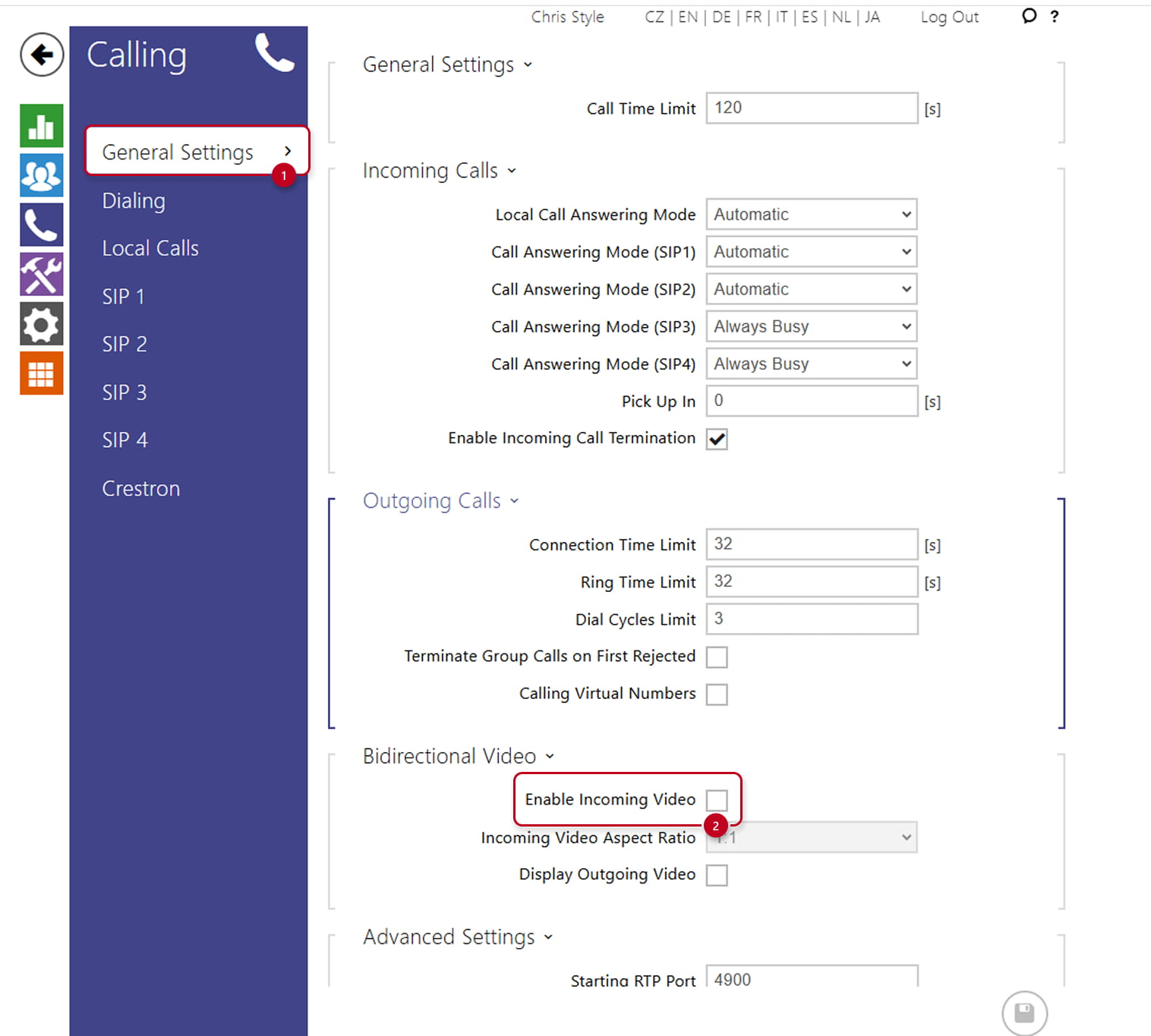
Additional settings include the option to change Incoming Video's Aspect Ratio which can increase the size of incoming video on 2N IP Style's screen. The last option here is to Display Outgoing Video which can help visitors stand in the right place so that the receptionist can see them correctly.
Last update
-
2025-06-16
Devices used
-
2N IP Style
-
2N IP Phone D7A
Licenses required
-
n/a
Compatible 2N intercoms
-
2N IP Style
Compatible 2N answering units
-
2N IP Phone D7A
-
2N IP Style may be used as well