Deep clean cookies and site data of Access Commander's webpage
This FAQ article explains how to clean cookies and cache in web browsers (Google Chrome, Mozilla Firefox, Microsoft Edge), including a deep clean using the dev console (F12).
Google Chrome
Settings
To clear cache and cookies in the Google Chrome web browser, please follow the official guide from Google.
https://support.google.com/accounts/answer/32050?hl=en&co=GENIE.Platform%3DDesktop
Dev console
Open the dev console by pressing F12 or right-clicking anywhere on the page and selecting "Inspect".
In the dev console, go to "Application -> Storage" section, confirm the "including third-party cookies" option and click on the "Clear site data" button.

Then show all options of the "Cookies" section and click on the "Clear" option after right-clicking on the page.
The page should be the IP address of the 2N Access Commander.
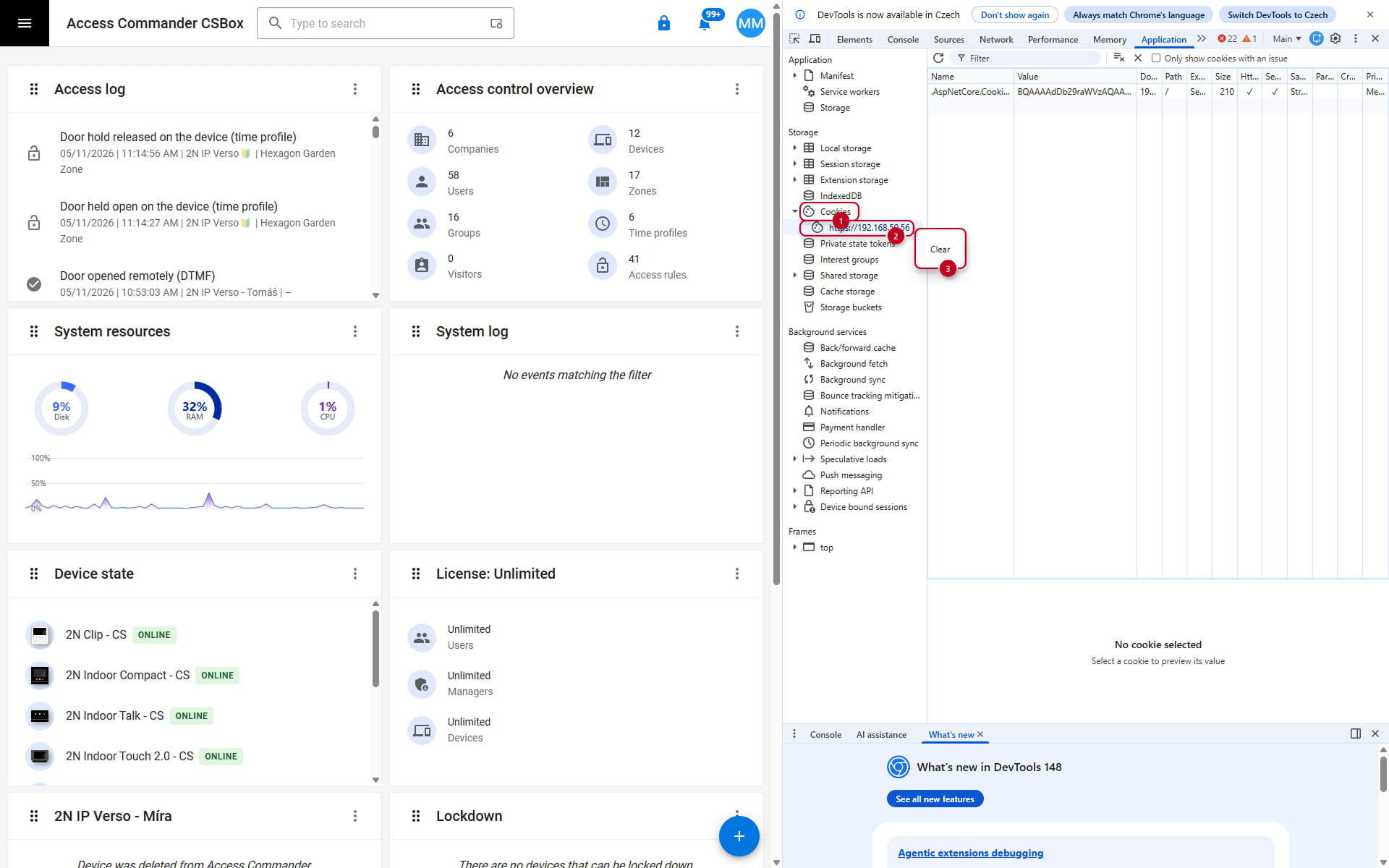
Now reload the page by clicking on the Reload button next to the address line or by pressing Ctrl+R.
Mozilla Firefox
Settings
To clear cache and cookies in the Mozilla Firefox web browser, please follow the official guide from Mozilla.
https://support.mozilla.org/en-US/kb/clear-cookies-and-site-data-firefox
Dev console
Open the dev console by pressing F12 or right-clicking anywhere on the page and selecting "Inspect".
Navigate to the "Storage" tab, expand the storage types (Cookies, Local Storage, etc.), and right-click the host and choose "Delete All".
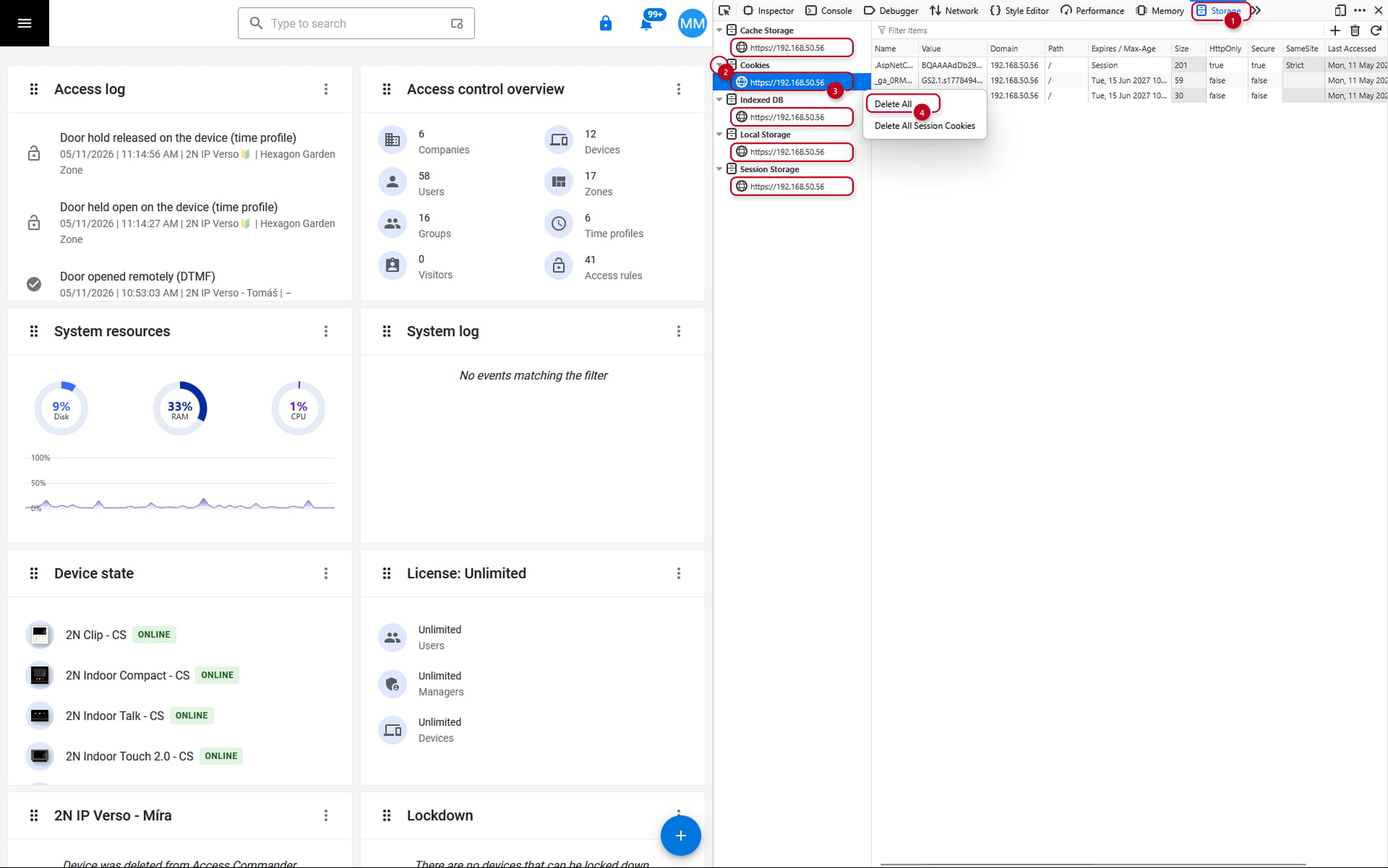
Now reload the page by clicking on the Reload button next to the address line or by pressing Ctrl+R.
Microsoft Edge
Settings
To clear cache and cookies in the Microsoft Edge web browser, please follow the official guide from Microsoft.
Dev console
Open the dev console by pressing Ctrl+Shift+J or right-clicking anywhere on the page and selecting "Inspect".
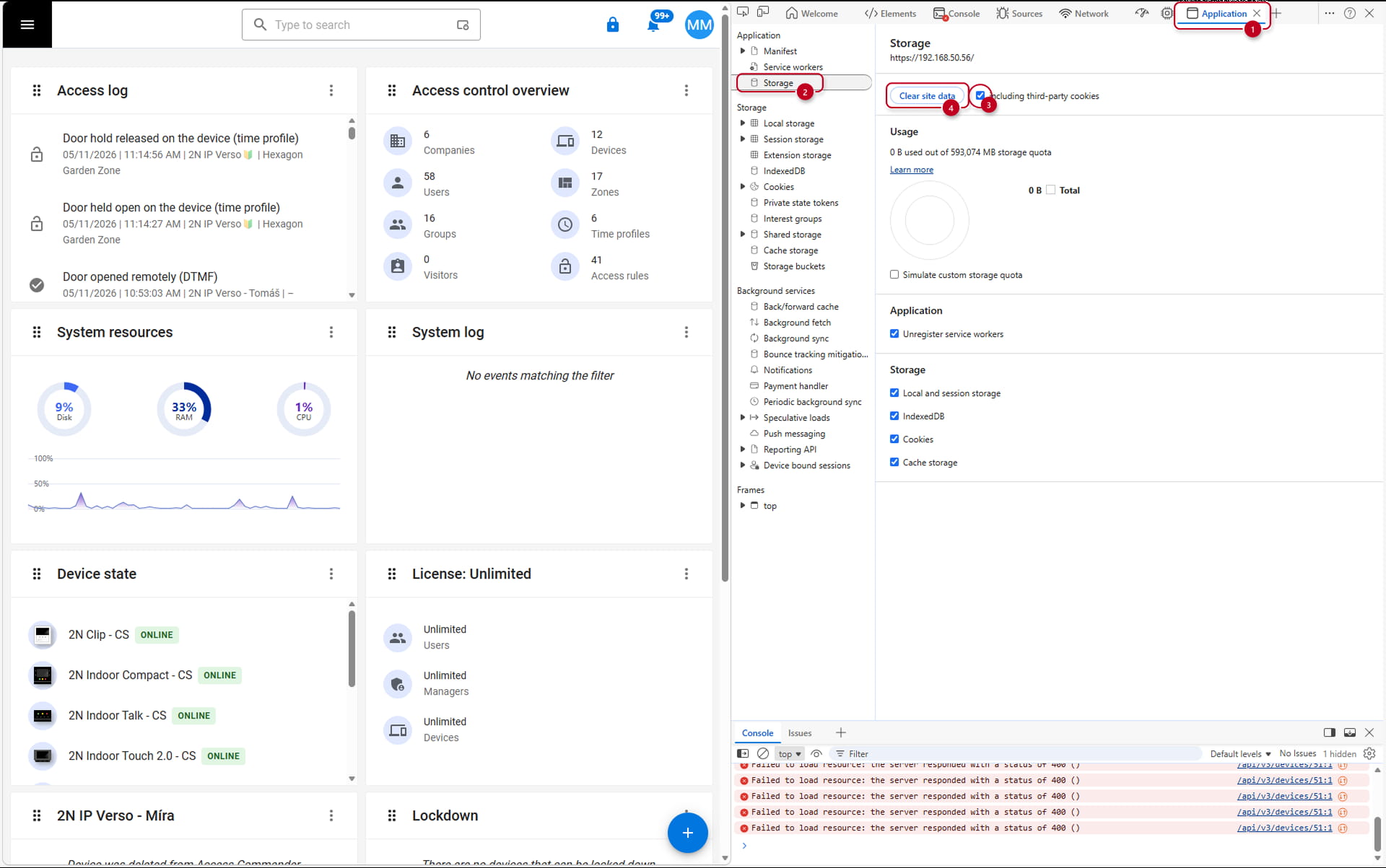
In the dev console, go to "Application -> Storage" section, confirm the "including third-party cookies" option and click on the "Clear site data" button.
Then show all options of the "Cookies" section and click on the "Clear" option after right-clicking on the page.
The page should be the IP address of the 2N Access Commander.
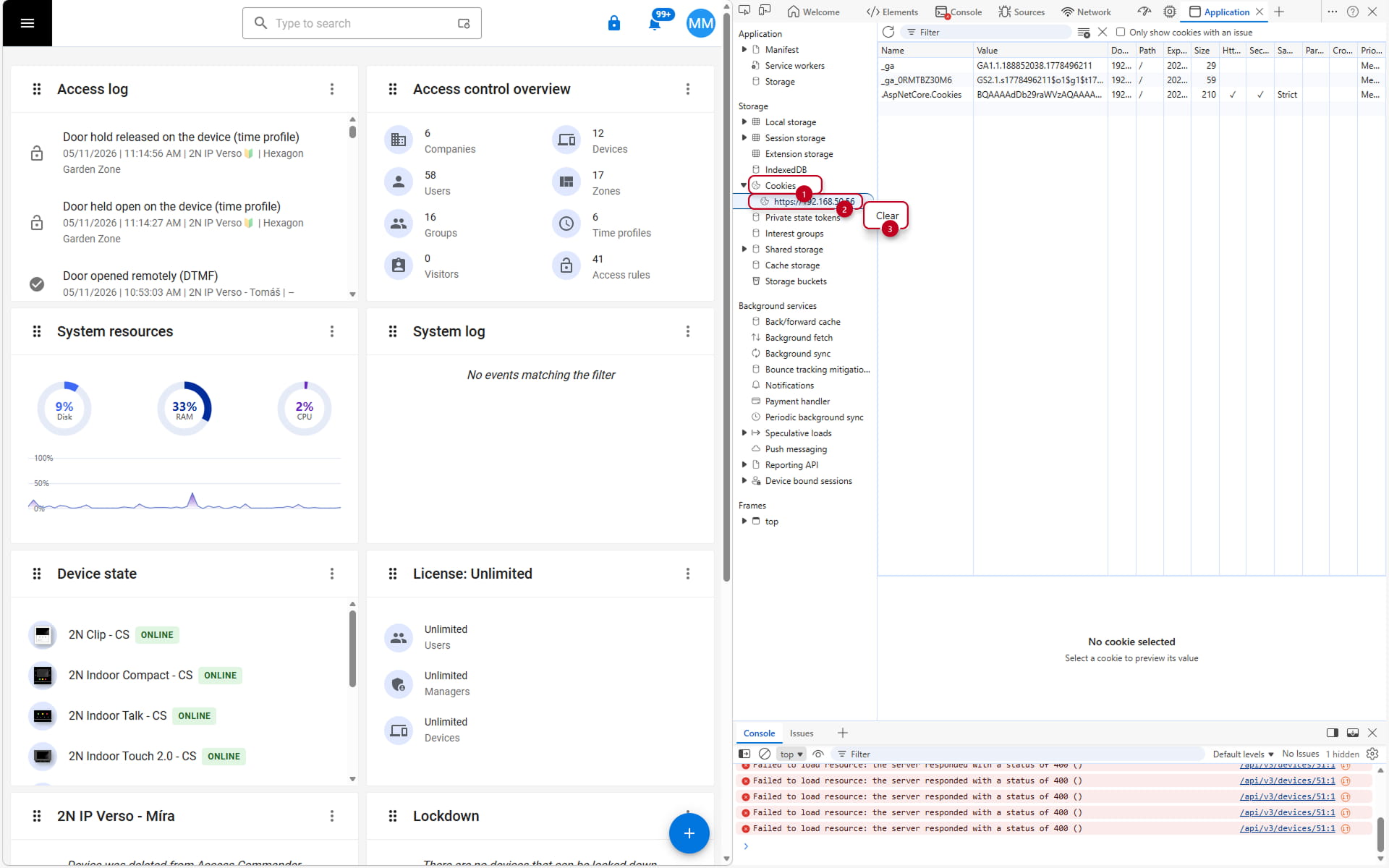
Now reload the page by clicking on the Reload button next to the address line or by pressing Ctrl+R.