To reset to factory values, follow the instructions below:
For 2N Access Unit please see RESET button and LED position below:
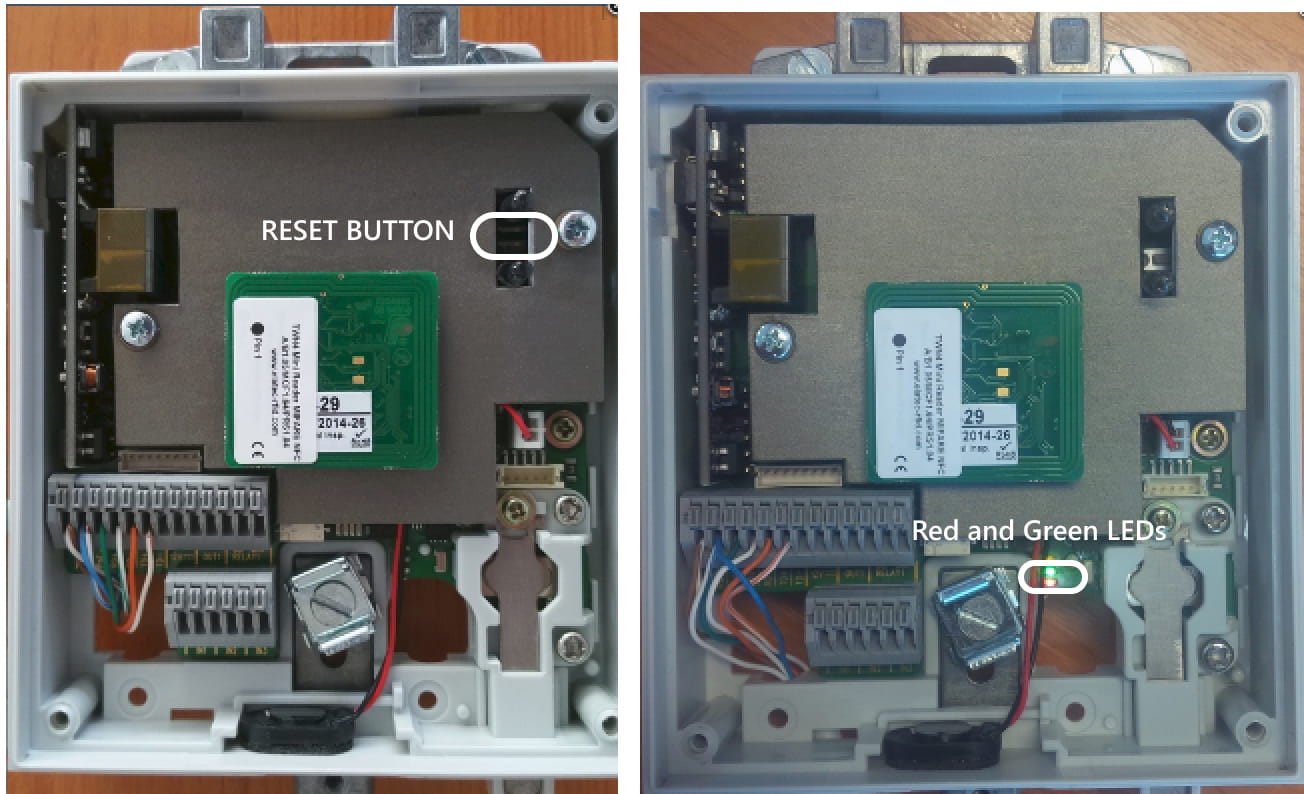
For 2N Access Unit 2.0 please see RESET button and LED position below:
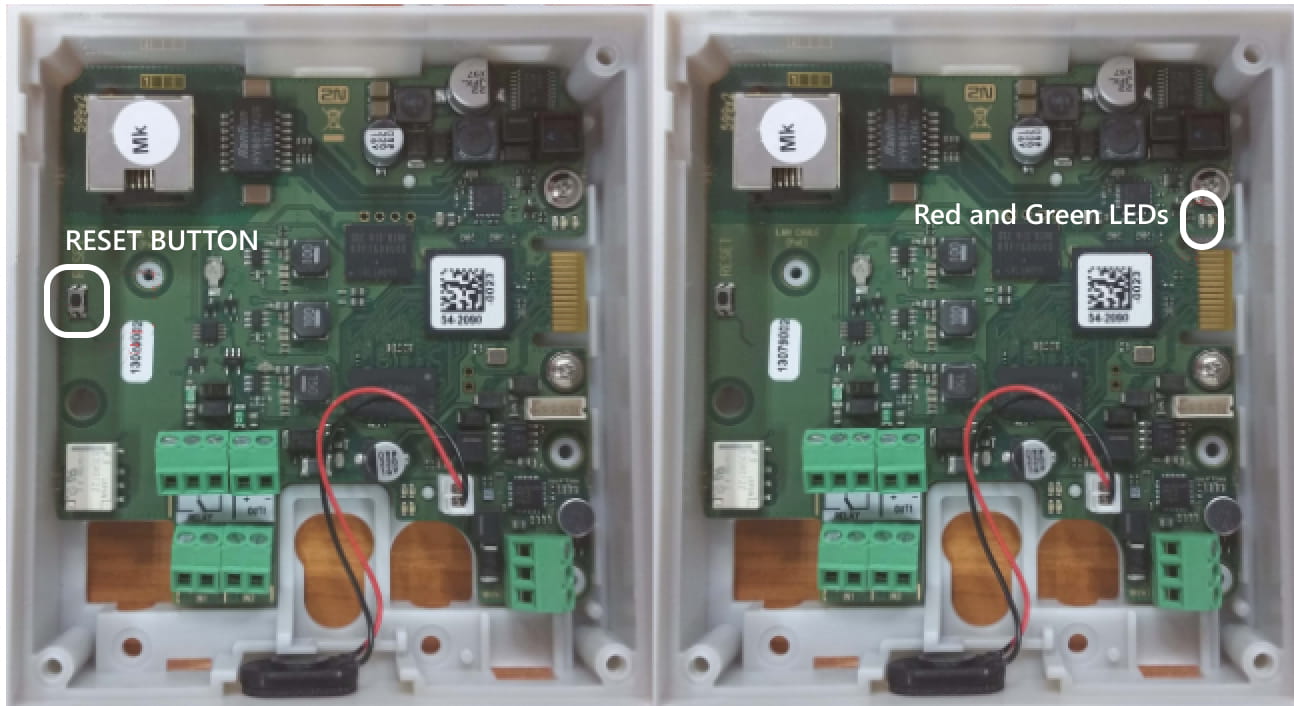
For 2N Access Unit M please see RESET button and LED position below:

To reset to factory values, follow the instructions below:
-
Press the RESET button.
-
Wait until the red and green LEDs in the right-hand bottom part of the motherboard shine simultaneously (approx. 20 s).
-
Wait until the red LED goes off (approx. 5 s).
-
Wait until the green LED goes off and the red LED comes on again (another 5 s).
-
Wait until the red LED goes off (approx. 5 s).
-
Release the RESET button.

Hold RESET button
|
This procedure can be applied to:
|
2N Access Unit QR
Located among the main unit connectors, the CONTROL button helps you reset the factory default values.

Follow the instructions below to reset the factory default values:
- Disconnect the device from the power supply.
- Press and hold the CONTROL button.
- Connect the device to the power supply.
- Keep holding the button for a few seconds and then release it.