CONFIGURATION
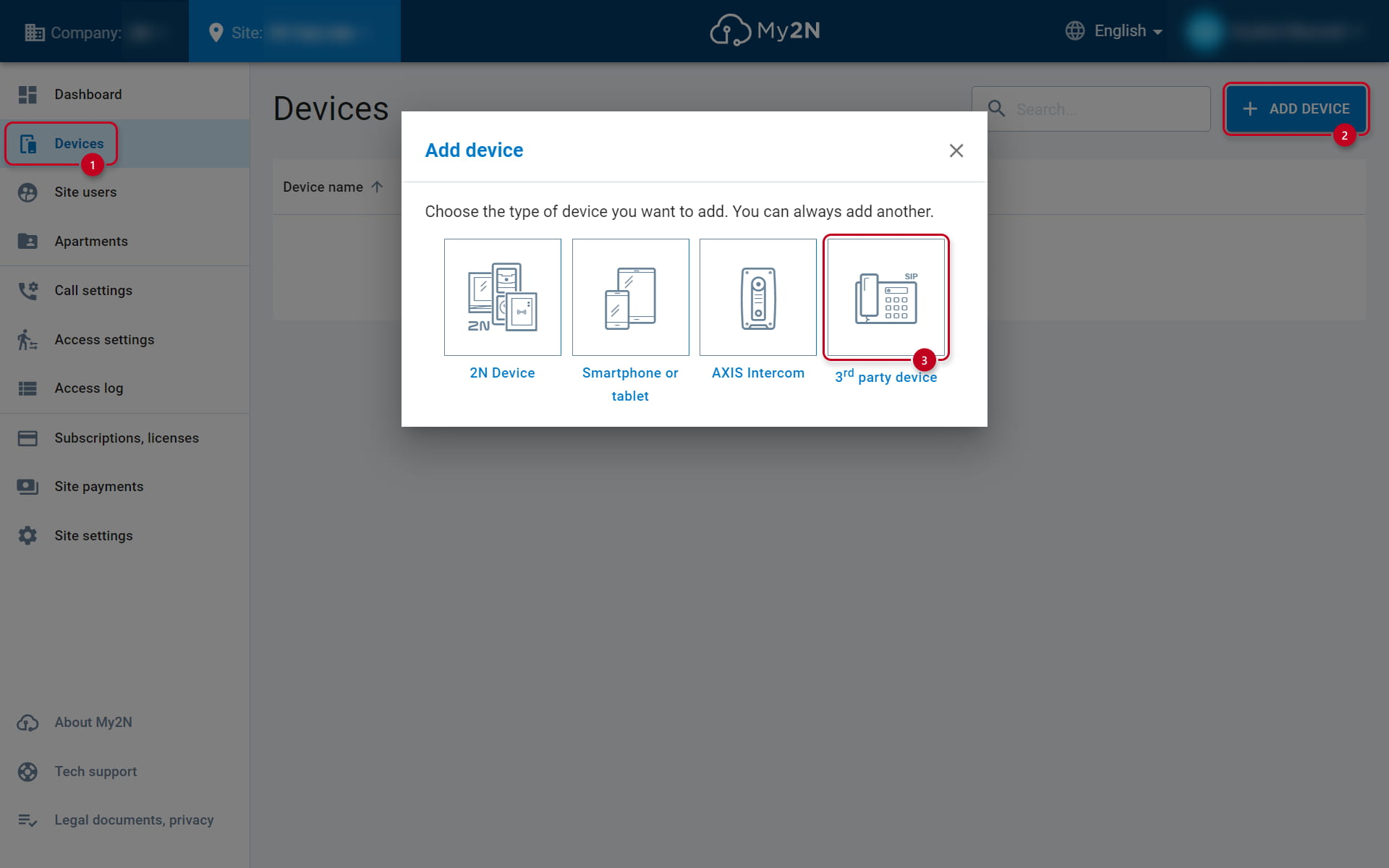
We add 2N IP Handset within the My2N account (how to create a My2N account as a 3rd-party device
Info
As it is not a standard intercom or 2N answering unit, the device can only be added to My2N as a "3rd-party" device, and its use by the 2N Mobile Video cloud service is thus charged.
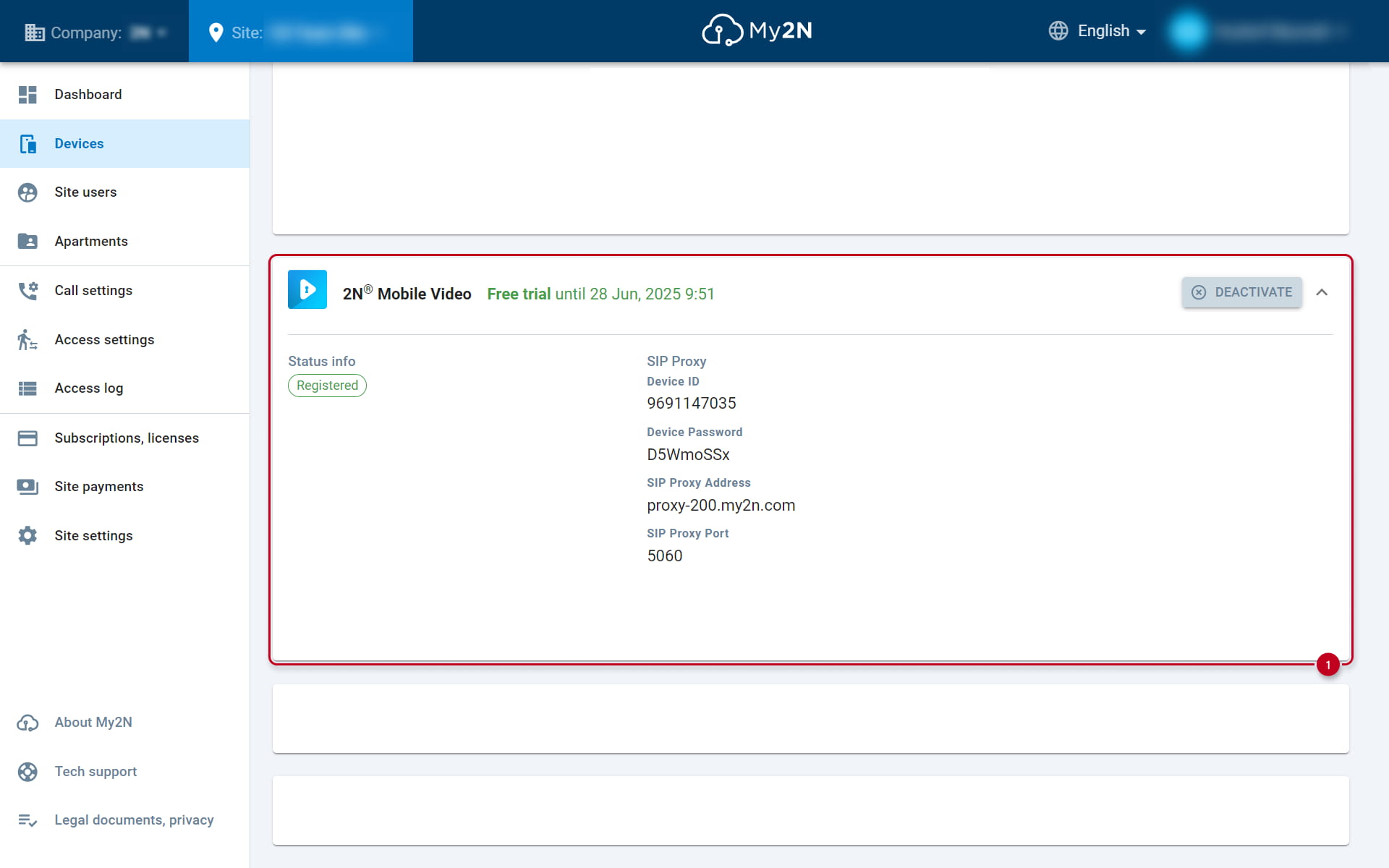
In the detail of the My2N device you will then have SIP registration data for entering into the web interface of the 2N IP Handset device.
-
In the web interface of the 2N IP Handset device go to the Line section and you will immediately get to the SIP tab, where you fill in (see the picture below) in the category
Register Settings:
Username - number given by the PBX (9691147035 in the example below)
Authenticate User - ID used for authentication against the proxy (same as username with My2N)
Authentication password - password provided by the proxy
SIP Server 1:
Server Address - proxy server address (proxy-200.my2n.com in the example)
Server Port is 5060 and transport protocol TCP.

-
At the top right check the Activate box under the Register settings and click Apply at the bottom of the page to save the settings.
-
Line Staus will then show us whether the device is successfully registered - see the picture above (Registered).
-
The 2N IP Handset has two SIP accounts, and can thus be registered (and make or receive calls) simultaneously at two exchanges - switchable at the top next tothe Line parameter.
CALLING
In the Value field we fill in the contact of the called party given by that PBX (e.g. 9691143791) and select the given SIP account in the Line field, which we registered to the PBX - see the picture below:

Info
SIP account, which will be used for the call can't be chosen directly on the device.