Web interface - short trace, just few calls
The internal trace can be run via menu Utils -> Report capture. Check in Gateway -> Gateway configuration -> Report configuration that all fields are enabled.
Online view for the internal trace is shown in menu Gateway -> Gateway control -> Online report.
Telnet client - long trace, "unlimited"
The web interface can store up to 512kB long trace. Telnet client allows to use your computer as a storage for a longer trace.
Bellow you can find instructions for application Putty. You can also use other telnet capable applications.
Putty (www.putty.org)
-
Download and run Putty.
-
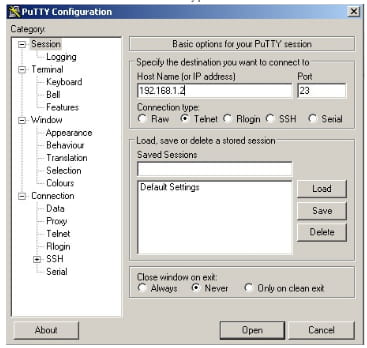
Choose Telnet in Connection type and fill in 2N BRI Lite / 2N BRI Enterprise's IP address.
-
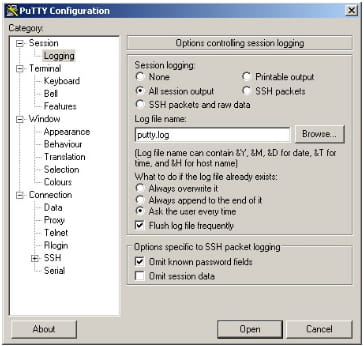
In Menu Session -> Logging, select Session logging: All session output and choose a file where the trace capture will be saved to.
-
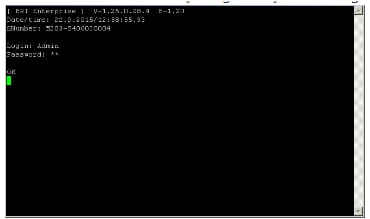
Establish connection with your gateway and fill login.
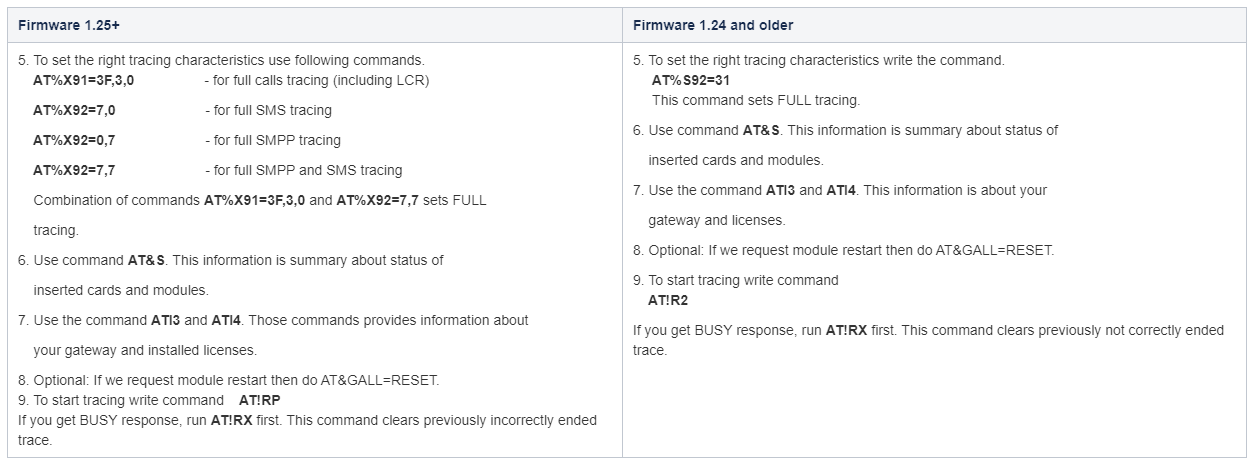
10. Now you can make test calls and other needed tests.
11. Pack the created trace file and send it to us via email with following information:
-
the description of numbers you tried to dial / send sms to
-
reported issues
-
desired scenario details (what do you need to achieve - such as routing specific numbers to different modules/SIM cards, etc...).
In BRI Configuration tool (for older M114 and M115 CPU)
Connect with BRI configuration tool to the gateway (over serial communication or LAN)
Go to Gateway control -> Tracing
Set details of the tracing:
-
select all check boxes (it will set the level of trace)
-
select tracing: FULL tracing
-
choose Layers 2,3,4
Click on the button choosing (creating) the file to which the trace will be saved
Click the button Start. When trace is done, press Stop and text of the trace will be saved in file which you set above.