The steps in this article require using the web interface of a 2N device. Please follow this manual in case this is your first time using the web interface.
Directory setup
This quick guide will show you how to configure your 2N IP Style’s user directory and the ways you can adjust to make it your own.
|
pre-production firmware used The firmware used to create this guide was a pre-production beta version of 2.32 for 2N IP Style. Some text in the attached screenshots may not be finished or correct. |
User creation
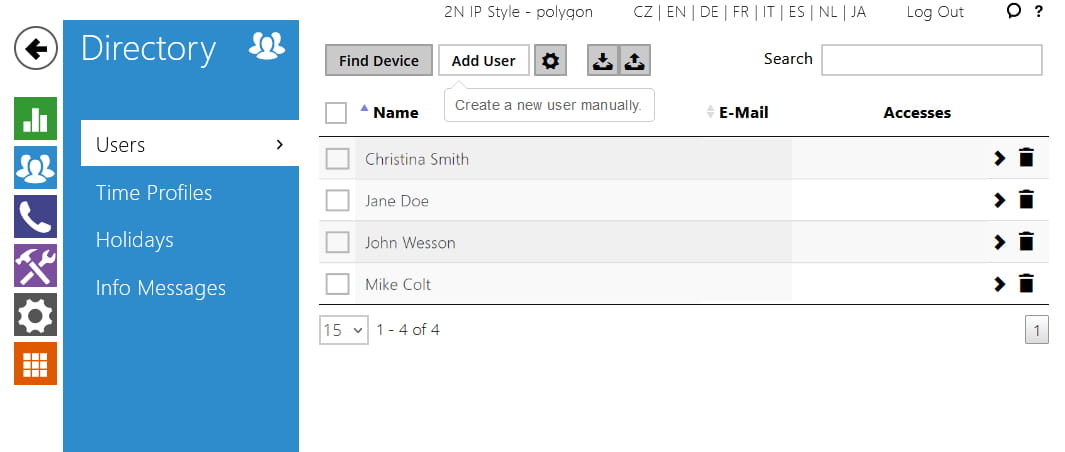
Create a new user or edit an existing one.
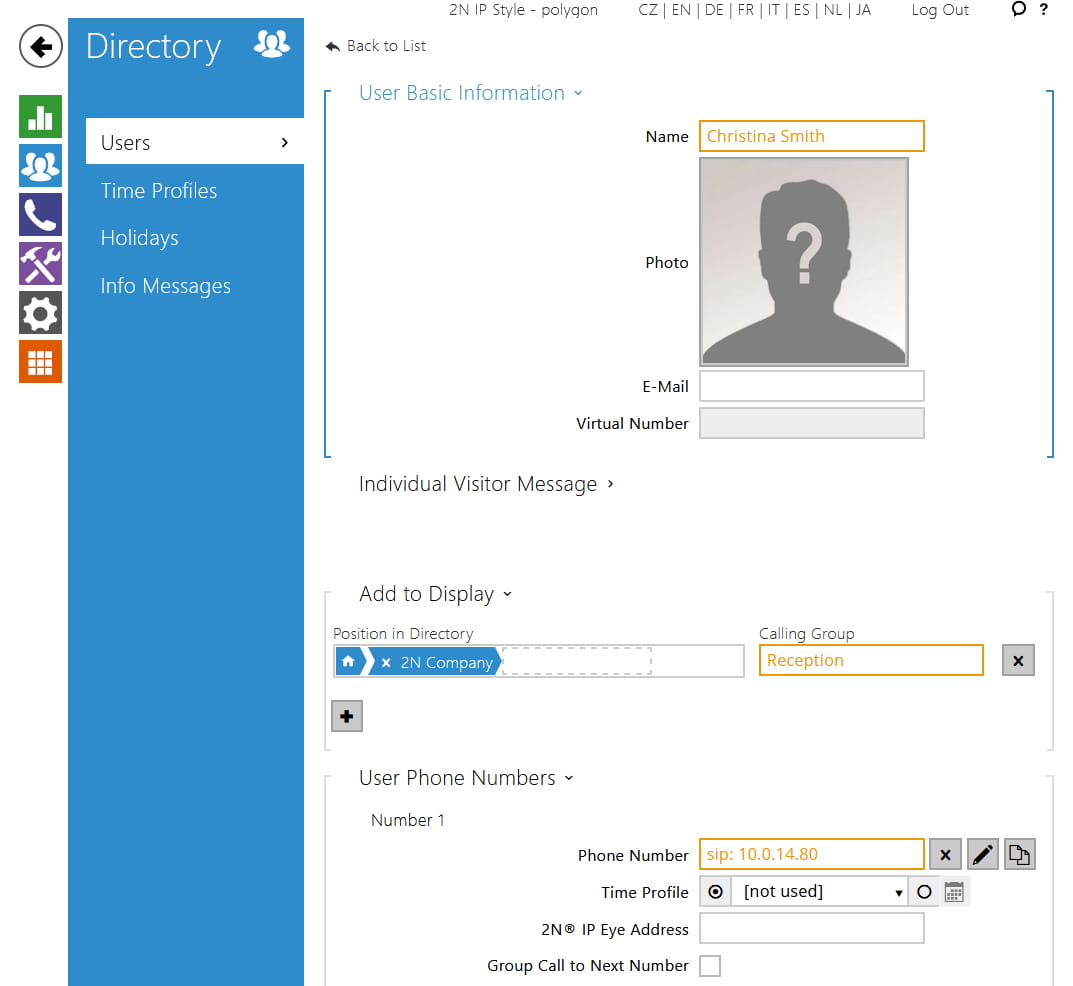
User information
Fill in a name and a phone number in any of the supported syntaxes. Populate the remaining fields as necessary. Users with phone numbers are automatically added to the display, but you may also put them into one or more folders, e.g. Company/Department etc. Optionally, you may also give them an alias by placing them inside a Calling group which may contain multiple users – this may be useful for places like Reception where you need to reach multiple people at once.
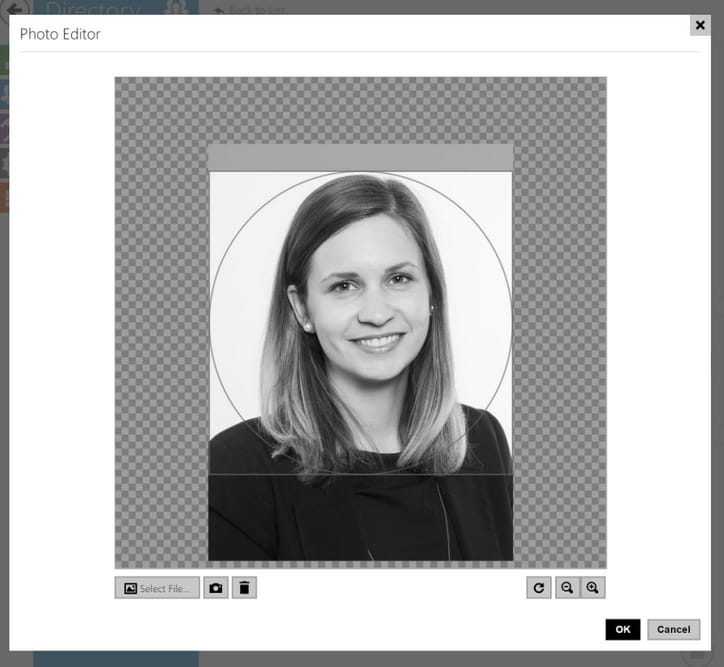
User photo
With 2N IP Style, each user can have a large photo assigned to them. Click the Photo icon to enter the photo editor. From here you can upload an image via Select File… make sure the picture is in JPEG or PNG format and at least 432×432px. Scale it so that it fits inside the circle and fills the whole square.
Should you fail to comply to this, the image might get cropped or moved unexpectedly. Click OK, the photo will be resized and saved into the device.
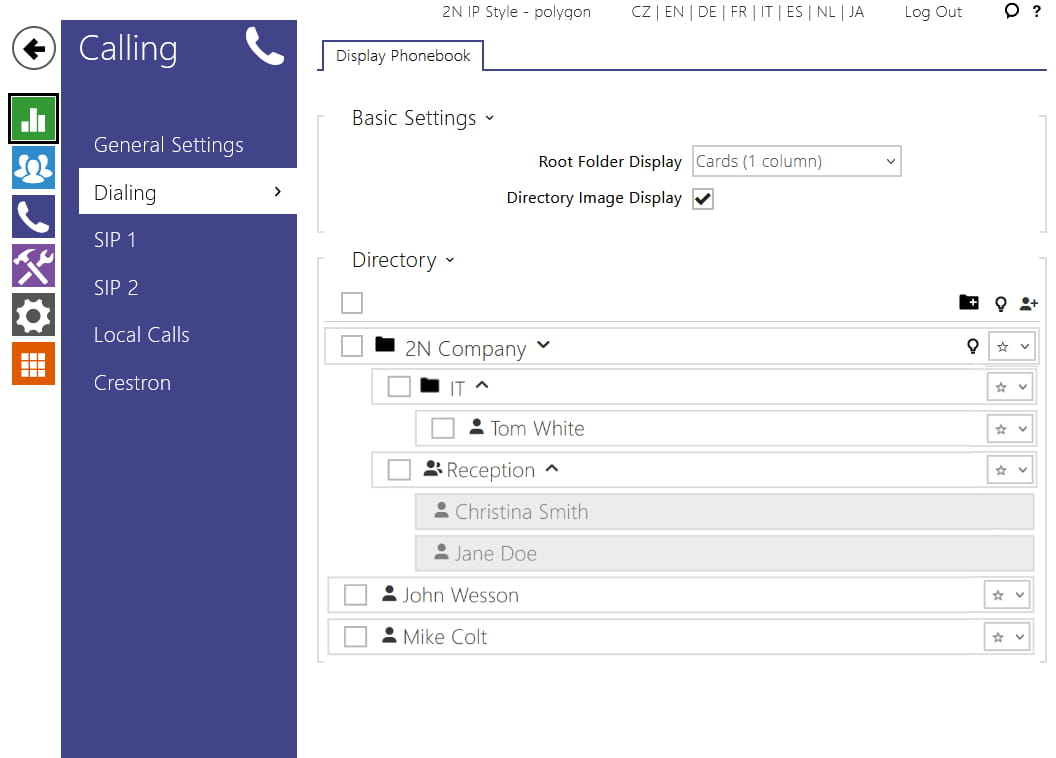
Directory structure
This is directory structure overview. You can move, delete, and prioritize items by clicking the respective icons.
Folder icon
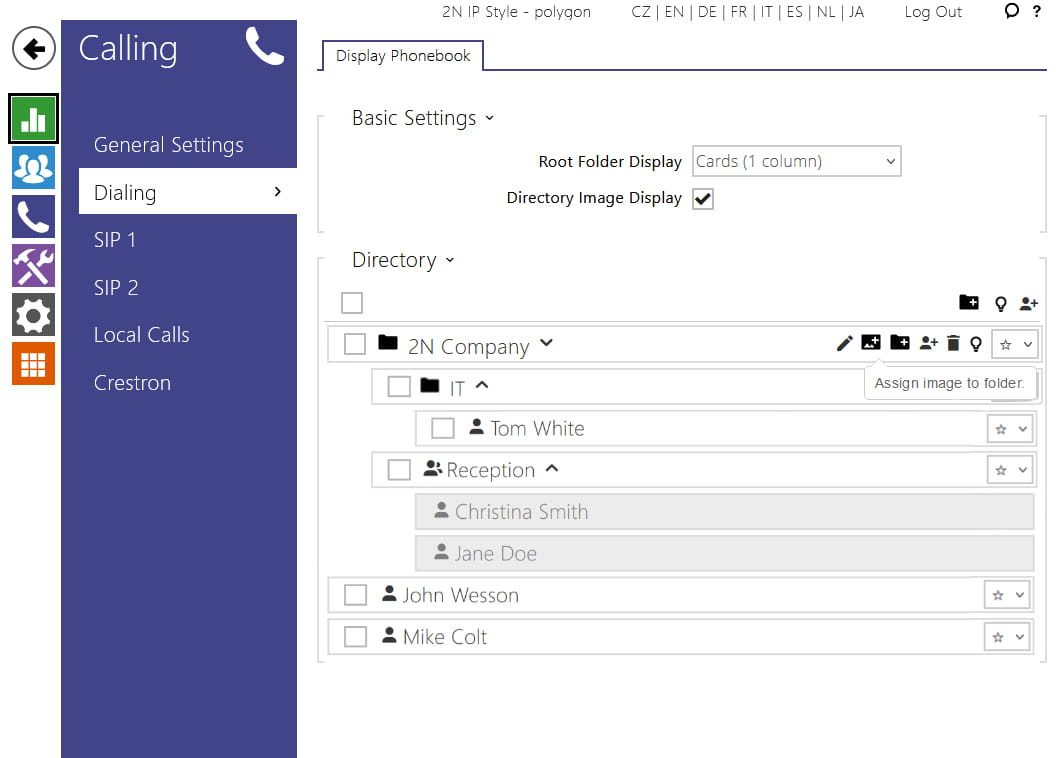
You may also assign images or logos to folders via Assign image to folder.
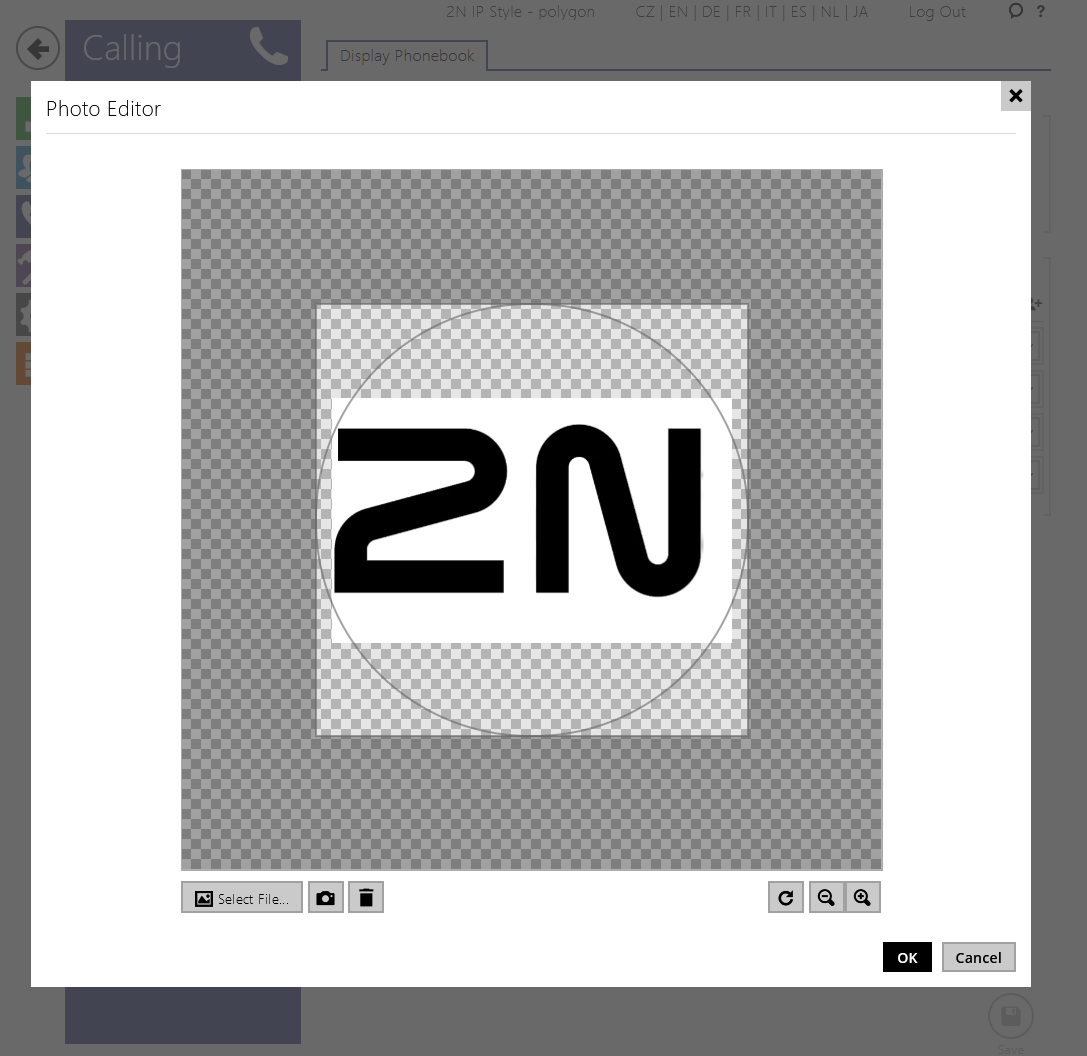
The photo editor will open, and you may adjust the image to fit the circle and fill the square with its background, if there’s one.
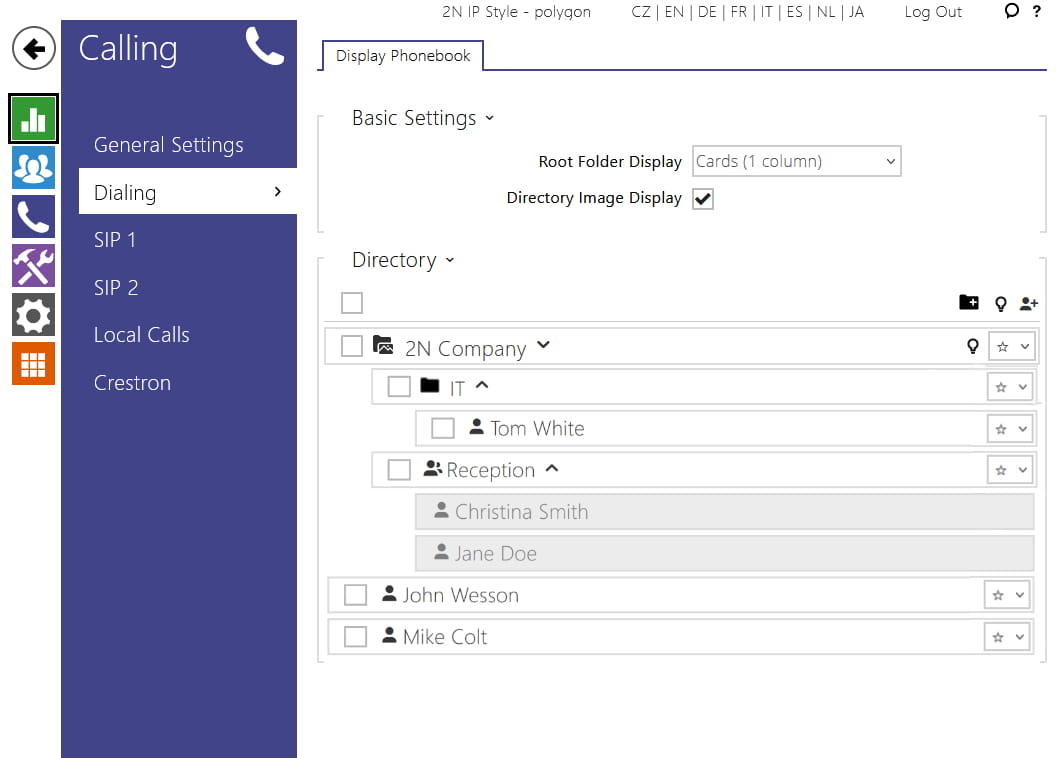
Once you click OK, the image is assigned to the folder and its thumbnail changes to indicate there’s a custom icon.
Directory layout
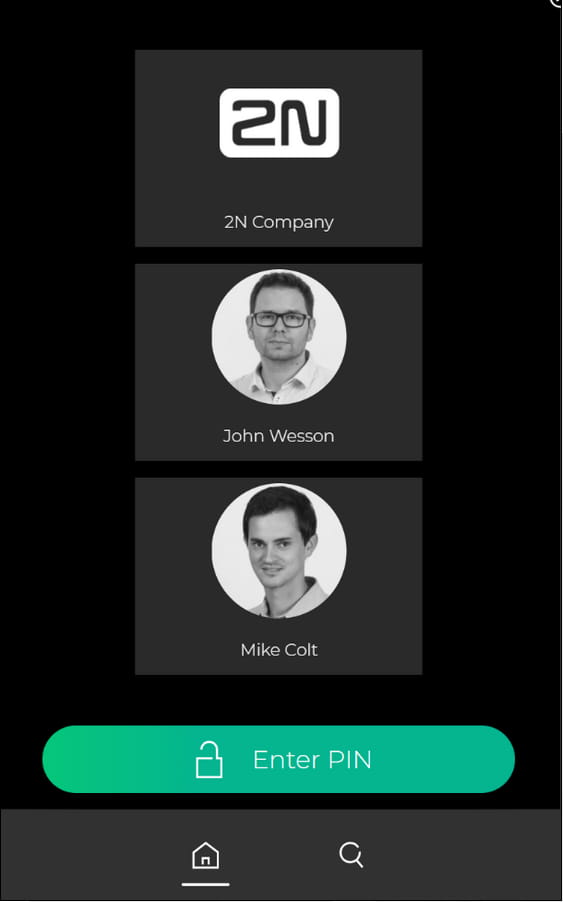
There are two layouts to choose from, the default one is Cards.

Cards
Cards provide large images or logos which may be useful for buildings hosting multiple companies.
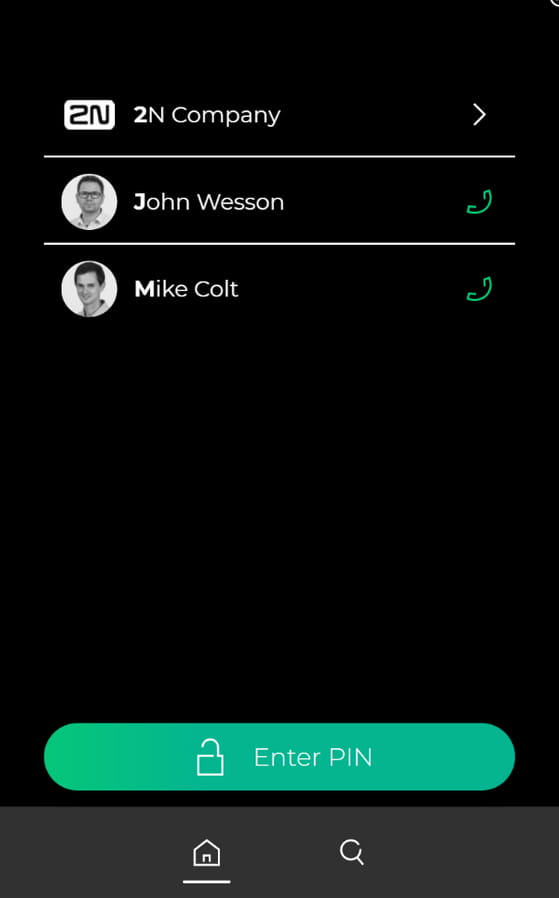
Phonebook
Phonebook is an alternative mode that allows you to fit more contacts to the display at once.
Last update
-
2024-09-27
Devices used
-
2N IP Style
Licenses required
-
none