Dashboard and widgets in 2N Access Commander
The steps in this article require using the web interface of a 2N device. Please follow this manual in case this is your first time using the web interface.ň
Since the version 2.0 2N Access Commander has a new Dashboard section, where you can add system widgets,
and monitor and control various elements within 2N Access Commander according to your own needs.
| Widget settings are unique for each 2N Access Commander administrator, and at the same time one widget can be added more than once, with different settings. |
- Overview of available widgets
- Adding widget onto the Dashboard
- Moving a widget within Dashboard
- Removing widget
- Widget configuration
- Widget "Device State", "Access Logs" and "System Logs"
- Widget "Door"
- Widget "Lockdown"
- Widget "Occupancy"
Overview of available widgets
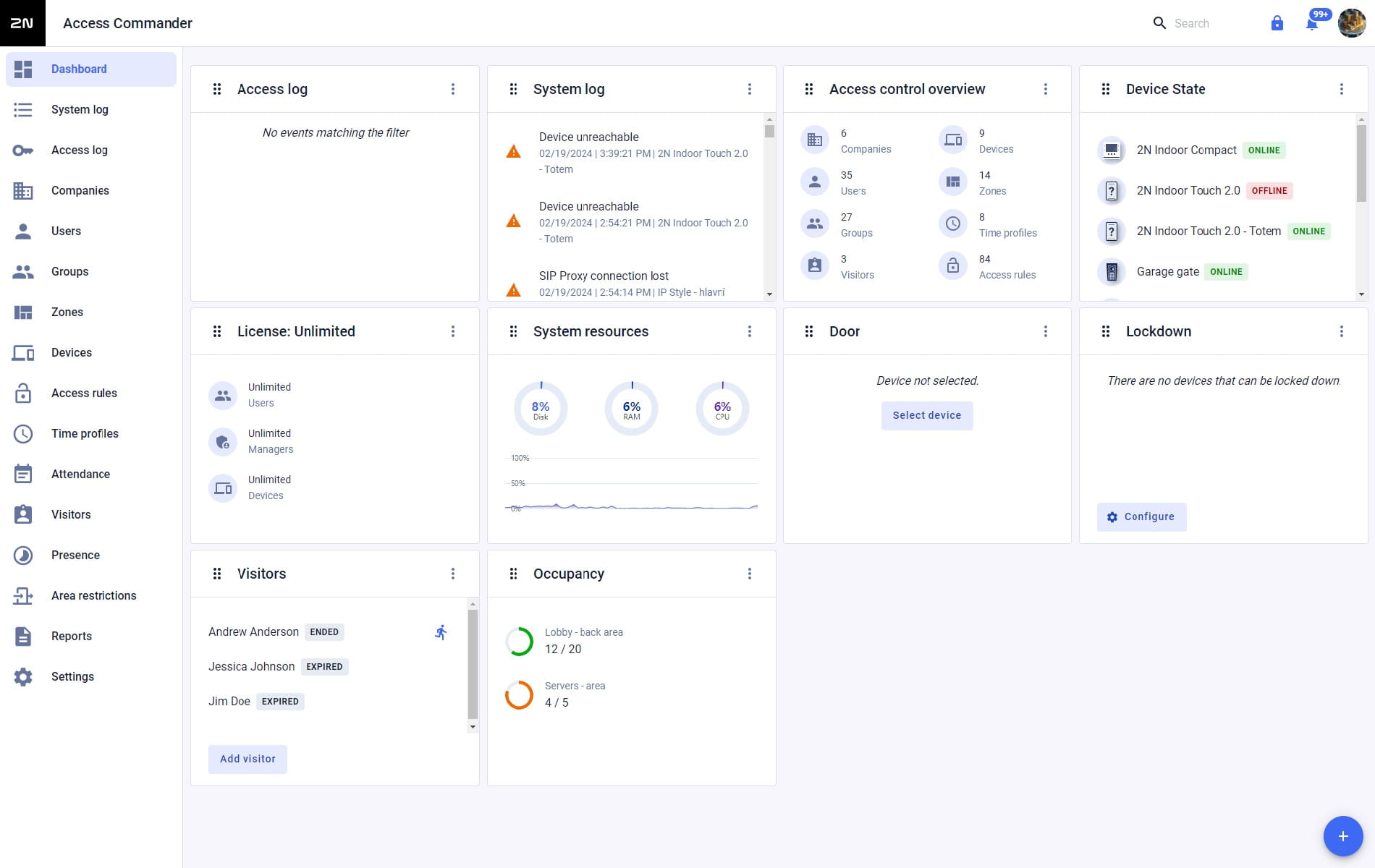
Adding widget onto the Dashboard
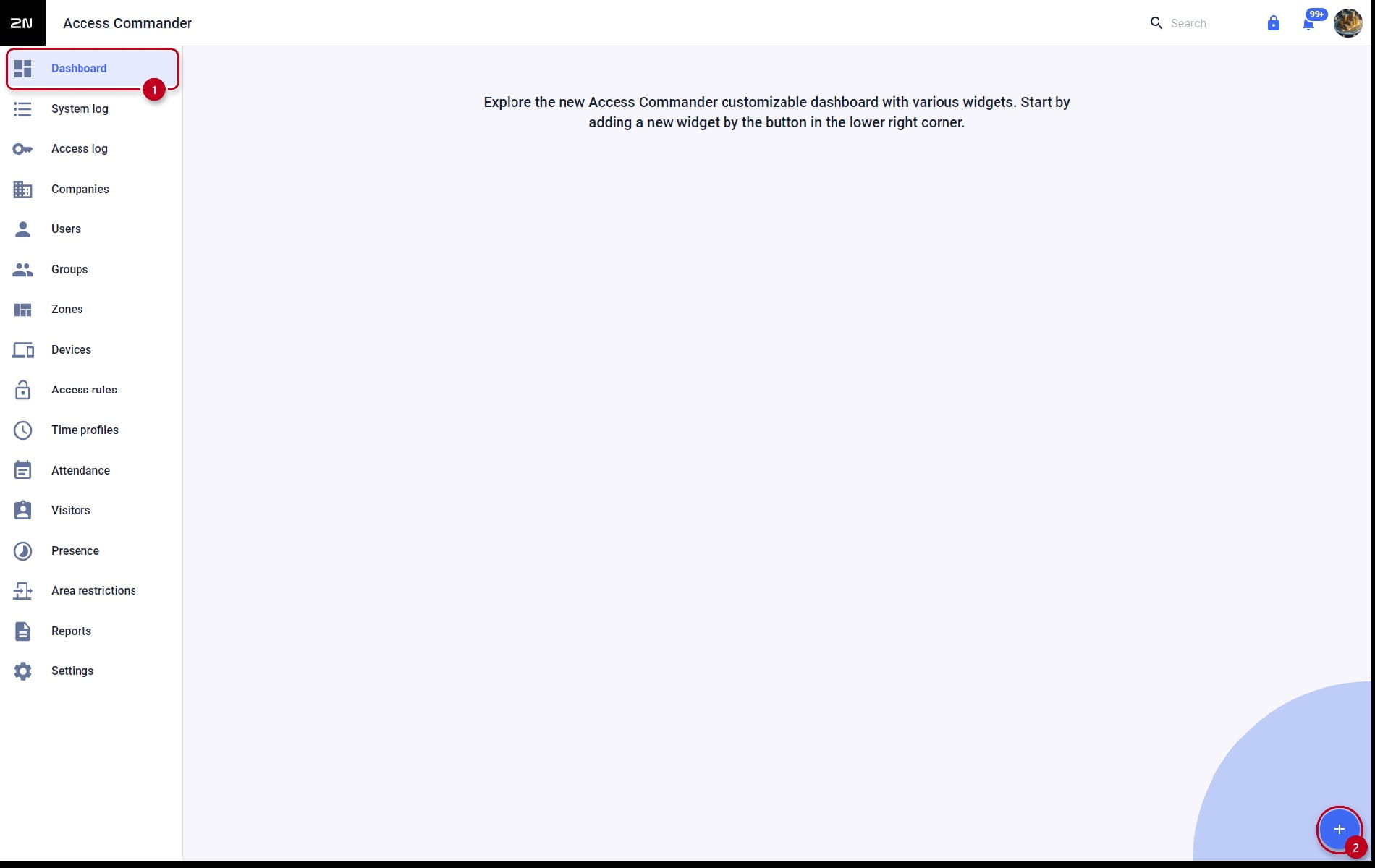
- In the menu on the left in the 2N Access Commander's web interface, the Dashboard section is located at the very top.
Click on the plus button at the bottom right and then add the selected widget to the dashboard:
Moving a widget within Dashboard
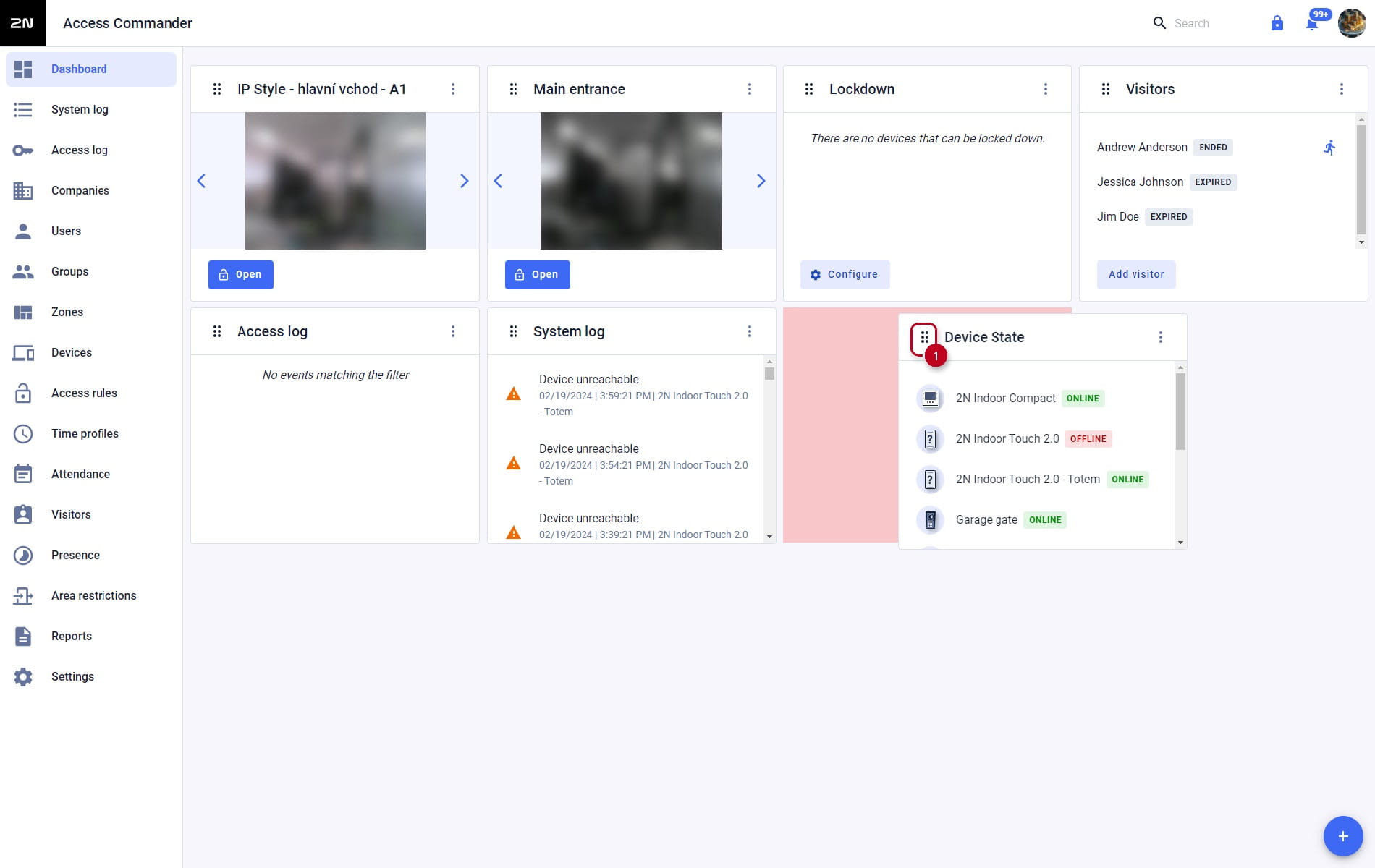
- To change the position of the widget, left-click on the symbol on the top left of the widget and simply drag it with the mouse:
Removing widget
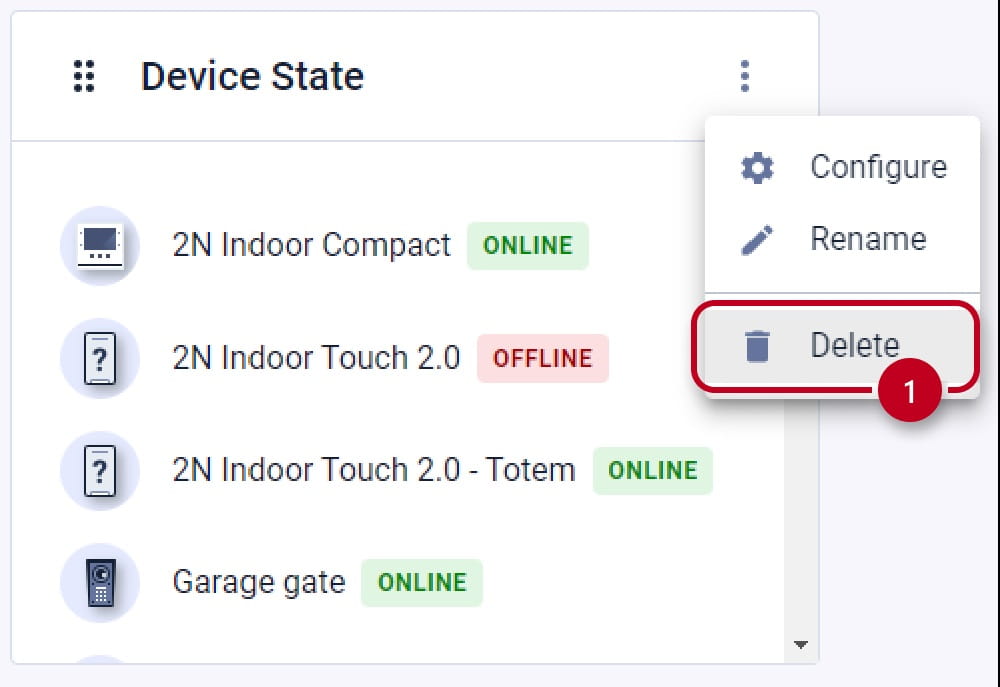
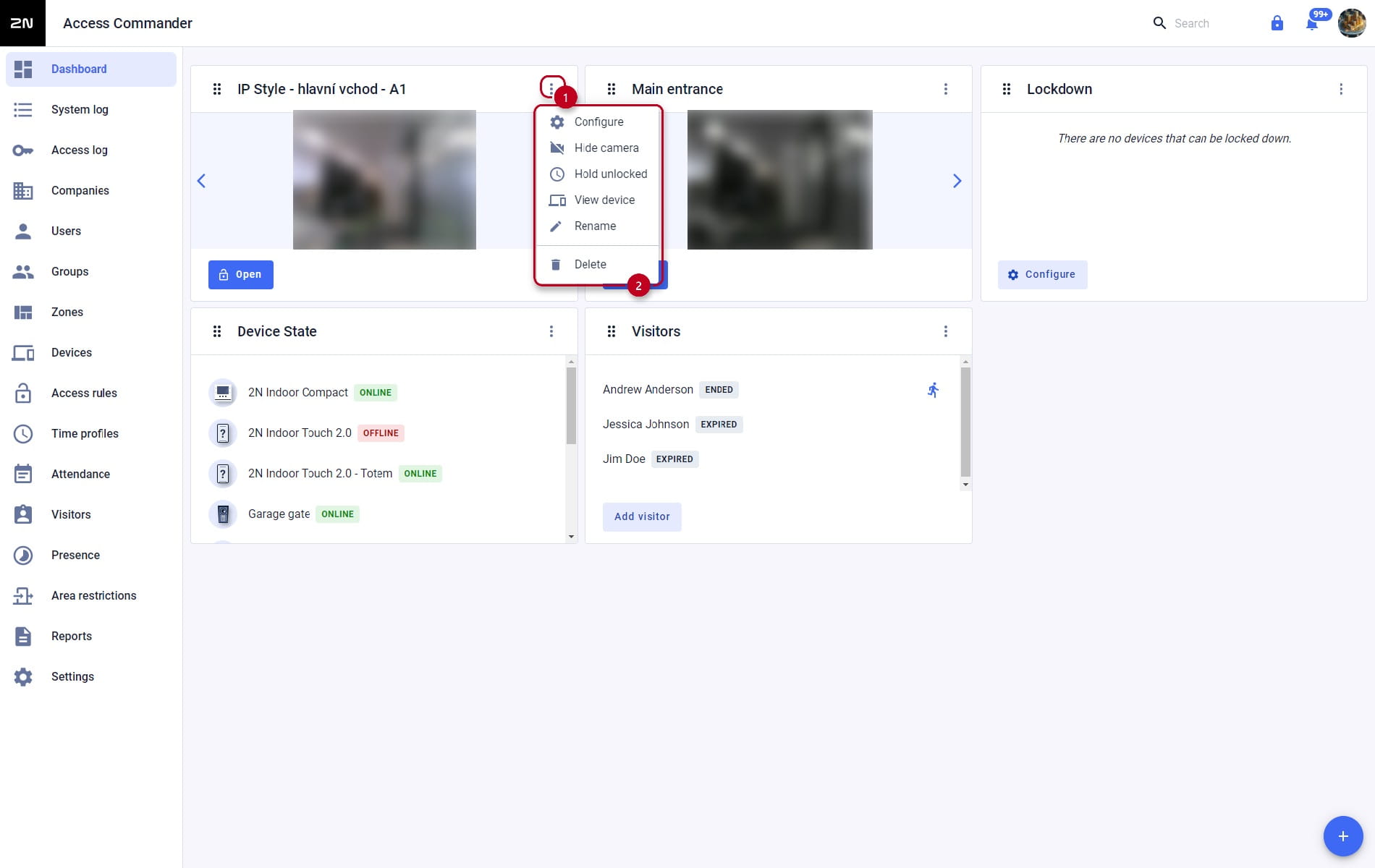
- Click on the menu next to the given widget at the top right and select the Delete option:
Widget configuration
- Click on the drop-down menu next to the given widget (top right) to display its options and settings,
where we can also filter what we see on the selected widget, or freely rename the widget itself:
Widget "Device State", "Access Logs" and "System Logs"
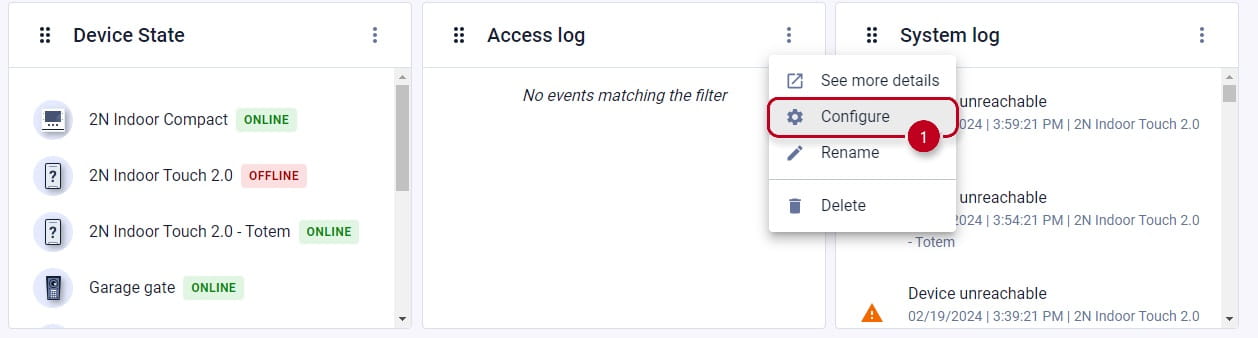
- In the drop-down menu they contain a filter (see the picture below), where we can select which events, or devices, will be displayed on the widget:
Widget "Door"
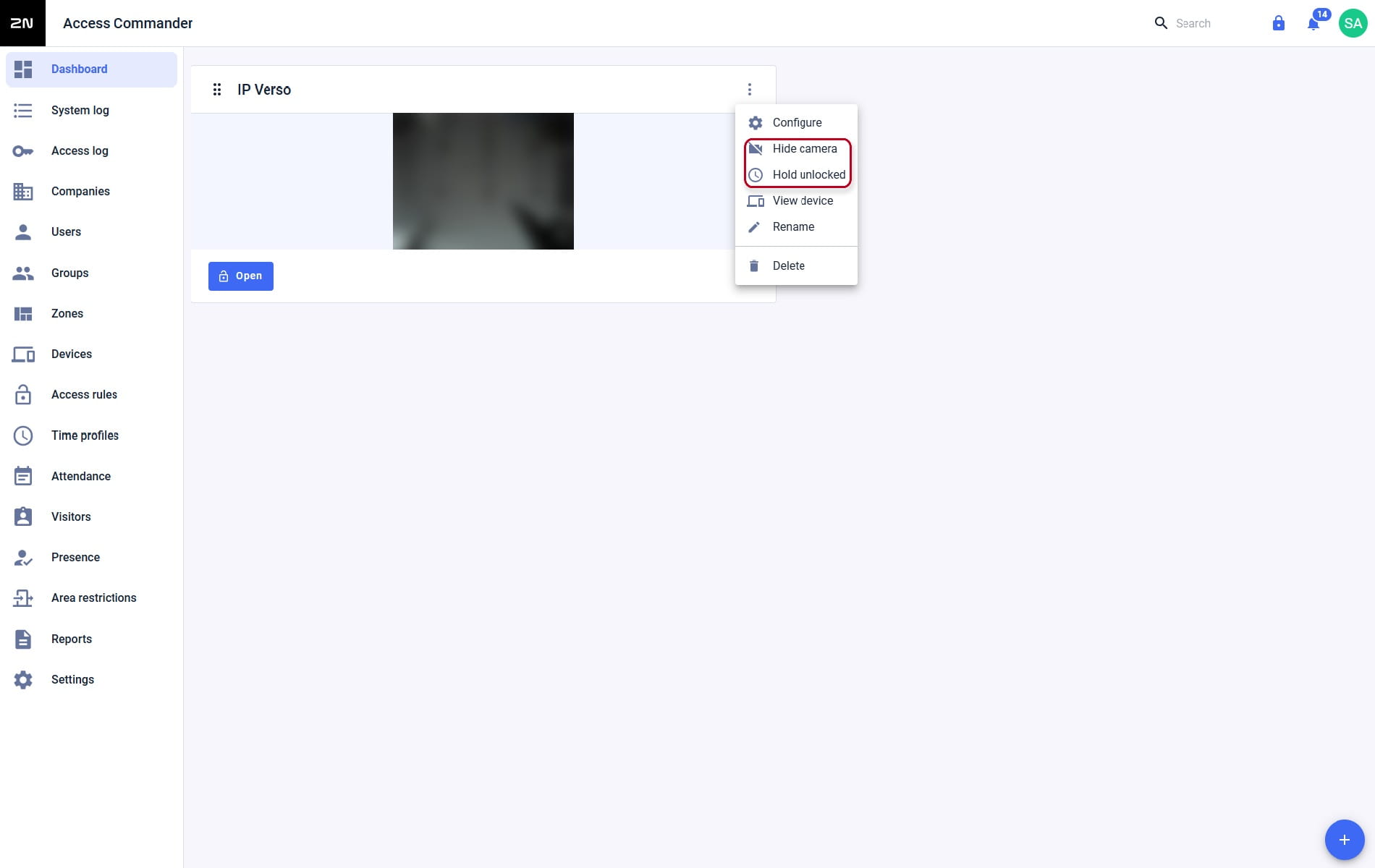
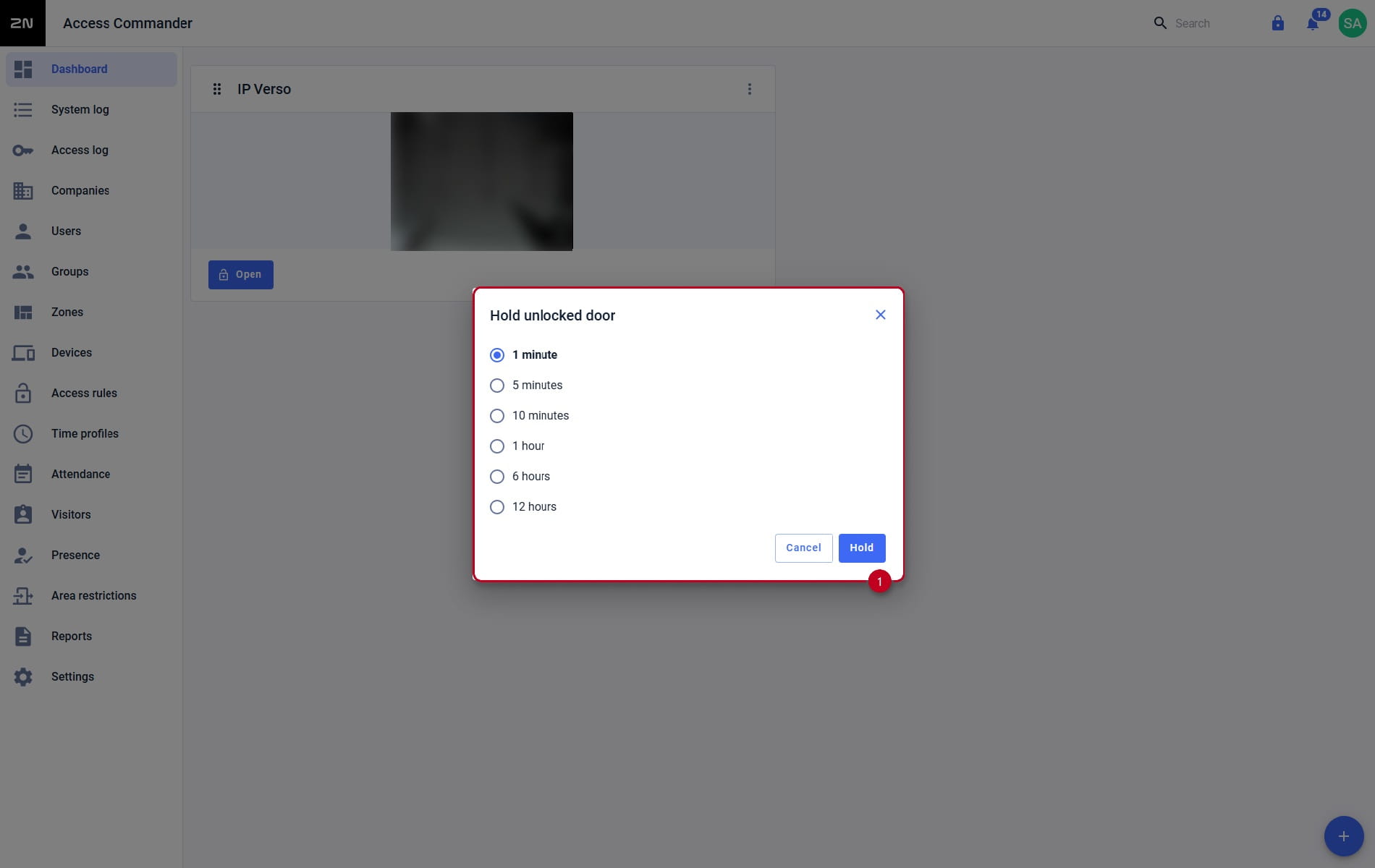
- With this widget - here (in the picture below) named IP Verso - we can also hold open the door for a different number of minutes (see picture below).
- In the displayed menu it is also possible to turn off the camera feed, switch to a possible external camera, go to the configuration of the given device (within 2N Access Commander) and use the Change device option to select another device for the widget.
- The door can also be opened directly (or the assigned switch) on the widget using the button at the bottom right :
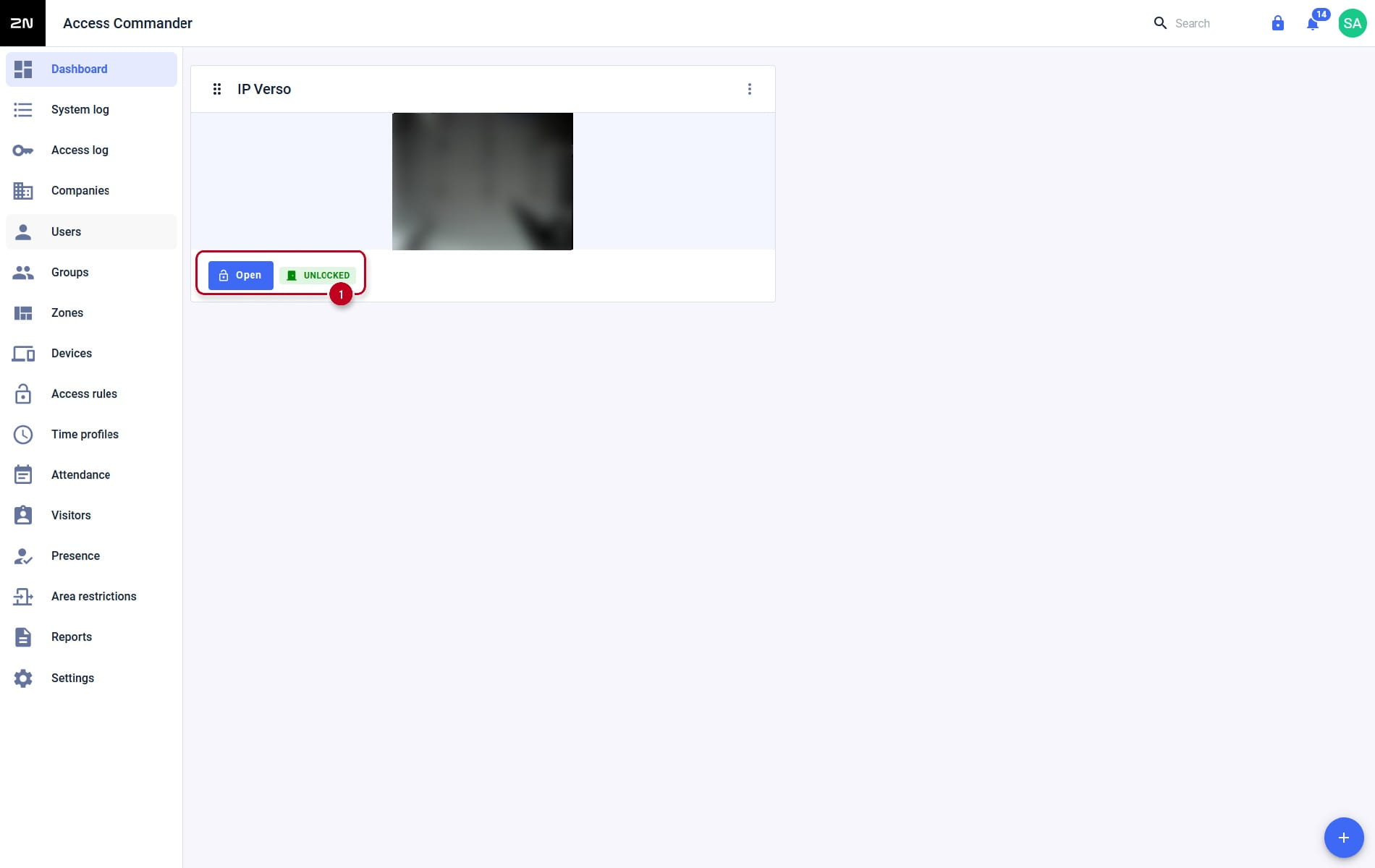
- After loading the Dashboard, it takes some second for the camera image to load (for saving reasons it is always reloaded).
Widget "Lockdown"
- Specified more in the relevant chapter of the following FAQ: Lockdown feature in 2N Access Commander
Widget "Occupancy"
- Specified more in the relevant chapter of the following FAQ: